If PowerPoint for Microsoft 365, PowerPoint 2024, 2021, 2019, or 2016 reports “Can’t read this file” or says the presentation cannot be opened, Microsoft says Microsoft 365 may have blocked the file for security reasons. On Windows 10 and Windows 11, check the file’s Properties for an Unblock option.
Only unblock a presentation from a trusted source. Windows can mark files downloaded from the internet or received through email and messaging apps with security information. Windows may use that information to show a warning, block the file from opening automatically, or apply additional protection in Microsoft Office.
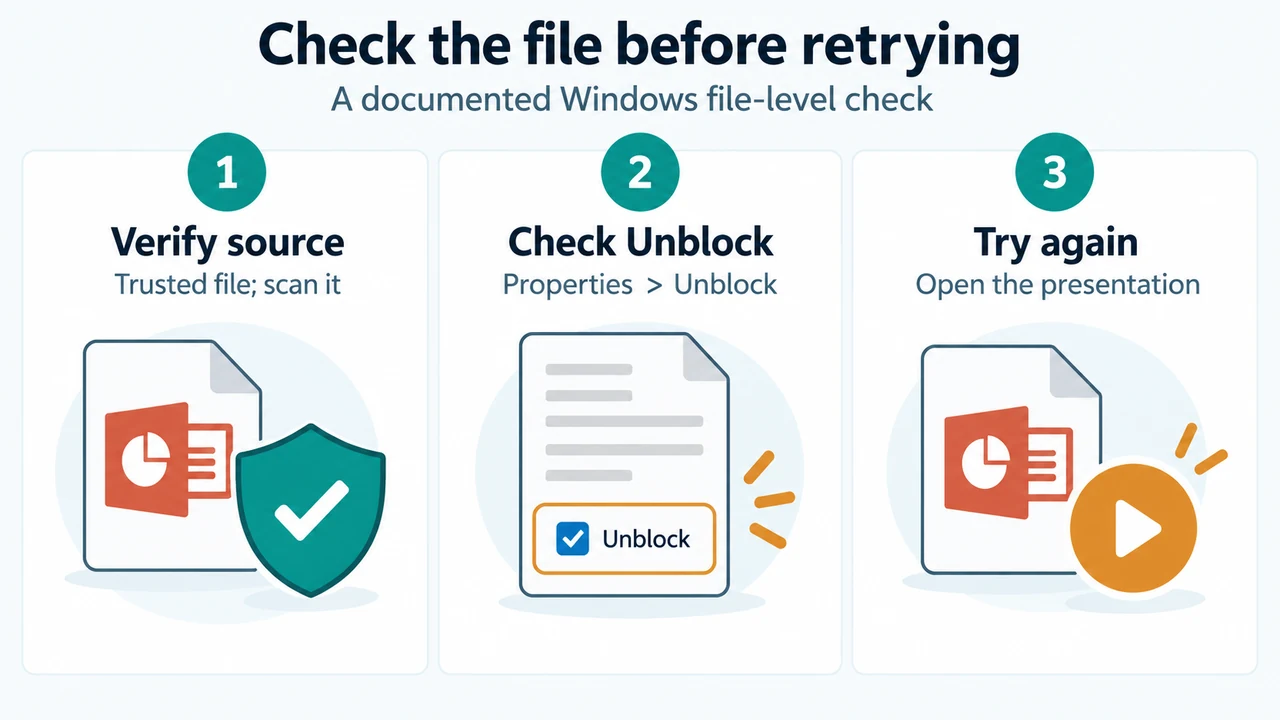
Verify the presentation before opening it
Confirm where the file came from. Do not open an unexpected attachment or a file from an unknown sender. Scan the file with Microsoft Defender Antivirus or your antivirus software, and make sure its file type matches what you expected to download.
Check the Windows Unblock option
- Open File Explorer.
- Locate the presentation that PowerPoint could not open.
- Right-click the file and select Properties.
- On the General tab, look near the bottom for a security message or an Unblock button.
- If the file is from a trusted source and the option is present, select Unblock, then select Apply and OK.
- In File Explorer, right-click the presentation and select Open to try it again.
Microsoft’s PowerPoint guidance documents this sequence for the “Can’t read file” and “Presentation cannot be opened” messages. Windows’ Attachment Manager guidance documents the same Properties-based check for a file marked as blocked.
If Unblock is missing or the error remains
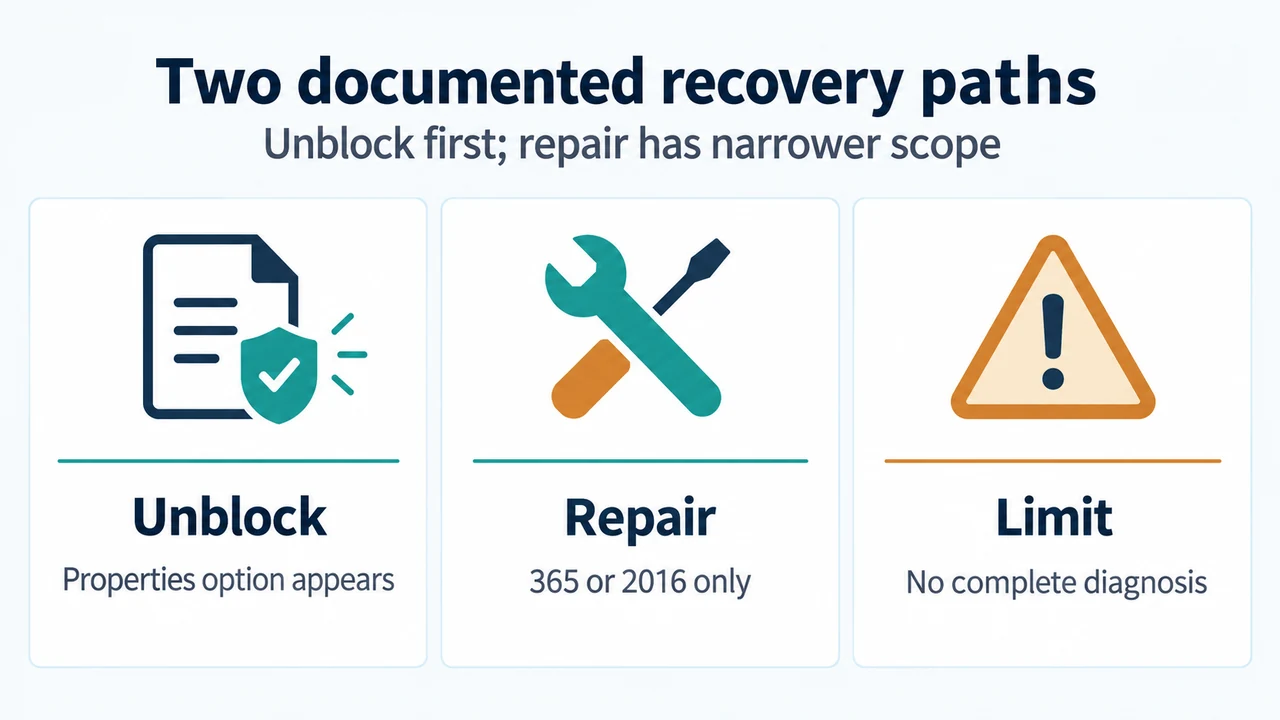
The supplied Microsoft instructions do not establish that every “Can’t read this file” error has the same cause. Do not assume that the presentation is repaired, corrupted, or safe solely because the Unblock option is absent or because the error continues.
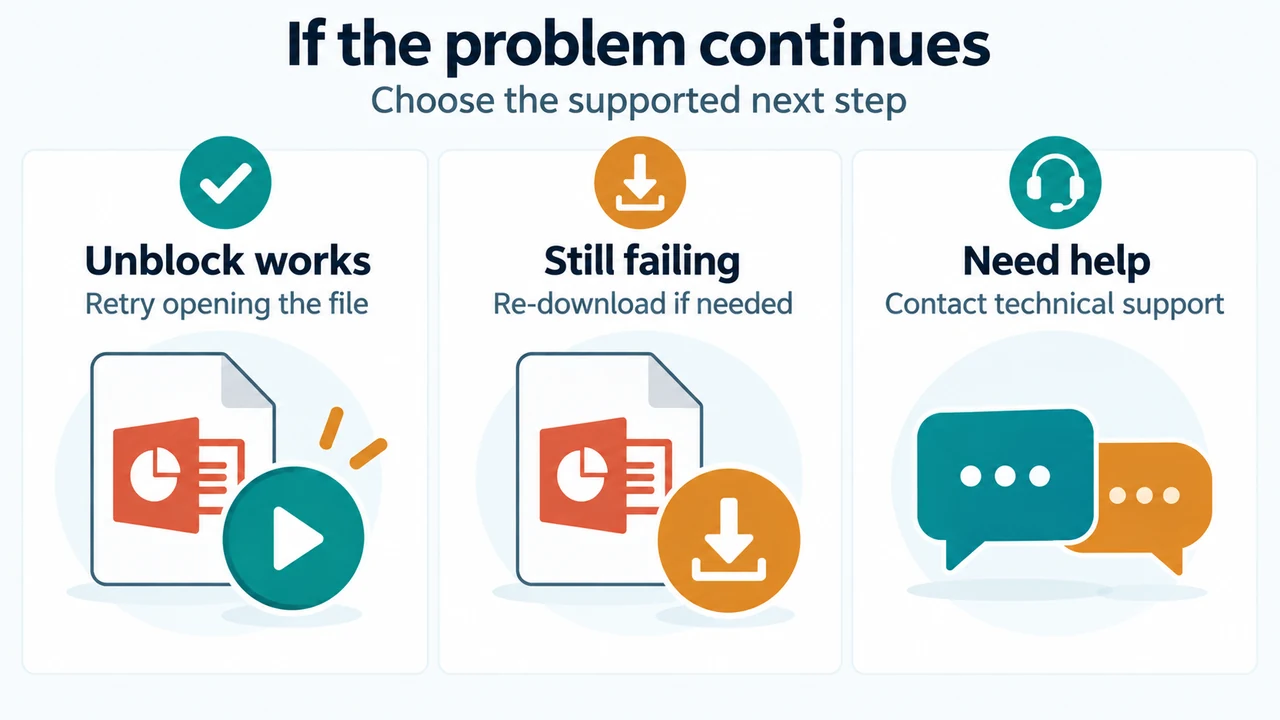
For a trusted file that may not have downloaded correctly, Microsoft’s Windows guidance recommends downloading it again. It also says that organization security policies can block downloaded files. If the problem remains, Microsoft’s PowerPoint guidance directs readers to technical support.
Keep protection enabled
Windows and Office may show warnings or use Protected View for files from untrusted locations. Microsoft says Office may open these files in read-only mode or disable editing, macros, or other active content. Turning off Microsoft Defender SmartScreen can make the device more vulnerable to malicious files and websites, so it is not a safe first response to this PowerPoint error.
Microsoft warns that incorrectly editing security policies or the registry can cause system issues. It limits those advanced changes to advanced users or IT administrators. This article therefore stops at the documented file-level check and does not recommend changing those settings.
Research method and limitations
This answer was prepared from the supplied public excerpts from two Microsoft support pages, retrieved on September 22, 2026. The PowerPoint excerpt applies to PowerPoint for Microsoft 365, 2024, 2021, 2019, and 2016. The Attachment Manager excerpt applies to Windows 10 and Windows 11. The excerpts do not provide a complete diagnosis for every reason a presentation may fail to open, and they do not establish that Unblock will solve every instance. No hands-on test, lab test, benchmark, or comprehensive review was performed. The supplied material did not include competing coverage.
Text version of the diagrams
- Check the file before retrying: Verify source — Trusted file; scan it; Check Unblock — Properties > Unblock; Try again — Open the presentation
- If the problem continues: Unblock works — Retry opening the file; Still failing — Re-download if needed; Need help — Contact technical support