Documented Platform and Update Channel Requirements
Python in Excel allows users to write Python formulas directly in cells using the =PY() function. Availability depends on your operating system, subscription tier, and Microsoft 365 update channel. The feature is supported on Windows desktop, Mac desktop, and for select subscriptions on Excel on the web, subject to minimum build thresholds.
According to official Microsoft documentation on Python in Excel availability, the minimum build thresholds on Windows for Enterprise and Business users are:
- Current Channel: Version 2408 (Build 17928.20114) or later.
- Monthly Enterprise Channel: Version 2408 (Build 17928.20216) or later.
- Semi-Annual Enterprise Channel: Version 2502 (Build 18526.20472) or later.
Enterprise and Business users also have access in Excel on the web. For Family and Personal subscriptions, Python in Excel is available in preview in Excel on the web and on Windows Current Channel starting with Version 2405 (Build 17628.20164). For Education subscriptions on Windows, access is provided through the Microsoft 365 Insider Program under Current Channel (Preview) starting with Version 2406 (Build 17726.20016).
On macOS, Enterprise and Business users running the Current Channel can use Python in Excel starting with Version 16.96 (Build 25041326). Family and Personal subscribers on Mac require the Microsoft 365 Insider Program Beta Channel starting with Version 16.95 (Build 25021921).
Unsupported Mobile Platforms and Calculation Behavior
Python in Excel is not available on mobile operating systems. Specifically, it is unsupported on:
- Excel for iPad
- Excel for iPhone
- Excel for Android
When you open a workbook containing Python formulas on these unsupported platforms, you can view existing workbook content. However, any Python cell will display an error when recalculated.
Subscription and Licensing Exclusions
To access Python in Excel, you must have a paid Microsoft 365 consumer, commercial, or education license providing desktop app access (such as Office 365 E3 or E5). Free consumer accounts and perpetual consumer licenses do not support Python in Excel.
Microsoft explicitly excludes two activation models:
- Device-based licenses: Subscriptions assigned to a machine rather than a user.
- Shared computer activation: Environments where multiple users share a computer and log in with separate accounts.
In addition, Microsoft 365 connected experiences must be enabled to use the Python in Excel preview.
Standard versus Premium Compute Tiers
Qualifying Microsoft 365 subscriptions include standard compute speed and automatic calculation mode. Users also receive a limited monthly allowance of faster premium compute that resets at the start of each month. Excel displays specific status notices regarding compute usage:
- “Python in Excel: You’re using premium Python compute.” Confirms calculations are currently using the faster premium allocation.
- “Python in Excel: You’re close to using all of your monthly premium Python compute.” Warns that your monthly quota is nearly exhausted.
- “Limit Exceeded: You’re using standard Python in Excel calculation speeds.” Notifies you that calculations have reverted to standard speeds until the next monthly reset.
The optional paid Python in Excel add-on license provides continuous premium compute without monthly fallback and unlocks manual and partial calculation modes alongside automatic calculation. For Enterprise and Business subscriptions, the preview program has ended, meaning organizations requiring unthrottled premium speeds must obtain the add-on license through their administrator.
Cloud Container Architecture and Security Boundary
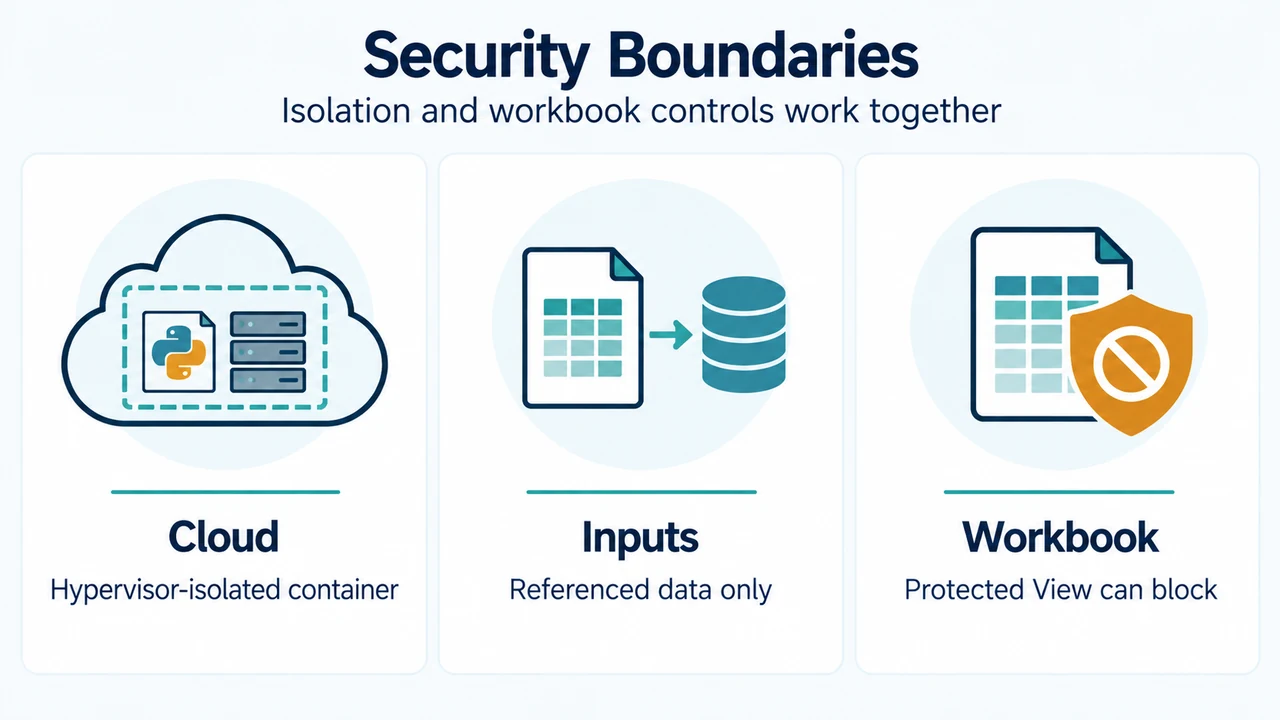
Python formulas do not run locally on your device. As detailed in Microsoft’s documentation on data security and Python in Excel, Python code runs in the Microsoft Cloud inside hypervisor-isolated containers.
Key technical attributes of the container security boundary include:
- Isolation: Each open workbook with Python code runs in its own dedicated container, preventing interference between workbooks.
- No local access: Python code has no access to your local computer, local devices, account, or user tokens.
- No outbound networking: Containers do not possess network access, preventing unauthorized data transmission or external API polling.
- Data inputs: Code accesses data strictly through references via the built-in
xl()function or via Power Query connection names. Code cannot access unreferenced workbook properties, VBA code, or macros. - Returned outputs: Output returns strictly via the
=PY()function as cell values or rendered images. Python cannot return executable macros, VBA code, or other formulas. - Container lifecycle: To improve performance and availability, containers are created in advance. Containers stay online as long as the workbook is open or until a timeout occurs. Once used, the container is destroyed, and no customer data persists at rest between sessions or users in the Microsoft Cloud.
- Curated environment: The environment uses source-built Python and secure libraries provided directly by Anaconda.
- Compliance: The infrastructure is compliant with GDPR, European Union Data Boundary (EUDB), HITRUST, and HIPAA standards. EU customers execute container workloads within the EU.
Untrusted Workbooks and Administrative Registry Controls
Workbooks opened from the internet follow standard Excel security mechanisms. Excel Protected View blocks Python formulas from calculating, and workbooks opened under Microsoft Defender Application Guard will not run Python formulas by default.
On Windows systems, administrators or users can configure security prompt behavior via the Windows Registry by adjusting the PythonFunctionWarnings DWORD value under HKCU\software\policies\microsoft\office\16.0\excel\security:
- Value 0 (Default): Disables all security warnings for Python formulas.
- Value 1: Displays a security prompt and Security Warning notice in the Excel business bar when opening a workbook containing Python formulas.
- Value 2: Blocks all Python functions from executing in the workbook, causing formulas to return the
#BLOCKED!error.
Text version of the diagrams
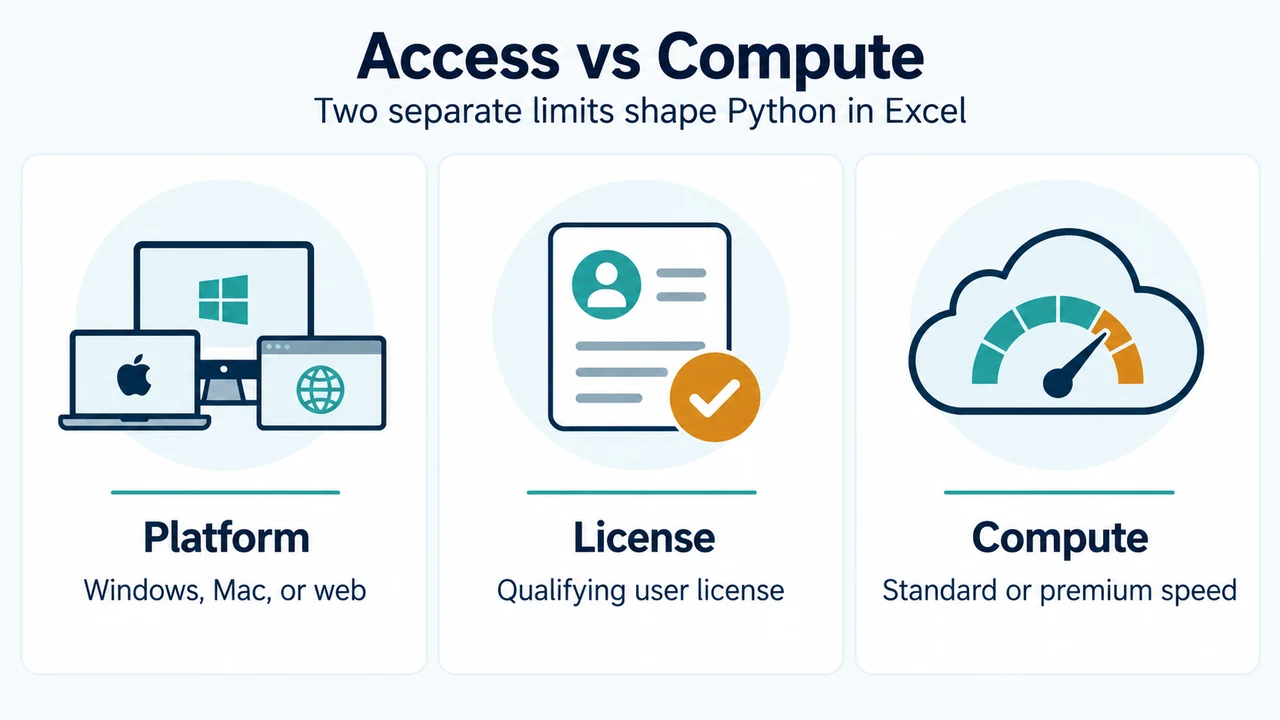
- Access vs Compute: Platform — Windows, Mac, or web; License — Qualifying user license; Compute — Standard or premium speed
- Security Boundaries: Cloud — Hypervisor-isolated container; Inputs — Referenced data only; Workbook — Protected View can block
Research Methodology and Limitations
This technical guide was prepared solely from the supplied public source excerpts, specifically official Microsoft Support documentation retrieved in September 2026. Material limitations include reliance on supplied excerpts without independent empirical benchmarks, truncated passages in secondary competitor coverage, and unavailable competing coverage.