If PowerPoint for Microsoft 365, PowerPoint 2024, 2021, 2019, or 2016 says “Can’t read file” or “Presentation cannot be opened,” Microsoft documents that Microsoft 365 may have blocked the file for security reasons. Check the file’s Windows properties before drawing conclusions about the presentation.
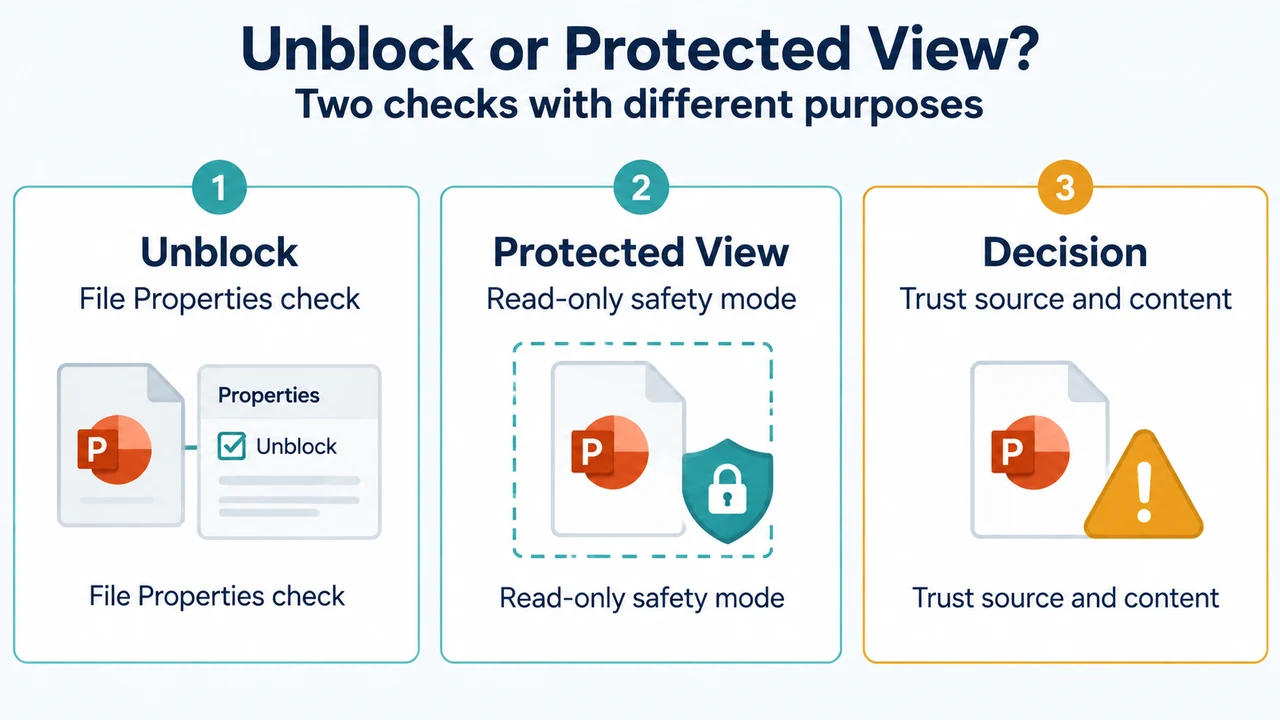
Check for Windows’ Unblock option
Use this check only for a file whose source and content you trust:
- Open Windows File Explorer.
- Locate the presentation on your computer.
- Right-click the file and select Properties.
- Look near the bottom-right of the Properties dialog for an Unblock button.
- If the button exists, select Unblock, then select Apply and OK.
- Right-click the file again and select Open.
Microsoft documents this workflow for PowerPoint for Microsoft 365, 2024, 2021, 2019, and 2016. An Unblock option supports the possibility of a security block. It does not prove that the file is safe or that blocking caused every opening problem.
Understand Protected View before enabling editing
Microsoft says files from the internet, email attachments, and other potentially unsafe locations can contain harmful content. Protected View opens such files as read-only so you can inspect them while reducing risk. A file can also open in Protected View after a file-validation failure or from another documented unsafe condition.
If the source or content seems suspicious, close the file and delete it. Microsoft recommends editing only when you trust the source and content. If you do not need to edit the file, staying in Protected View is safer. An administrator may prevent users from leaving Protected View.
What this check does not establish
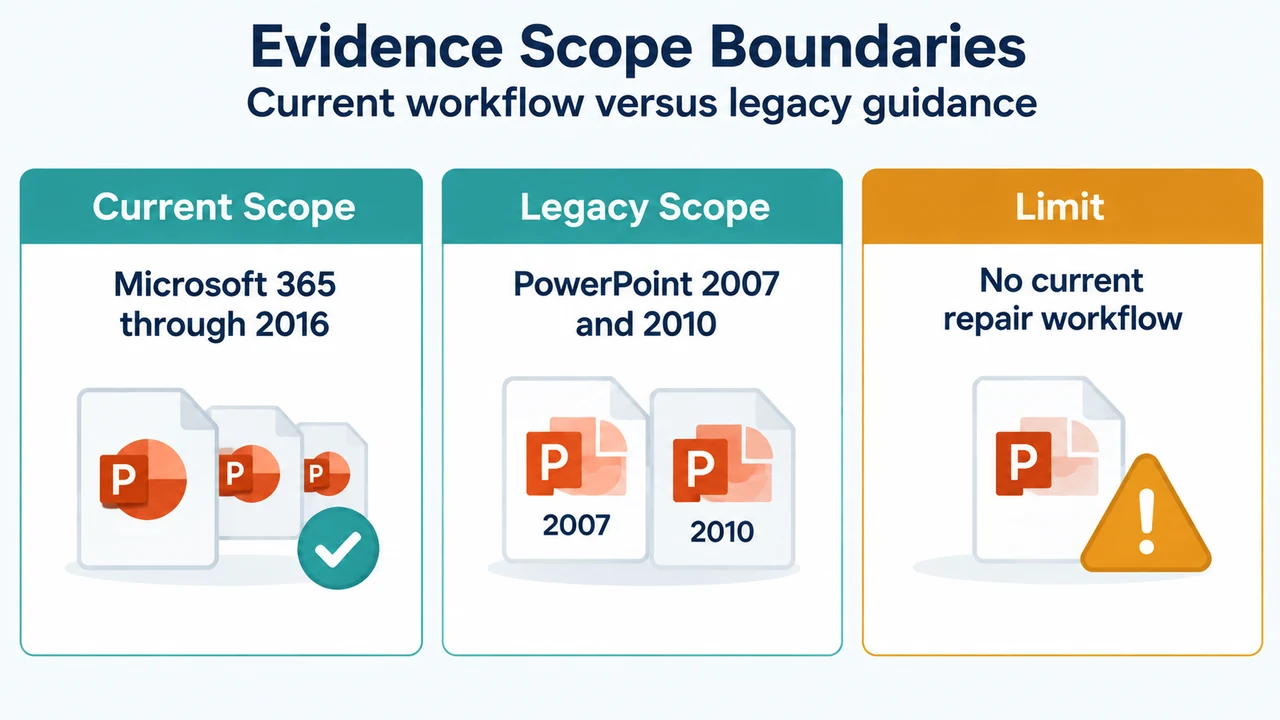
If the Unblock option is absent, or the file still will not open after the check, the supplied Microsoft excerpt does not provide a current-version repair procedure. Do not treat the absence of Unblock as proof of corruption or as proof that the file is safe.
Microsoft’s separate “PowerPoint can’t open this file” excerpt applies to PowerPoint 2007 and 2010. It recommends trying another copy when those versions cannot open a file, such as asking the sender to send an email attachment again or trying another copy on a new disk. That excerpt also identifies file-format and file-corruption issues as possible causes. The supplied evidence does not establish that this alternate-copy guidance is a documented workflow for PowerPoint for Microsoft 365, 2024, 2021, 2019, or 2016.
Older-format boundary
The same 2007/2010 excerpt says PowerPoint 2007 and later cannot open a presentation saved as PowerPoint 95. Its documented conversion path is to open the file in PowerPoint 2003, 2002, 2000, or 97, choose File > Save As, choose Presentation (*.ppt), and save it. This older-version guidance is not a general fix for current PowerPoint files.
Research method and limitations
This answer was prepared from the supplied public Microsoft source excerpts retrieved on September 21, 2026. The excerpts support the current-version Unblock workflow, Protected View context, and the separately bounded 2007/2010 alternate-copy and PowerPoint 95 guidance. One supplied Protected View excerpt contains truncated passages, so unseen text was not used. No competing coverage was available, and the excerpts do not provide a general current-version repair workflow or hands-on test.
Text version of the diagrams
- Unblock or Protected View?: Unblock — File Properties check; Protected View — Read-only safety mode; Decision — Trust source and content
- Evidence Scope Boundaries: Current Scope — Microsoft 365 through 2016; Legacy Scope — PowerPoint 2007 and 2010; Limit — No current repair workflow