In Microsoft’s documentation for Windows Update troubleshooting on Windows 11, error code 0x80070003 is identified with the cause: Update failed to install. The troubleshooting action documented under this specific error section is to restart your PC so no other applications block the update process.
General troubleshooting guidance in the same documentation also notes preparatory measures, including backing up personal files, ensuring power and internet connectivity, disabling any active VPN, and running diagnostic tools.
Preparation and Safety
Before proceeding with update troubleshooting, review these precautions from Microsoft Support:
- Back up personal files: Microsoft recommends backing up your personal files before attempting troubleshooting solutions. You can back up your Windows PC or copy critical files to an external USB drive using File Explorer.
- Verify power and internet: Ensure your device is connected to power and has a stable internet connection.
- Disable VPN: If you are using a VPN, disable it before checking for updates again.
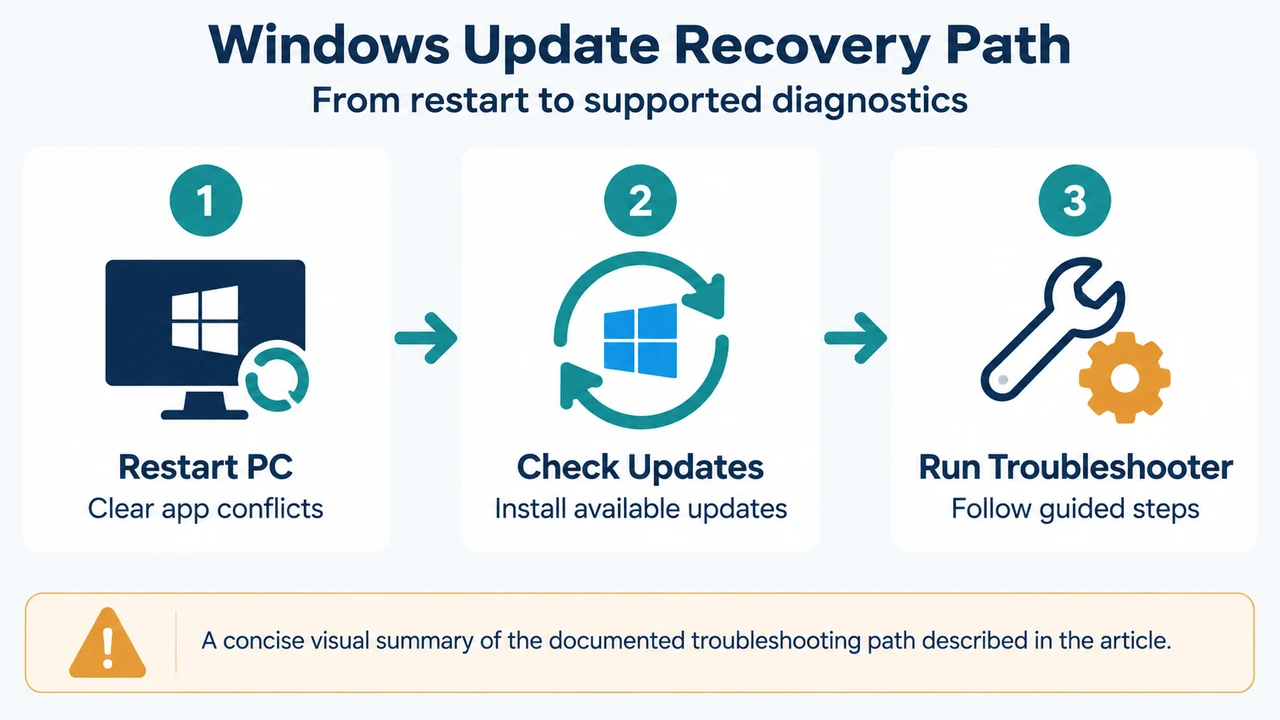
Step 1: Restart Your PC
Under the specific section for error 0x80070003 (grouped with 0x80070002 and 0x80070057), Microsoft instructs users to restart the PC to ensure no other applications block the update process:
- Save your work and close all open applications.
- Select Start > Power.
- Select Restart, or choose Update and restart if that option is visible.
Step 2: Check for Updates in Windows 11 Settings
Once the system restarts:
- Select Start > Settings.
- Navigate to the update settings to check for updates again.
- Download and install any available updates.
- If an update finishes installing and requires a reboot, select Start > Power and choose Update and restart or Update and shut down.
General Diagnostic Option: Run the Windows Update Troubleshooter
If the error persists after a restart, Microsoft includes the Windows Update troubleshooter under general Windows 11 troubleshooting:
- Select Start > Settings > System.
- Select Troubleshoot, then select Other troubleshooters.
- Locate Windows Update and select Run.
- Follow the on-screen instructions to complete the process.
Research Method and Limitations
This article was prepared directly from public excerpt text of Microsoft Support’s documentation titled “Troubleshoot problems updating Windows.” The source material was truncated in the provided excerpts, and competing coverage was unavailable. Technical instructions are strictly limited to procedures explicitly associated with Windows 11 error 0x80070003 and general update troubleshooting in the visible evidence. Procedures documented under other error codes—such as clearing the SoftwareDistribution directory or running System File Checker—are omitted because the supplied excerpt does not establish their applicability to error 0x80070003.
Text version of the diagrams
- Windows Update Recovery Path: Restart PC — Clear app conflicts; Check Updates — Install available updates; Run Troubleshooter — Follow guided steps
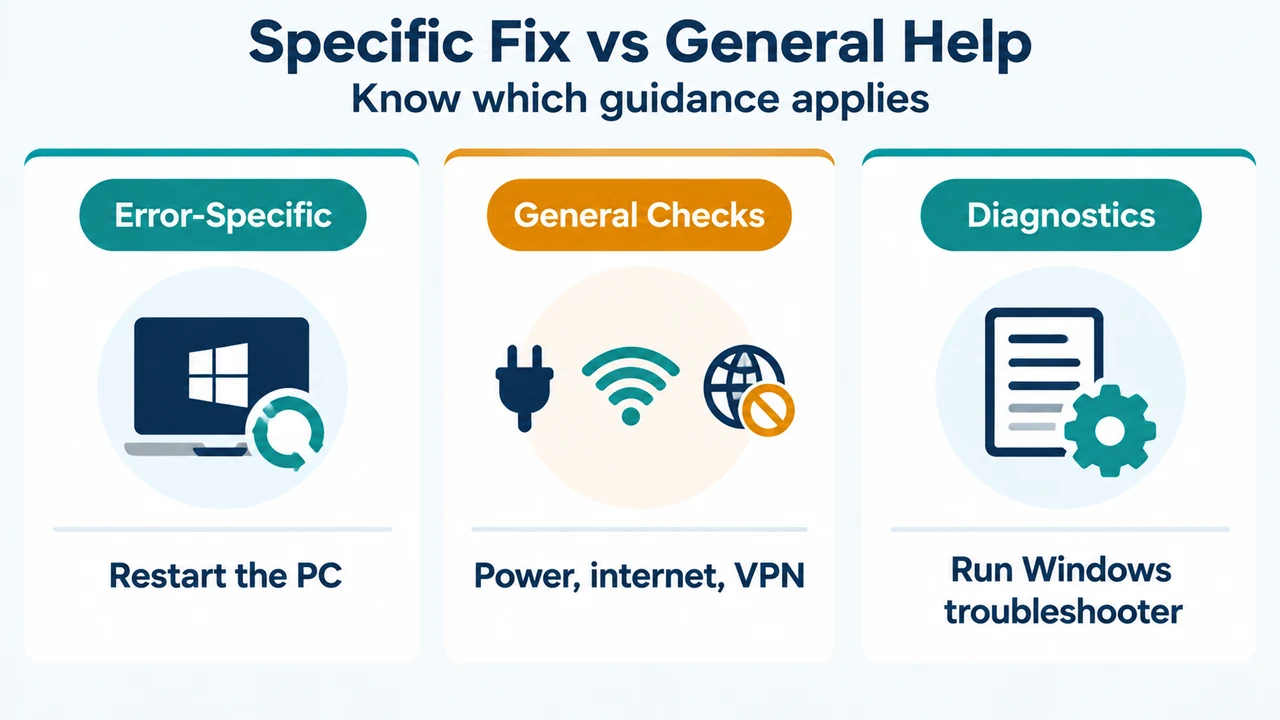
- Specific Fix vs General Help: Error-Specific — Restart the PC; General Checks — Power, internet, VPN; Diagnostics — Run Windows troubleshooter