Check Microsoft Account Alignment and Wi-Fi Connectivity
When Phone Link cannot connect or sync data with your Android device, start with foundational account and Wi-Fi checks as outlined in Microsoft Support’s Phone Link troubleshooting guide.
First, verify that your PC and Android device use the same Microsoft account:
- On your PC: Open your web browser and visit
https://account.microsoft.com/devices/android-ios. Sign in with your Microsoft account and check whether your Android device appears under your account information. - On your Android device: If using the downloaded Link to Windows app, go to Settings > Accounts. On select Android devices with integrated features, go to Settings > Advanced features > Link to Windows and review the email address shown under Microsoft account.
Second, verify basic connectivity:
- Make sure you have an active Wi-Fi connection by opening a web browser and navigating to a website.
- Ensure Battery saver is not running on your PC or Android device, as active power-saving modes can affect connectivity.
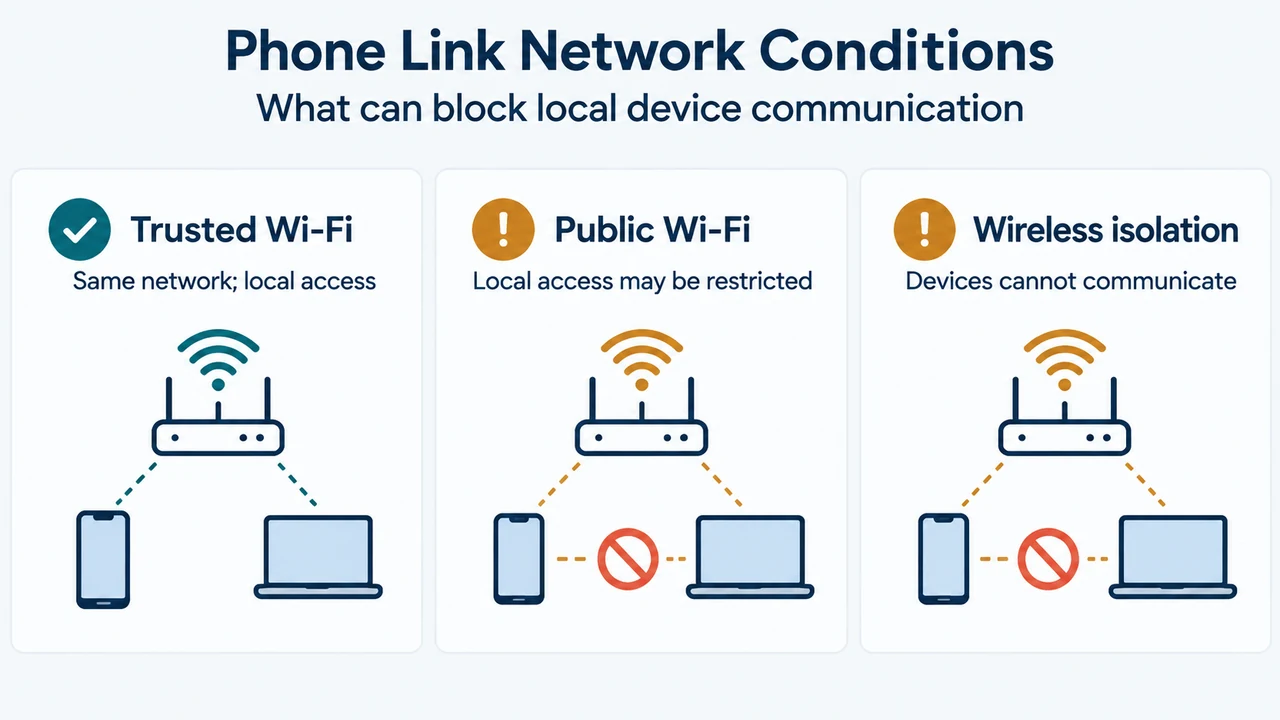
- Ensure both devices are connected to the same trusted Wi-Fi network. Optimization is not possible on public connections (such as in coffee shops, hotels, or airports) or where workplace policies restrict network connections.
Check Router Wireless Isolation Settings
If both devices use the same Wi-Fi network but still fail to connect, a security feature on your network hardware may be responsible.
According to Microsoft Support, many routers include a Wireless Isolation (or AP Isolation) feature that locks down the network. When enabled, this feature blocks connected Wi-Fi devices from communicating with one another. Because router administration menus vary across manufacturers and firmware versions, check your router’s manual or management settings to verify whether wireless isolation is enabled and turn it off if you need local devices to interact.
Configure Background Activity and Battery Optimization
Background restrictions and battery optimization can interrupt communication between your devices.
1. Turn Off Android Battery Optimization
Battery optimization on Android can interrupt the connection:
- On some Android devices: Go to Settings > Apps & notifications > App info > Link to Windows > Advanced > Battery > Manage Battery Usage > Battery optimization. Scroll down to Link to Windows and select Don’t optimize.
- On select Android devices: Select All from the drop-down list, scroll to Link to Windows, and turn the toggle to Off.
2. Verify Windows Background Permissions and Shared Experiences
On your PC, verify that background permissions and cross-device sharing are enabled:
- Select Start (or press the Windows logo key), then select Settings > Privacy > Background apps. Under Choose which apps can run in the background, ensure Phone Link is turned on.
- Select Start (or press the Windows logo key), then go to Settings > System > Shared experiences. If a Fix now prompt is displayed under Accounts, select it and follow the instructions.
Verify Android Notifications, Permissions, and App Conflicts
Connection failures and syncing stalls can result from notification blocks, missing Android permissions, or conflicting desktop tools:
- Notification Access and Sound Profiles: Ensure Do not disturb is turned Off under Android Settings > Sounds (or Sounds & Vibration / Sounds & Notifications on some devices). Also confirm notifications are enabled under Settings > Apps (or Apps & Notification) > Link to Windows. If notification permissions need refreshing, go to Android Settings, search for Notification access, find Link to Windows, toggle it off and on again, and select Allow when prompted.
- Android Permissions: Open Android Settings, search for App Info, tap See all apps > Link to Windows > Permissions, and allow Storage, Contacts, SMS, and Phone.
- Samsung DeX Conflicts: Running the Phone Link app and Samsung DeX simultaneously can cause issues with both applications. Keep only one of these applications open at any one time.
- Profile Modes: Phone Link does not currently support two-phone mode (available from mobile providers in Korea) or multiple user profiles. If multiple profiles exist, Phone Link only works if the mobile device is set to the default profile.
Update Apps, Reconnect, or Re-pair Your Devices
If connection issues continue or an “Update Required” prompt appears, verify application versions or reset the pairing:
- Check for Updates on PC: In Phone Link, go to Settings > About > Check for updates, or navigate to Settings > General, tap the down arrow next to Phone Link version, and tap Check for updates. If an update is available, follow the steps to download and launch it.
- Check for Updates on Android: Open Link to Windows, go to Settings > About Link to Windows, and tap Check for updates. Note that it can take a few minutes for updates to be recognized by the app.
- Reconnect Using QR Code or Status Refresh: If prompted to scan a QR code to reconnect, open your mobile camera, scan the QR code displayed in Phone Link on your PC, follow the prompts, and sign in with your Microsoft account. If needed, manually select the ‘refresh’ button located next to the connection status indicator in Phone Link.
- Reset Pairing or Unlink and Relink: If persistent connection issues remain, you can try to reset your app or unlink your device. To unlink, open Link to Windows on your phone, tap your Microsoft account name under Linked Account, go to Account Settings > Sign out and unlink account, and tap Unlink. On your PC, open Phone Link, go to Settings > Devices > Add new device, and follow the on-screen steps to re-pair. Alternatively, under Linked Account in Link to Windows, tap your Microsoft account, tap Sign out (the app closes automatically), reopen Link to Windows, sign in with your Microsoft account, and follow the relinking steps.
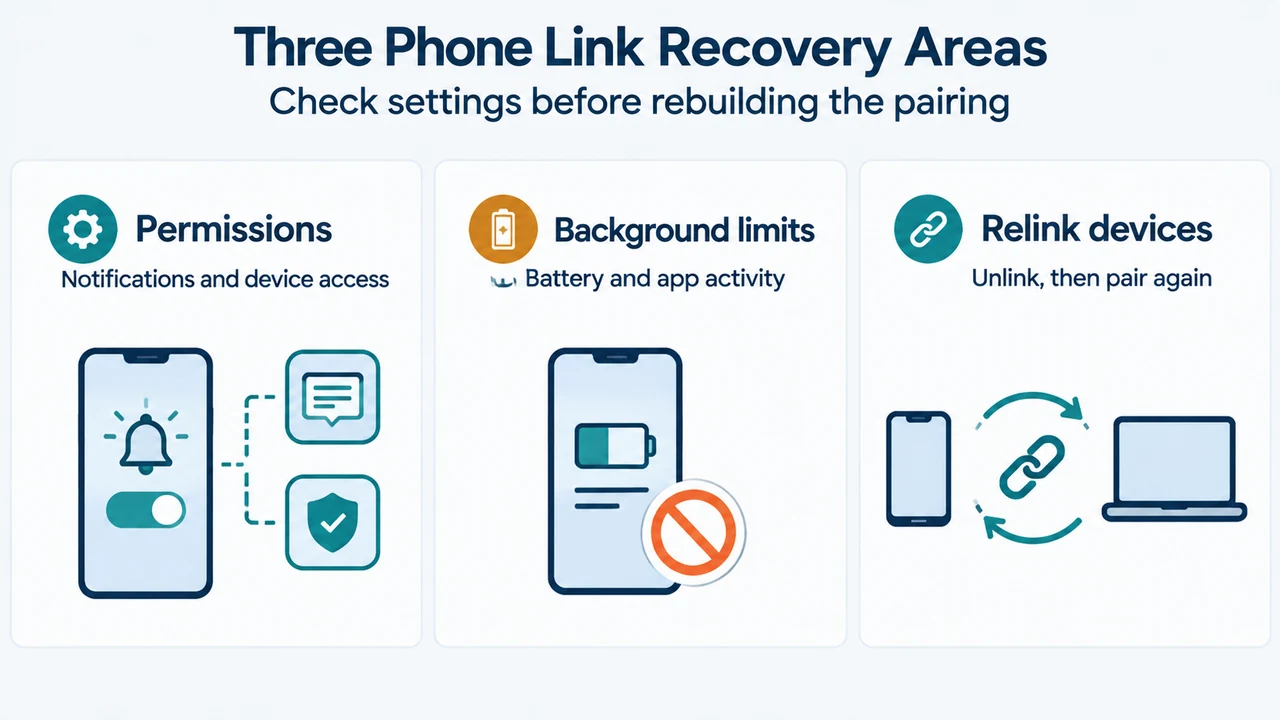
Text version of the diagrams
- Phone Link Network Conditions: Trusted Wi-Fi — Same network; local access; Public Wi-Fi — Local access may be restricted; Wireless isolation — Devices cannot communicate
- Three Phone Link Recovery Areas: Permissions — Notifications and device access; Background limits — Battery and app activity; Relink devices — Unlink, then pair again
Research Methodology and Material Limitations
This troubleshooting guide was prepared entirely from public documentation excerpts from Microsoft Support’s Phone Link troubleshooting guide. No hardware testing, performance benchmarking, or physical lab diagnostics were performed. Because the primary source was supplied in truncated excerpt form, coverage is strictly confined to visible settings and procedures; untruncated vendor documentation, specific third-party router administration paths, and competing third-party coverage were unavailable for evaluation.