When Windows reports printer connection or offline problems, Microsoft documentation outlines an ordered troubleshooting sequence: checking physical and wireless connections, removing and reinstalling the printer, installing the latest printer driver, clearing stuck spooler files, and referring to dedicated offline troubleshooting guidance.
Step 1: Check Physical and Wireless Connections
Before changing system configuration, verify the physical device state and network connectivity:
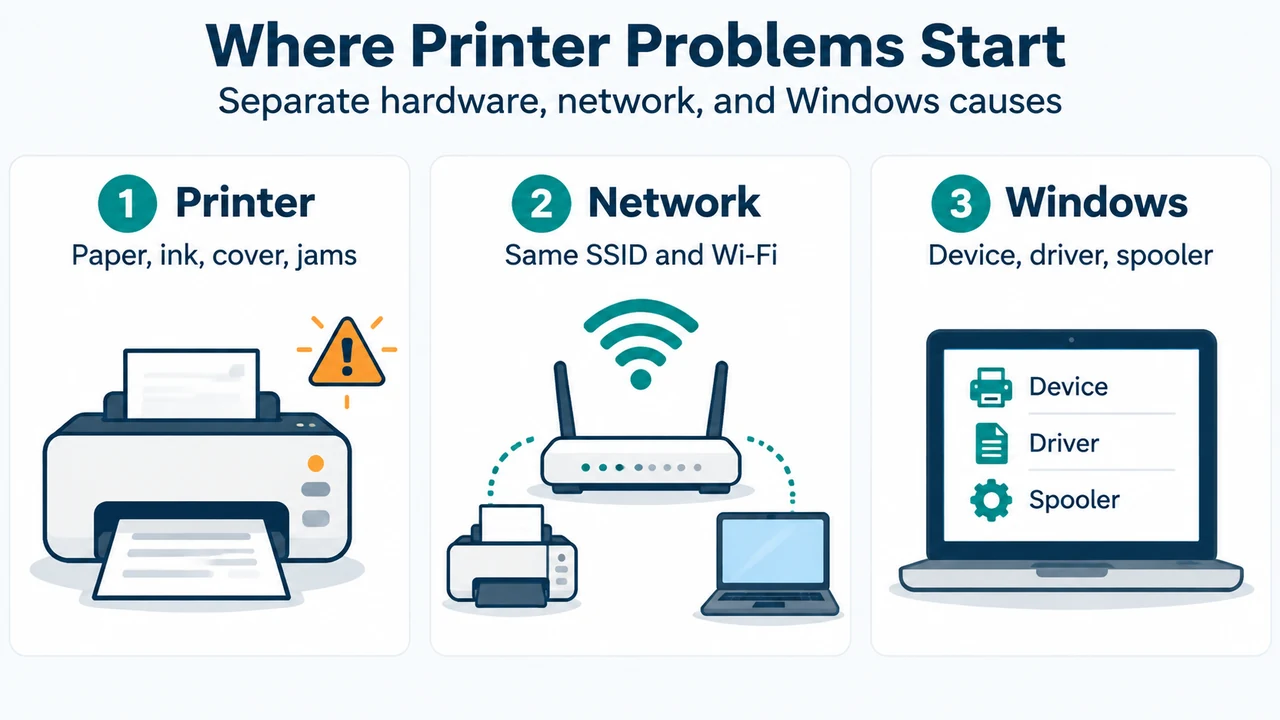
- Physical checks: If the printer’s status displays “Printer in error state,” check the printer for low paper or ink, verify that the cover is closed, and ensure paper is not jammed.
- Wireless connections: Many printers have a button that displays a blue wireless icon when a wireless connection option is available. Consult the printer’s manual or the manufacturer’s website to find this button and turn it on. Many printers also provide a menu option to run a wireless connectivity test.
- Network matching: If you use wireless access points, extenders, or multiple routers with separate SSIDs, verify that your PC is connected to the same network SSID as the printer.
Step 2: Uninstall and Reinstall Your Printer
If connection checks do not resolve the issue, remove and reinstall the printer through Windows Settings:
- Open printer settings:
- On Windows 11: Select Start > Settings > Bluetooth & devices > Printers & scanners.
- On Windows 10: Select Start > Settings > Devices > Printers & scanners.
- Select the printer you want to uninstall, select Remove, and confirm by selecting Yes.
- Make sure the printer is powered on and connected to the network or PC, then select Add device (or Refresh).
- Wait while Windows searches for connected printers, locate your printer in the list, and select Add device.
- Print a test page to confirm the printer is working. If the printer remains inoperable, continue to driver installation.
Step 3: Install the Latest Driver for Your Printer
Most printers require the latest driver to operate properly. If reinstalling does not restore operation, check the printer manufacturer’s website for troubleshooting information and download the latest driver for your printer model.
Step 4: Clear and Reset the Print Spooler
If updating the driver does not resolve the issue, clear temporary spooler files and restart the service. The print spooler manages the printing process; clearing its directory removes pending print jobs.
- In the search box on the taskbar, type
services, and select Services in the list of results. - Select the Standards tab, and double-click Print Spooler in the list of services.
- Select Stop, and then select OK.
- In the search box on the taskbar, enter
%WINDIR%\system32\spool\printers, select%WINDIR%\system32\spool\PRINTERSin the results, and delete all files in the folder. - In the search box on the taskbar, search for
servicesagain and select Services. - Select the Standards tab, double-click Print Spooler, select Start, choose Automatic in the Startup Type box, and select OK.
Step 5: Change a Printer’s Status to “Online”
If the printer still does not work and displays an “offline” status after completing the previous troubleshooting steps, refer to Microsoft’s dedicated guide for troubleshooting offline printer problems.
Research Method and Limitations
This article was prepared directly from public Microsoft support excerpts covering printer connection and printing problem resolution in Windows 11 and Windows 10. No independent laboratory testing, benchmarking, or hands-on hardware trials were conducted. Material limitations include truncated excerpts in the source evidence concerning full driver installation subroutines, Bluetooth FAQs, and dedicated offline printer problem troubleshooting modules. Competing third-party documentation was not available for comparison.
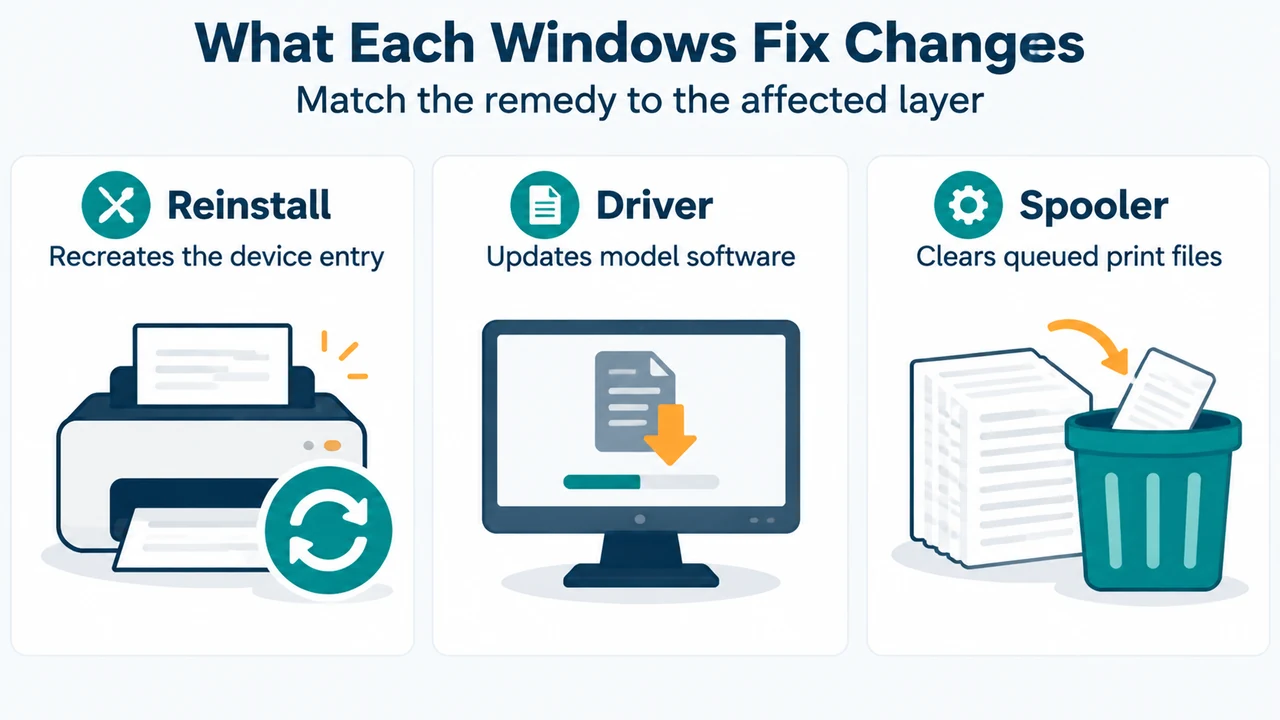
Text version of the diagrams
- Where Printer Problems Start: Printer — Paper, ink, cover, jams; Network — Same SSID and Wi-Fi; Windows — Device, driver, spooler
- What Each Windows Fix Changes: Reinstall — Recreates the device entry; Driver — Updates model software; Spooler — Clears queued print files