When an app or website cannot access a camera in Windows 11 or Windows 10, operating system privacy controls may be blocking access. Windows provides layered privacy settings to govern camera hardware permissions across system toggles, Microsoft Store applications, standalone desktop applications, and websites in Microsoft Edge.
Windows Camera Privacy Settings and Navigation
Windows controls camera access through specific settings pages and toggles:
- Windows 11 Navigation: Select Start > Settings > Privacy & security > Camera. Ensure that Camera access, Let apps access your camera, and the individual toggle for the Microsoft Store app you wish to use are turned on.
- Windows 10 Navigation: Select Start > Settings > Privacy > Camera. Ensure that Camera access for this device, Allow apps to access your camera, and the individual toggle for the Microsoft Store app you wish to use are turned on.
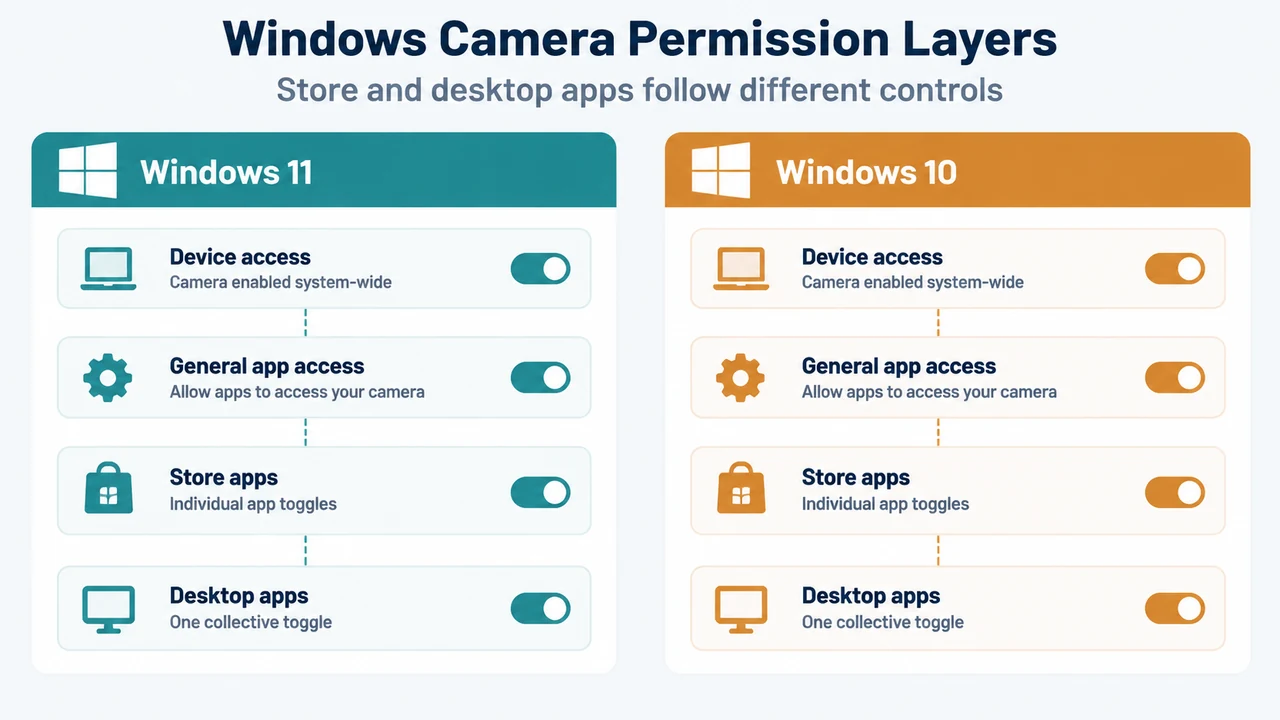
- Toggle Structure: Applications require camera access to be enabled at the device level and the general app access setting before individual Microsoft Store app toggles or the desktop app toggle can grant access.
Configuring Microsoft Store Apps vs. Desktop Applications
Windows manages camera permissions differently depending on the type of application:
- Microsoft Store Apps: Microsoft Store apps appear in an individual list on the camera settings page. Each Store app provides an individual toggle switch that can be turned on or off.
- Desktop Applications: Desktop apps cannot be individually toggled. Access for these apps is controlled collectively using Let desktop apps access your camera in Windows 11, or Allow desktop apps to access your camera in Windows 10 (available starting with Windows 10 version 1903). Turning this setting on or off impacts all detected desktop apps listed under it.
- Auditing Detected Apps: The settings page lists desktop apps that Windows has detected interacting with the camera. You can select any listed app to view details about the specific file on your device that accessed the camera. If an app or Windows feature accesses the camera indirectly through a Windows component, that Windows component is displayed instead.
Camera Hardware Indicators and Sensor Types
Windows displays activity indicators and supports several hardware sensor types:
- Activity Indicators: If your device has a camera light, the light turns on when the camera is active. If your device does not have a camera light, Windows shows a notification when the camera turns on or off.
- Camera Sensor Types: Apps and services may access distinct camera hardware types depending on your device:
- Color camera: Takes standard photos and videos.
- Infrared camera: Captures grayscale images using infrared light.
- Depth camera: Detects shapes and distance, such as identifying when someone is in front of the device.
Managing Website Camera Permissions in Microsoft Edge
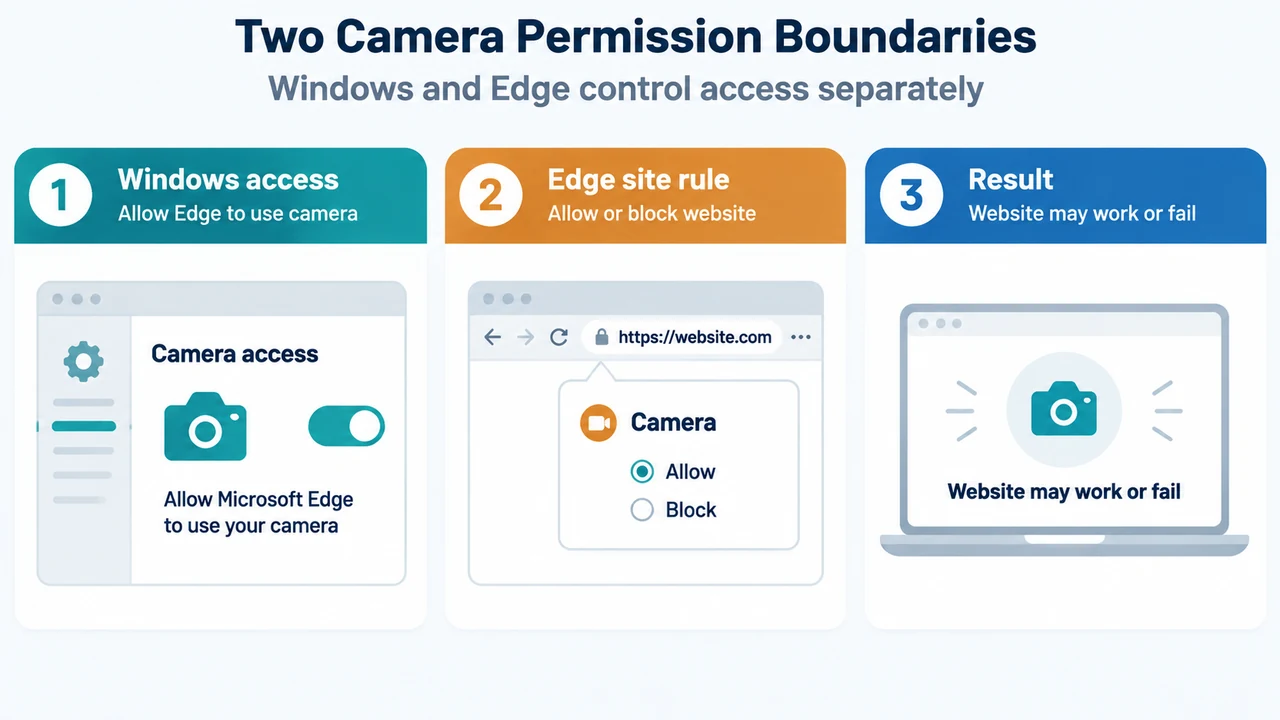
Websites in Microsoft Edge require camera access at both the browser level and the website level:
- Ensure camera access is enabled for Microsoft Edge in Windows camera privacy settings.
- When a website requests camera access, select Allow in the prompt to permit use. To deny access, select Block or close the dialog box.
- To stop a website from using your camera later in Microsoft Edge, open Microsoft Edge, select Settings and more, and select Settings.
- Select Privacy, search, and services on the left side, and select Site Permissions > All sites.
- Select the target website and select Block from the Camera dropdown. Some websites might not work if you block access; for example, you might not be able to join a video conference.
Documented Privacy Exceptions and Technical Boundaries
Microsoft documentation identifies specific privacy exceptions and detection boundaries:
- Windows Hello Exception: If you turn on Windows Hello, it will use your camera to sign you in even if the setting that allows apps to access your camera is turned off. If Windows Hello is turned off, it cannot access your camera.
- Desktop App Detection Limits: Desktop apps might not always appear in the list of apps available on the Camera settings page, or might still be able to access your camera even when camera settings are turned off.
- Windows 10 Lifecycle: Support for Windows 10 ended on October 14, 2025. After this date, Microsoft discontinued free software updates from Windows Update, technical assistance, and security fixes for Windows 10. PCs continue to work, but Microsoft recommends moving to Windows 11.
Research Methodology and Material Limitations
This article was prepared strictly from the supplied public support documentation excerpt from Microsoft regarding Windows camera, microphone, and privacy. No hands-on hardware testing, registry analysis, device driver troubleshooting, physical switch checks, or lab benchmarks were conducted. Material limitations include truncated excerpts in the provided source text, which omit surrounding sections, and the absence of accessible competing coverage for comparative analysis. Furthermore, the supplied evidence covers only Windows privacy switches and permission controls; it does not cover other potential camera failures such as hardware switch positions, physical disconnections, driver corruption, or app-specific video device selection.
Text version of the diagrams
- Windows Camera Permission Layers: Device access — Camera enabled system-wide; Store apps — Individual app toggles; Desktop apps — One collective toggle
- Two Camera Permission Boundaries: Windows access — Allow Edge to use camera; Edge site rule — Allow or block website; Result — Website may work or fail