If Windows starts up with a BitLocker recovery screen prompting for a 48-digit numerical key, BitLocker cannot automatically unlock your encrypted drive. According to official Microsoft Support documentation for Windows 11 and Windows 10, this startup prompt typically occurs due to a security risk or a hardware change. Regaining access requires entering the correct 48-digit recovery key associated with your encrypted drive.
Step 1: Record the First 8 Digits of Your Recovery Key ID
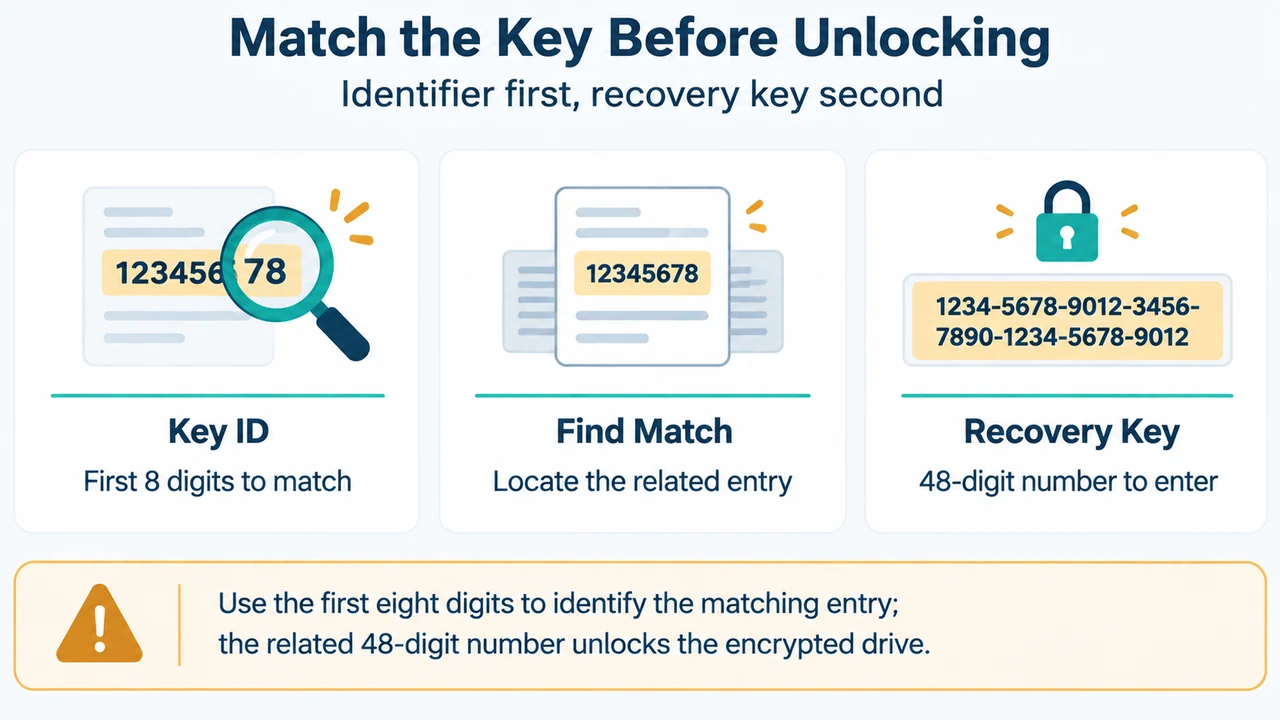
When you are prompted for a BitLocker recovery key, take note of the first 8 digits of the displayed recovery key ID. This recovery key ID identifies which recovery key to use if you have more than one key saved.
Step 2: Check Where Your BitLocker Recovery Key Is Stored
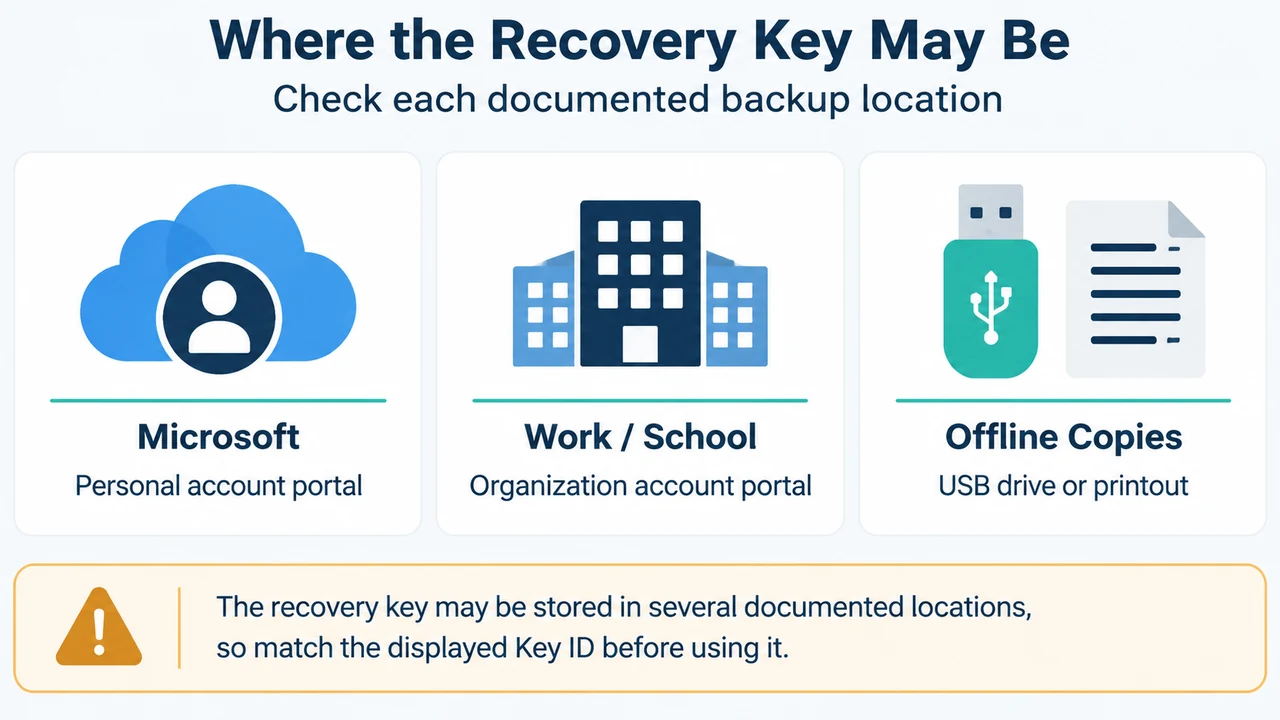
The location of your 48-digit recovery key depends on the choice made when BitLocker was activated on the computer. Check the following documented locations:
Personal Microsoft Account
If the BitLocker recovery key was backed up to your personal Microsoft account:
- From another device, open a web browser and go to https://aka.ms/myrecoverykey.
- Sign in with your Microsoft account and locate the matching key ID.
- Use the related 48-digit recovery key to unlock the drive.
If the device was set up or BitLocker was turned on by somebody else, the recovery key might be stored in that person’s Microsoft account. Starting in Windows 11, version 24H2, the BitLocker recovery screen shows a hint of the Microsoft account associated with the recovery key.
Work or School Account
If your device was ever signed into an organization using a work or school account, the recovery key could be stored in that organization’s account:
- From another device, open a web browser and go to https://aka.ms/aadrecoverykey.
- Sign in with your work or school account.
- Select Devices and expand the device for which you need to retrieve the recovery key.
- Select View BitLocker Keys, find the key matching your key ID, and use the related recovery key to unlock the drive.
If you cannot access this portal directly, contact the IT support department for that organization to access your recovery key.
Paper Printout
You might have printed your recovery key when BitLocker was activated. Check where you keep important papers related to your device. The printout shows the recovery key ID and the related recovery key.
USB Flash Drive
If the key was saved to a USB flash drive:
- Plug the USB flash drive into your locked device and follow the instructions.
- If you saved the key as a text file on the flash drive, use a different device to read the text file.
Recovery Key Options Summary
| Backup Location | Access Method / Requirements | Key Identifier |
|---|---|---|
| Personal Microsoft Account | Web portal: https://aka.ms/myrecoverykey | Match first 8 digits of Key ID (account hint visible in Windows 11 24H2) |
| Work or School Account | Web portal: https://aka.ms/aadrecoverykey or IT support | Select device in Devices list and match Key ID |
| USB Flash Drive | Plug into locked device or read text file on another device | Text file on drive |
| Paper Printout | Physical paper storage for device | Printed Key ID and related recovery key |
What to Do If the Recovery Key Cannot Be Found
Microsoft Support does not have the ability to retrieve, provide, or recreate a lost BitLocker recovery key. If your device is managed by an organization, check with your IT department to retrieve the key.
If you cannot find the BitLocker recovery key and are unable to undo the changes that caused it to be needed, you must reset your device using one of the Windows recovery options. Resetting your device will remove all of your files.
Research Method and Limitations
This answer was prepared strictly from the supplied public Microsoft Support documentation excerpt (“Find your BitLocker recovery key”) applying to Windows 11 and Windows 10. The scope is limited to locating the 48-digit recovery key using the key ID across documented backup locations and standard device reset fallback guidance. No independent testing, benchmark evaluations, or competing coverage were available in the supplied evidence.
Text version of the diagrams
- Where the Recovery Key May Be: Microsoft — Personal account portal; Work / School — Organization account portal; Offline Copies — USB drive or printout
- Match the Key Before Unlocking: Key ID — First 8 digits to match; Find Match — Locate the related entry; Recovery Key — 48-digit number to enter