When sound stops or audio services stop responding, troubleshooting in Windows 11 begins with built-in diagnostic and configuration utilities. This guide outlines the steps documented by Microsoft to check audio output, configure settings, and restart core audio services.
Running the Windows Audio Troubleshooter
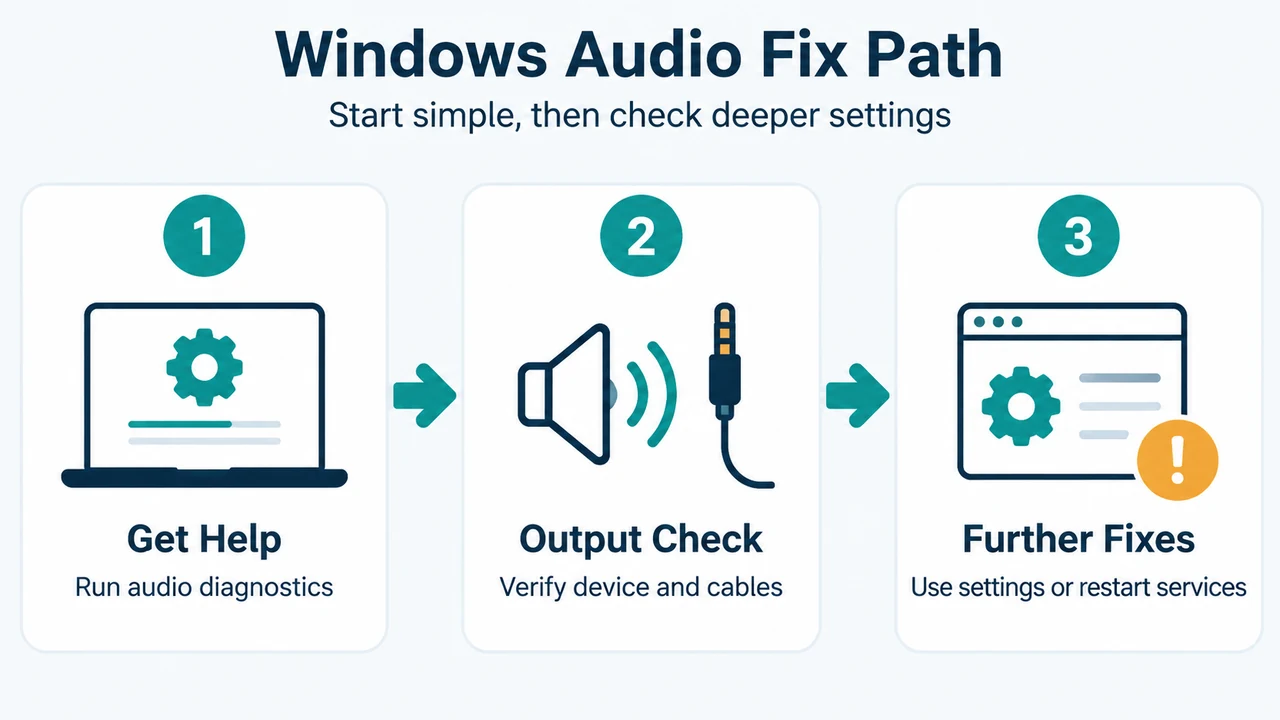
For Windows 11 devices, Microsoft recommends starting with the automated audio troubleshooter in the Get Help app. The tool automatically runs diagnostics and attempts to fix audio problems.
- Open the Get Help app on your Windows 11 device.
- Run the automated audio troubleshooter.
- If the Get Help app does not resolve the issue, proceed to the manual troubleshooting steps.
Checking Speaker Output and Physical Connections
Verify that your preferred audio playback device is selected and physical connections are secure:
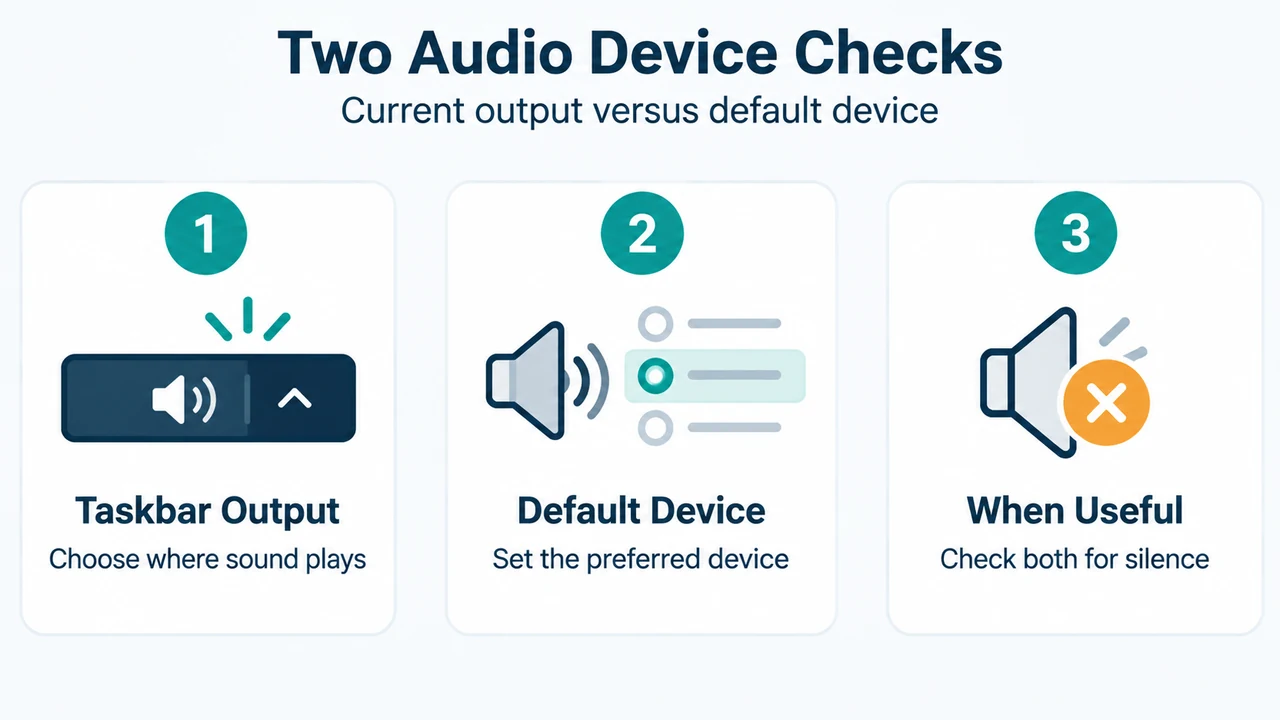
- Select the Speakers icon on the taskbar.
- Select the arrow to the right of the speaker volume slider. The tooltip displays Select a sound output.
- Verify that audio is playing to your preferred device, such as your speaker or headphones.
- Check speaker and headphone connections for loose cords or cables. Ensure all cables are plugged into the correct jacks, especially when connecting surround sound systems with multiple jacks.
Setting the Default Audio Device in Control Panel
If you use an external monitor without built-in speakers, ensure it is not designated as the default output device:
- In the search box on the taskbar, type
control panel, then select it from the results. - Select Hardware and Sound, and then select Sound.
- On the Playback tab, select and hold (or right-click) the listing for your audio device.
- Select Set as Default Device, and then select OK.
Testing Different Audio Formats
Testing alternative sample rates and bit depths in Windows Sound settings can resolve format conflicts:
- In the search box on the taskbar, type
control panel, then select it from the results. - Select Hardware and Sound, and then select Sound.
- On the Playback tab, select and hold (or right-click) Default Device, and select Properties.
- On the Advanced tab, under Default Format, change the setting, select OK, and test your audio device. If needed, test other formats.
Restarting Windows Audio Services
If audio services stop responding, restart the core audio services in the Windows Services utility:
- In the taskbar search box, type
services, and select Services from the results. - Locate each of the following services:
- Windows Audio
- Windows Audio Endpoint Builder
- Remote Procedure Call (RPC)
- Select and hold (or right-click) each service, select Restart, and select Yes when prompted.
Checking Updates and Updating IDT Audio Drivers
Pending system updates or specific audio codecs may require additional adjustments:
- If updates are pending, save your work, select Start > Power, and select Update and restart or Update and shut down to apply them.
- If your system lists an IDT High Definition Audio CODEC under Sound, video and game controllers in Device Manager, select and hold (or right-click) it and choose Update driver. Select Browse my computer for drivers > Let me pick from a list of available drivers on my computer (or device drivers list), choose High Definition Audio Device, and select Next.
Research Method and Limitations
This article was prepared directly from public documentation excerpts in Microsoft’s support article, Fix sound or audio problems in Windows. Material limitations include reliance on truncated excerpt passages; unseen portions of the source documentation could not be evaluated. Furthermore, no independent laboratory testing, benchmarks, or competing coverage reviews were conducted, and unsupported assertions regarding internal pipeline architectures or unverified settings paths have been excluded.
Text version of the diagrams
- Windows Audio Fix Path: Get Help — Run audio diagnostics; Output Check — Verify device and cables; Further Fixes — Use settings or restart services
- Two Audio Device Checks: Taskbar Output — Choose where sound plays; Default Device — Set the preferred device; When Useful — Check both for silence