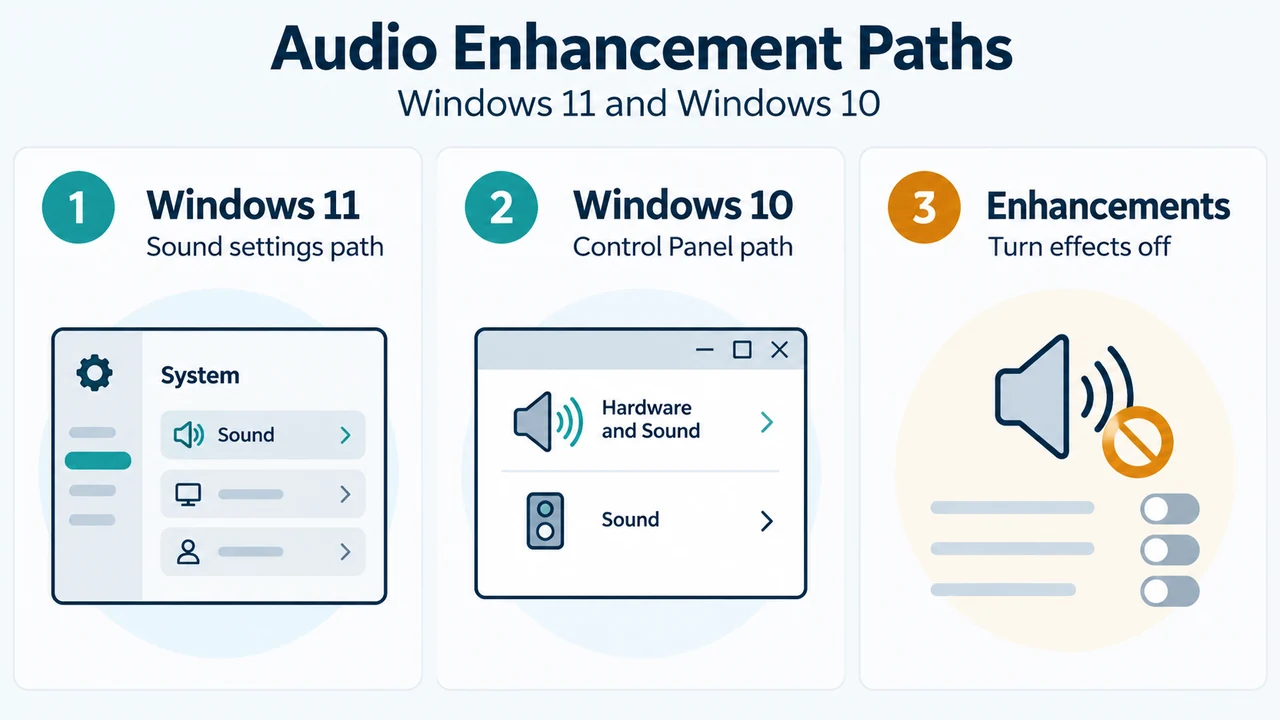
Audio issues in Windows can sometimes occur when audio enhancements are turned on. Disabling these enhancements may resolve the problem. Windows allows you to adjust sound enhancements through Windows Settings or the classic Control Panel.
Turn Off Audio Enhancements in Windows Settings
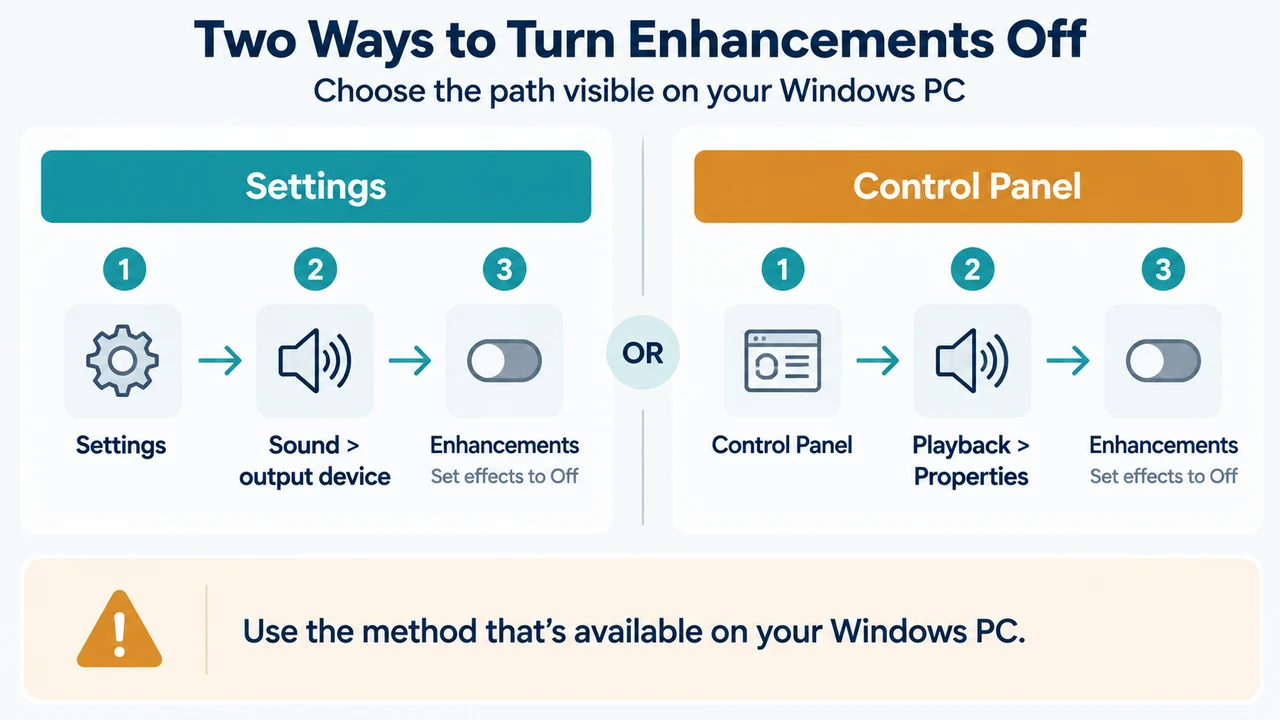
You can turn off audio enhancements through Windows Settings:
- Select Start > Settings > Sound.
- In the Output section, select the audio device you are using (such as your speakers or headphones).
- On the page that opens, scroll to Advanced settings.
- Set Audio enhancements to Off from the dropdown menu.
- Test your audio device to check whether sound output has improved.
Turn Off Audio Enhancements in Control Panel
If you prefer to configure audio properties through Control Panel, follow these steps:
- In the search box on the taskbar, type
control panel, and then select it from the results. - Select Hardware and Sound from the Control Panel, and then select Sound.
- On the Playback tab, select and hold (or right-click) the Default Device, and then select Properties.
- On the Enhancements tab, select either the Disable all enhancements or the Disable all sound effects check box (depending on which option you see).
- Select OK, and try to play your audio device.
- If that does not work, on the Playback tab, select and hold (or right-click) another default device (if you have one), select Properties, choose the check box on the Enhancements tab, select OK, and test playback again. Do this for each default device.
Additional Troubleshooting Steps
If turning off audio enhancements does not resolve the issue, the source documentation outlines several additional troubleshooting steps:
- Run the Audio Troubleshooter: Select Start > Settings > System, scroll down and select Troubleshoot > Other troubleshooters, go to the Audio section, and select Run.
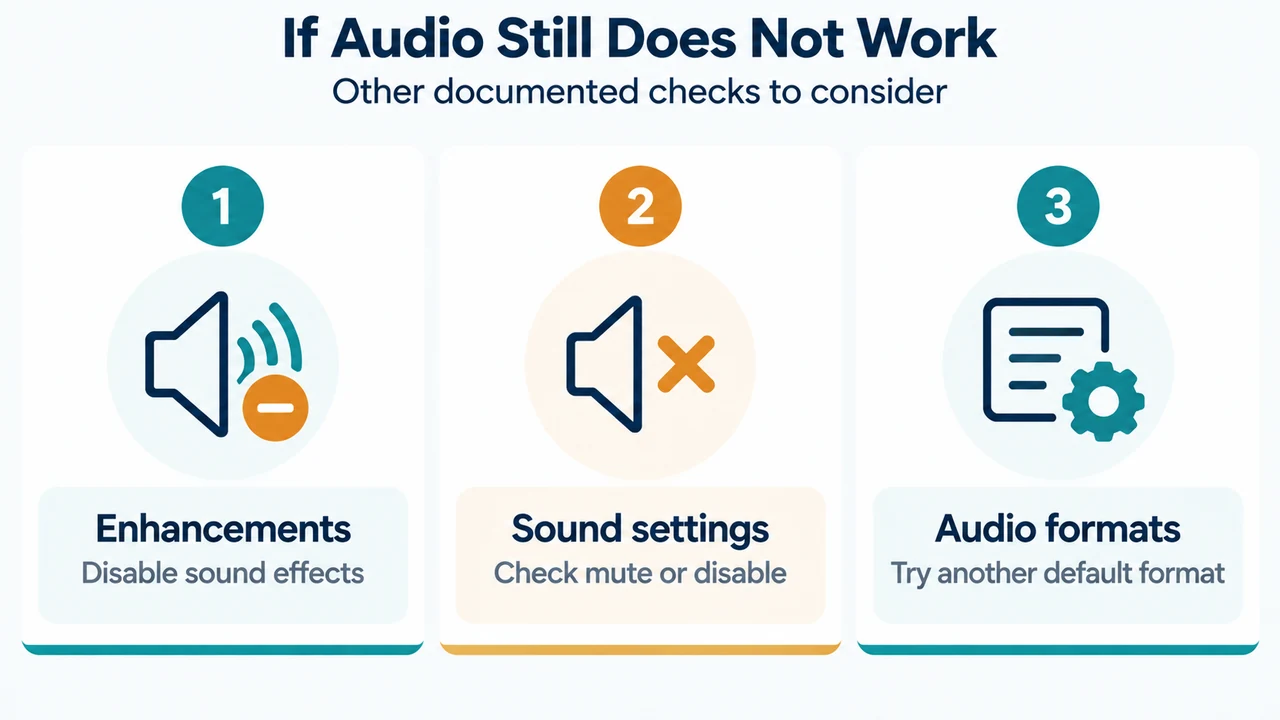
- Check Sound Settings: Make sure devices are not muted or disabled. Select and hold (or right-click) the Speakers icon on the taskbar, select the settings icon next to the Volume mixer slider (or open Volume mixer), and verify that no device is muted.
- Try Different Audio Formats: Open Control Panel, select Hardware and Sound > Sound, right-click Default Device on the Playback tab, select Properties, switch to the Advanced tab, change the setting under Default Format, select OK, and test audio output.
- Restart Windows Audio Services: Type
servicesin the taskbar search box and open it. Right-click Windows Audio, Windows Audio Endpoint Builder, and Remote Procedure Call (RPC), and select Restart.
Research Scope and Limitations
This troubleshooting guide was prepared directly from the provided public Microsoft Windows support documentation excerpts. No independent lab tests, hardware benchmarks, or hands-on audio evaluations were conducted. Competing coverage was not available in the supplied material, and portions of the source text were truncated.
Text version of the diagrams
- Two Ways to Turn Enhancements Off: Settings — Sound > output device; Control Panel — Playback > Properties; Enhancements — Set effects to Off
- If Audio Still Does Not Work: Enhancements — Disable sound effects; Sound settings — Check mute or disable; Audio formats — Try another default format