In Excel for Microsoft 365, Protected View is a read-only mode that disables most editing functions. It is used for workbooks from the internet, Outlook attachments, potentially unsafe locations, files blocked by File Block policy, and files that fail Office file validation. Excel’s documentation recommends staying in Protected View unless you trust the file’s source and contents.
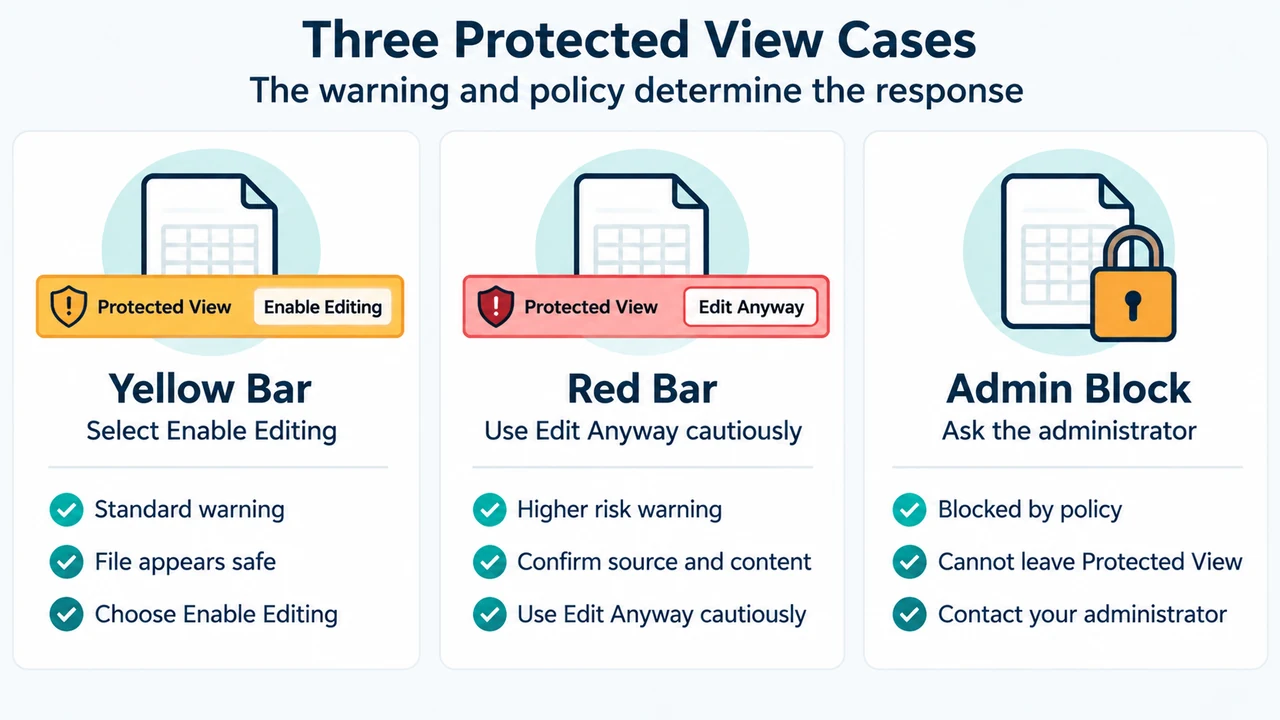
If you only need to read the workbook, leave it in Protected View. If you have verified the sender and the workbook is expected and trustworthy, you can select Enable Editing from the yellow Message Bar. If the workbook shows a red Message Bar after a validation problem, Excel provides File > Edit Anyway. Microsoft cautions that this should be used only when the source and content are trusted.
Why Excel opened the workbook in Protected View
Microsoft lists several documented triggers:
- The workbook was opened from an internet location.
- The workbook arrived as an Outlook attachment and policy treats the sender as unsafe.
- The workbook was opened from a potentially unsafe folder, such as a Temporary Internet Files location.
- The file type is blocked by File Block policy.
- Office file validation failed.
- The workbook was explicitly opened in Protected View.
Excel’s ProtectedViewWindow documentation also states that workbooks in this window cannot be edited and are restricted from running active content such as Visual Basic for Applications macros and data connections. That restriction is part of the protection boundary; leaving Protected View changes the workbook from read-only protection into an editable, trusted document.
When to remain in Protected View
Remain in Protected View when you do not need to edit, save, or print the workbook. Microsoft says you should not edit a file that seems suspicious, including one from an unknown sender, one you did not expect, or one whose contents are unusual—for example, a supposed bill for something you did not buy.
Before enabling editing, verify the sender through a separate trusted channel if necessary and confirm that the workbook is the file you expected. If the file remains suspicious, Microsoft recommends closing it and deleting it. Do not use Enable Editing merely to remove the warning.
When Enable Editing or Edit Anyway is appropriate
Select Enable Editing only after you trust both the source and the workbook’s contents. Microsoft documents this action for the yellow Message Bar. For a red Message Bar caused by a validation problem, select File > Edit Anyway only after the same verification.
The two buttons are not a general safety approval. They are ways to leave Protected View after your own trust decision. A file can be from a familiar person yet still be unexpected or unusual, so check the actual message and contents rather than relying only on the sender’s name.
What to do if editing is blocked
If Excel does not let you leave Protected View, Microsoft says that a systems administrator may have rules preventing it. Contact the administrator to determine whether such rules apply. Do not treat the block as a reason to disable protection or change Trust Center settings on your own.
Microsoft advises speaking with an administrator before changing Protected View settings. The documented Trust Center path is File > Options > Trust Center > Trust Center Settings > Protected View. The listed settings cover files from the internet, files in potentially unsafe locations, and Outlook attachments. Their availability and behavior can be governed by organizational policy, and the supplied Microsoft passage does not establish that changing them is appropriate for every installation.
A practical decision boundary
| Situation | Safer choice supported by Microsoft’s guidance |
|---|---|
| You only need to read the workbook | Stay in Protected View. |
| The sender or contents are unexpected or suspicious | Do not edit; close the file and delete it. |
| You verified the source and contents, and the yellow warning appears | Select Enable Editing if editing, saving, or printing is necessary. |
| A validation warning shows a red Message Bar | Use File > Edit Anyway only when the source and contents are trusted. |
| Excel prevents leaving Protected View | Ask the systems administrator about the applicable rules. |
Limits of this guidance
This article was prepared from the supplied public Microsoft Support and Microsoft Learn excerpts retrieved on 2026-09-20. The Support passage is truncated, and the Microsoft Learn page reports that access may require authorization; therefore this article covers only the visible statements. It makes no hands-on, lab, benchmark, or comprehensive-review claim. The supplied competitor pages were used only to compare coverage, not as technical authority. The guidance is scoped to the Microsoft 365 desktop Excel behavior described in the supplied excerpts; it does not establish that every Excel edition or administrator configuration behaves identically.
Text version of the diagrams
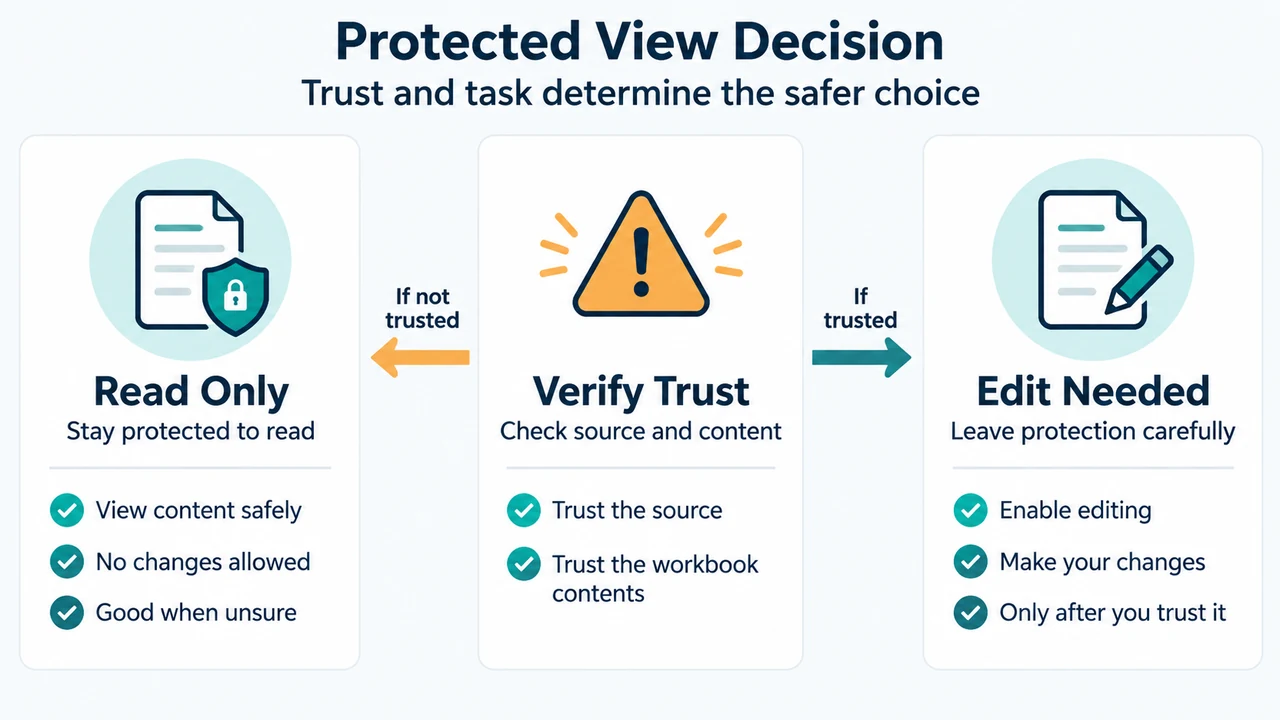
- Protected View Decision: Read Only — Stay protected to read; Verify Trust — Check source and content; Edit Needed — Leave protection carefully
- Three Protected View Cases: Yellow Bar — Select Enable Editing; Red Bar — Use Edit Anyway cautiously; Admin Block — Ask the administrator