When Google Chrome blocks access to your camera or microphone on a computer, web applications such as video conferencing tools cannot transmit your video feed or audio. Start by checking the website permission, the selected camera or microphone, and any system permission Chrome asks you to change.
Scope and Research Limitations
This guide covers the computer instructions in Google Chrome Help. System permission screens depend on your operating system. It relies strictly on documented browser behavior verified through the official Google Chrome Camera and Microphone Help Center. This review does not claim hands-on lab testing across specific third-party peripheral brands, nor does it guarantee fixes for hardware component defects or administrative policy locks.
Important managed browser limitation: If you use Chrome on a computer managed by a workplace or school, network administrators can enforce camera and microphone policies. In managed profiles, you may not be able to modify these permission settings independently.
How Chrome Handles Site Permission Prompts
When you visit a website that requests audio or video input, Chrome displays an access prompt with three options:
- Allow while visiting the site: The permission option for allowing access while visiting the site.
- Allow this time: The permission option for allowing access this time.
- Never allow: Blocks the website from accessing the requested device.
Google describes when an allowed site can start recording, rather than promising that switching away stops an existing recording. If you navigate to another Chrome tab or switch to a separate application, the site cannot start recording.
Step 1: Check and Change Site Permissions in Chrome
To check or change a website’s saved camera or microphone permission, open Chrome’s Site settings:
- Open Chrome on your computer.
- At the top right, select More (the three dots icon) and choose Settings.
- Select Privacy and security, then click Site settings.
- Under the Permissions heading, select Camera or Microphone.
- Choose your preferred default behavior for sites requesting access.
To fix an individual website that cannot access your media:
- Allow a blocked site: Under the section labeled “Not allowed to use your camera or microphone,” select the site’s name and change its permission setting to Allow.
- Remove an exception: To clear a saved rule completely so Chrome prompts you again, locate the site in your permission list and select Delete on the right.
Step 2: Select the Correct Default Camera or Microphone
Check which camera or microphone is selected in Chrome. You can choose your default device:
- Navigate to More > Settings > Privacy and security > Site settings.
- Select Microphone or Camera.
- Click the Down arrow menu at the top to view connected hardware and choose your desired default device.
Step 3: Verify Hardware Mute and Computer System Settings
If browser permissions are set to “Allow” but audio or video still fails:
- Check physical and web mute toggles: If you use an external headset, confirm that the physical inline mute switch is toggled off. Verify you are not muted within the web meeting interface.
- Grant operating system access: Chrome may trigger a system dialog asking for permission to use your camera or microphone. Click Open settings in that prompt, or visit your OS settings (Windows, Mac, or Chromebook) to confirm Chrome has media access enabled. When prompted, restart Chrome or quit the application to apply system changes.
- Check default recording devices: Check your system settings to confirm that your microphone is the default recording device.
Text version of the diagrams
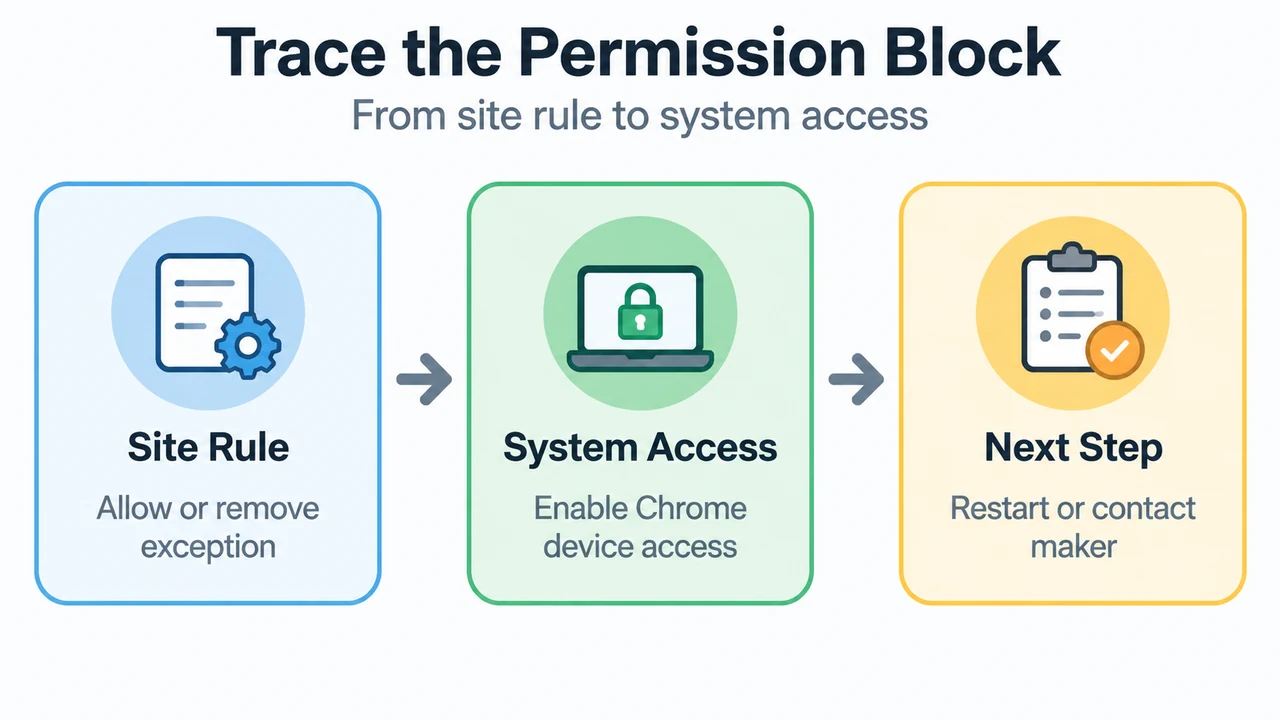
- Trace the Permission Block: Site Rule — Allow or remove exception; System Access — Enable Chrome device access; Next Step — Restart or contact maker
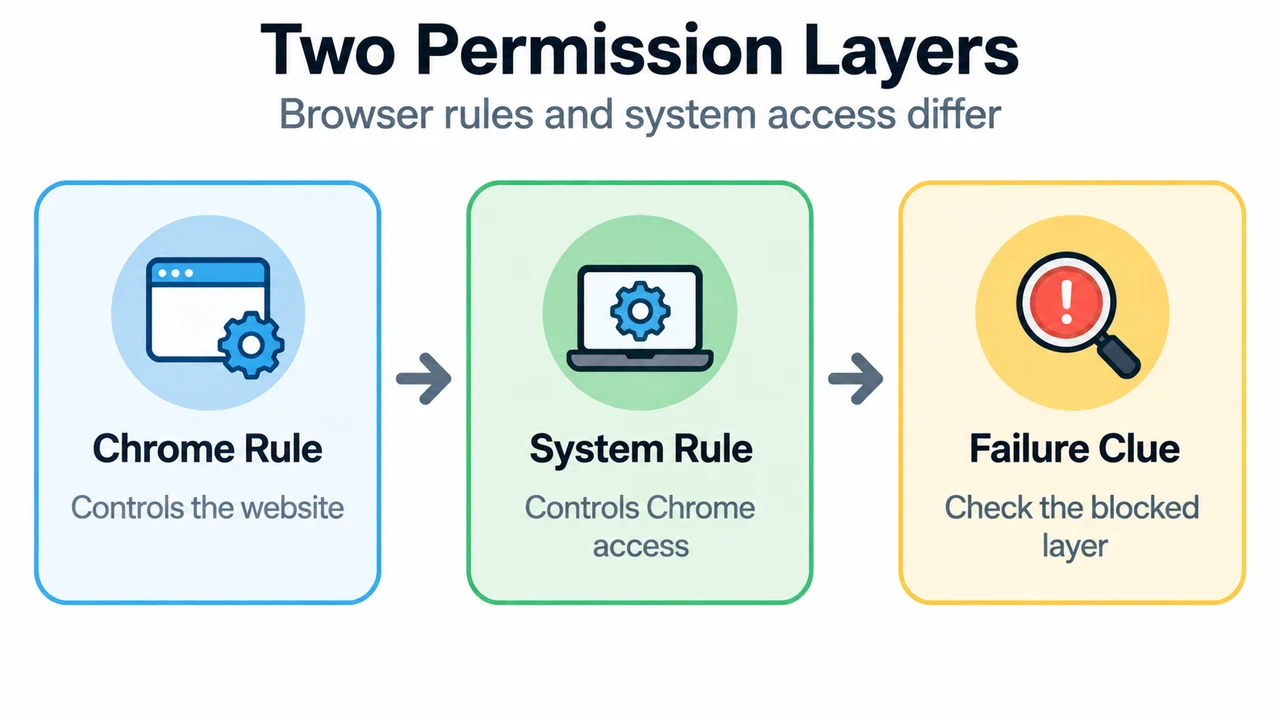
- Two Permission Layers: Chrome Rule — Controls the website; System Rule — Controls Chrome access; Failure Clue — Check the blocked layer
Step 4: Reversible Troubleshooting and Escalation
If media feeds remain unresponsive after adjusting permissions and inputs:
- Exit your active video meeting or web call, then rejoin the session.
- Restart the Google Chrome browser completely.
- Restart your computer.
- If the problem persists across all sites and applications, contact your camera or microphone manufacturer for device-specific driver support and hardware diagnostics.