In Google Chrome, error messages like “Aw, Snap!” indicate a connection or loading issue when the browser attempts to establish or maintain a connection with a website or online service. Resolving these connection and loading issues requires methodical client-side troubleshooting. This guide provides official, reversible diagnostic steps based on documented procedures from Google Chrome Help.
Understanding Chrome Connection and Loading Issues
According to Google Chrome documentation, connection and loading errors can be caused by various factors across device settings, software, network equipment, browser data, and remote hosts:
- Device settings: Settings such as Airplane mode preventing network communication.
- Device software: Interference from firewall or antivirus programs.
- Network issues: Problems with a modem or router.
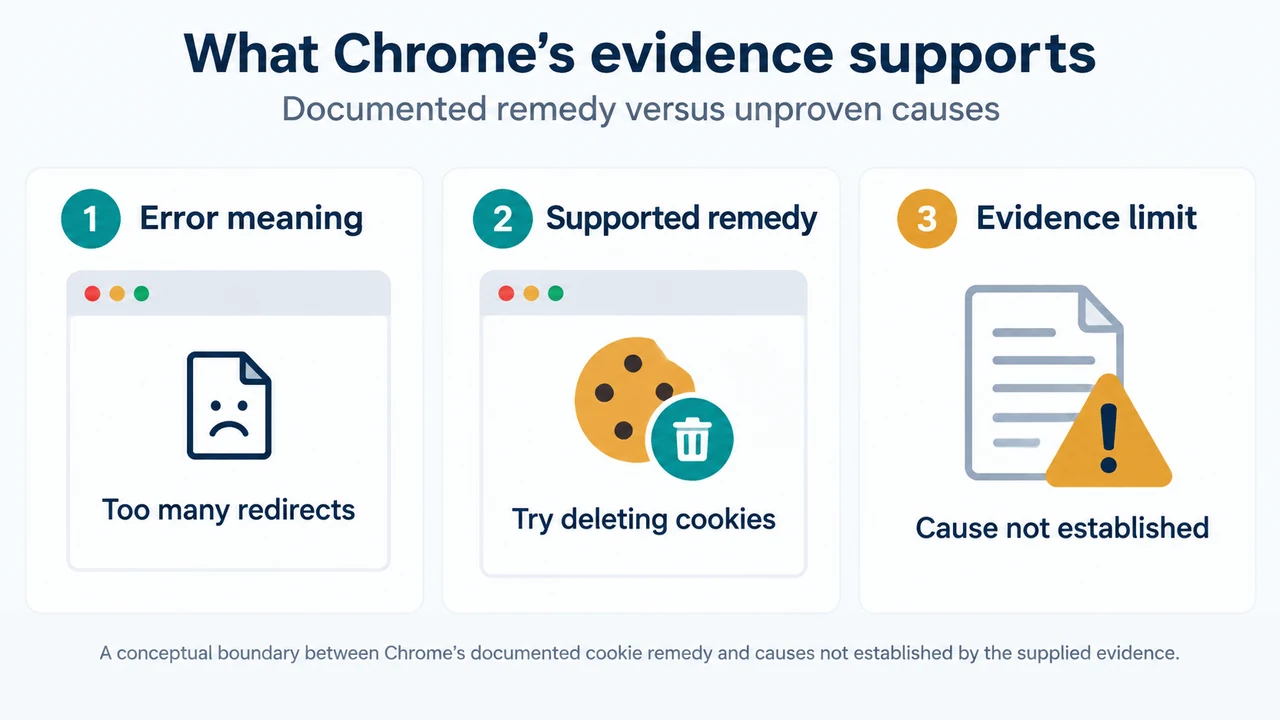
- Browser issues: Stored cookies, browser extensions, or memory usage.
- Website issues: Server downtime or maintenance.
Step 1: Check Website URL and Reload Page
The first step in resolving loading issues is verifying the address and refreshing the page.
- Make sure that the website address does not have any mistakes in the URL.
- To refresh the page, select Reload this page at the top left of the Chrome window.
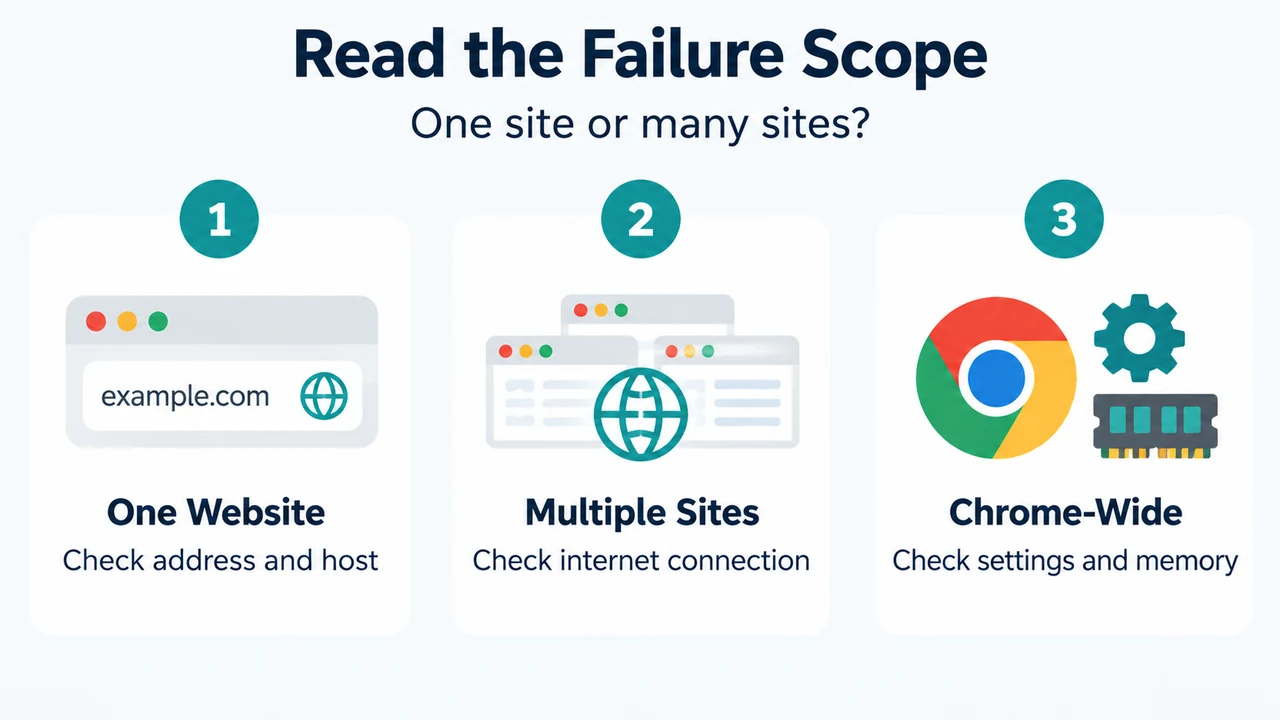
- Check if the issue affects only one website or multiple websites. If the issue affects multiple websites, check your internet connection.
Step 2: Check Your Internet Connection
Verify that your network connection is active and properly authenticated.
- Make sure that your device is connected to the internet using either Wi-Fi or ethernet.
- Check if your modem and router are working properly. You may need to reboot both devices, or contact your internet service provider (ISP).
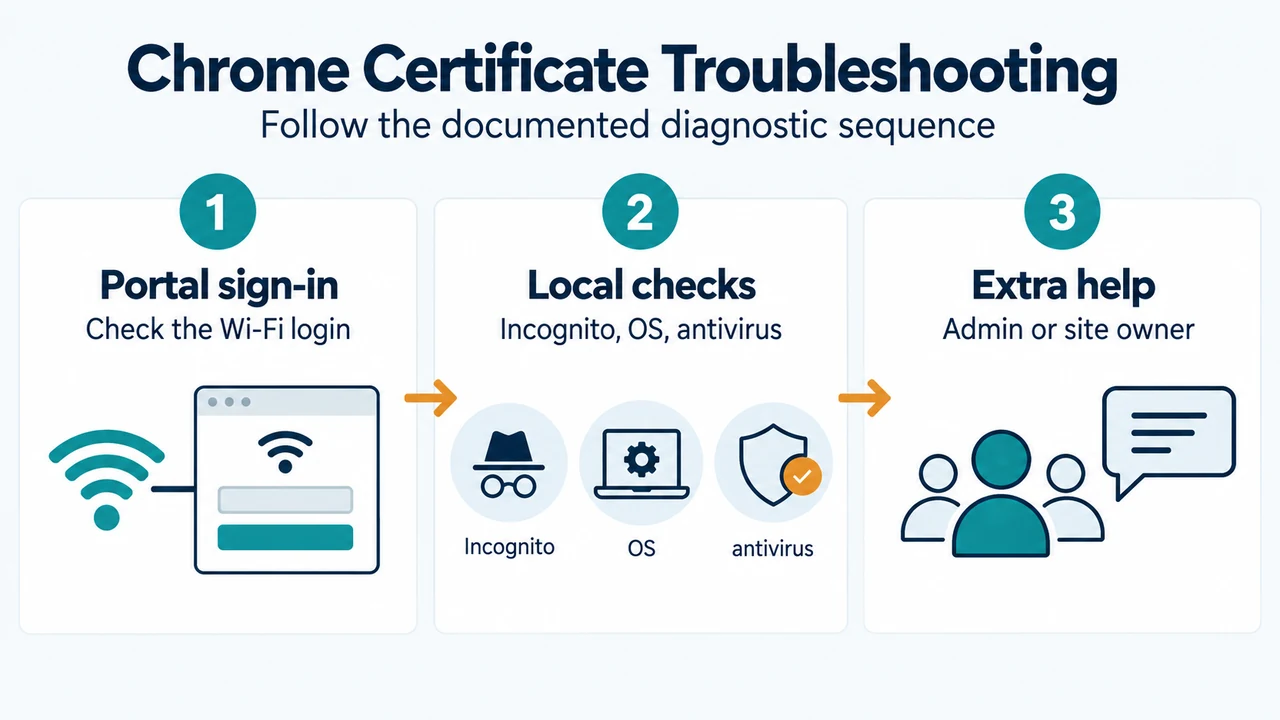
- When you connect to a public Wi-Fi network (such as in a cafe), you might need to sign in through a portal page. These portals are often detected by Chrome, which prompts you to sign in.
Step 3: Update and Restart Chrome
Ensure Chrome is running the latest version, or restart the browser manually.
- Make sure that you are on the latest version of Chrome.
- If Chrome is already up to date and has no updates available, manually restart Chrome depending on your operating system:
- Windows: At the top right of the Chrome window, select Close. Alternatively, at the top right, select More > Exit. Reopen Chrome from your Start menu or desktop shortcut.
- Mac: In the menu bar, select Chrome > Quit Google Chrome. Reopen Chrome from the Applications folder or dock.
- Chromebook: At the top right of the Chrome window, select Close. Reopen Chrome from the Launcher or dock.
Step 4: Browse in Incognito Mode
Testing the site in a private window helps determine whether extensions or cached data are interfering.
- Open the website you want to browse in Incognito mode.
- If your connection or loading issue is fixed in Incognito mode, exit Incognito mode, then proceed to the next steps to disable extensions or delete your browsing data.
Step 5: Disable Extensions
To fix your connection error or loading issue, you may need to disable extensions.
- Disable all extensions in Chrome.
- If disabling all extensions solves your connection error or loading issue, re-enable your extensions one at a time to identify which extension is causing the problem.
Step 6: Delete Browsing Data
Stored browsing records, cookies, and cache can sometimes cause loading conflicts.
- In the Chrome address bar, enter
Delete browsing data. - In the search results, select the action chip labeled Delete browsing data.
- Delete your browsing data, including history, cookies, and cache.
Step 7: Check Your Firewall or Antivirus Software
Local security software can prevent connections from succeeding.
- Make sure any firewall or antivirus software is not blocking your connection. On Windows, review Firewall and Network Protection in the Windows Security App; on Mac, review firewall settings.
- To protect against malware and other risks, run a Safety Check within Chrome.
Step 8: Free Up Device Memory
If your device does not have enough available memory, it might experience reduced performance and lead to page crashes and loading errors.
- Close unused tabs to free up memory and speed up Chrome.
- Turn off or stop unwanted background tasks.
- To help active tabs run smoothly, you can personalize Chrome’s performance settings.
Step 9: Reset Chrome Settings or Reinstall
If loading issues persist, reset Chrome configurations or perform a reinstallation.
- Reset Chrome to its default settings.
- To fix most problems if resetting is insufficient, uninstall and reinstall Chrome. When you sign into Chrome, your information is saved into your Google Account, allowing you to find your saved info after reinstalling and signing back in.
- If the steps above do not work, you can get more help on the Chrome Help Forum or report an issue and send feedback in Chrome.
Research Method and Limitations
This article was prepared directly from public documentation provided by the official Google Chrome Help Center regarding connection and loading errors. No competing external coverage was available for review in the supplied research dataset, and no hands-on tests or benchmarks were conducted. This guide is limited strictly to the client-side troubleshooting procedures documented in the primary source excerpt.
Text version of the diagrams
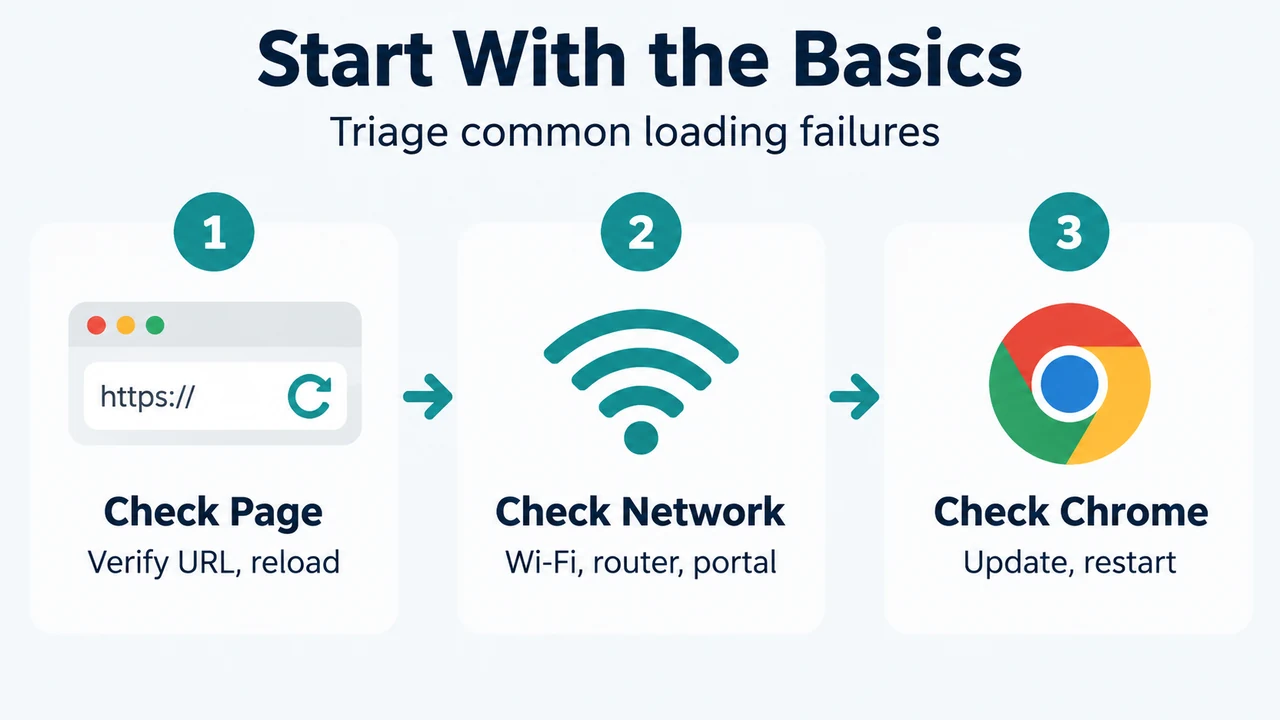
- Start With the Basics: Check Page — Verify URL, reload; Check Network — Wi-Fi, router, portal; Check Chrome — Update, restart
- Read the Failure Scope: One Website — Check address and host; Multiple Sites — Check internet connection; Chrome-Wide — Check settings and memory