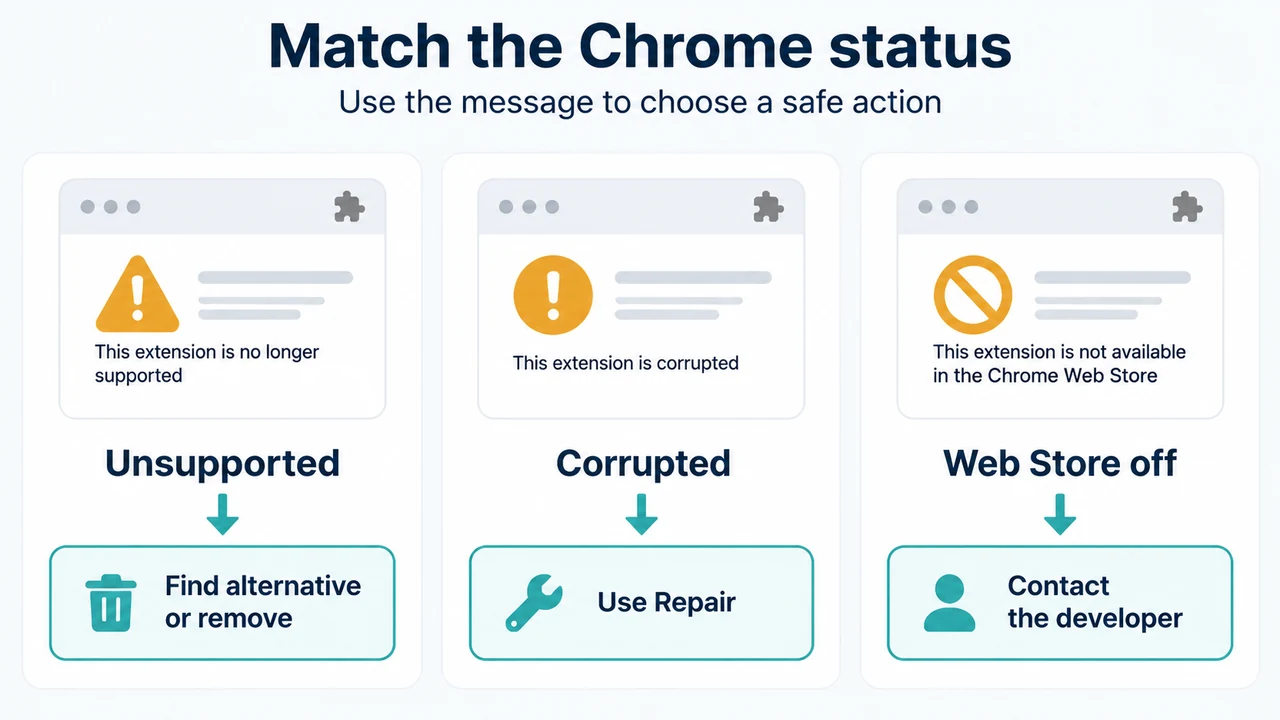
If Chrome 138 or later disables an extension on Windows or Mac, first identify the message and the extension’s status. Chrome’s current documentation supports three different paths: find an alternative for an unsupported extension, use Repair for an extension marked corrupted, or remove an extension that is unavailable or no longer needed.
This guide covers desktop Chrome on Windows and Mac. It does not claim that every disabled extension has the same cause.
What Chrome 138 changed for Manifest V2 extensions
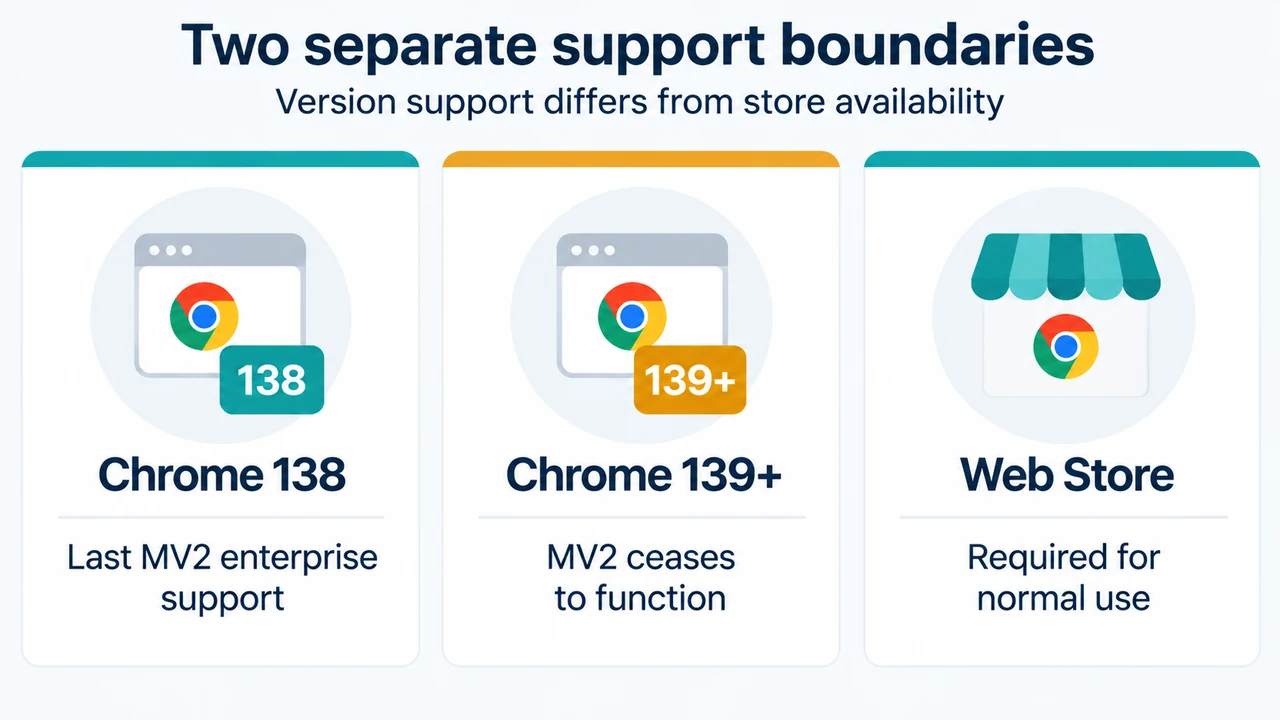
Google’s Chrome Extensions documentation says that Manifest V2 extensions were disabled everywhere with Chrome 138 on July 24, 2025. It also says Chrome 138 was the final version that could support Manifest V2 extensions when paired with the documented enterprise policy. The same timeline says that Manifest V2 extensions cease to function for users upgrading to Chrome 139 and later.
Google’s timeline also records a separate Web Store change: on August 31, 2026, remaining Manifest V2 extensions were removed from the Chrome Web Store. Existing installs on Chrome 138 or earlier could continue to run, but could not receive updates or be reinstalled if removed.
These dates describe Manifest V2 support. They do not prove that every extension disabled by Chrome uses Manifest V2.
Choose the action that matches the message
| What you see | Documented next step |
|---|---|
| Chrome calls the extension unsupported and disables it | Find an alternative or remove it. Chrome may offer alternatives from the extension details page. |
| The extension is marked corrupted | Use Chrome’s Repair option. If it remains corrupted, Chrome recommends checking for software that may be changing the extension’s files and then trying Repair again. |
| “Extensions Disabled” appears and the extension was not published in the Chrome Web Store | Chrome says these extensions are grayed out and cannot be turned back on. Contact the developer and ask whether a Chrome Web Store version is available. |
The table is a decision guide, not a diagnosis of the extension’s internal files. The supplied Google documentation does not establish that an unsupported extension can be repaired.
Find the extension’s status in Chrome
- Open Chrome on your Windows or Mac computer.
- At the top right, select More, then Extensions, then Manage extensions.
- Read the message shown for the affected extension and use the matching section below.
If Chrome says the extension is unsupported
1. Look for an alternative
On the Manage extensions page, find the unsupported extension, select Details, select More, and choose Find Alternatives when that option is available. Chrome directs you to an extension from the Chrome Web Store.
Review the alternative’s permissions before approving it. Google says some extensions request permissions or data access during installation and advises approving only extensions you trust.
2. Remove the unsupported extension
If you do not need it, open Manage extensions, find the unsupported extension, select Remove, and confirm. You can also right-click the extension’s toolbar icon and select Remove from Chrome.
3. Treat temporary re-enabling as limited
Chrome’s help page says an unsupported extension can be re-enabled only for a limited period after it has been disabled. The page recommends finding an alternative before the extension is permanently disabled. It also says that an administrator may re-enable unsupported extensions through Chrome Enterprise Policy when the browser is managed.
This is not a general promise that an unsupported extension can be restored on every computer. The available documentation describes a limited option and a separate managed-browser policy.
If Chrome says the extension is corrupted
Chrome documents a different action for a corrupted extension:
- Open More, then Extensions, then Manage extensions.
- Find the corrupted extension and select Repair.
- Confirm by selecting Repair extension.
If the extension is still corrupted, Google says suspicious software might be changing its files. Its guidance for Windows, Mac, and Linux is to run antivirus or anti-malware software and remove programs that may be affecting Chrome. It then says to try the Repair action again. The supplied documentation does not identify a particular security product or guarantee that Repair will succeed.
If Chrome says extensions are disabled
Google’s Chrome Web Store help page says the “Extensions Disabled” message applies to Windows and Mac users when Chrome has turned off extensions to protect browsing data. It says the affected extensions either did not come from the Chrome Web Store or were determined unsafe.
Extensions that have not been published on the Chrome Web Store are grayed out and cannot be turned back on, according to that page. The supported route described there is to contact the developer and ask them to upload the extension to the Chrome Web Store. A Web Store publication would let users install it from that store, or, if it was already installed, manually re-enable it from the extensions list.
What not to assume
An unsupported message is not the same as a corrupted-extension message. Chrome documents Find Alternatives and removal for unsupported extensions, while it documents Repair for extensions marked corrupted.
Also, a third-party article supplied for comparison recommends flags and manually loading an extension. That page is not used as technical authority here. The Google sources supplied for this article document the Chrome Web Store route, limited re-enabling, alternatives, removal, and Repair. They do not establish that manually loading an unsupported extension is a supported general fix.
Research method and limitations
This article was prepared from the supplied public excerpts retrieved on September 23, 2026, including Google Chrome Help, Google Chrome Web Store Help, and the Chrome Developers Manifest V2 timeline. The excerpts were treated as version- and scope-specific evidence. No hands-on testing, lab work, benchmark, or comprehensive review was performed. The article does not establish the cause of an individual extension’s failure beyond the messages and actions documented in those sources.
Text version of the diagrams
- Match the Chrome status: Unsupported — Find alternative or remove; Corrupted — Use Repair; Web Store off — Contact the developer
- Two separate support boundaries: Chrome 138 — Last MV2 enterprise support; Chrome 139+ — MV2 ceases to function; Web Store — Required for normal use