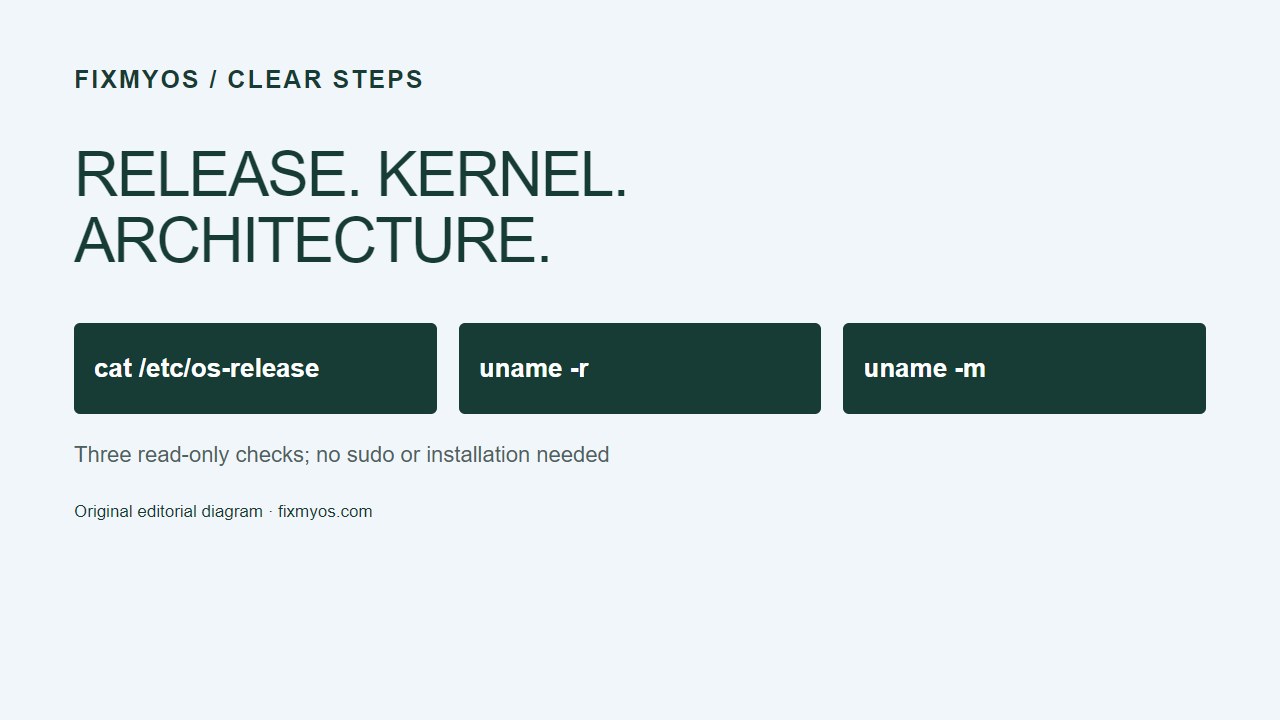
If a troubleshooting guide asks which Ubuntu version you run, the kernel number alone is not the answer. Collect the operating-system release, the running kernel and the machine architecture separately. The three commands below read information; they do not install packages or change your system.
Applies to
These checks are intended for an Ubuntu terminal, including an SSH session to an Ubuntu server. We ran all three on Ubuntu Server 26.04.1 LTS on 14 September 2026. That test covers the stated server environment; it is not a test of every Ubuntu desktop, container or WSL configuration.
Quick diagnosis
| Question | Command |
|---|---|
| Which Ubuntu release is installed? | cat /etc/os-release |
| Which kernel is running? | uname -r |
| What machine architecture is reported? | uname -m |
Safest fix first: identify before changing anything
You do not need an administrator shell for these checks. Open the terminal in the environment you are diagnosing. If you have several SSH sessions open, make sure you are reading the intended machine rather than collecting details from your local computer by mistake.
Step 1: read the Ubuntu release
cat /etc/os-releaseLook for PRETTY_NAME, which gives a readable operating-system description, and VERSION_ID, which identifies the release version. The Ubuntu os-release reference documents those fields. It describes the file format; it is not evidence that your machine runs the release used to host that manual page.
Expected result: several labelled lines. In our test, PRETTY_NAME was Ubuntu 26.04.1 LTS and VERSION_ID was 26.04. Your values may differ. Read the file; do not edit it to make an installer or guide recognize a different version.
Step 2: read the running kernel
uname -rExpected result: one kernel-release string. Our test returned 7.0.0-31-generic. This identifies the running kernel, not the Ubuntu distribution release. The uname manual distinguishes the kernel-release and machine-information options.
Step 3: check architecture
uname -mExpected result: a machine-architecture identifier; our server returned x86_64. Record the exact output when asking for help. Do not choose a download only because its version number matches; its supported operating system and architecture also need to match the vendor’s requirements.
If the result still seems inconsistent
First check which environment owns the terminal session. An Ubuntu userspace inside a container or WSL environment needs context when interpreting a kernel result. If you are unsure, state that environment explicitly in your support request instead of treating the three strings as interchangeable labels.
If the release file is missing, report the error rather than creating a replacement file or running an upgrade command. These commands are diagnostic checks, not a repair procedure.
Rollback and what to share
No rollback is needed for these read-only commands. Share the three relevant results and a concise symptom description; avoid posting unrelated terminal history, credentials or configuration files. For how we record checks and limitations, see our editorial standards. The header illustration is an original command map, not a fabricated terminal screenshot.