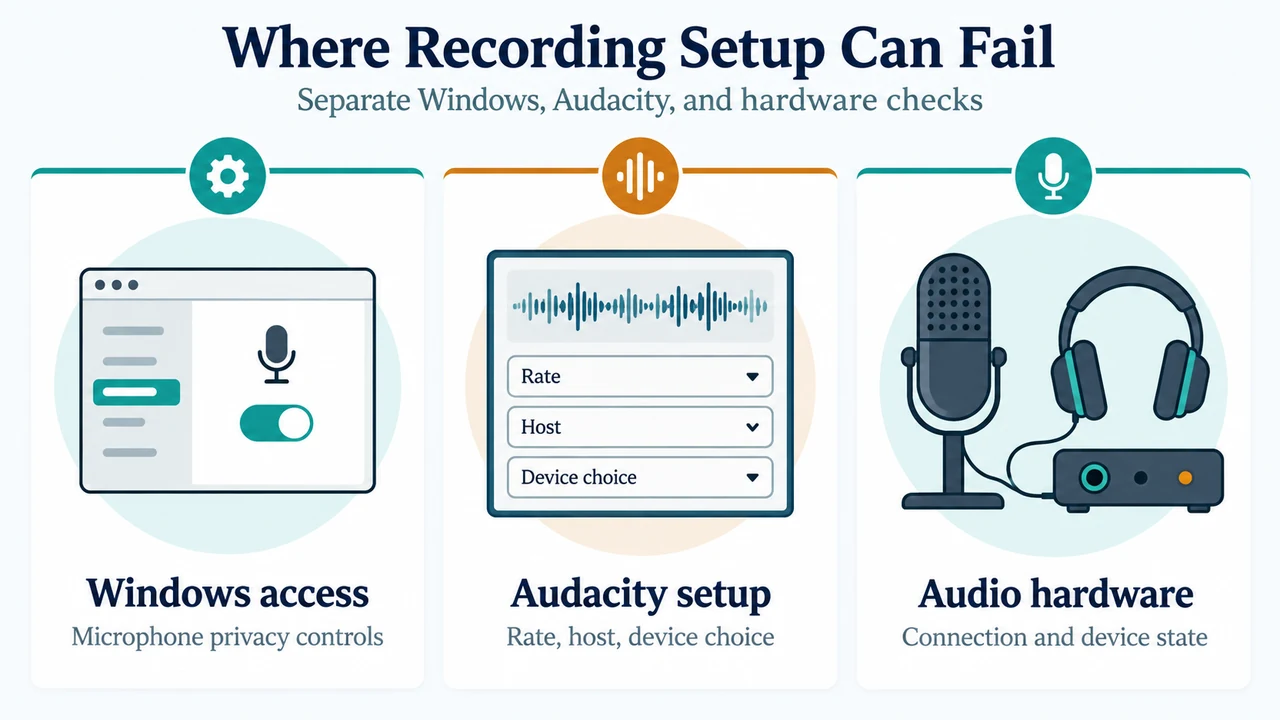
When Audacity displays “Error opening recording device” (often alongside numeric error codes such as -9996, -9997, or -9999), it indicates that Audacity cannot initialize the audio stream from your selected input device. On Windows 11 and Windows 10, this issue usually stems from one of four verified causes: system microphone privacy permissions blocking desktop applications, mismatched sample rates between Audacity and the Windows Sound control settings, audio host conflicts (such as WASAPI device-pairing limitations), or a temporarily disconnected device that requires an internal device rescan.
According to the official Audacity Sound Device Documentation and official Microsoft Privacy Support, you can resolve these issues using safe, reversible settings adjustments directly within Windows and Audacity.
Step 1: Check Windows Microphone Privacy Permissions
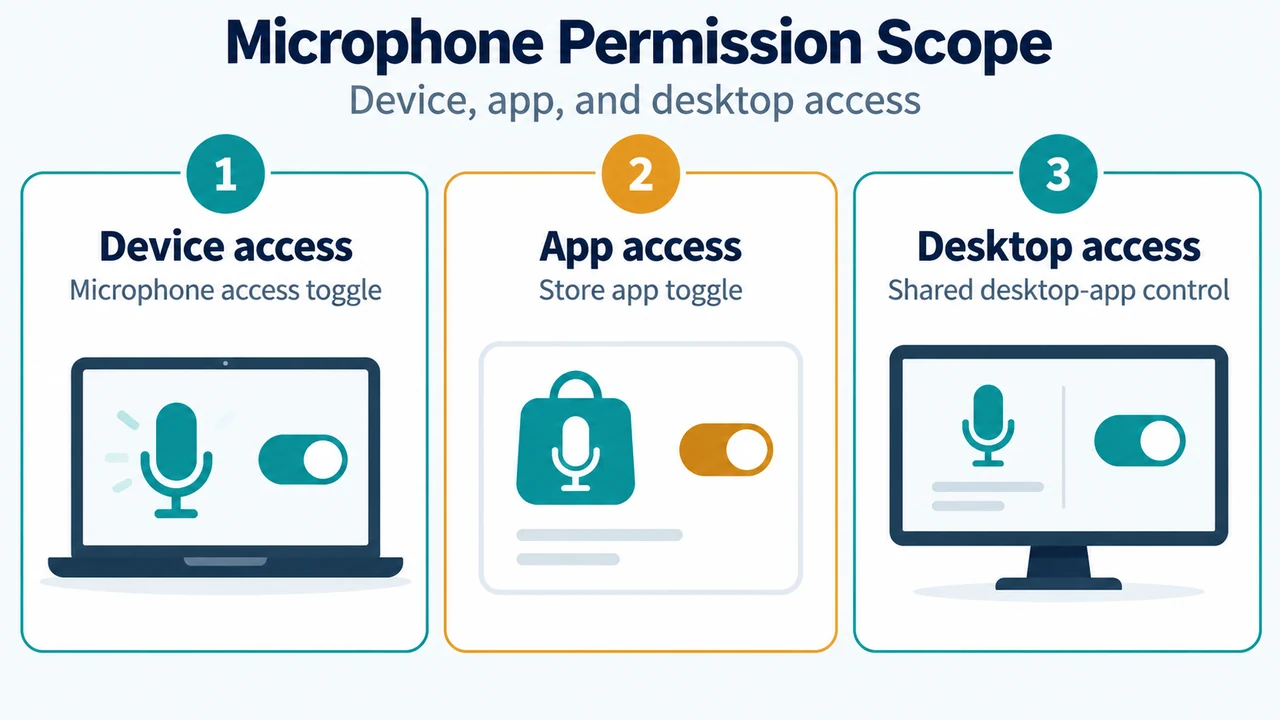
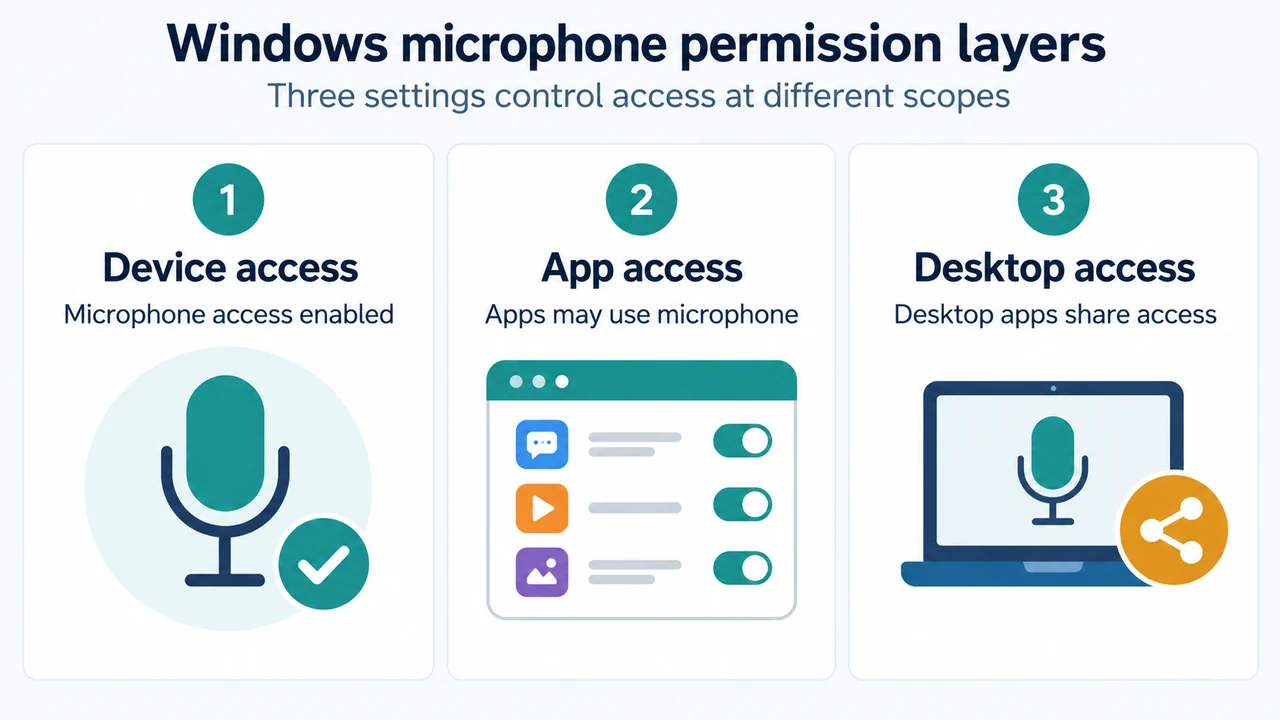
Windows privacy controls can block desktop programs like Audacity from accessing recording inputs, which frequently triggers numeric error code -9999 (Unanticipated host error). Because Audacity is a desktop program rather than a Microsoft Store package, you must ensure desktop app microphone access is enabled.
On Windows 11
- Open Start > Settings > Privacy & security > Microphone.
- Ensure Microphone access is toggled to On.
- Ensure Let apps access your microphone is toggled to On.
- Scroll down to Let desktop apps access your microphone and verify that the master toggle is switched to On. Note that individual desktop applications cannot be toggled independently; toggling this master setting applies to all detected desktop apps.
On Windows 10
- Open Start > Settings > Privacy > Microphone.
- Confirm that Microphone access for this device is enabled.
- Turn on Allow apps to access your microphone.
- Scroll to Allow desktop apps to access your microphone and verify that the toggle is switched to On.
Step 2: Match Sample Rates in Audacity and Windows
Audacity error code -9997 (Invalid sample rate) occurs when the project sample rate requested by Audacity does not match the sample rate supported or configured on your sound hardware.
- Check supported device rates: In Audacity, go to Help > Diagnostics > Audio Device Info. This diagnostic window lists the sample rates your audio interface claims to support.
- Set Audacity Project Sample Rate: Navigate to Audio Settings Preferences in Audacity. Set your project sample rate to the standard rate of 44100 Hz. If your specific interface only supports 48000 Hz (or another fixed rate), set the project sample rate to match that exact frequency.
- Verify Windows Default Format: Open the Windows Sound control settings. Ensure that the Default Format under your recording device’s properties contains the identical sample rate and channel count configured in Audacity.
- Align existing tracks: If you are working within a project that already has audio tracks, select each track and choose Tracks > Resample to ensure individual tracks match your project sample rate.
Step 3: Resolve Audio Host and Device Conflicts (WASAPI vs DirectSound/MME)
In the Audacity Audio Setup Toolbar, the choice of audio host determines how Audacity communicates with the operating system’s audio subsystem:
- WASAPI USB Limitations: Audacity’s documentation notes that selecting Windows WASAPI when recording from an external USB device while simultaneously outputting playback to an onboard sound card can cause stream initialization to fail. If you encounter errors under WASAPI with mixed devices, change your Audio Host in the Audio Setup Toolbar to MME or Windows DirectSound, or use the USB device for both input and output.
- Explicit Device Selection: In the Audio Setup Toolbar, explicitly select your specific recording device by name. Do not choose generic aliases such as “Microsoft Sound Mapper” or “Primary Sound Driver”.
- Exclusive Mode Alternative: If device communication issues persist under standard mixing, Windows Sound settings allow enabling both Exclusive Mode checkboxes. In Audacity, set the Host to Windows DirectSound and choose a supported project sample rate so Audacity can request that rate directly from the sound device.
Step 4: Reconnect and Rescan Audio Devices
If an external USB audio interface, microphone, or PCI sound card is unplugged or experiences a loose cable connection, Audacity may display -9996 (Invalid device).
- Check physical cabling and reconnect the recording interface firmly.
- In Audacity, click Transport > Rescan Audio Devices. This forces Audacity to refresh its hardware index without requiring an application restart.
- Return to the Audio Setup Toolbar to re-select your recording device.
Step 5: Adjust Transport Monitoring Settings
Audacity documentation recommends checking specific playback-during-record options that can stress the device stream:
- Turn off Transport > Transport Options > Enable audible input monitoring while troubleshooting (this should always remain disabled when recording computer audio playback).
- Turn off Transport > Transport Options > Hear other tracks during recording to rule out strain caused by simultaneous playback and capture streams.
Common Numeric Error Codes Reference
| Error Code | Reported Meaning | Primary Diagnostic Check |
|---|---|---|
| -9996 | Invalid device | Check for loose USB/audio cables or disconnected hardware; execute Transport > Rescan Audio Devices. |
| -9997 | Invalid sample rate | Ensure project sample rate in Audacity preferences matches the rate set in Windows Sound Default Format (e.g., 44100 Hz or 48000 Hz). |
| -9999 | Unanticipated host error | Check Windows privacy settings for desktop microphone access, verify USB connection stability, or switch Audio Host from WASAPI to DirectSound/MME. |
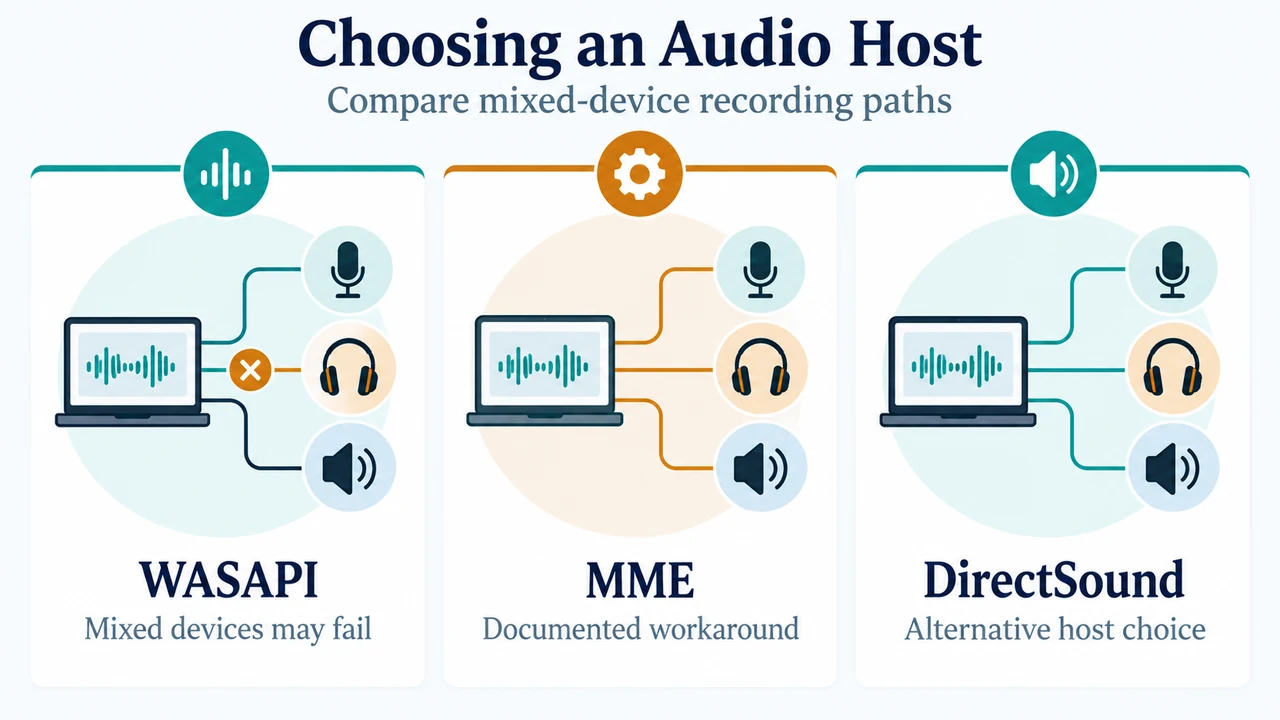
Text version of the diagrams
- Where Recording Setup Can Fail: Windows access — Microphone privacy controls; Audacity setup — Rate, host, device choice; Audio hardware — Connection and device state
- Choosing an Audio Host: WASAPI — Mixed devices may fail; MME — Documented workaround; DirectSound — Alternative host choice
Research Method and Limitations
This troubleshooting guide was compiled using official public documentation from the Audacity Development Manual and Microsoft Windows Privacy support pages. No physical hands-on testing, third-party benchmark evaluations, or laboratory performance measurements were conducted. Step applicability is limited to Windows 10 and Windows 11 environments using official Audacity builds.