The built-in Windows command-line utility DiskPart allows administrators to view, set, and clear configuration flags on storage devices. When a storage device or volume is marked read-only at the software level, DiskPart attribute commands can inspect and clear that attribute.
Supported Operating Systems
According to Microsoft documentation, the attribute commands apply to:
- Windows 11
- Windows 10
- Windows Server 2025
- Windows Server 2022
- Windows Server 2019
- Windows Server 2016
- Azure Local version 2311.2 and later
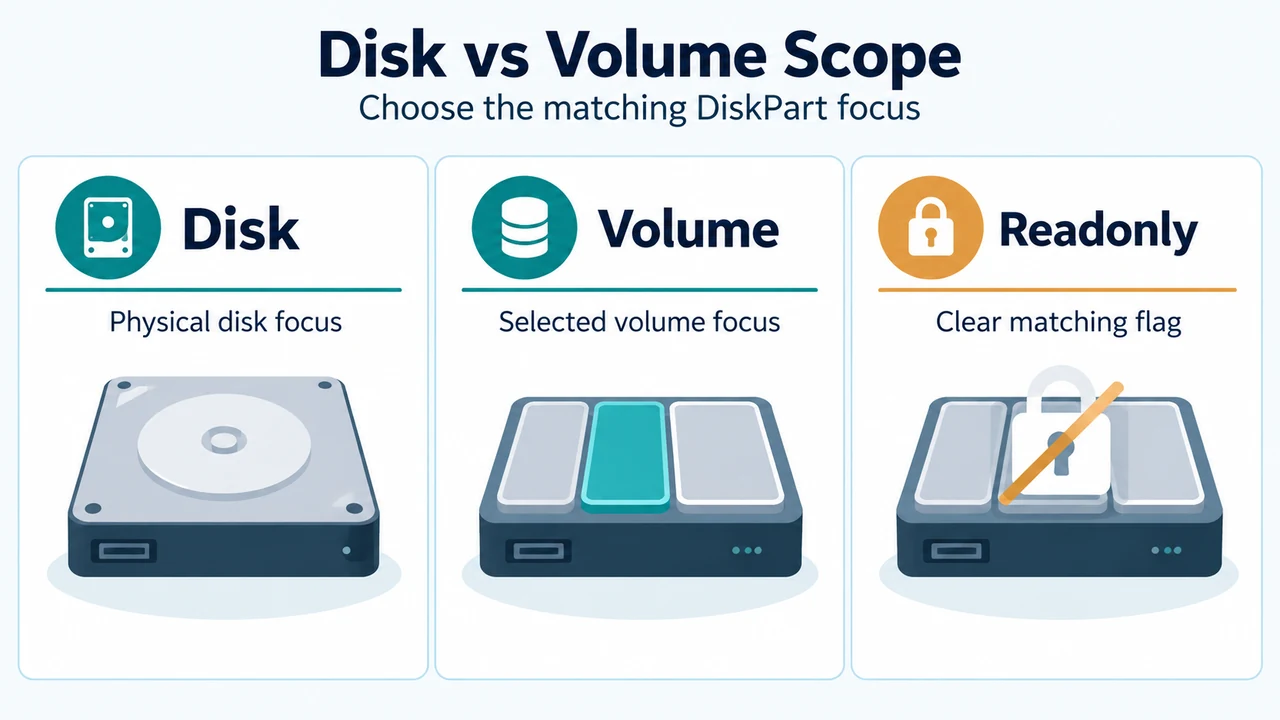
Disk-Level vs. Volume-Level Scopes
DiskPart maintains separate attribute commands for physical disks and logical volumes:
- Disk attributes: Managed using
attributes disk. Setting or clearing an attribute affects the disk that currently holds focus. When displaying attributes, the startup disk attribute marks the disk used to start the computer. For dynamic mirrors, it indicates the disk containing the boot plex of the boot volume. - Volume attributes: Managed using
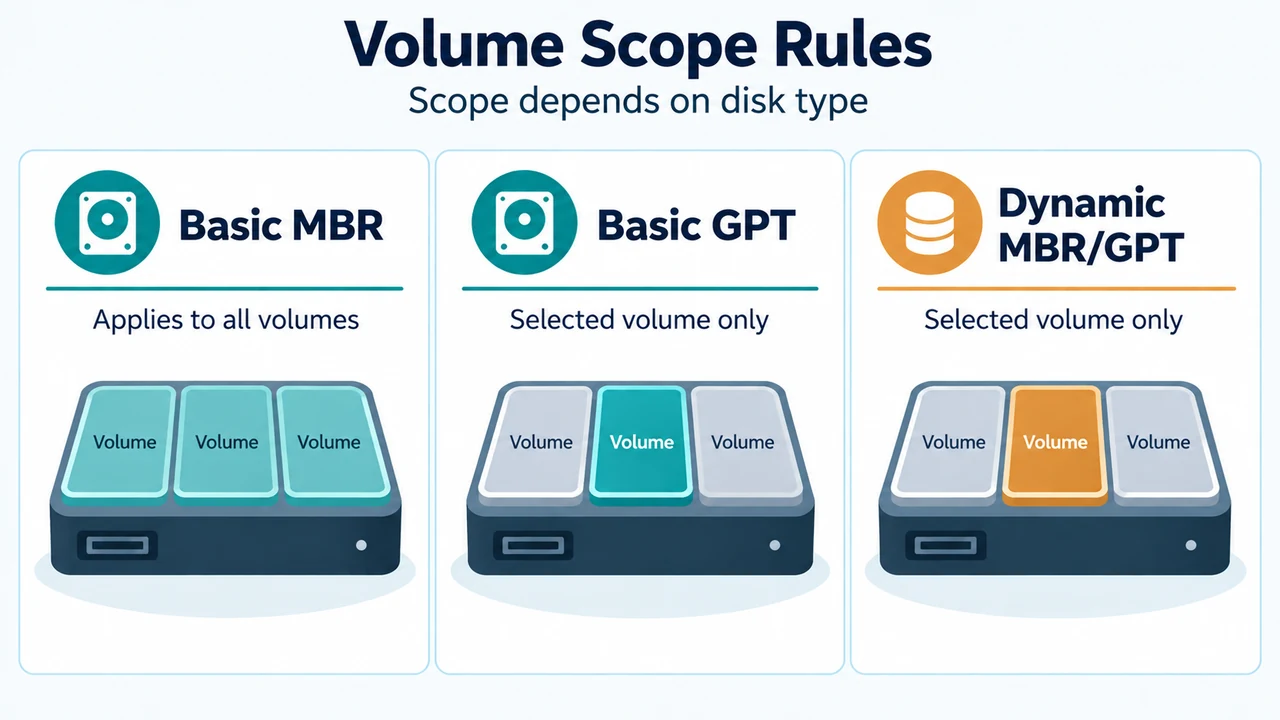
attributes volume. On basic Master Boot Record (MBR) disks, thehidden,readonly, andnodefaultdriveletterparameters apply to all volumes on that physical disk. On basic GUID Partition Table (GPT) disks and dynamic disks (MBR or GPT), these parameters apply only to the selected volume.
Inspecting and Clearing Disk Read-Only Attributes
A disk must be selected for attributes disk commands to succeed.
1. Select the Disk
Shift focus to the target disk using the select disk command:
select disk <disknumber>Always verify that focus is on the intended disk before running attribute modification commands.
2. View Current Disk Attributes
Display the current attribute flags for the selected disk:
attributes disk3. Clear the Read-Only Flag
To clear the read-only flag on the selected disk with focus, enter:
attributes disk clear readonlyInspecting and Clearing Volume Read-Only Attributes
A volume must be selected for attributes volume commands to succeed.
1. Select the Volume
Shift focus to the target volume using the select volume command:
select volume <volumenumber>Always verify that focus is on the intended volume before modifying attributes.
2. View Current Volume Attributes
Display the current attribute flags for the selected volume:
attributes volume3. Clear the Read-Only Flag
To clear the read-only flag on the selected volume with focus, enter:
attributes volume clear readonlyDiskPart also supports clearing multiple attributes simultaneously if needed, such as: attributes volume clear hidden readonly.
Scripting Parameter: noerr
Both attributes disk and attributes volume support an optional noerr parameter designated for scripting only. Without noerr, encountering an error causes DiskPart to exit with an error code. When noerr is included, DiskPart continues processing subsequent commands as if the error did not occur.
Research Method and Limitations
This article was prepared directly from public Microsoft Learn command documentation for attributes disk and attributes volume. No competing coverage was available for comparison. Material limits include the lack of primary documentation in the supplied excerpts for starting the DiskPart command-line tool itself (such as executable paths or elevated privilege requirements), physical hardware write-protect switches, or file system permissions.
Text version of the diagrams
- Disk vs Volume Scope: Disk — Physical disk focus; Volume — Selected volume focus; Readonly — Clear matching flag
- Volume Scope Rules: Basic MBR — Applies to all volumes; Basic GPT — Selected volume only; Dynamic MBR/GPT — Selected volume only