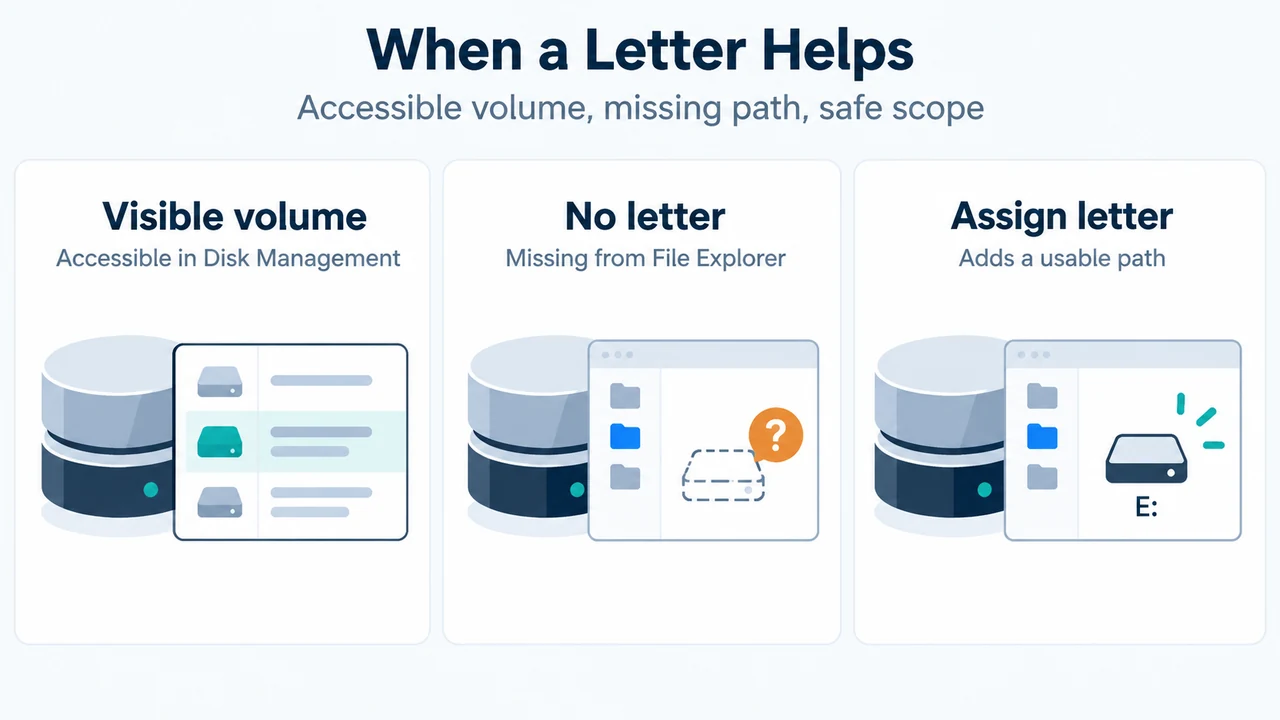
If a USB volume is visible in Disk Management but missing from File Explorer, check whether the volume already has a drive letter. For an accessible volume that does not contain Windows or applications, Microsoft documents adding a letter through Disk Management without formatting the volume.
This guide applies to Windows 11. It covers only the drive-letter case. Do not initialize, create a partition, or format a volume merely because it is absent from File Explorer.
Before you begin
You need an account that is a member of the Backup Operators or Administrators group. Microsoft also says the drive should be a new or existing drive that does not store the Windows operating system or applications.
Identify the USB volume by checking its size and other visible details in Disk Management. Do not select a different disk or partition just because it is nearby in the list.
Assign a drive letter in Disk Management
- Open Disk Management with administrator permissions from the Windows Start menu.
- Locate the USB volume you identified.
- Right-click the volume and select Change Drive Letter and Paths.
- Select Add.
- Select Assign the following drive letter.
- Choose an available letter from the list and select OK.
- In the confirmation dialog, select Yes.
Microsoft documents this operation as assigning a letter to an existing or new drive. Windows Central’s supplied coverage also describes the missing-drive-letter case as one reason an online, initialized drive may not appear in File Explorer.
When to stop
The option is missing or unavailable
If Change Drive Letter and Paths is missing or greyed out, Microsoft says the volume is not ready to receive a drive letter. The documented possibilities include an unallocated drive, an inaccessible volume such as an EFI System or Recovery partition, or insufficient permissions.
Do not initialize or format the volume as a generic next step. The supplied Windows Central excerpt warns that initializing an unknown disk wipes its contents and prepares it to be formatted. That is a different operation from assigning a letter to an accessible volume.
The volume is Offline, Unknown, Unallocated, or contains important data
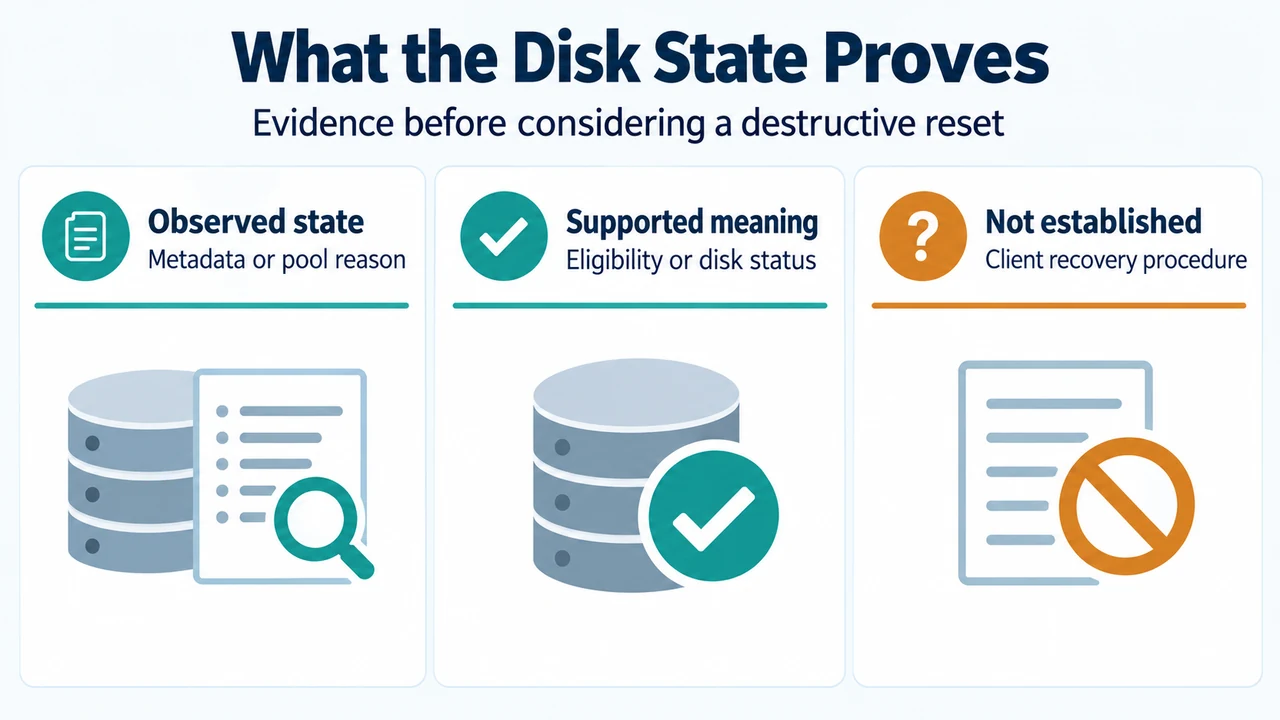
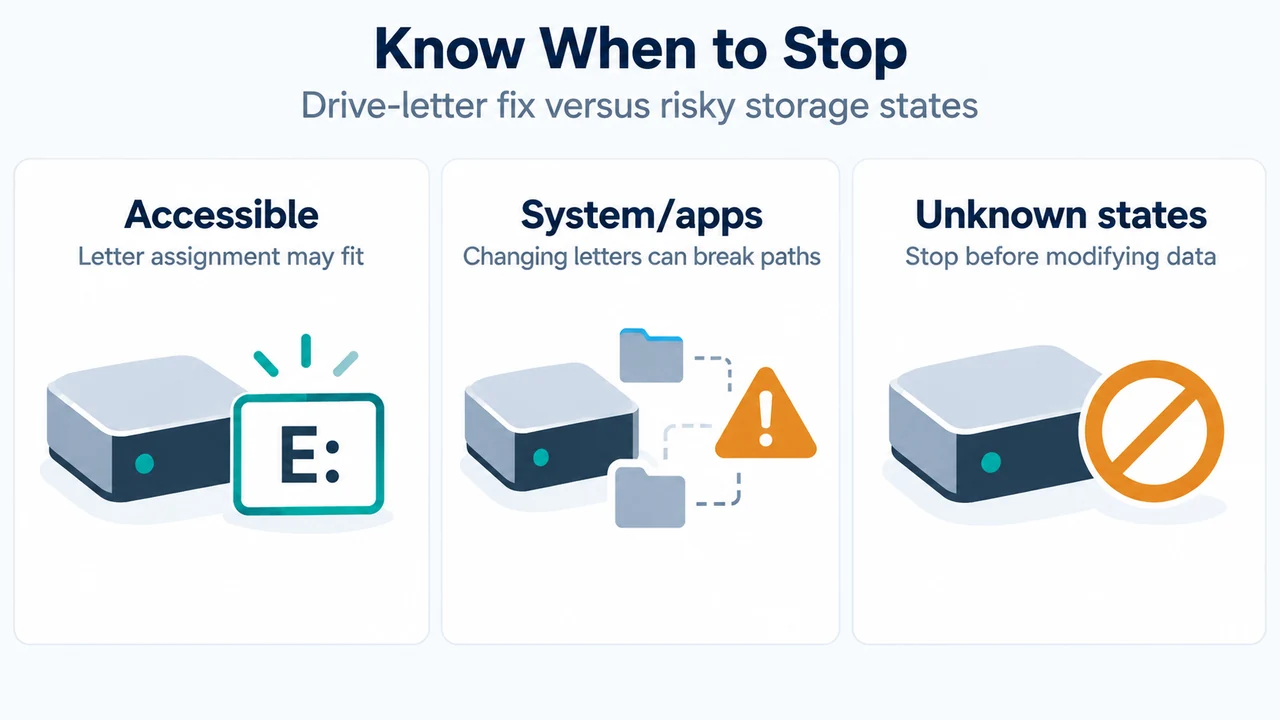
The supplied excerpts do not provide a safe, complete recovery procedure for every Offline, Unknown, Unallocated, corrupted, or inaccessible state. They also do not establish that assigning a letter is appropriate for every volume with data. Stop and obtain state-specific guidance before making changes, especially if the files are important.
The volume contains Windows or applications
Microsoft recommends not changing the letter of a drive that contains Windows or applications because those applications might have trouble running or finding the drive. This guide is therefore limited to the accessible USB-volume scenario described above.
A folder path is a different option
Microsoft also documents mounting a drive in an empty folder instead of giving it a drive letter. That method has additional requirements: an empty folder on an NTFS or ReFS drive, and a volume formatted with NTFS or ReFS. Those requirements are separate from the simple drive-letter procedure, so they are not needed for the scenario covered here.
What this fix does—and does not do
Assigning a letter gives the selected accessible volume a path that Windows can use. It does not establish that an unallocated, unknown, offline, corrupted, or inaccessible volume is safe to modify. It also does not explain every reason a USB device may be absent from File Explorer; the supplied competing excerpt mentions physical connection and configuration issues, but the primary Microsoft excerpts supplied here focus on Disk Management and drive paths.
Research method and limitations
This article was prepared from the supplied public source excerpts retrieved on September 19, 2026. The primary Microsoft pages identify Windows 11 applicability, permissions, the Disk Management procedure, and documented restrictions. The competing Windows Central passage was truncated and is used only to compare coverage, not as authority for the technical procedure. No hands-on test, lab measurement, benchmark, or comprehensive review was performed.
Text version of the diagrams
- When a Letter Helps: Visible volume — Accessible in Disk Management; No letter — Missing from File Explorer; Assign letter — Adds a usable path
- Know When to Stop: Accessible — Letter assignment may fit; System/apps — Changing letters can break paths; Unknown states — Stop before modifying data
Sources
- Microsoft: Change a drive letter — applies to Windows 11; documents permissions, the Disk Management steps, and conditions that make assignment unavailable. Last updated June 26, 2025.
- Microsoft: Mount a drive in a folder — documents the alternative folder-path method and its NTFS/ReFS and empty-folder requirements. Last updated June 11, 2025.