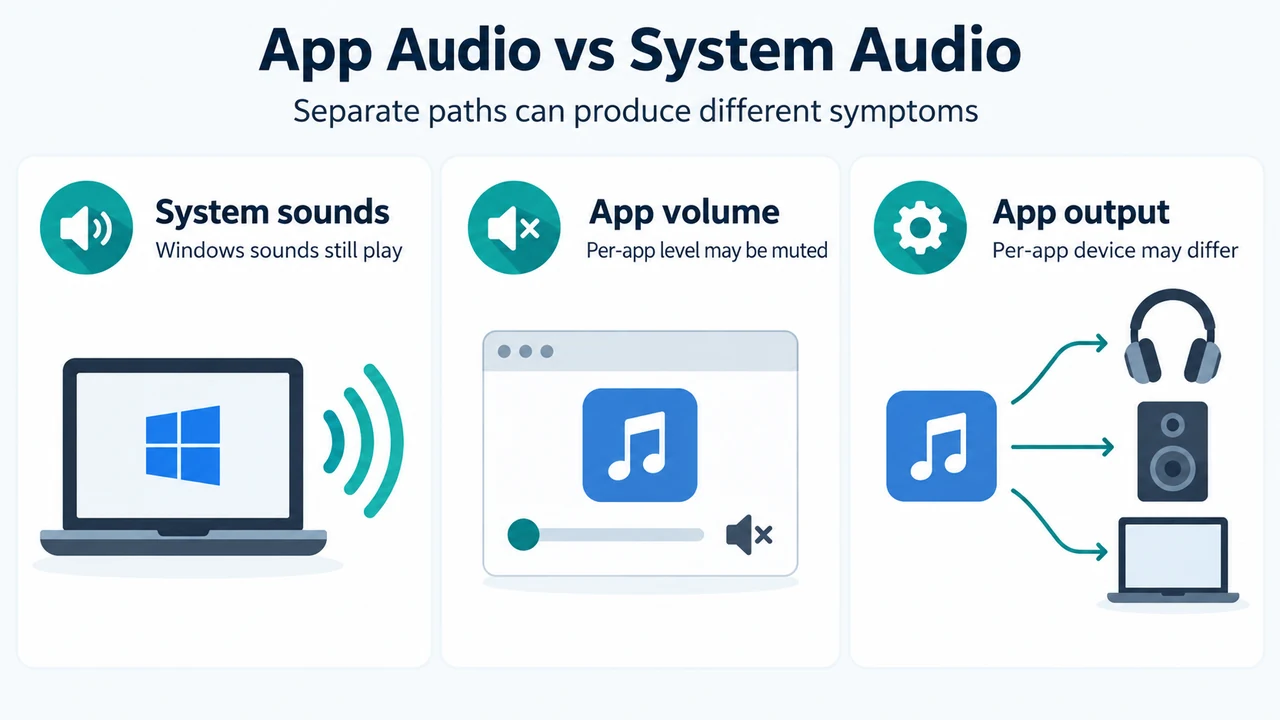
If Windows 11 system sounds play but one application is silent, start with that app’s settings in Volume Mixer. Windows can apply a separate volume level and output device to each app. If those checks do not restore sound, restart the two Windows audio services named by Microsoft and then check for an audio-driver update.
This guide covers Windows 11. The supplied Microsoft source also includes Windows 10 instructions, but the paths below use the Windows 11 interface.
1. Check the app’s volume
App volume controls can override the main system volume.
- Select Start > Settings > System > Sound.
- Select Volume mixer.
- Under Apps, find the silent application.
- Make sure it is not muted and that its volume slider is turned up.
Test the app after changing the setting. If it is still silent, continue to the output-device check.
2. Check the app’s output device
An app can use a different output device from the system default. In Windows 11, return to Start > Settings > System > Sound > Volume mixer. Under Apps, confirm that the affected app has the correct Output device selected.
This check only establishes whether the app is assigned to the intended device. The supplied source does not establish how every app chooses or remembers its device selection.
3. Restart the Windows audio services
Microsoft lists restarting the audio services as a way to address temporary app-audio problems.
- Select Start, type
services.msc, and press Enter. - Right-click Windows Audio and select Restart.
- Right-click Windows Audio Endpoint Builder and select Restart.
- Test audio in the affected app.
These steps restart the named services. They do not reset the computer or remove audio devices.
4. Check for an audio-driver update
Microsoft says outdated or incompatible audio drivers can prevent apps from playing sound.
- Select Start, search for Device Manager, and open it.
- Expand Sound, video and game controllers.
- Right-click your audio device and select Update driver.
- Restart the PC.
The supplied evidence supports checking for an update and restarting the PC. It does not establish that a driver update will fix every one-app audio problem.
Which check should you try first?
| Symptom | Supported next check |
|---|---|
| Only one app is silent | Check that app’s Volume Mixer level. |
| The app is audible through the wrong device or not audible through the intended device | Check the app’s Output device in Volume Mixer. |
| The app remains silent after those checks | Restart Windows Audio and Windows Audio Endpoint Builder. |
| The problem continues | Check for an audio-driver update in Device Manager. |
Limits of this checklist
These steps address the causes identified in the supplied Microsoft excerpt: app-specific volume, app-specific output selection, audio services, and audio drivers. The evidence does not cover every application’s internal audio settings, hardware faults, Bluetooth behavior, or a guaranteed fix. It also does not establish that all apps expose the same controls.
Microsoft’s page states that Windows 10 support ended on October 14, 2025. This article is scoped to Windows 11, so that notice does not change the steps above.
Research method
This research-based guide was prepared from the supplied public Microsoft support excerpt retrieved on September 20, 2026, and used the visible Windows 11 instructions only. A supplied PCWorld page was reviewed for competing coverage, but its excerpt is truncated and was not used as technical authority. No hands-on test, lab test, benchmark, or comprehensive application review was performed.
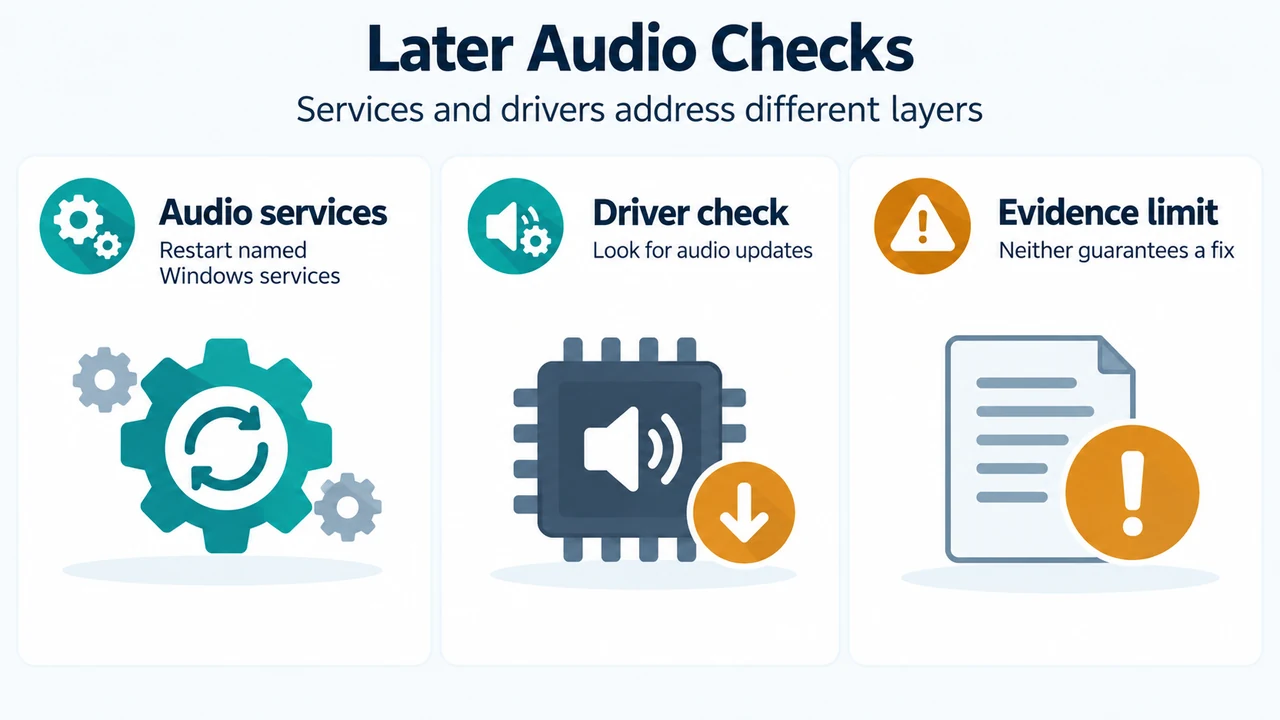
Text version of the diagrams
- App Audio vs System Audio: System sounds — Windows sounds still play; App volume — Per-app level may be muted; App output — Per-app device may differ
- Later Audio Checks: Audio services — Restart named Windows services; Driver check — Look for audio updates; Evidence limit — Neither guarantees a fix
Sources
- Microsoft: Fix app audio not working while system sounds work in Windows — Windows 11 scope, Volume Mixer checks, per-app output selection, audio-service restart, and driver-update steps.