According to Microsoft’s sound troubleshooting documentation for Windows 11, basic audio playback and sound problems can be addressed by checking physical hardware connections and volume levels, verifying device enablement in sound settings, turning off audio enhancements, running the automated audio troubleshooter, and checking Windows Update.
Step 1: Check Audio Hardware and Volume Controls
Ensure that physical hardware is connected properly and volume levels are audible:
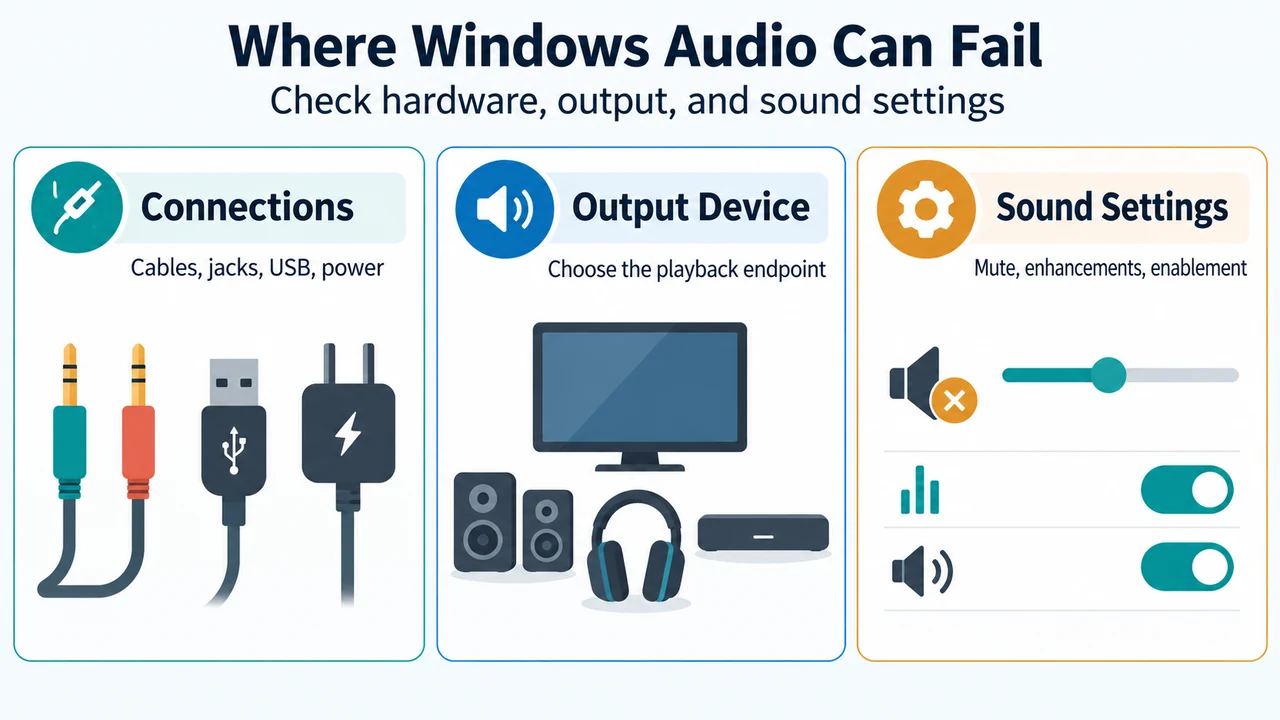
- Inspect speaker and headphone connections for loose cords or cables, and make sure all cords and cables are plugged in.
- If your computer features multiple 3.5 mm jacks (such as on surround sound systems), ensure cords are plugged into the correct jack. Some systems use a green jack for output and a pink jack for mic input, or label jacks as “headphone” or “microphone.” If unclear, consult the hardware manufacturer or test outputs one at a time.
- Ensure power is turned on for external audio devices.
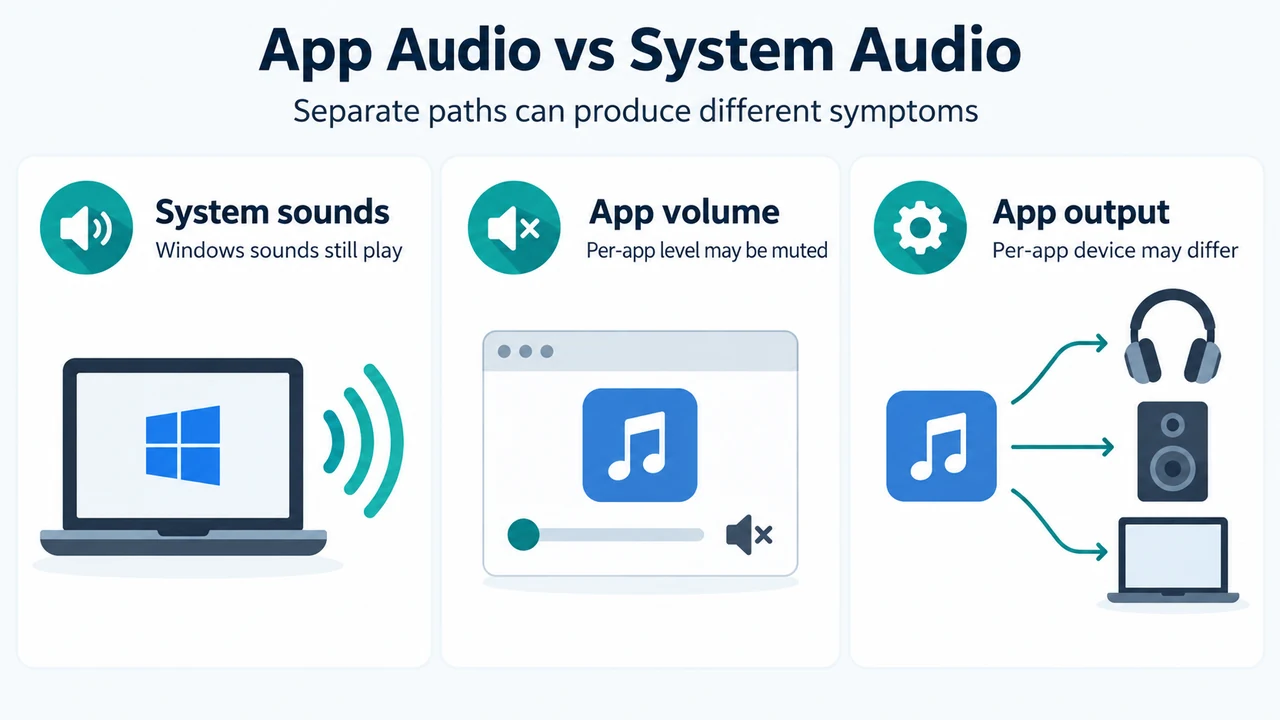
- Verify that the mute setting is not enabled and turn up all volume controls, including individual controls on speakers or specific apps. If muted, an “x” appears next to the volume control; unmute by adjusting the volume level or selecting the Unmute speakers icon.
- Try connecting USB speakers or headphones to a different USB port.
- Unplug headphones to determine whether speakers function when headphones are disconnected.
Step 2: Turn Off Audio Enhancements
Audio enhancements can sometimes lead to sound issues. To turn them off in Windows 11:
- Select Start > Settings > Sound.
- In the Output section, select your audio device (such as your speakers or headphones).
- Under Advanced settings, locate Audio enhancements and set the dropdown menu to Off.
Alternatively, open Control Panel from the taskbar search box, select Hardware and Sound > Sound, right-click the default device on the Playback tab, choose Properties, and on the Enhancements tab check either Disable all enhancements or Disable all sound effects, then click OK.
Step 3: Run the Built-In Audio Troubleshooter
Windows 11 includes an automated diagnostic tool to detect and resolve sound issues:
- Select Start > Settings > System.
- Select Troubleshoot > Other troubleshooters.
- In the Audio section, select the Run button to start the audio troubleshooter.
Step 4: Check Device Enablement and Default Output Device
Confirm that playback devices have not been disabled and that the correct output endpoint is active:
- Select Start > Settings > System > Sound.
- Under Advanced, select More sound settings.
- On the Playback tab, select your device and click Properties.
- Next to Device usage, verify that Use this device (enable) is selected from the list, then click OK.
- Return to Settings > System > Sound, and under Output, select the device you want to use for playback (selecting it also sets it as the default output device). If using an external monitor without built-in speakers, verify that the monitor is not set as your default output device.
Step 5: Verify That Windows Updates Are Installed
To check for operating system updates:
- Select Start > Settings > Windows Update.
- Select Check for updates.
- If updates are available, select Install now. If the status reports that you are up to date, proceed with other troubleshooting steps.
Research Method and Documented Limitations
This guide was prepared strictly from the supplied public source excerpts of Microsoft’s documentation “Fix sound or audio problems in Windows.” Competing external coverage was unavailable for comparison. The visible primary excerpts identify separate dedicated topics for missing or undetected audio output devices and updating audio drivers in Device Manager, but the detailed procedures for those paths were truncated in the provided evidence. Consequently, this guide covers only the general Windows 11 sound troubleshooting steps visible in the supplied text.
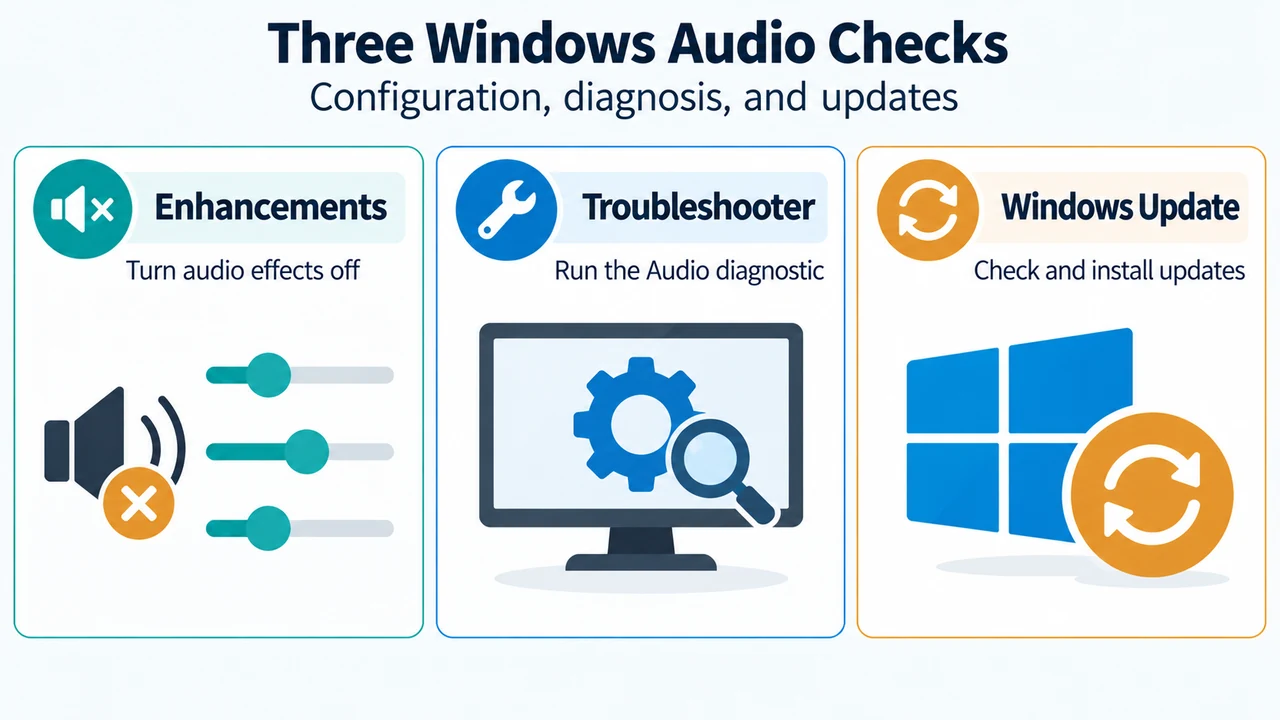
Text version of the diagrams
- Where Windows Audio Can Fail: Connections — Cables, jacks, USB, power; Output Device — Choose the playback endpoint; Sound Settings — Mute, enhancements, enablement
- Three Windows Audio Checks: Enhancements — Turn audio effects off; Troubleshooter — Run the Audio diagnostic; Windows Update — Check and install updates