Windows 11 File History can show “Drive is disconnected. Reconnect the drive and then try again” during a restore even when the drive still appears in File Explorer. Microsoft’s public documentation confirms that File History can use an external drive or network location and that the configured drive can be selected again. It does not establish one universal cause or a guaranteed fix for this exact restore error.
What to check first
1. Reconnect the File History drive
Reconnect the external drive, or make sure the network location used for File History is available. Microsoft’s File History instructions require an external drive or configured network location for backups.
2. Reselect the configured drive
Microsoft documents a Select drive option when configuring File History. Use the File History settings to select the intended external drive or network location again, then retry the restore. The supplied Microsoft documentation does not provide a Windows 11-specific menu path for reselecting the drive during this exact error, so the visible labels may differ by configuration.
Restore to another location before replacing current files
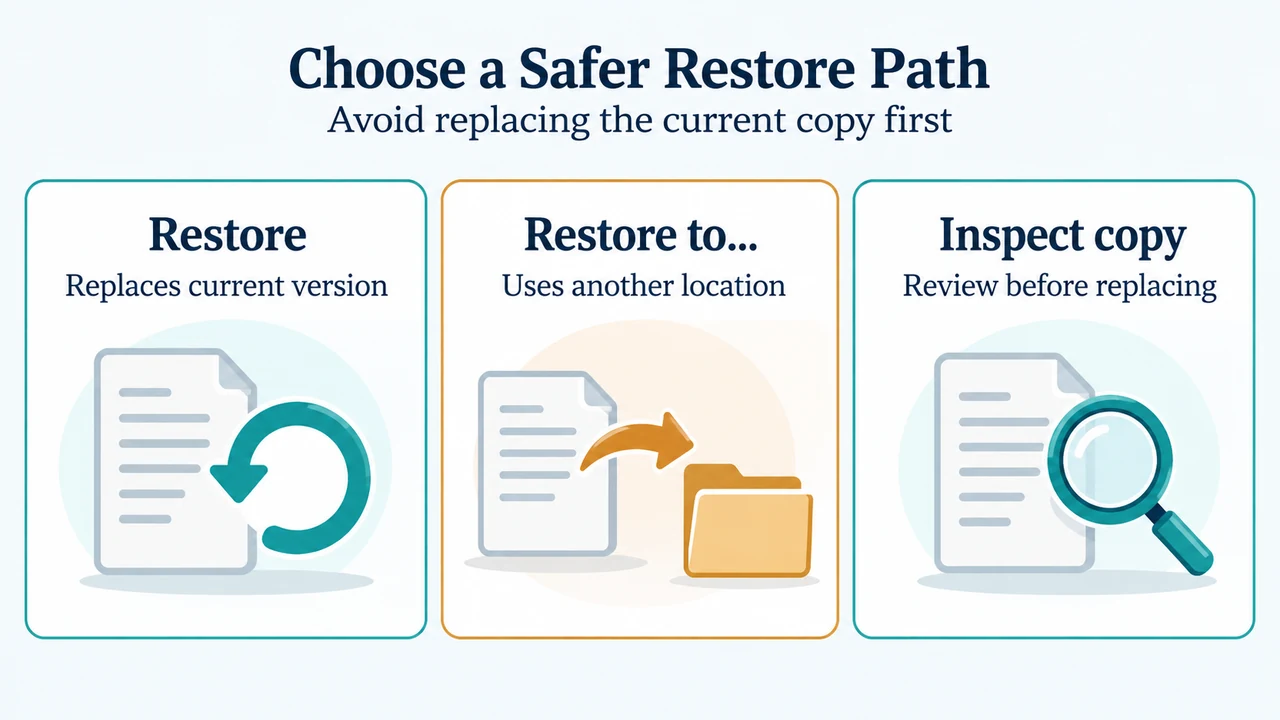
Microsoft warns that choosing Restore replaces the current file or folder and that the replacement cannot be undone. To avoid that, expand Restore and select Restore to…, then choose a different location. This lets you inspect the recovered copy without immediately replacing the current one.
Microsoft’s example uses a previous version of the folder from yesterday when a file was deleted today. The Previous Versions tab lists available versions. You can use Open in File History to preview the selected version before choosing a restore action.
What the available evidence does—and does not—show
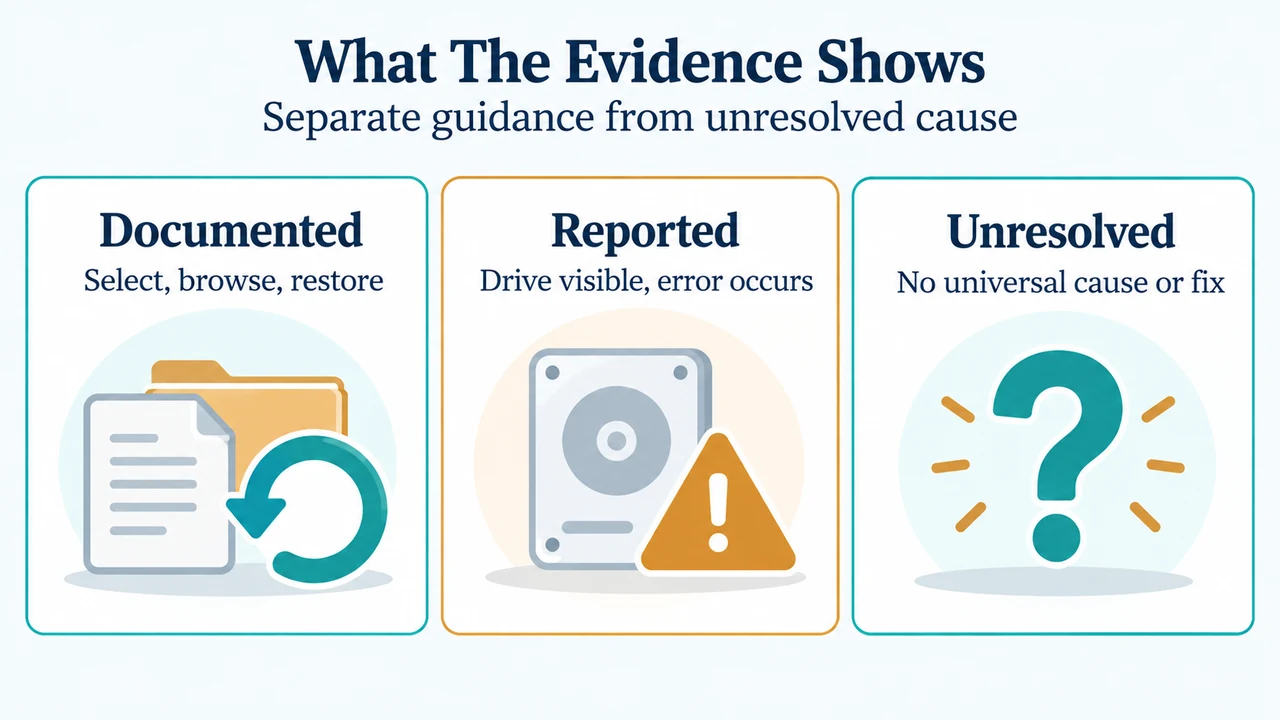
A Microsoft Q&A report describes the same error during restoration on a drive that remained visible in File Explorer. That report is evidence that the symptom can occur in this situation, but it does not establish a general cause or a reliable Windows 11 remedy. The current Microsoft support article documents drive selection, previous-version browsing, previewing and restoration to another location, but it does not promise that those steps resolve every “Drive is disconnected” failure.
Do not assume that the drive’s appearance in File Explorer proves that File History can complete the restore. The supplied primary documentation does not define that relationship or provide a universal diagnostic test for it.
Safety boundary
Use Restore to… first if the current files matter. The supplied Microsoft Q&A excerpt includes a community-recommended disk-repair command, but it also warns that repairing bad sectors can result in data loss. This article does not recommend running that command as a first step, and the supplied current Microsoft support article does not establish it as the solution to this restore error.
Research method and limitations
This article was prepared from the supplied public Microsoft support and Microsoft Q&A excerpts, retrieved on September 23, 2026. The support article applies to Windows 11 and Windows 10; this article narrows the guidance to Windows 11. The Q&A report is an older community case and does not prove that every current Windows 11 installation behaves the same way. The supplied competitor pages were reviewed only for coverage comparison. No hands-on test, lab test, benchmark or comprehensive review was performed.
Text version of the diagrams
- Choose a Safer Restore Path: Restore — Replaces current version; Restore to… — Uses another location; Inspect copy — Review before replacing
- What The Evidence Shows: Documented — Select, browse, restore; Reported — Drive visible, error occurs; Unresolved — No universal cause or fix