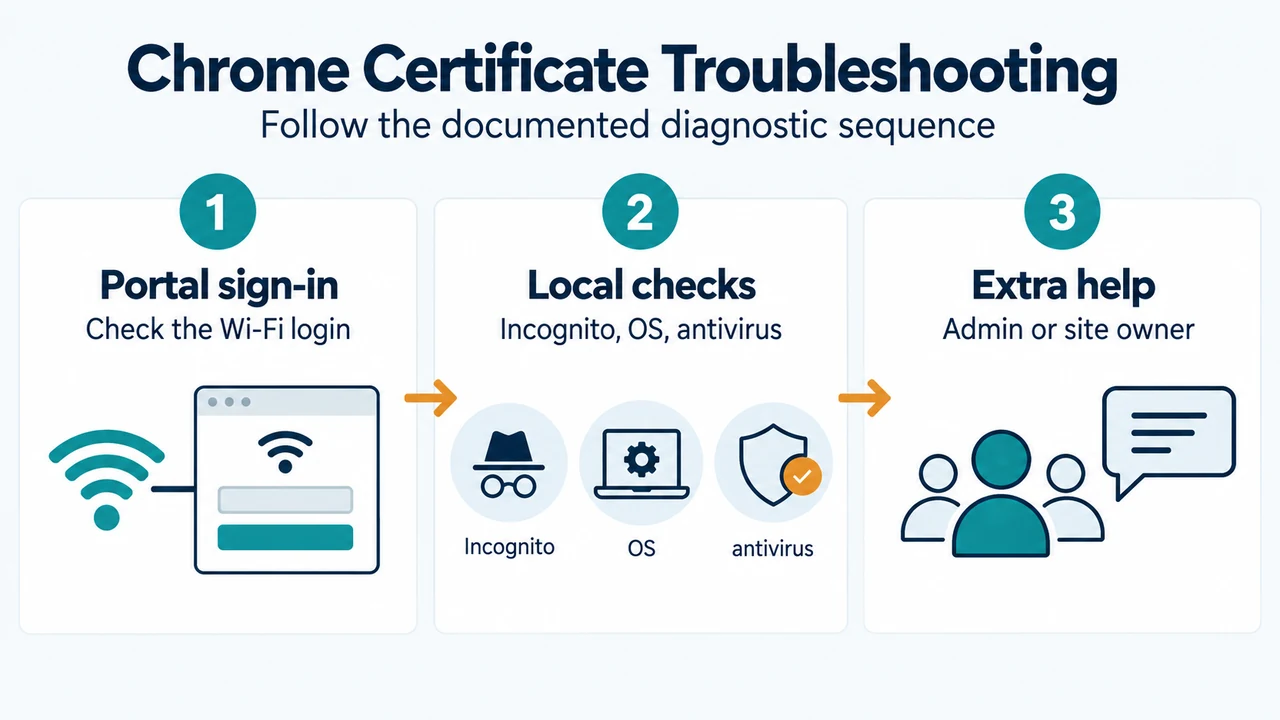
In Google Chrome, ERR_CERT_COMMON_NAME_INVALID is grouped under errors mentioning privacy certificates, connection not private, or invalid names. Google provides a shared troubleshooting sequence for these certificate warnings on computers to help isolate potential causes, such as captive portals, extensions, operating system updates, antivirus HTTPS scanning, or proxy environments.
Step 1: Sign In to the Network Portal
Wi-Fi networks at locations like cafes or airports often require a portal sign-in before granting internet access. To test for a portal sign-in page:
- Visit any website that starts with
http://, such ashttp://example.com. - If a network portal sign-in page appears, sign in to connect to the internet.
Step 2: On Computers, Open the Page in Incognito Mode
If you are using a computer, test the destination site in an Incognito window:
- Open the page you want to visit in an Incognito window.
- If the site loads in Incognito mode and a Chrome extension does not work, turn off the extension.
Step 3: Update Your Operating System
Make sure your device’s operating system, such as Windows or Mac, is up to date.
Step 4: Check for Diagnostic Interference from Antivirus HTTPS Scanning
In Google’s general certificate-error troubleshooting guidance, antivirus software providing “HTTPS protection” or “HTTPS scanning” is noted as a possible source of interference with Chrome’s security checks. While not a confirmed cause of every invalid name error, it serves as a diagnostic possibility:
- Temporarily turn off your antivirus software to check whether the page opens.
- Turn your antivirus software back on immediately after completing the test.
Step 5: Managed Proxy Environments and Contacting the Site Owner
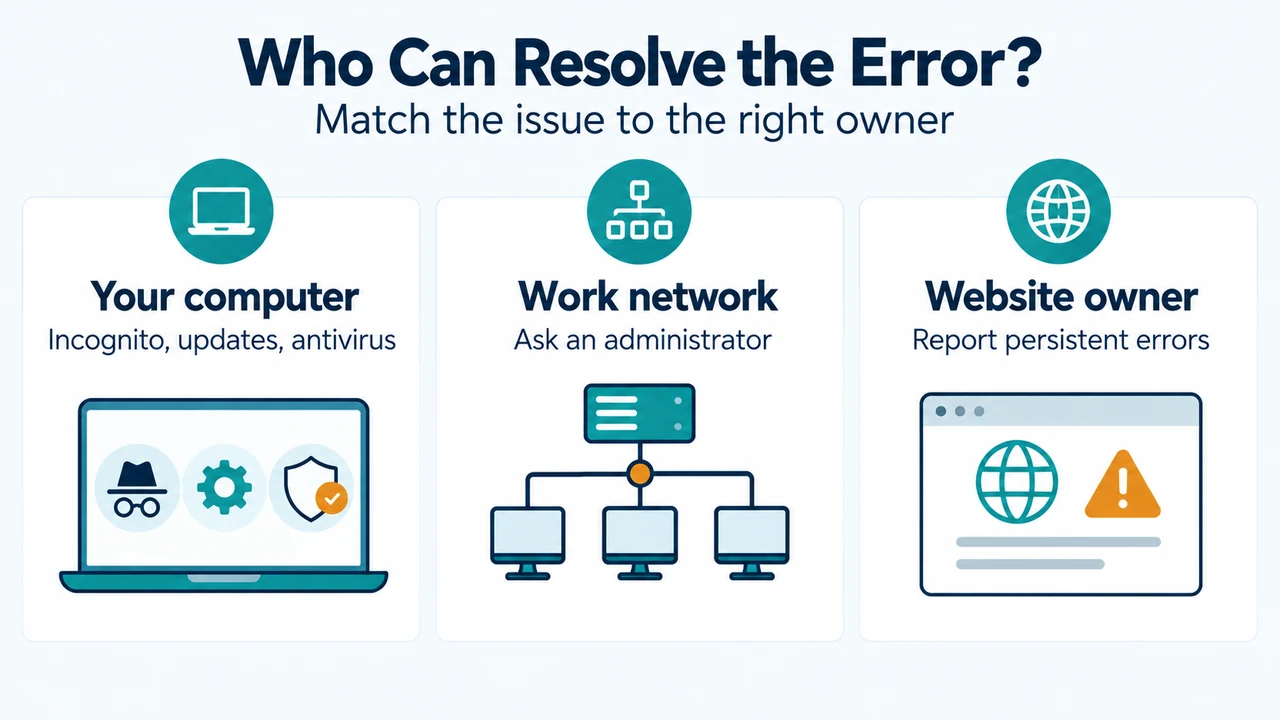
Google’s certificate troubleshooting guidance notes that on work computers with proxy configurations that perform HTTPS interception (such as Zscaler, Palo Alto Networks, or Fortinet), missing or uninstalled proxy certificates cause a related error, NET::ERR_CERT_AUTHORITY_INVALID. Although this specific proxy failure results in an authority error rather than an invalid common name error, Google includes checking with your system administrator in the same certificate-troubleshooting workflow. Do not attempt to install certificates on your own, as it is a security risk.
If the error persists on an unmanaged computer after these checks, contact the website owner or seek help on the Chrome Help Forum.
Research Method and Limitations
This article was prepared directly from public vendor documentation in Google Chrome Help (“Fix connection and loading errors in Chrome”). The guidance applies to troubleshooting actions on Windows or Mac computers as described in the source. Antivirus HTTPS scanning and work proxy configurations are diagnostic possibilities from Google’s broader certificate-troubleshooting section rather than confirmed causes of ERR_CERT_COMMON_NAME_INVALID, and proxy certificate issues specifically trigger NET::ERR_CERT_AUTHORITY_INVALID. No competing coverage or external lab benchmarks were available for comparison. Scope is restricted to client-side steps documented in the primary excerpt; resolving server-side certificate misconfigurations requires contacting the website owner.
Text version of the diagrams
- Chrome Certificate Troubleshooting: Portal sign-in — Check the Wi-Fi login; Local checks — Incognito, OS, antivirus; Extra help — Admin or site owner
- Who Can Resolve the Error?: Your computer — Incognito, updates, antivirus; Work network — Ask an administrator; Website owner — Report persistent errors