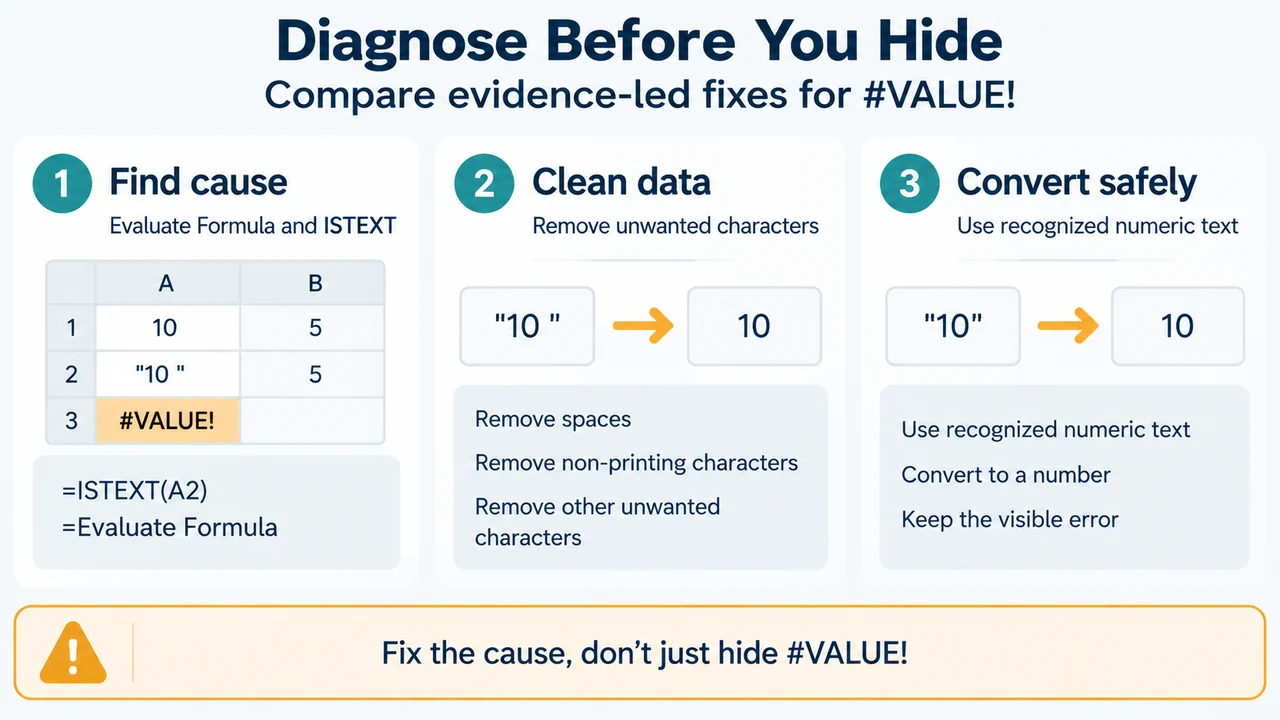
Scope: This guide covers Excel for Microsoft 365, Excel 2024, Excel 2021, Excel 2019, Excel 2016 and Excel for the web. It focuses on a #VALUE! error caused by text, spaces or special characters in cells used by a formula.
Start by selecting the cell showing #VALUE!, then choose Formulas > Evaluate Formula. Excel steps through the formula’s parts and can show which referenced cell breaks the calculation. Microsoft documents an example where a hidden space in E2 breaks =E2+E3+E4+E5.
Check which referenced cell contains text
Text or special characters can cause #VALUE!, even when a cell looks blank or appears to contain a number. Microsoft recommends using ISTEXT in a separate column to inspect the referenced cells. A result of TRUE identifies a cell containing text; ISTEXT finds a possible cause but does not fix it.
For a visible space in a referenced column, Microsoft documents this sequence: select the referenced cells, choose Home > Find & Select > Replace, enter one space in Find what, leave Replace with empty, and use Replace or Replace All when you are confident that the spaces should be removed. A filter can also reveal cells that look blank because they contain hidden characters or single apostrophes; Microsoft’s documented example clears those selected cell contents with the Delete key.
Choose the least disruptive documented fix
When a number is stored as text
If Excel shows the cell alert for a number stored as text, select the cells, open the error indicator, and choose Convert to Number. Microsoft says the green-triangle warning is removed after conversion.
If the alert is unavailable, create a new column and use =VALUE(reference), replacing reference with the cell that contains the text number. Fill the formula down, then copy the results and use Paste > Paste Special > Values if you need to place the converted values in the original column. Microsoft documents this workflow for Excel for the web as well.
VALUE(text) converts text that represents a number into a number. Microsoft states that the text must use a number, date or time format recognized by Excel; otherwise, VALUE returns #VALUE!. Therefore, conversion is not a universal fix for every text string.
When characters need cleaning
Microsoft lists CLEAN for removing characters and REPLACE for replacing special characters with other values. After using either function, Microsoft recommends copying the result and choosing Home > Paste > Paste Special > Values. Retain the original data until you have checked the result.
Why SUM may behave differently from direct arithmetic
Microsoft notes that math operators such as + and * may not calculate cells containing text or spaces. It suggests trying a function instead: for example, replace =A2+B2+C2 with =SUM(A2:C2), or replace =A2*B2 with =PRODUCT(A2,B2). This is a documented behavior for the examples on Microsoft’s page, not a guarantee that every formula or text condition will behave the same way.
Do not use IFERROR as the first fix
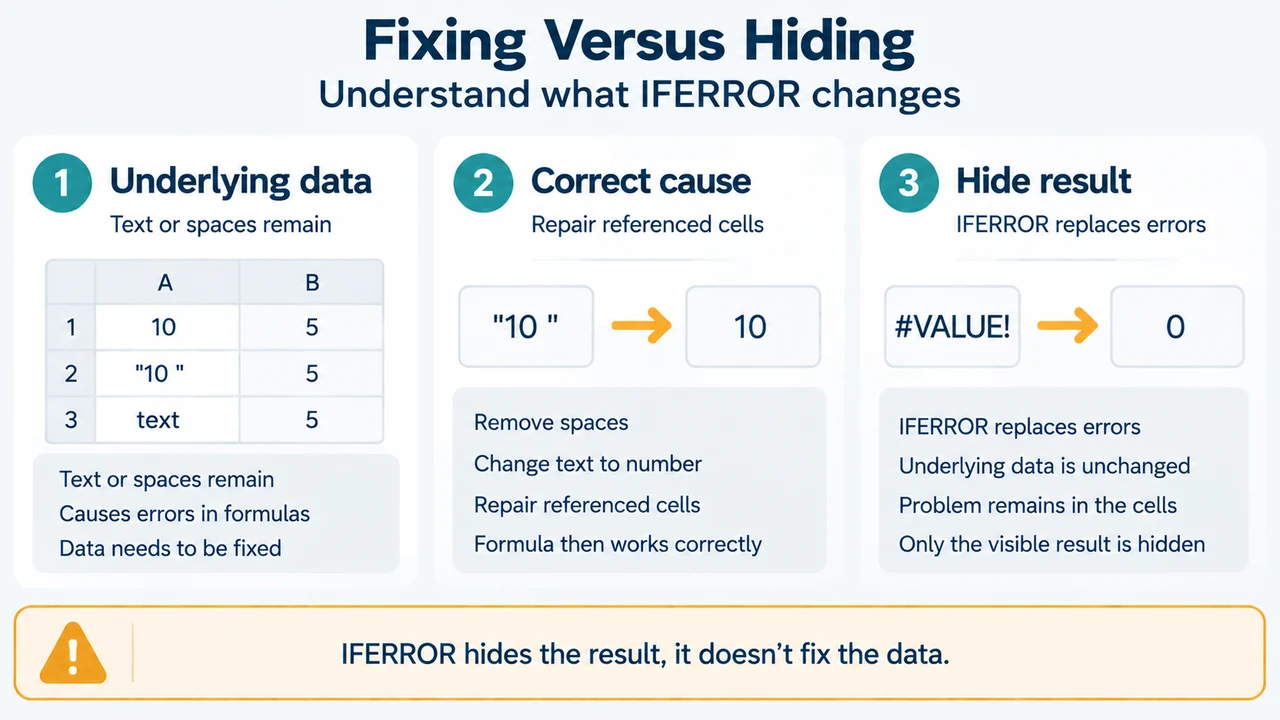
IFERROR can replace an error with text, zero or a blank. Microsoft warns that it hides all errors, not only #VALUE!. It does not resolve the underlying problem. Diagnose and correct the referenced cell first; use error replacement only when you are certain that hiding the error is appropriate.
A safe diagnostic order
- Use Evaluate Formula on the cell showing
#VALUE!. - Inspect the referenced cell with
ISTEXT. - Remove a documented space or unwanted character only when that change matches the data you need.
- Use Convert to Number or
VALUEwhen the content is a recognized numeric text format. - Copy cleaned or converted results and paste them as values when Microsoft’s documented workflow calls for it.
- Use
IFERRORonly after deciding that replacing the visible error is preferable to exposing it.
Research method and limitations: This article was prepared from the supplied public Microsoft support excerpts retrieved on 2026-09-23, plus one supplied competitor excerpt used only to review coverage. The Microsoft #VALUE! passage is truncated, so this article relies only on its visible statements. It makes no hands-on, lab, benchmark or comprehensive Excel-review claim. Menu labels and behavior may vary by the documented Excel version and platform.
Text version of the diagrams
- Diagnose Before You Hide: Find cause — Evaluate Formula and ISTEXT; Clean data — Remove unwanted characters; Convert safely — Use recognized numeric text
- Fixing Versus Hiding: Underlying data — Text or spaces remain; Correct cause — Repair referenced cells; Hide result — IFERROR replaces errors