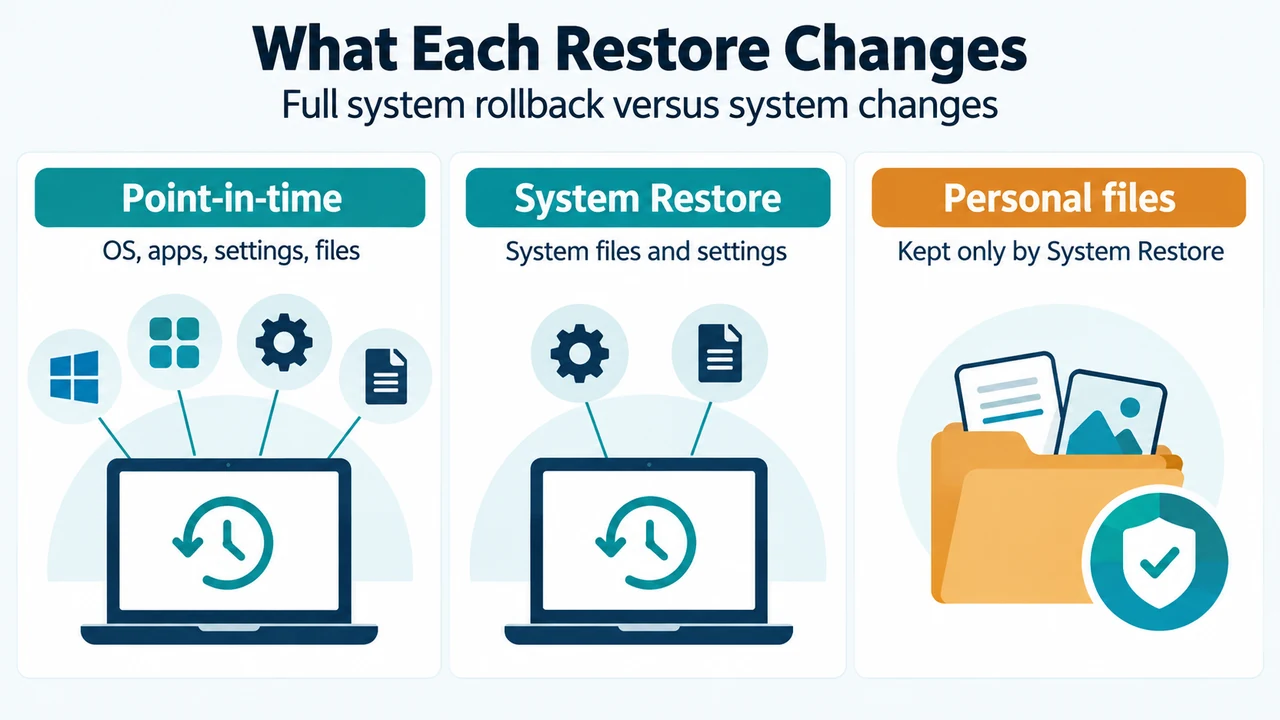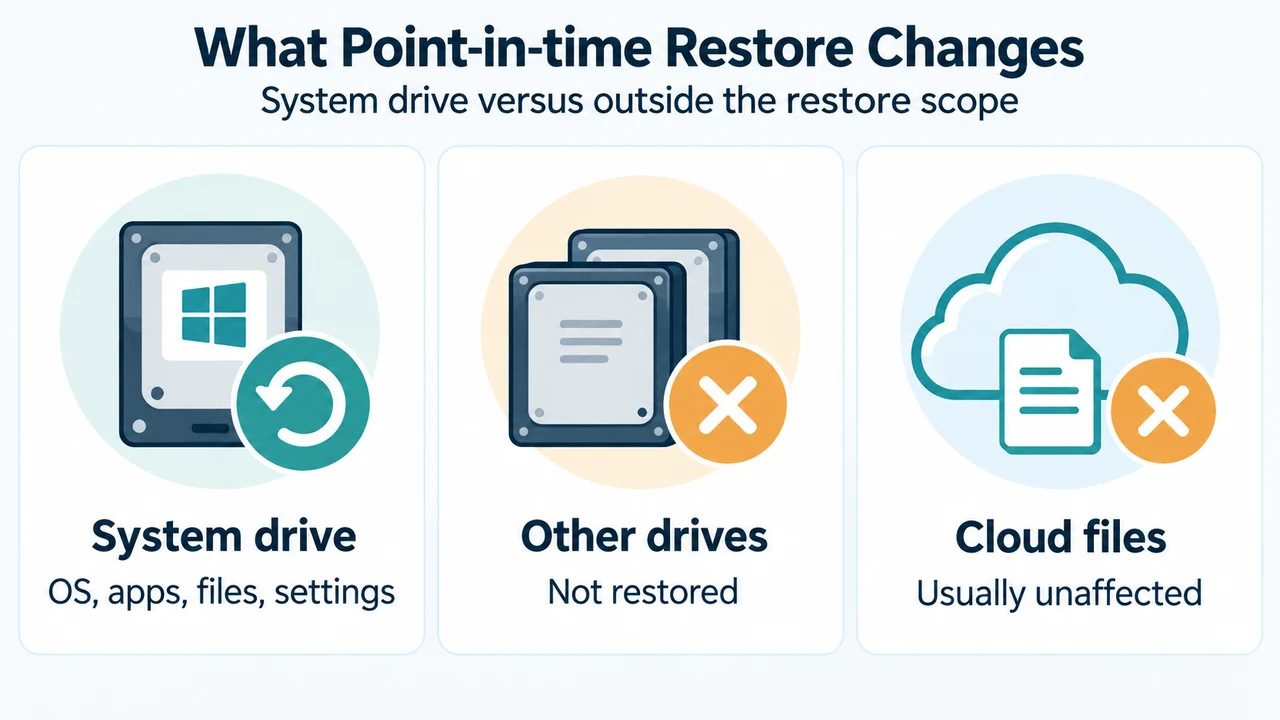
If System Restore did not bring back a deleted document, photo, or video, that matches its documented scope in Windows 10 and Windows 11. System Restore reverts system files, registry settings, installed programs, and other system settings. It does not affect personal files.
For an earlier copy of a personal file, the supplied Microsoft excerpts identify File History and Windows Backup as separate backup tools. They do not establish that a particular deleted file exists in either backup, so recovery cannot be promised.
Why System Restore did not restore the file
Microsoft describes System Restore as a way to revert a PC after problems caused by recent changes such as software installations, driver updates, or system-setting modifications. A restore point is a snapshot of system configuration and settings. Applying it can return system files, registry settings, and installed programs to an earlier state while leaving personal files unaffected.
System Restore is therefore a system-change rollback tool, not the documented tool for restoring a deleted personal file.
Backup tools that may contain an earlier copy
File History
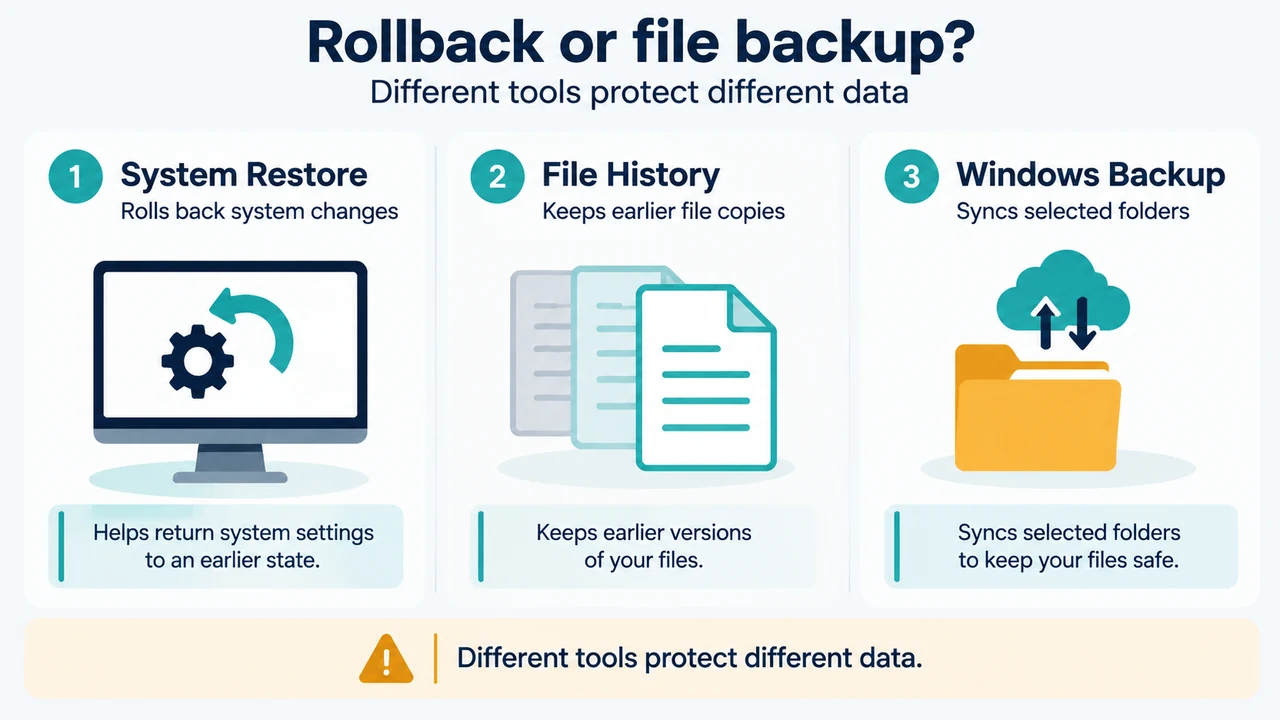
Microsoft describes File History as a Windows feature that automatically backs up personal files such as documents, photos, and videos. It saves copies to an external drive or network location and lets you restore previous file versions if files are lost, damaged, or accidentally modified.
This is relevant when File History had saved a copy before the file was deleted. The supplied excerpts do not say that File History is enabled on every installation or that every deleted file can be recovered. They support only checking whether an earlier version is available.
Windows Backup
Microsoft says Windows Backup can back up selected folders, including Desktop, Documents, Pictures, Videos, and Music, by syncing them to a OneDrive account. It requires signing in with a Microsoft account. The same documentation describes Windows Backup as covering items such as files, themes, settings, installed apps, and Wi-Fi information.
For a deleted personal file, this path is relevant when the file was in a selected folder and the backed-up data is available through the associated OneDrive account. The supplied excerpts do not document OneDrive recycle-bin behavior, retention periods, or a guaranteed recovery method.
Do not confuse file backup with PC recovery
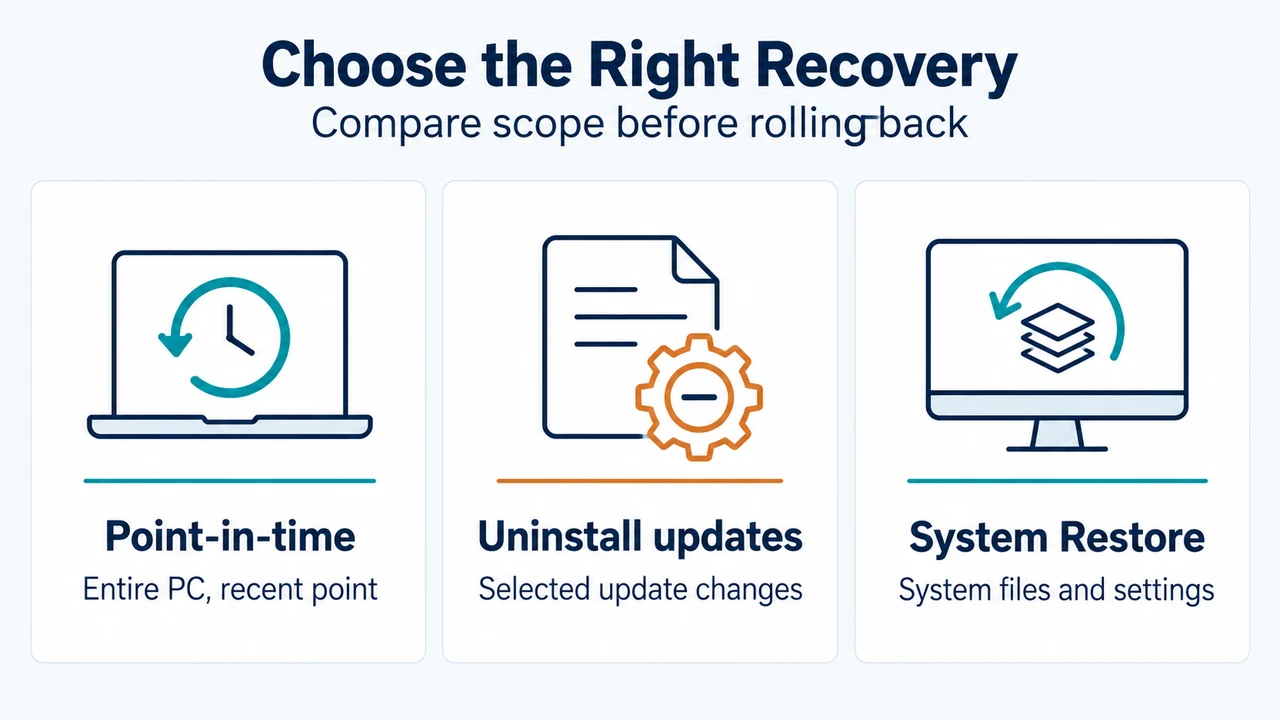
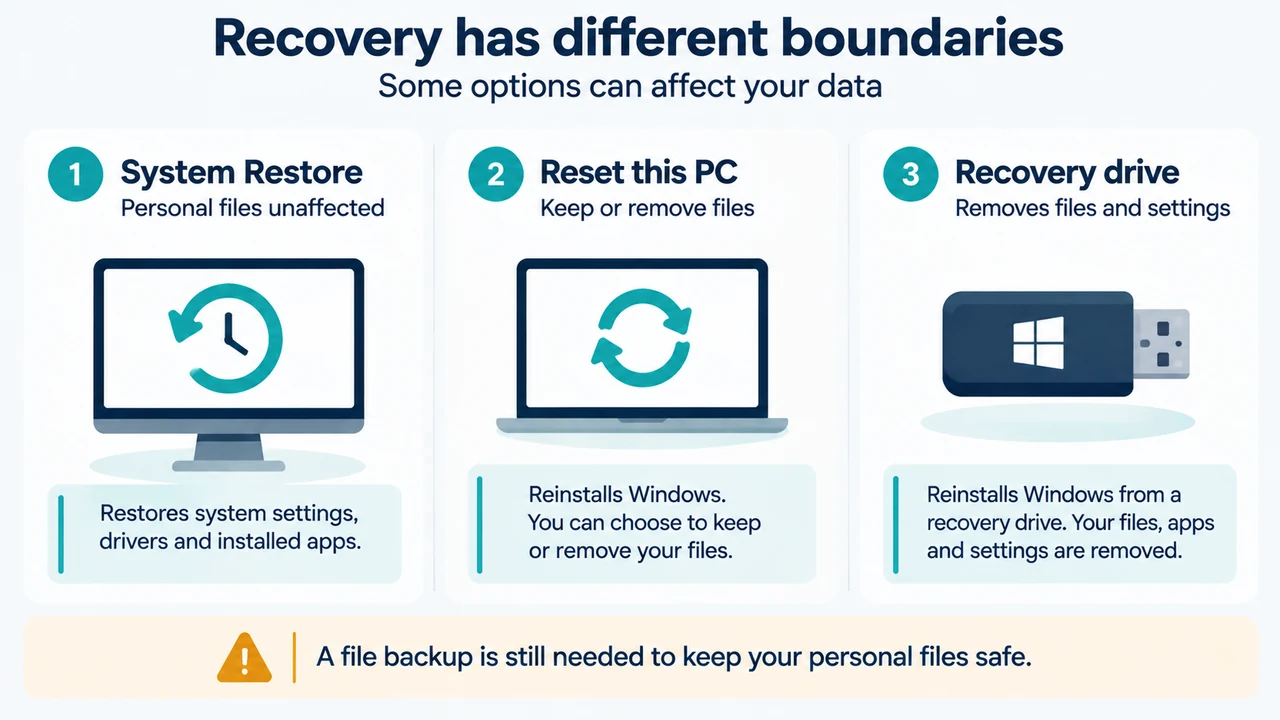
Microsoft describes several recovery options with different effects. System Restore keeps personal files while undoing system changes made after a restore point. Reset this PC lets you choose whether to keep or remove personal files, and removes apps and settings. Reinstalling Windows can offer choices about what to keep. Reinstalling with a recovery drive removes personal files, apps, and settings.
These are PC-recovery options, not substitutes for File History or Windows Backup. Microsoft warns that some recovery options can cause data loss. The supplied excerpts do not support using them to recover this specific deleted file.
Evidence-based decision path
- Identify whether the missing item is a personal file rather than a system setting or installed program.
- If File History had been configured, check whether it contains an earlier version.
- If the file was in a folder selected for Windows Backup, check the related OneDrive-backed data.
- Use System Restore for its documented purpose: undoing eligible system changes, not restoring personal files.
- Treat Reset, reinstall, and recovery-drive options as PC-recovery actions that may affect personal files, apps, or settings.
This path does not establish that the file will be recoverable. The supplied evidence does not cover Recycle Bin behavior, OneDrive recycle bins, third-party recovery software, SSD outcomes, or other recovery methods.
Tool roles at a glance
| Tool | Documented role | Supported boundary |
|---|---|---|
| System Restore | System rollback | Reverts system files, settings, registry settings, and installed programs; personal files are not affected. |
| File History | Personal-file backup | Saves copies of personal files to external or network storage and can restore previous versions. |
| Windows Backup | Selected-folder backup | Can sync selected folders such as Documents and Pictures to OneDrive after Microsoft-account sign-in. |
| Reset or reinstall | PC recovery | Recovers or reinstalls Windows; some choices can remove personal files, apps, or settings. |
Research method and limitations
This answer was prepared from the supplied public Microsoft source excerpts retrieved on September 24, 2026, and September 23, 2026. The excerpts apply to Windows 10 and Windows 11. One recovery-options source is truncated, so only its visible passages were used. No hands-on testing, lab testing, benchmark, or comprehensive review was performed, and no competing coverage was available in the supplied material. These limits mean the answer does not guarantee recovery.
Text version of the diagrams
- Rollback or file backup?: System Restore — Rolls back system changes; File History — Keeps earlier file copies; Windows Backup — Syncs selected folders
- Recovery has different boundaries: System Restore — Personal files unaffected; Reset this PC — Keep or remove files; Recovery drive — Removes files and settings