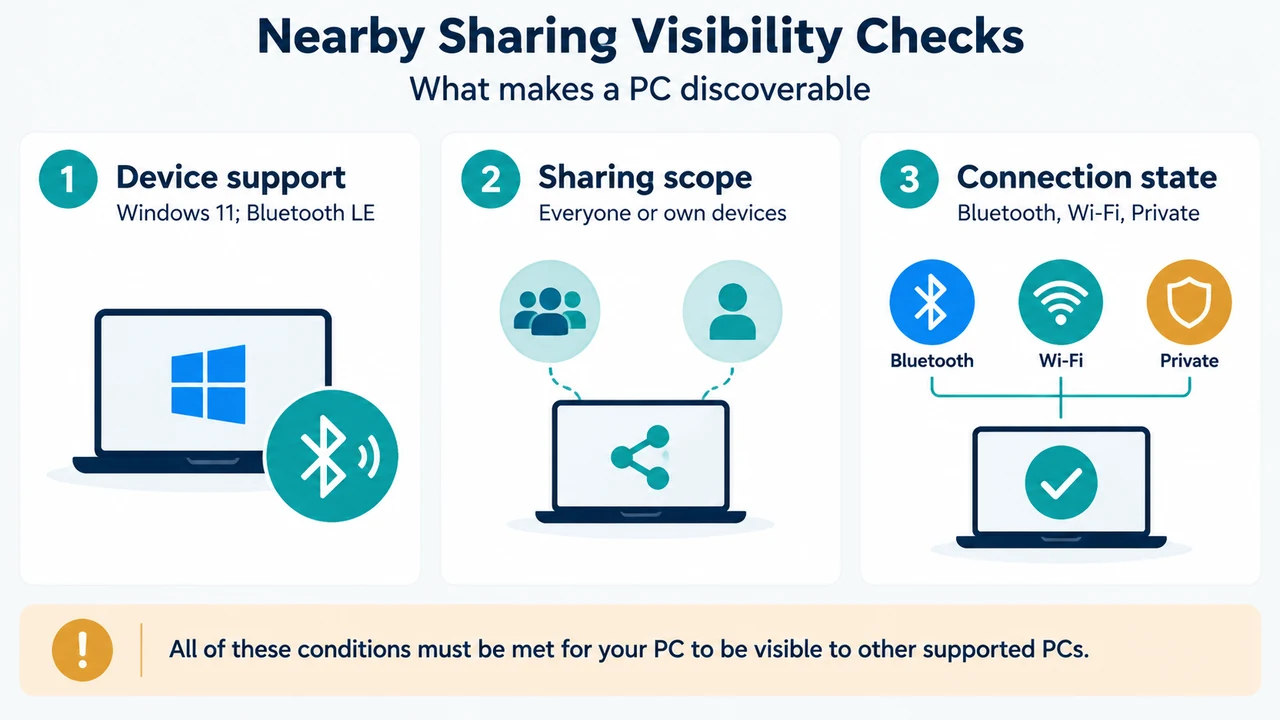
If Nearby sharing is missing, greyed out, or cannot find the other PC, start by checking both computers. Microsoft documents four relevant conditions: supported Windows versions, Bluetooth 4.0 or later with Low Energy support, enabled Bluetooth and Wi-Fi, and a Private network profile for Wi-Fi sharing. Nearby sharing must also be enabled on both devices.
Confirm the Windows and Bluetooth LE requirements
For the Windows 11 scope covered here, Microsoft says both PCs must support Nearby sharing and Bluetooth 4.0 or higher with Low Energy (LE) support. On each PC, open Device Manager, expand Bluetooth, open the Bluetooth radio adapter’s Properties, select Details, and look for Bluetooth radio supports Low Energy Central Role. Microsoft says the value should be True.
The supplied Microsoft guidance also documents Windows 10 version 1803 or later as the requirement for Windows 10 PCs. This article focuses on Windows 11 PCs, but that version boundary matters if one side is running Windows 10.
Check Nearby sharing on both PCs
On Windows 11, open Start > Settings > System > Nearby sharing on both computers. Make sure Nearby sharing is enabled. The same page lets you choose between Everyone nearby and My devices only.
My devices only is for the user’s own devices where the user is logged in with the same Microsoft account. If the two PCs do not meet that condition, choose Everyone nearby for the supported discovery scenario. Microsoft notes that choosing Everyone nearby makes the PC’s Bluetooth MAC address and name available to nearby devices, so use that setting with awareness of its privacy effect.
Check Bluetooth, Wi-Fi, and the network profile
Microsoft says Bluetooth and Wi-Fi should be turned on for both devices. For Wi-Fi sharing, both PCs should be connected to the same Wi-Fi network. Microsoft also states that Nearby sharing works only when the network is set to Private.
To check the profile in Windows 11, open Start > Settings > Network & internet > Wi-Fi or Ethernet, select the connected network, and check that Network profile type is Private network.
The connection method has a documented boundary. Microsoft says a PC running the latest version of Windows 11 can share over Wi-Fi when the Windows 10 or Windows 11 PC receiving the item is connected to the same private Wi-Fi network. Otherwise, sharing can use Bluetooth. The excerpts do not establish that every transfer will use Wi-Fi or explain every reason a transfer may fall back to Bluetooth.
Separate discovery from transfer problems
If the other PC never appears, begin with the requirements, Nearby sharing setting, sharing scope, Bluetooth and Wi-Fi state, and Private network profile above. These checks address whether the computers can be available for Nearby sharing.
If the other PC appears but a transfer is slow or does not complete, the supplied Microsoft troubleshooting excerpt separately discusses Bluetooth-only transfers and Wi-Fi-related sharing. It recommends checking that both devices use the same Wi-Fi network for faster file transfers. The excerpt also mentions restarting the Wi-Fi adapter and checking whether Network discovery is turned on under Settings > Network & internet > Advanced network settings > Advanced sharing settings. These are separate from the initial question of whether the device is discoverable.
What to expect after the checks
When Nearby sharing is enabled on both supported PCs, Microsoft describes selecting a file, choosing Share, selecting the receiving device, and then choosing Save or Save & open when the notification appears. The same feature can share documents, photos, and links to nearby PCs using Bluetooth or Wi-Fi.
If Nearby sharing remains missing after the documented requirements and settings are checked, the supplied excerpts do not provide enough evidence to identify the remaining cause. They also do not establish that changing one setting is a universal fix for every PC or adapter.
Research method and limitations
This article was prepared from the supplied public Microsoft support excerpts retrieved on September 21, 2026, plus the supplied competitor excerpts used only to compare coverage. The Microsoft troubleshooting passage is truncated, so this article relies only on the visible statements. No hands-on testing, lab measurements, benchmark, device inspection, or comprehensive review was performed. Windows 11 Settings labels may vary outside the documented scope, and the supplied evidence does not establish every possible cause of discovery or transfer failure.
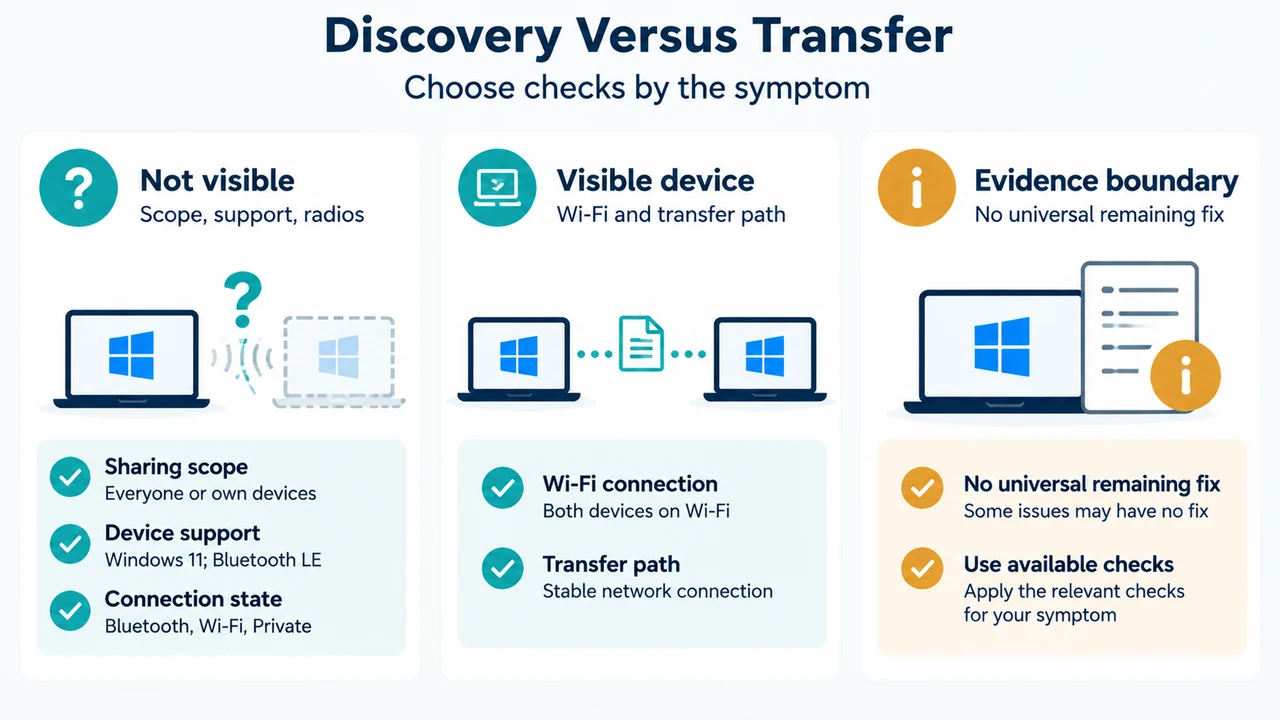
Text version of the diagrams
- Nearby Sharing Visibility Checks: Device support — Windows 11; Bluetooth LE; Sharing scope — Everyone or own devices; Connection state — Bluetooth, Wi-Fi, Private
- Discovery Versus Transfer: Not visible — Scope, support, radios; Visible device — Wi-Fi and transfer path; Evidence boundary — No universal remaining fix