If a Microsoft Store app download or update remains on Pending
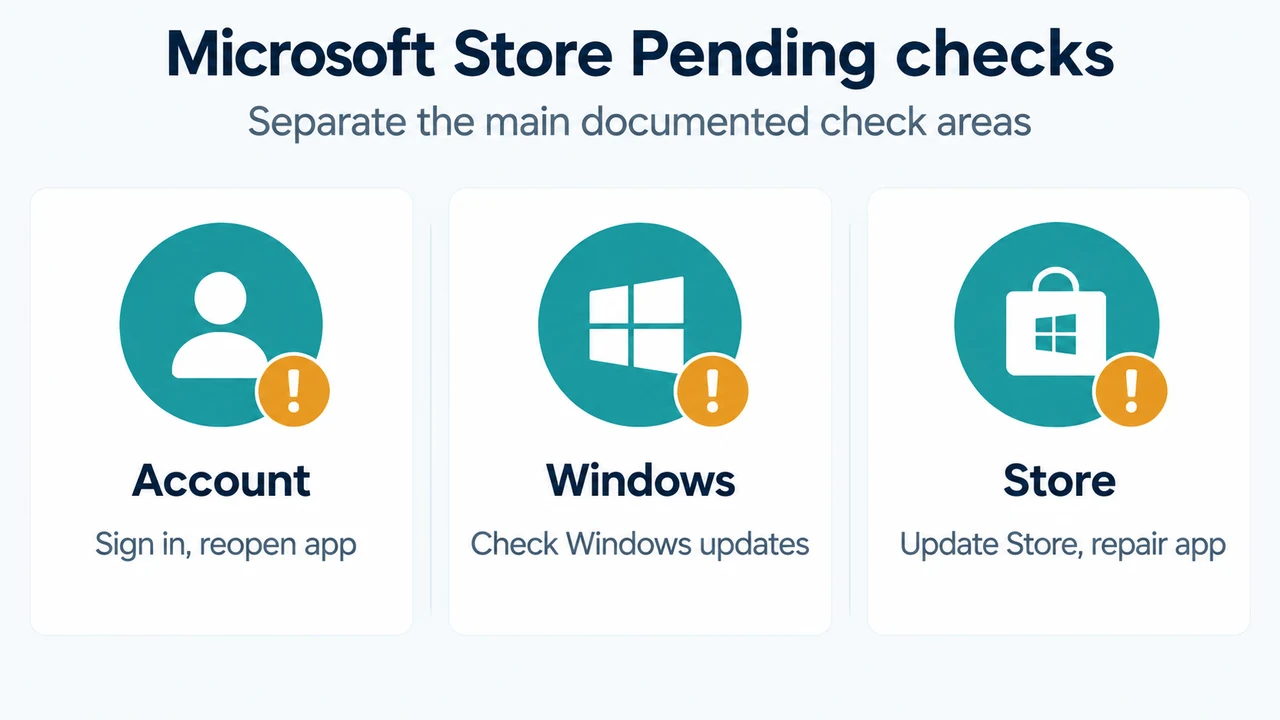
in Windows 11, work through Microsoft’s listed checks in order. Sign in to your Microsoft account, close and reopen the app, check Windows Update, confirm that the app works with Windows 11, update Microsoft Store, and review the app’s Repair or Reset options.
Use Microsoft’s listed checks
1. Sign in and reopen the app
Sign in to your Microsoft account. Close the affected app with its Close button, then reopen it and check the pending item again.
2. Check Windows Update
Open Start > Settings > Windows Update > Check for updates. If an update is available, select Install now.
3. Check compatibility
Microsoft says to make sure the app works with Windows 11. The supplied evidence does not define compatibility requirements for a particular app, so a pending state alone does not establish whether that app is compatible.
4. Update Microsoft Store
Open Start, select Microsoft Store, then choose Library > Get updates. Microsoft says an available Microsoft Store update starts installing automatically. Another Microsoft page directs Windows 11 users to open Microsoft Store and select Check for Updates.
5. Review Repair or Reset
Microsoft’s troubleshooting guidance points to the Windows Repair or Reset options for apps. The supplied evidence does not provide the exact Settings path or explain what data each option preserves. Do not assume that Repair and Reset have the same effect.
If the pending item remains
Reset the Microsoft Store cache
For Microsoft Store launch or cache problems, press Windows logo key + R, enter wsreset.exe, and select OK. Microsoft says a blank Command Prompt window opens, closes after about ten seconds, and Microsoft Store then opens automatically. The supplied evidence does not establish that this resolves every pending download or update.
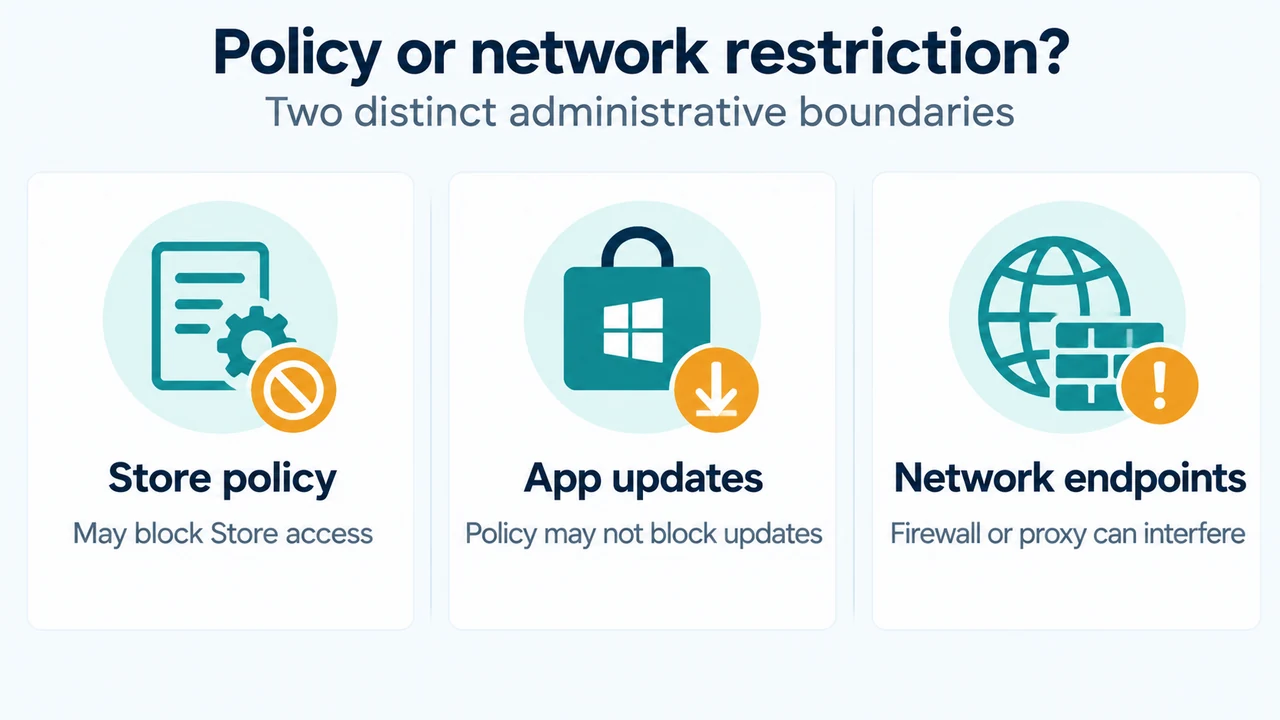
Distinguish policy from network restrictions
Microsoft’s support-agent guidance says administrators can block end users from using Microsoft Store through a policy or configuration service provider. In that case, Microsoft Store is not accessible to end users. The same guidance states that the RemoveWindowsStore policy blocks users from opening Microsoft Store, but does not restrict Microsoft Store apps from updating.
Microsoft separately says that Microsoft Store needs specific endpoints to install or update apps, including Windows Update endpoints. A firewall or proxy that blocks required endpoints can therefore affect installation or updating. The supplied evidence does not provide a complete endpoint list or a universal proxy configuration, so an administrator or network owner may need to investigate.
What the checks establish
Microsoft documents account access, reopening the app, Windows updates, compatibility, Microsoft Store updates, and app Repair or Reset as troubleshooting checks. It separately documents wsreset.exe for resetting the Microsoft Store cache. These checks do not identify the cause of a particular Pending item or prove a universal fix. If the problem continues, Microsoft directs users to contact support.
Research method and limitations
This answer was prepared from the supplied public Microsoft source excerpts retrieved on September 21, 2026. The visible material does not include a complete endpoint list, exact Repair or Reset navigation, or app-specific compatibility facts. The Microsoft Learn passage is access-limited, so unseen text was not treated as evidence. The supplied competing coverage was truncated, and broader competing coverage was unavailable. No hands-on testing or benchmark was performed.
Sources
- Microsoft Support: Fix problems with apps from Microsoft Store
- Microsoft Support: Get updates for apps and games in Microsoft Store
- Microsoft Support: Microsoft Store doesn’t open
- Microsoft Learn: Troubleshoot Microsoft Store app download failures
Text version of the diagrams
- Microsoft Store Pending checks: Account — Sign in, reopen app; Windows — Check Windows updates; Store — Update Store, repair app
- Policy or network restriction?: Store policy — May block Store access; App updates — Policy may not block updates; Network endpoints — Firewall or proxy can interfere