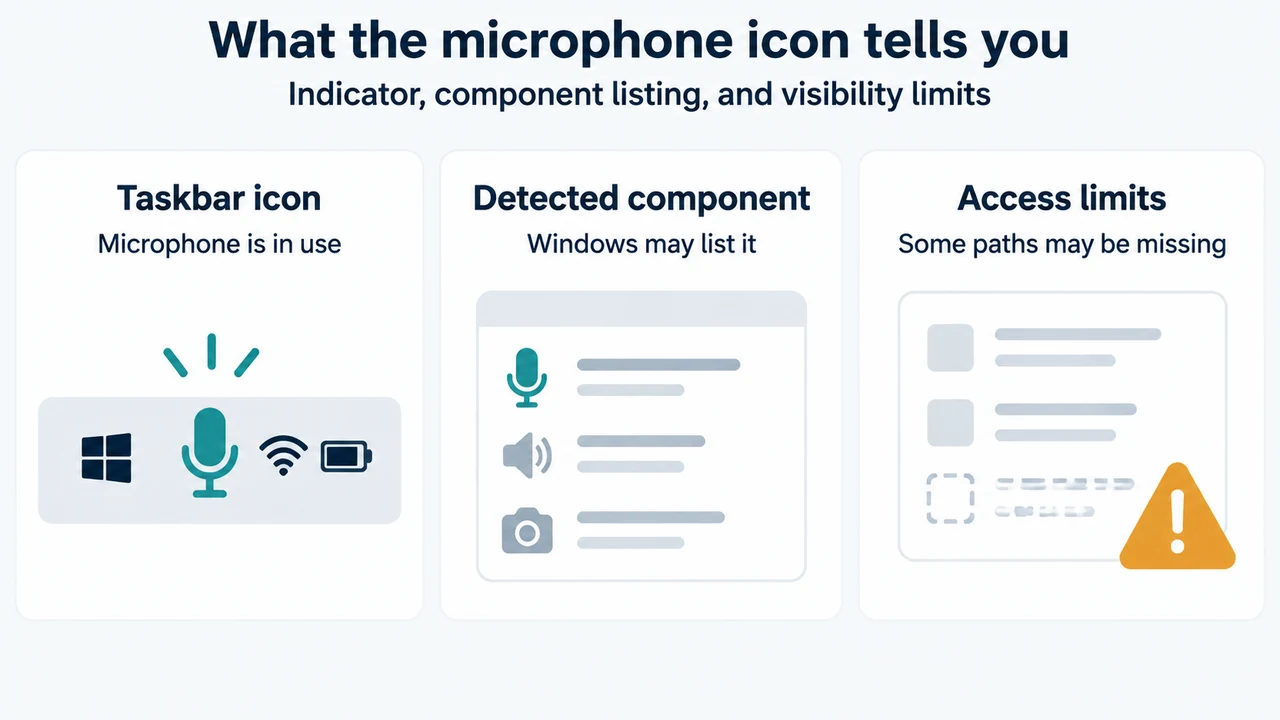
Microsoft says a microphone icon appears in the Windows 11 notification area when an app is using the microphone. You can review the documented controls at Microsoft’s Windows camera, microphone, and privacy guidance and the Windows microphone permission instructions.
What the Windows 11 microphone icon means
The icon indicates microphone use. It does not, by itself, identify every process involved. Microsoft says that when an app or Windows feature uses the microphone indirectly through a Windows component, Windows lists the component instead.
Why “Speech Runtime Executable” may appear
Microsoft gives Cortana as an example: if you interact with Cortana using the microphone, Windows may list “Speech Runtime Executable.” This illustrates the documented indirect-access pattern. The supplied excerpt does not establish that every appearance of this entry has the same cause.
Review microphone access in Windows 11
Microsoft documents this path:
- Open Start > Settings > Privacy & security > Microphone.
- Check Microphone access.
- Check Let apps access your microphone.
- Review the individual Microsoft Store app switches.
- For traditional desktop programs, review Let desktop apps access your microphone.
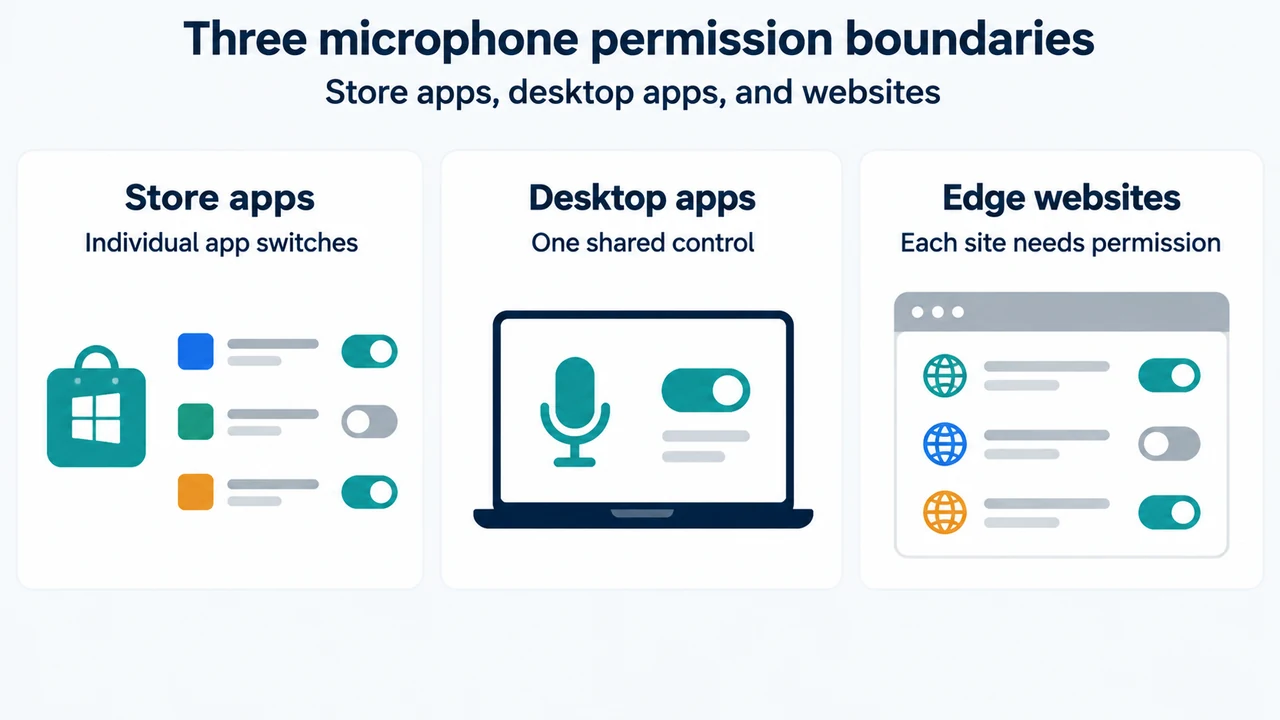
For Microsoft Store apps, Microsoft instructs you to enable the required access settings and the switch for the app you want to use. For desktop apps, Microsoft documents a shared desktop-app control rather than an individual switch for each desktop program.
What you can and cannot identify
Windows can list detected desktop apps that have interacted with the microphone through supported methods. You can select a listed app to see details about the specific file on the device that accessed the microphone.
Microsoft also warns that desktop apps may not always appear in the Camera and Microphone settings lists. Some might still access the microphone when the desktop-app setting is turned off. The list is therefore evidence of detected access, not a complete inventory of every desktop-app access path.
Stop or restore access with the documented controls
In Settings > Privacy & security > Microphone, you can turn the relevant documented switch off and turn it back on later. For Microsoft Store apps, the controls include individual app switches. For desktop apps, the documented control applies to desktop apps as a group.
Microsoft cautions that turning off desktop-app microphone access can affect Windows features such as Cortana or Windows dictation.
If a website uses the microphone in Microsoft Edge
Enabling microphone access for Microsoft Edge does not automatically grant every website access. Microsoft says each website needs its own permission. To review a site, open Settings and more > Settings > Privacy, search, and services > Site Permissions > All sites. Select the website and choose Block from the Microphone dropdown. Microsoft notes that blocking a site can prevent features such as joining a video conference from working.
Limits of this guidance
The supplied Microsoft excerpts do not provide a universal way to identify every process behind the microphone icon. They also do not establish that every desktop app will appear or that turning off the desktop-app setting blocks every possible access method. Use these settings as documented privacy controls and consider their possible effect on Windows features and websites.
Text version of the diagrams
- What the microphone icon tells you: Taskbar icon — Microphone is in use; Detected component — Windows may list it; Access limits — Some paths may be missing
- Three microphone permission boundaries: Store apps — Individual app switches; Desktop apps — One shared control; Edge websites — Each site needs permission
Research method and limitations
This answer was prepared from the two supplied public Microsoft support excerpts. One excerpt is truncated, so only its visible statements were used. No hands-on testing or comprehensive review was performed, and no competing coverage was available in the supplied material.