For Microsoft 365 Apps for Windows devices managed through Intune, unexpected channel switching can occur when a required Microsoft 365 Apps for Windows 10 and later app assignment uses one update channel while the related update-channel policy uses another. Microsoft documents this behavior for apps configured with Configuration designer.
This article applies to that documented Intune configuration. It does not claim that every channel change, Office installation, or Microsoft 365 Apps deployment has the same cause.
Check whether the documented Intune conditions apply
Microsoft lists all of these conditions for the unexpected-channel-flipping scenario:
- Microsoft 365 Apps is deployed with the Microsoft 365 Apps for Windows 10 and later app.
- The app is configured with Configuration designer.
- The app assignment is required.
- The update channel selected for the app does not match the applicable update-channel policy.
If one of these conditions is absent, the supplied Microsoft evidence does not establish that this specific conflict explains the switching.
Verify the channel and the device scope
Microsoft says that only one update channel can be configured for a device. Microsoft 365 Apps, Project, and Visio on the same device therefore use the same channel; they cannot be assigned a mixture of channels.
To see the channel shown by the installed apps, open Word or another Microsoft 365 app and go to File > Account. Microsoft documents the channel name in the Product Information area under About. Record the exact displayed channel and the device’s management scope before changing a policy.
Do not treat the displayed name as proof that the device has completed a channel transition. Microsoft says the interface displays the updated channel only after a build from the new channel has been installed.
Why the channel can change again
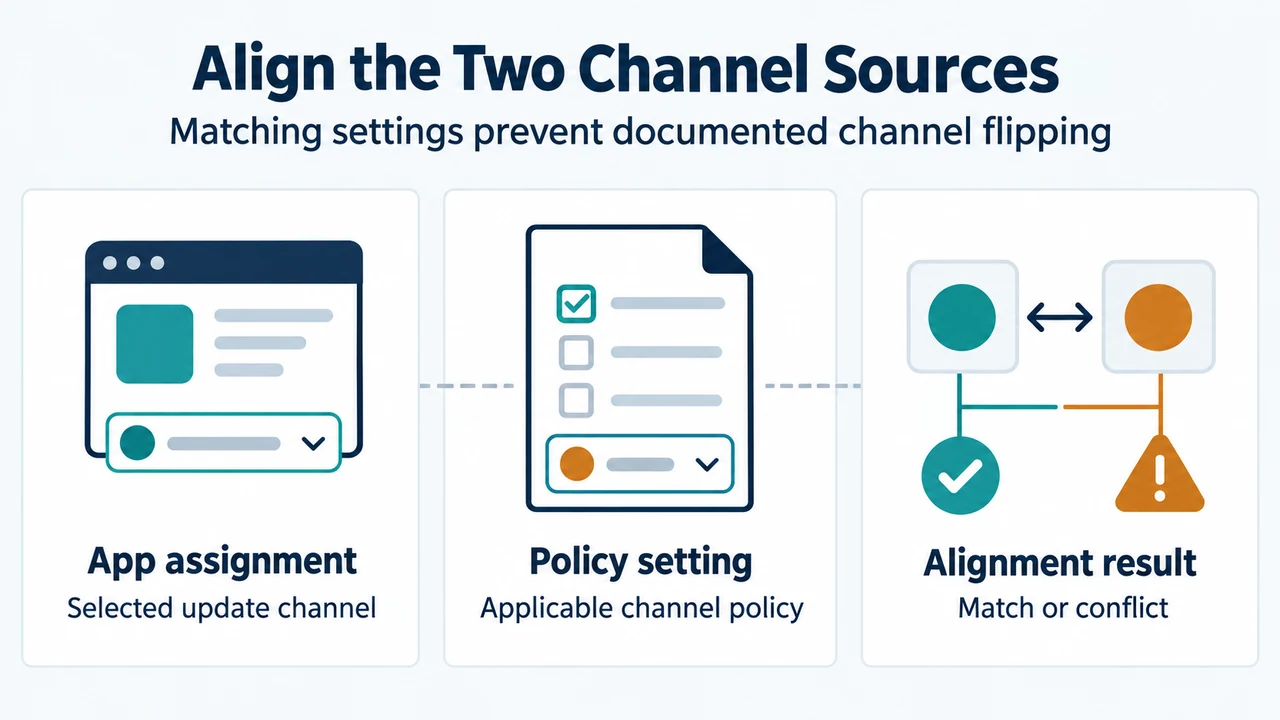
With the documented Intune deployment, the selected channel is re-evaluated and enforced during policy refresh. If the required app assignment specifies one channel and an update-channel policy specifies another, the two settings can repeatedly pull the device in different directions.
The safe corrective goal is alignment: decide which channel the device should use, then make the Intune app assignment and update-channel policy specify that same channel. The supplied evidence does not identify which channel is appropriate for every organization, so that choice must follow the organization’s own update policy.
Confirm the update mechanism is able to apply the change
Microsoft requires the scheduled task Office Automatic Updates 2.0 to be enabled for Microsoft 365 Apps channel management, including Intune. After policy is applied, the task detects the changed policy and updates the assigned channel. On a later run, Microsoft 365 Apps updates to a build from that channel.
A channel change is performed through the Microsoft 365 Apps update engine. Microsoft states that it happens through an update rather than by uninstalling and reinstalling the apps. Devices must be able to obtain an update from the newly assigned channel. If updates are managed through Configuration Manager instead of directly from the internet, Microsoft says an update from the new channel must be deployed to the devices.
A reversible alignment sequence
- Identify the required Intune app assignment and note its selected update channel.
- Identify the update-channel policy that applies to the same device and note its selected channel.
- Choose the intended channel according to your organization’s policy.
- Change the conflicting Intune setting so both documented sources agree.
- Confirm that Office Automatic Updates 2.0 is enabled.
- Allow policy refresh and the Microsoft 365 Apps update process to run, then check the channel again in File > Account.
This sequence is limited to aligning the documented Intune sources and checking the required update task. It does not recommend deleting policies, reinstalling Office, editing the registry, or forcing an unverified channel.
Do not confuse Version 2606 channel display changes with this conflict
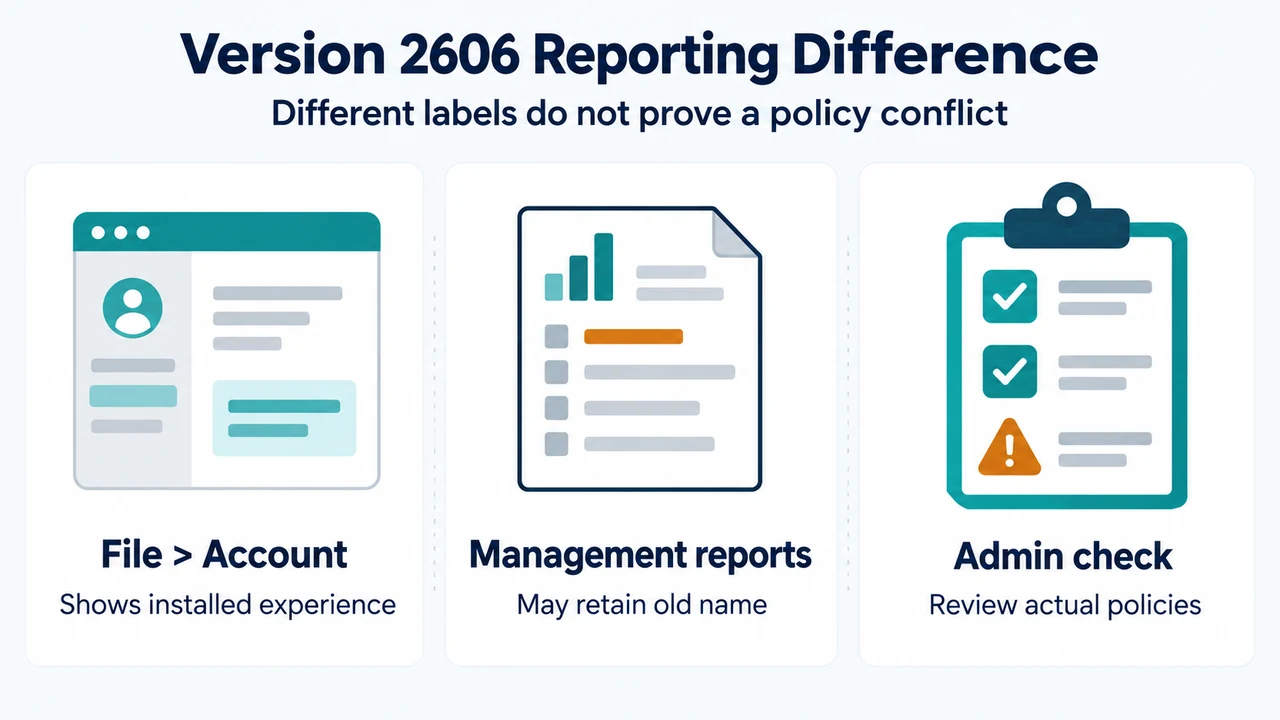
Microsoft’s unified-channel documentation says that, starting with Version 2606, Semi-Annual Enterprise Channel and Monthly Enterprise Channel share the same version number but use different build numbers. It also says that some management tools or reports may continue to show Semi-Annual Enterprise Channel after Version 2606 is installed, while the app backstage may show Monthly Enterprise Channel.
That documented Version 2606 reporting behavior is separate from the Intune mismatch described above. A report or app label alone does not establish that two Intune settings are conflicting. Check the actual app assignment and applicable update-channel policy before changing configuration.
Important limits
Changing channels can change which features users receive. Microsoft also notes that moving from a channel with a newer version to one with an older version removes features exclusive to the newer version. A first update can be larger than a typical monthly update, depending on the current build. Microsoft says a recently installed or updated device may take up to 24 hours after a new setting is applied to change channels.
The supplied Microsoft excerpts are truncated and include an access limitation on the change-channel page. This article was prepared only from the supplied public source excerpts and makes no hands-on, lab, benchmark, or comprehensive-review claim. The evidence supports the documented Intune mismatch, task requirement, update boundary, and Version 2606 reporting limitation; it does not establish a universal cause for every channel switch.
Text version of the diagrams
- Align the Two Channel Sources: App assignment — Selected update channel; Policy setting — Applicable channel policy; Alignment result — Match or conflict
- Version 2606 Reporting Difference: File > Account — Shows installed experience; Management reports — May retain old name; Admin check — Review actual policies