The attributes disk command in Windows displays, sets, or clears the attributes of a storage disk. When a disk is marked with a read-only attribute, you can inspect or clear this attribute using the command-line utility DiskPart.
Scope and Operating System Support
According to Microsoft Learn documentation, the attributes disk command applies to:
- Windows 11
- Windows 10
- Windows Server 2025, 2022, 2019, and 2016
- Azure Local (version 2311.2 and later)
Prerequisite: Selecting the Target Disk
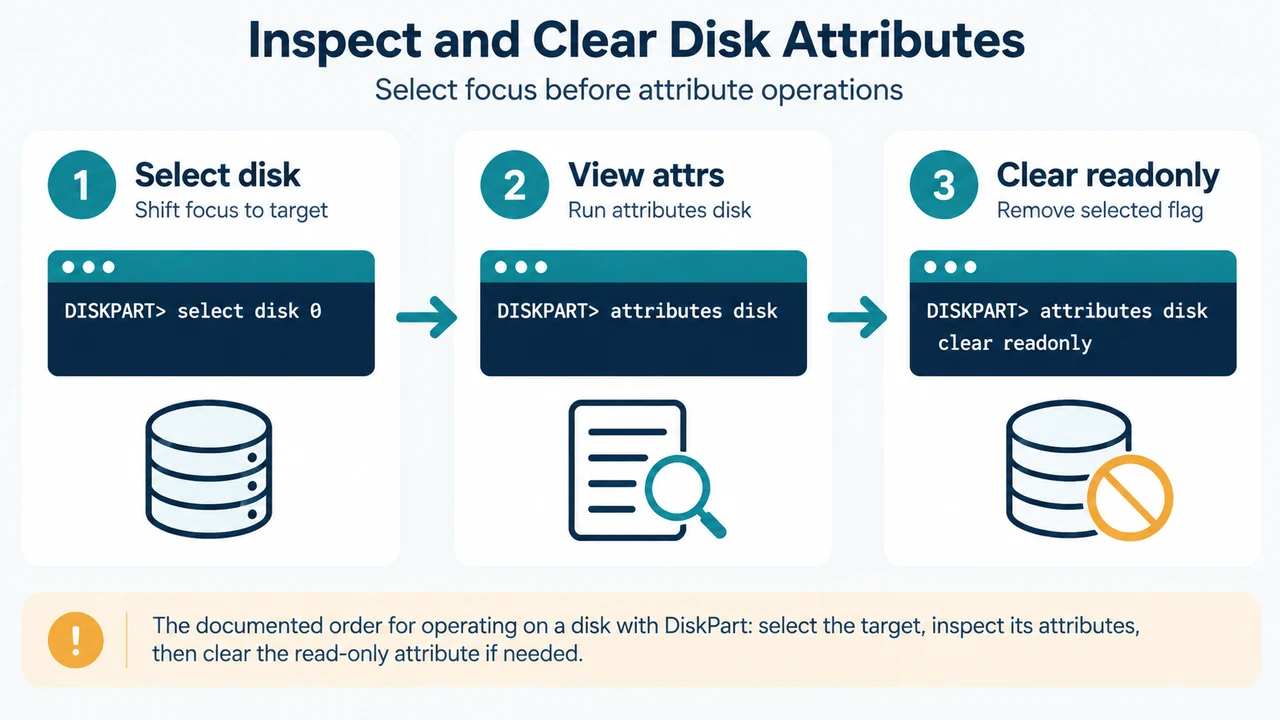
A disk must be selected for the attributes disk command to succeed. You must use the select disk command to select a disk and shift focus to it before running attribute operations.
Viewing and Clearing Disk Attributes
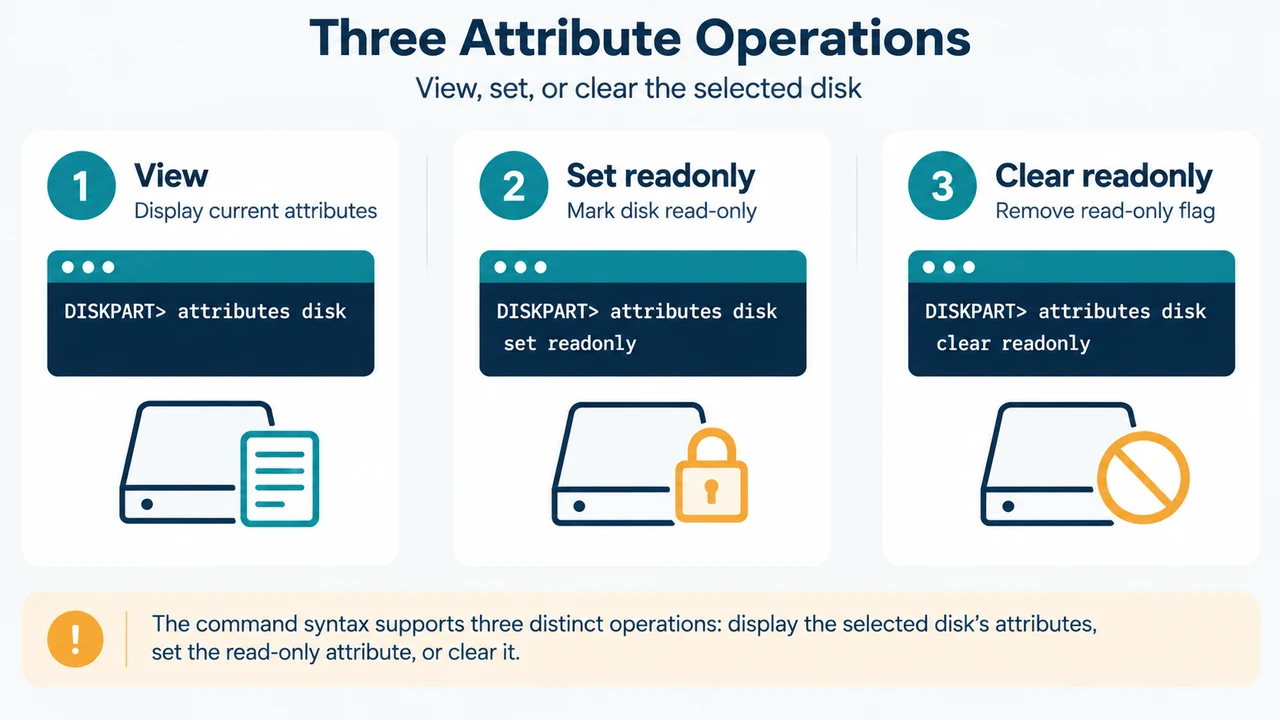
To view the current attributes of the selected disk, run:
attributes diskWhen used to display the current attributes of a disk, the startup disk attribute denotes the disk used to start the computer. For a dynamic mirror, it displays the disk that contains the boot plex of the boot volume.
To clear the read-only attribute of the disk that has focus, run:
attributes disk clear readonlyCommand Syntax and Parameters
The documented syntax is:
attributes disk [{set | clear}] [readonly] [noerr]The parameters perform the following roles:
- set: Sets the specified attribute of the disk with focus (for example,
attributes disk set readonlysets the selected disk as read-only). - clear: Clears the specified attribute of the disk with focus.
- readonly: Specifies that the disk is read-only.
- noerr: Used for scripting only. When an error is encountered, DiskPart continues to process commands as if the error did not occur. Without this parameter, an error causes DiskPart to exit with an error code.
Research Method and Limitations
This article was prepared directly from the supplied public Microsoft Learn technical documentation excerpt for the attributes disk command. Competing coverage was unavailable for comparison. The supplied evidence does not document command output confirmation messages, reboot requirements, recovery from physical write-protect switches, or flash storage controller failure behavior. It is limited to the documented syntax, parameters, focus requirements, and listed Windows and Azure Local environments.
Text version of the diagrams
- Inspect and Clear Disk Attributes: Select disk — Shift focus to target; View attrs — Run attributes disk; Clear readonly — Remove selected flag
- Three Attribute Operations: View — Display current attributes; Set readonly — Mark disk read-only; Clear readonly — Remove read-only flag