The Update License button in Microsoft 365 Apps for Windows first appeared with version 2401 (Build 17231.20194). Its presence does not mean that your license is out of date. Microsoft says the button can be used to refresh licensing after a purchase or entitlement, while normal license refresh happens automatically in the background.
This article covers Microsoft 365 Apps for Windows version 2401 (Build 17231.20194) and later. Microsoft places the button in the backstage area of apps such as Word, Excel, and PowerPoint. Its location changes in version 2404 (Build 17531.20000) and later.
What the Update License button means
In Word, Excel, or PowerPoint, open File, choose Account, and look under Product Information. Microsoft documents Update License as a way to start a guided license refresh on the device.
The button is available in Microsoft 365 apps beginning with version 2401 (Build 17231.20194). Seeing it is not evidence that the current license is expired or otherwise wrong. Microsoft says that license information normally refreshes automatically, but a new purchase or entitlement can take up to 72 hours to appear. The button provides a way to start the update sooner.
Why the button may be missing
Microsoft says the button may not appear for some activation methods, including shared computer activation licensing mode. Therefore, its absence does not by itself show that activation has failed, and its presence does not prove that a license needs attention.
Safe checks before and after using it
1. Check the signed-in account
If Update License shows Couldn’t Update License with error code 44, Microsoft identifies signing in with an account other than the licensed account as the usual cause.
Check the account shown in the Microsoft 365 app. For an individual user, Microsoft lists Microsoft 365 Personal, Family, or Premium as examples of subscriptions that can provide the relevant license. For business users, Microsoft lists Business Basic, Business Standard, Business Premium, E3, E5, F1, and F3. The correct choice depends on the account and license assigned to the user.
2. Confirm the licensed product
In any Microsoft 365 app, open File > Account. Under Product Information, Microsoft says the name of the currently licensed product and the included apps are shown. Use this screen to check what the installation currently reports instead of treating the button itself as proof of a problem.
3. Run the documented refresh
Select Update License and follow the sign-in prompts. Microsoft says sign-in is required so the process can use the account associated with the license.
If the process succeeds, Microsoft says you will be prompted to restart any Microsoft 365 apps that are open. Close and restart those apps so they can use the current license. If the refresh cannot obtain an updated license, Microsoft says a dialog displays an error message and error code.
What online access and activation scope mean
Microsoft’s licensing documentation says Microsoft 365 Apps use cloud-based services for automatic activation. It says users should keep the subscription current and allow the device to connect to the Office Licensing Service over the internet at least once every 30 days. The same documentation says that removing a user’s license can place the installation in reduced functionality mode.
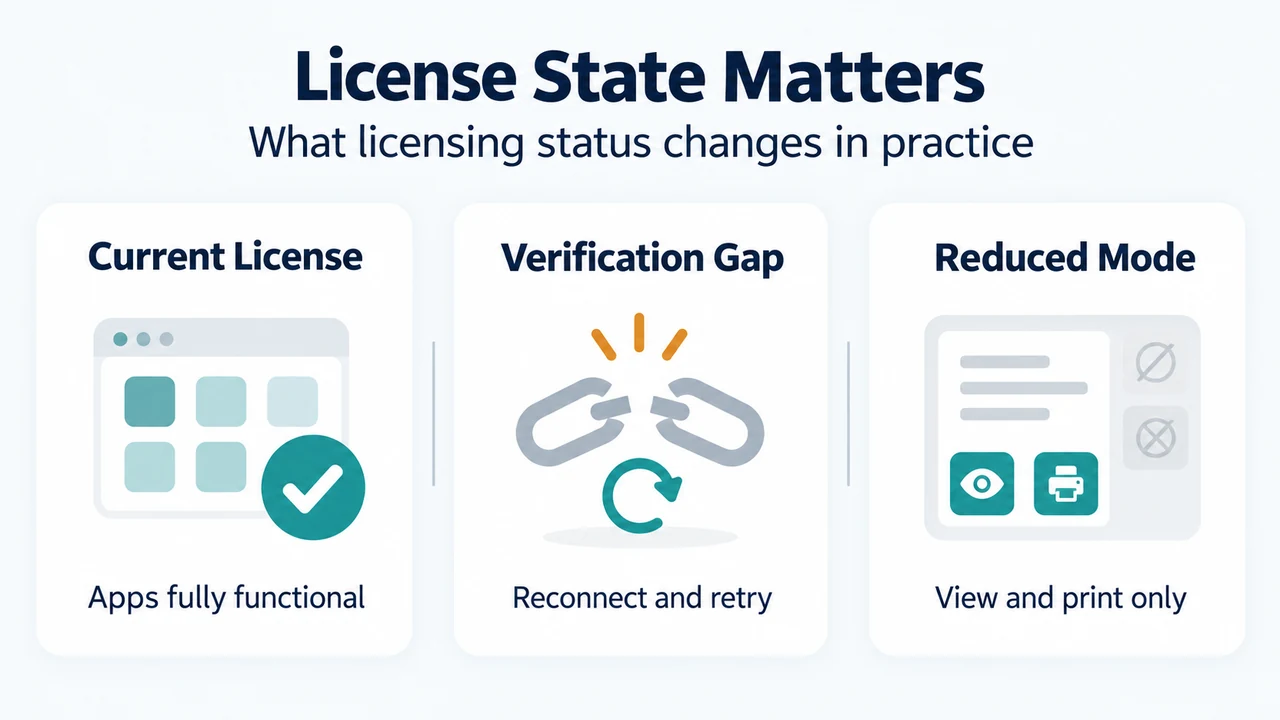
Microsoft describes reduced functionality mode as a state in which the apps remain installed, but editing and creating new documents are disabled. Users can still view and print documents. A separate Microsoft support page says that if Office cannot verify a subscription for an extended period, it can eventually enter this mode; reconnecting to the internet and choosing Retry is the documented response for a “Couldn’t Verify Subscription” notice.
These checks apply to the documented licensing situations above. They do not establish that every activation error has the same cause.
How to distinguish Update License from other notices
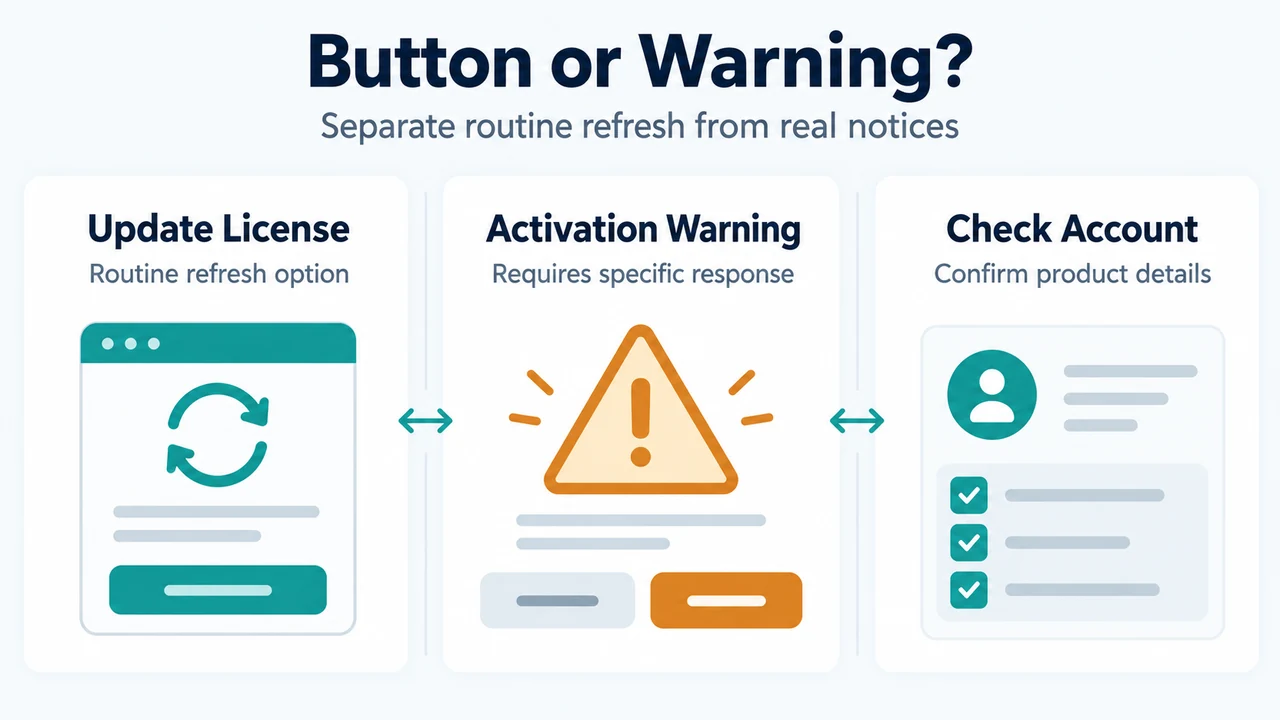
An ordinary Update License button is different from a warning such as Unlicensed Product, Product deactivated, or Couldn’t Verify Subscription. Microsoft documents separate causes and responses for those notices. For example, a deactivated installation requires signing in again, while a subscription-verification notice requires reconnecting to the internet and choosing Retry.
If Microsoft 365 reports that a subscription has expired, is pending a plan change, or has a payment problem, use the response for that specific notice. The existence of the Update License button alone does not establish any of those conditions.
Practical decision guide
| What you see | Supported next check |
|---|---|
| Update License is present | Do not assume the license is outdated. Check File > Account if you need the current product details. |
| New purchase or entitlement is not shown | Microsoft says background reflection can take up to 72 hours; the button can start a refresh sooner. |
| Couldn’t Update License, error code 44 | Check that the signed-in account has the intended license. |
| Update License is not visible | Check whether the installation uses an activation method such as shared computer activation, for which Microsoft says the button may not appear. |
| Couldn’t Verify Subscription | Reconnect to the internet and choose Retry, according to Microsoft’s support guidance. |
Research method and limitations
This explanation was prepared from the supplied public Microsoft support and Microsoft Learn excerpts retrieved on September 21, 2026, plus one supplied competing explanatory page used only to compare coverage. The Microsoft Learn excerpt was marked as truncated and access-limited, so this article relies only on the visible statements. It makes no hands-on, laboratory, benchmark, or comprehensive-review claim. Microsoft’s exact menu placement and activation behavior can vary by version and activation method.
Text version of the diagrams
- Button or Warning?: Update License — Routine refresh option; Activation Warning — Requires specific response; Check Account — Confirm product details
- License State Matters: Current License — Apps fully functional; Verification Gap — Reconnect and retry; Reduced Mode — View and print only