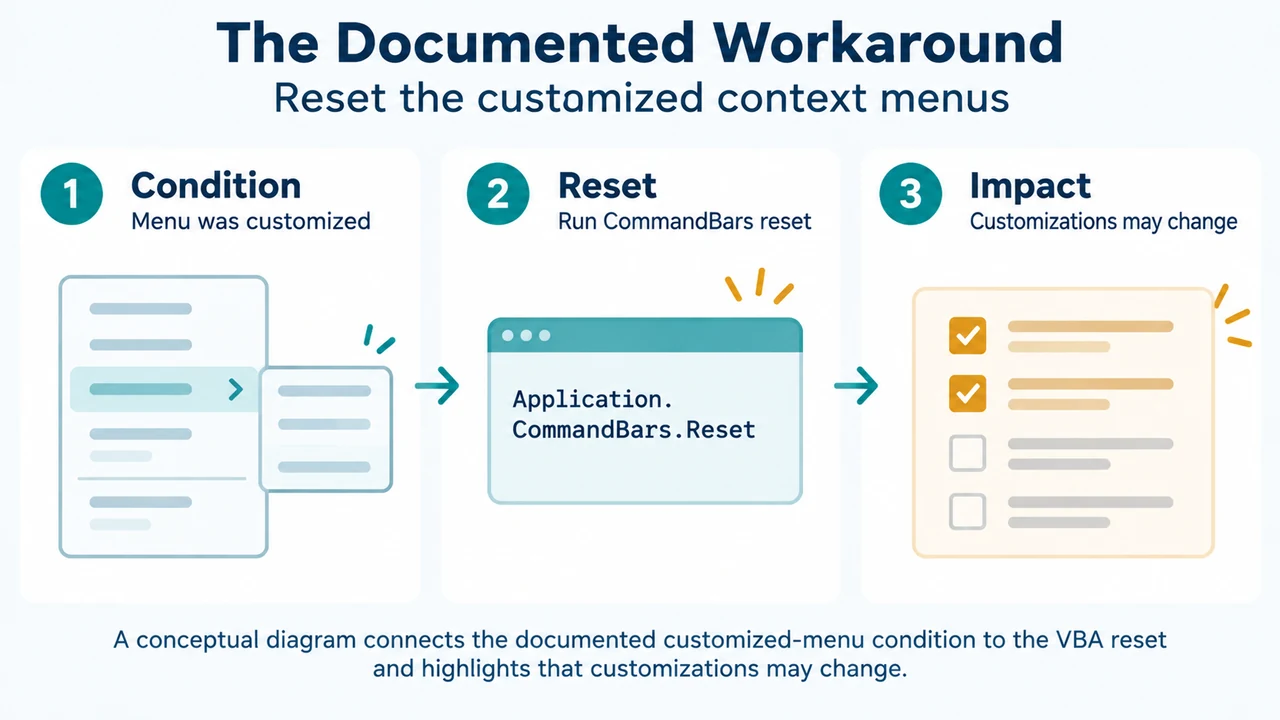
If New Comment and New Note are missing from Excel’s right-click menu, Microsoft documents this issue for Excel for Microsoft 365, Excel 2016, and Excel 2013 when the right-click context menu was customized, possibly using an add-in. The documented workaround resets the customized context menus with VBA.
The issue page was last updated on August 30, 2019. This guidance is therefore limited to the versions and behavior described in that Microsoft documentation.
Choose the command after it returns
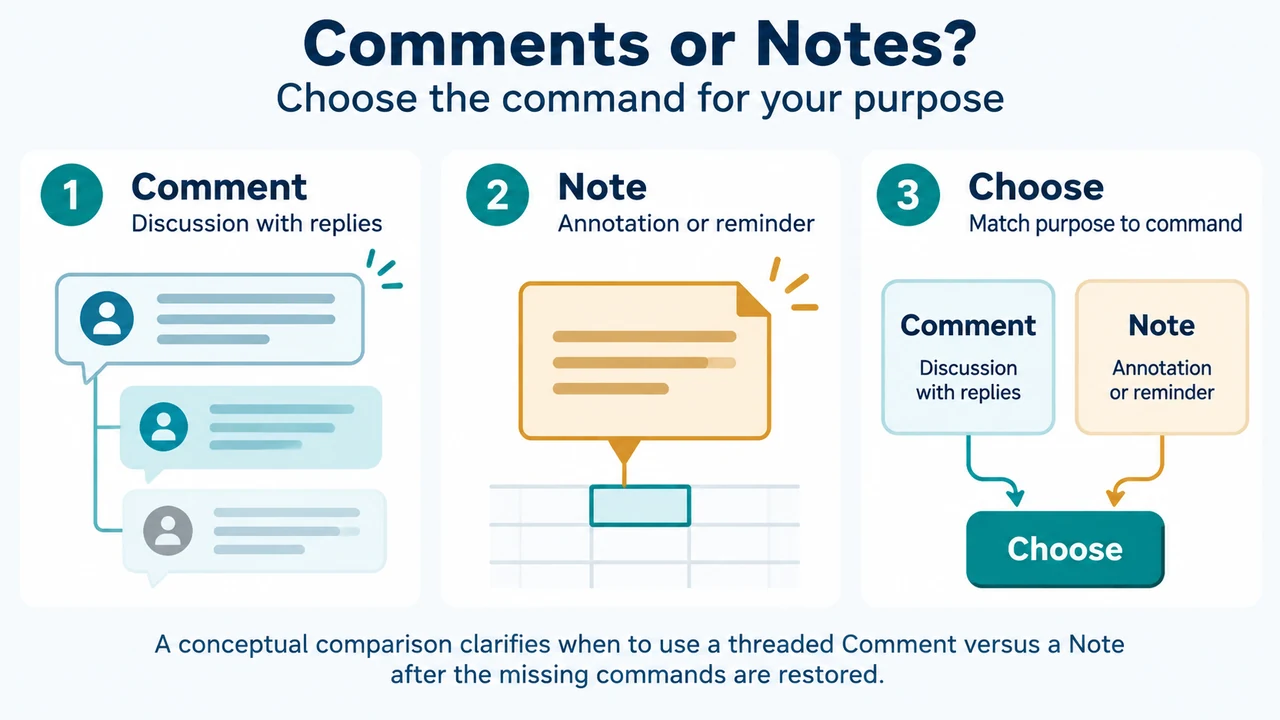
In Excel for Microsoft 365, Comments are threaded and support discussions with replies. Notes are annotations or reminders and do not have a Reply box. Microsoft says Notes were formerly called comments in earlier Excel versions.
Use New Comment for a discussion. Use New Note for an annotation or reminder. Microsoft documents New Comment on the cell’s right-click menu and on the Review tab. It documents New Note on the right-click menu and under Review > Notes > New Note.
Why the commands may be missing
Microsoft identifies a customized Excel right-click context menu as the relevant condition. The customization may have been made using an add-in. The issue page describes the commands disappearing after Office is updated, but it does not establish that every update or add-in causes the problem.
Reset the customized context menus
Microsoft describes the workaround as a reset of customized context menus. A reset may change those customizations. Record important customizations before running it if they need to be preserved.
- Open the Visual Basic Editor by pressing Alt+F11.
- Select Insert > Module.
- Paste this procedure into the empty module pane:
Sub ShowButtonsAgain()
    Dim bar As CommandBar
    For Each bar In Application.CommandBars
        bar.Reset
    Next
End Sub- Press F5 to run the procedure.
- Exit back to Excel by pressing Alt+Q.
- Check whether the Comment and Note options have been restored.
The procedure resets the command bars in Excel’s Application.CommandBars collection. The supplied Microsoft guidance does not provide a separate undo procedure. Treat the reset as a configuration change.
If the issue recurs
Microsoft says you can save the workbook in a convenient location to make the procedure reusable. It also mentions Excel’s Personal Macro Workbook when the procedure should remain available. The supplied evidence does not establish an add-in-specific permanent fix.
If the commands remain missing
The Microsoft page documents this reset as a workaround, not as a universal repair for every missing-menu cause. If the commands remain absent, the supplied evidence does not support a further diagnosis. Check the exact Excel version and whether a customization is involved before making additional changes.
Research method and limitations
This answer was prepared from the supplied public Microsoft source excerpts retrieved on September 22, 2026. The excerpts cover the documented version scope, customization condition, VBA reset, command locations, and Comment-versus-Note distinction. One supplied Microsoft insertion excerpt is truncated, so unseen text was not used. The supplied competing excerpt was used only to compare coverage, not as technical authority. No hands-on testing, benchmark, or comprehensive competing-source review was performed.
Sources
Microsoft: “Missing New Comment and New Note from Excel’s context menu”; “The difference between threaded comments and notes”; and “Insert comments and notes in Excel.”
Text version of the diagrams
- Comments or Notes?: Comment — Discussion with replies; Note — Annotation or reminder; Choose — Match purpose to command
- The Documented Workaround: Condition — Menu was customized; Reset — Run CommandBars reset; Impact — Customizations may change