If OneNote for Microsoft 365, OneNote 2024, OneNote 2021, or OneNote 2016 on Windows shows “Saved offline – Refresh” or error E000006C (cig68), start with the least risky checks: update OneNote, use the Refresh action when it appears, and check the notebook in OneNote for the web. Do not close and reopen a notebook until you have copied and backed up recent notes that have not synced.
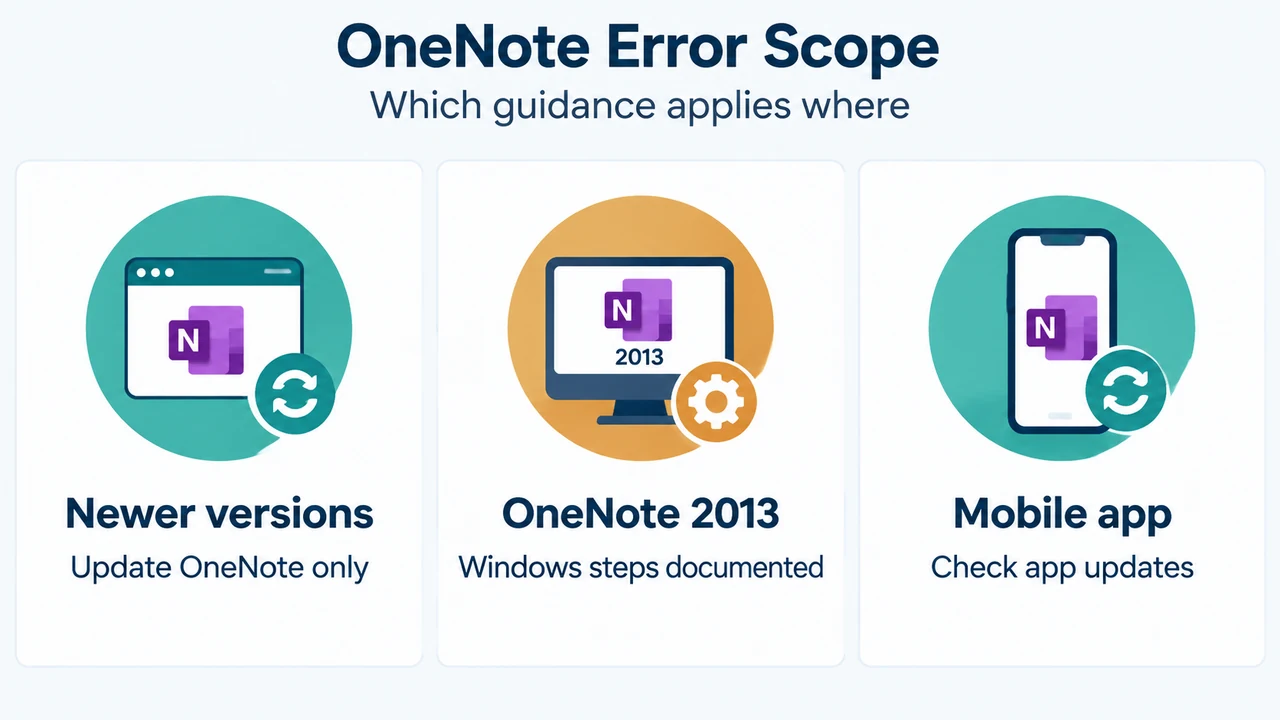
Which OneNote versions this applies to
Microsoft’s troubleshooting page lists OneNote for Microsoft 365, OneNote 2024, OneNote 2021, and OneNote 2016 among the editions covered. The exact experience can vary by OneNote version. This article is limited to the Windows sync symptoms and editions described in the supplied Microsoft evidence.
When OneNote shows a Refresh prompt
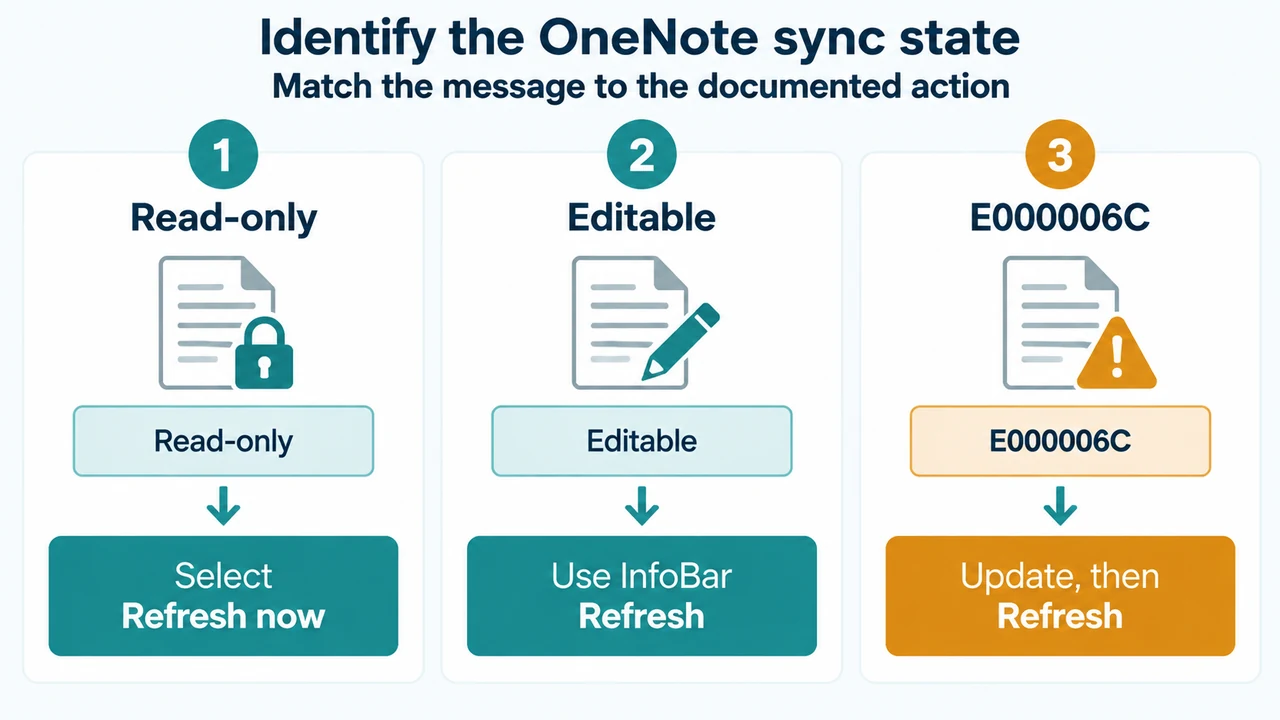
The notebook is read-only
If OneNote says that you cannot edit the notebook because it is not syncing and shows a “Refresh Now” action, select “Refresh now.” Microsoft says this resumes syncing.
The notebook is still editable
If OneNote shows “Please refresh this notebook to continue syncing” in a yellow InfoBar, select the InfoBar’s Refresh action. Microsoft says this resumes syncing.
When the error is E000006C (cig68)
If OneNote says, “OneNote can’t sync your notes right now. We’ll keep trying,” with error E000006C (cig68), Microsoft’s documented next step is to update OneNote to the latest version. After updating, the Refresh message should appear; follow the relevant Refresh steps above.
The supplied Microsoft passage does not provide a complete update procedure for every listed edition. Use the update method available for your installation, but this article does not assume a particular installer, account, or update channel.
Check whether the notebook opens in OneNote for the web
This check helps separate a local OneNote sync problem from a problem accessing the notebook’s service location.
- In the OneNote desktop app, select File.
- On the Info tab, right-click the URL immediately below the affected notebook’s name and select Copy.
- Paste the URL into a web browser and press Enter to open the notebook in OneNote for the web.
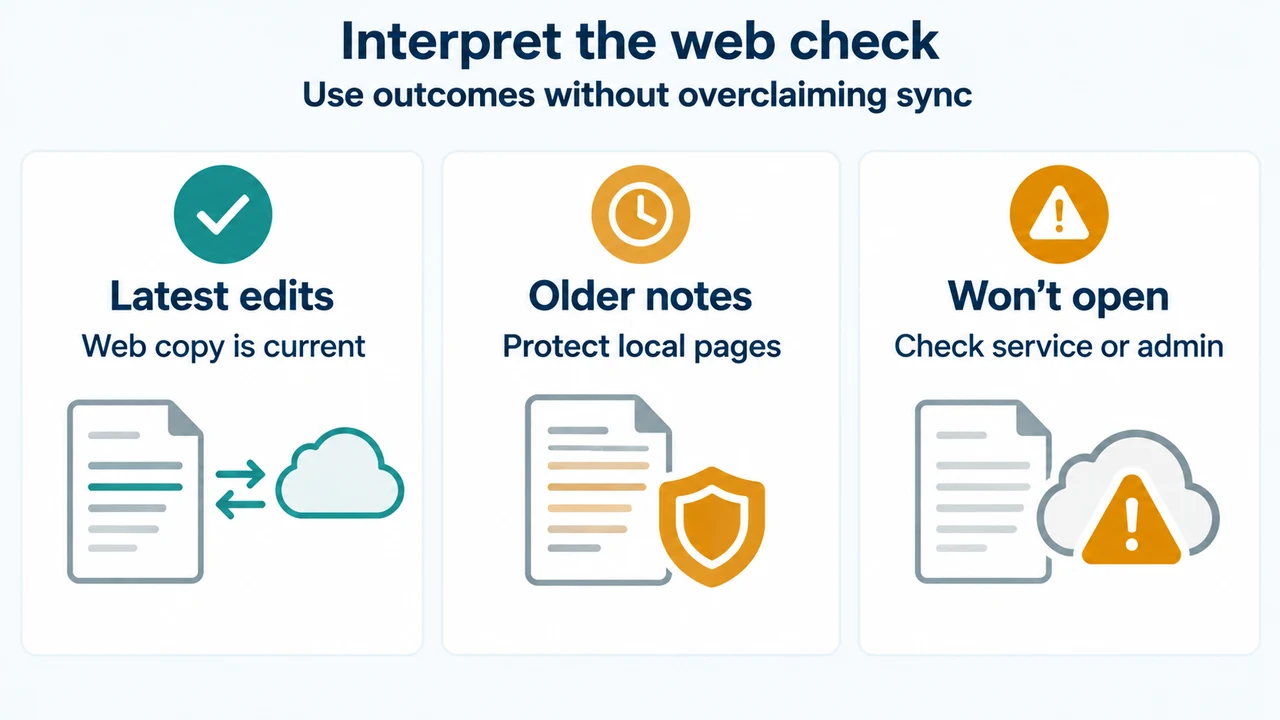
The notebook may take time to load and sync, depending on its size and your internet connection. If it opens, check whether your latest changes are present. If they are present, Microsoft says you can use OneNote for the web to finish your work.
If the notebook does not open in OneNote for the web, Microsoft says this is likely a server issue. For a notebook stored on OneDrive, check the OneDrive Service Status page for known interruptions or outages. For a notebook stored on SharePoint, contact your administrator.
Protect notes before closing and reopening the notebook
Closing and reopening an affected notebook can sometimes reset the sync connection between OneNote and the OneNote service. It is not a safe first step when recent edits have not finished syncing.
Before closing and reopening, copy and back up any recent unsynced notes on the computer or device where they were created. Microsoft warns that unsynced changes can be lost if you proceed without a recent backup.
Check the desktop app’s sync status
If the web copy does not contain your latest changes, return to the OneNote app on the computer or device where those changes were made. Select File > Info > View Sync Status. In the Shared Notebook Synchronization dialog, review the error code and message for the notebook. Microsoft says some error codes may include a “Get Help” button that opens a specific troubleshooting article.
What these checks can and cannot establish
A successful web opening shows that the notebook can be opened there, and lets you check whether recent changes reached the web copy. It does not, by itself, prove that every local edit has synced. If the web copy is older, protect the newer local pages before trying a close-and-reopen action.
An unsuccessful web opening may indicate a server issue, but the supplied evidence does not identify one universal cause for every E000006C case. Storage location, permissions, service availability, network access, and the installed OneNote version may require different follow-up. Do not treat a single documented configuration or symptom as a guarantee about all notebooks or installations.
Research method and limits
This guide was prepared from the supplied public Microsoft support excerpt retrieved on September 20, 2026. The excerpt is truncated, so this article relies only on the visible statements about the listed Windows editions, Refresh prompts, E000006C, web access, sync status, and unsynced-note warnings. No hands-on testing, lab measurement, benchmark, or comprehensive review was performed. No competing page was available in the supplied material.
Text version of the diagrams
- Identify the OneNote sync state: Read-only — Select Refresh now; Editable — Use InfoBar Refresh; E000006C — Update, then Refresh
- Interpret the web check: Latest edits — Web copy is current; Older notes — Protect local pages; Won’t open — Check service or admin