When experiencing sound or microphone issues in Windows, official Microsoft documentation outlines specific checks for physical connections, Windows privacy toggles, device settings, and core audio services.
Check Audio Hardware and Volume Controls
Microsoft documentation recommends starting with physical hardware and volume checks:
- Check cords and cables: Make sure all cords and cables are securely connected. If your system has multiple jacks, confirm cords are plugged into the correct jack. Some systems use a pink jack for microphone input and a green jack for output, while others label ports as “microphone” or “headphone.”
- Verify power and volume controls: Ensure hardware power is turned on, hardware mute settings are turned off, and volume controls are turned up. Some apps and external speakers have their own independent volume controls that must also be checked.
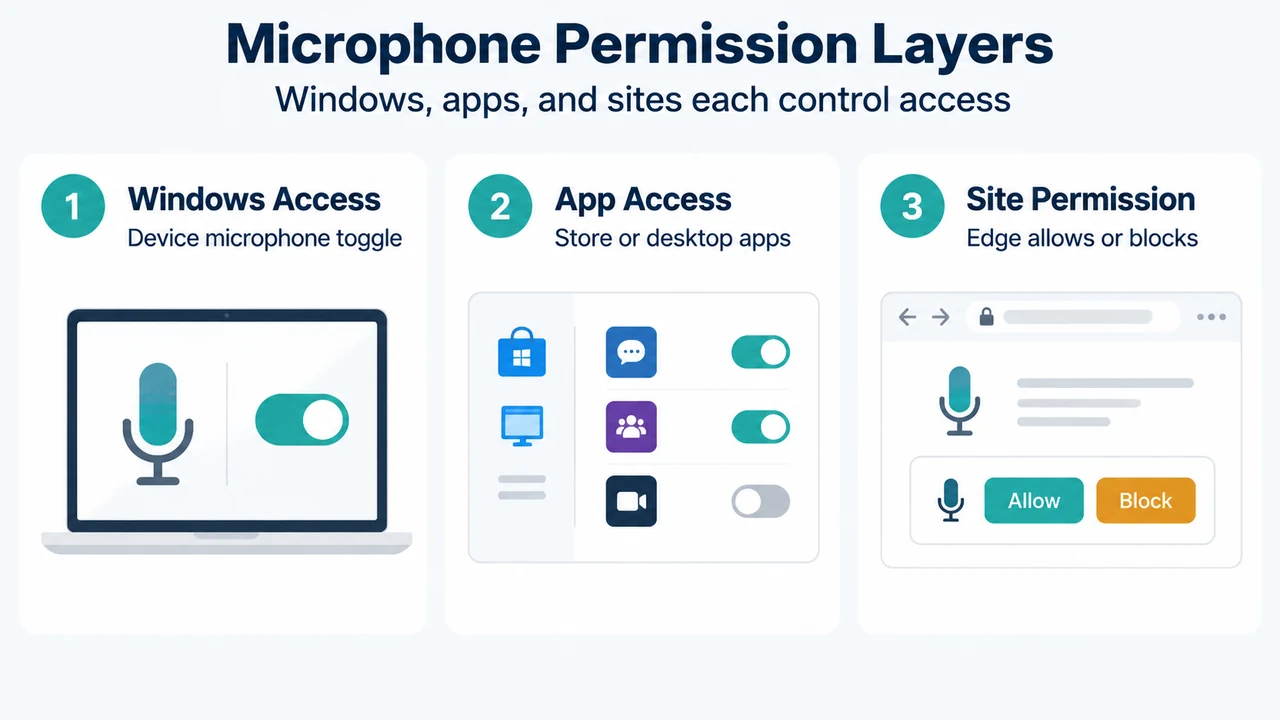
Configure Windows 11 Microphone Privacy Settings
Windows 11 manages microphone access through tiered privacy controls:
- Select Start > Settings > Privacy & security, and under App permissions, select Microphone.
- Make sure the Microphone access toggle is turned On.
- Make sure the Let apps access your microphone toggle is turned On.
- Under Let apps access your microphone, locate the specific Microsoft Store app you wish to use and verify that its individual toggle is turned On.
- For desktop programs, make sure Let desktop apps access your microphone is turned On. Desktop apps cannot be toggled individually; turning this setting on or off affects all detected desktop apps listed beneath it.
A microphone icon appears in the notification area of the taskbar whenever an app is actively using the microphone.
Manage Website Microphone Permissions in Microsoft Edge
Even when microphone permissions are enabled for Microsoft Edge in Windows, individual websites require browser-level permission:
- Prompt access: When visiting a website requesting microphone access, select Allow on the prompt to grant access, or select Block (or close the dialog) to deny it.
- Stop a site from accessing the microphone: To block an existing website from using the microphone, open Microsoft Edge and go to Settings and more > Settings. Select Privacy, search, and services on the left side, then select Site Permissions > All sites. Select the website, locate the Microphone dropdown, and select Block.
Verify Sound Settings and Device Status
Windows Settings and the Volume mixer allow you to verify device mute status and enabled state:
- Select and hold (or right-click) the Speakers icon on the taskbar (or select Show hidden icons in the overflow area if not visible), then select Open Volume mixer.
- Review the volume controls to ensure none are muted. If a control is muted, it displays a red circle with a line through it; select the control to unmute.
- To confirm devices are not disabled, select Start > Settings > System > Sound.
- Select your audio device, then select Device properties for both output and input devices.
- Confirm that the Disable check box is cleared for each device.
Restart Windows Audio Services
If audio remains unresponsive, restart core audio services through the Services console:
- In the search box on the taskbar, type
services, then select it from the results. - Locate each of the following services:
- Windows Audio
- Windows Audio Endpoint Builder
- Remote Procedure Call (RPC)
- Select each service, select and hold (or right-click), select Restart, and select Yes.
Research Method and Limitations
This troubleshooting guide was prepared directly from visible excerpts of official Microsoft Support documentation covering Windows audio problems and microphone privacy settings. Competing coverage was not available for comparative review during retrieval. The visible source evidence is truncated and does not contain steps for input-level testing, advanced device selection, driver reinstallations, or exclusive mode configurations. Unseen text from truncated excerpts was not assumed or referenced. No independent hands-on hardware testing, benchmarks, or lab validations were conducted.
Text version of the diagrams
- Microphone Permission Layers: Windows Access — Device microphone toggle; App Access — Store or desktop apps; Site Permission — Edge allows or blocks
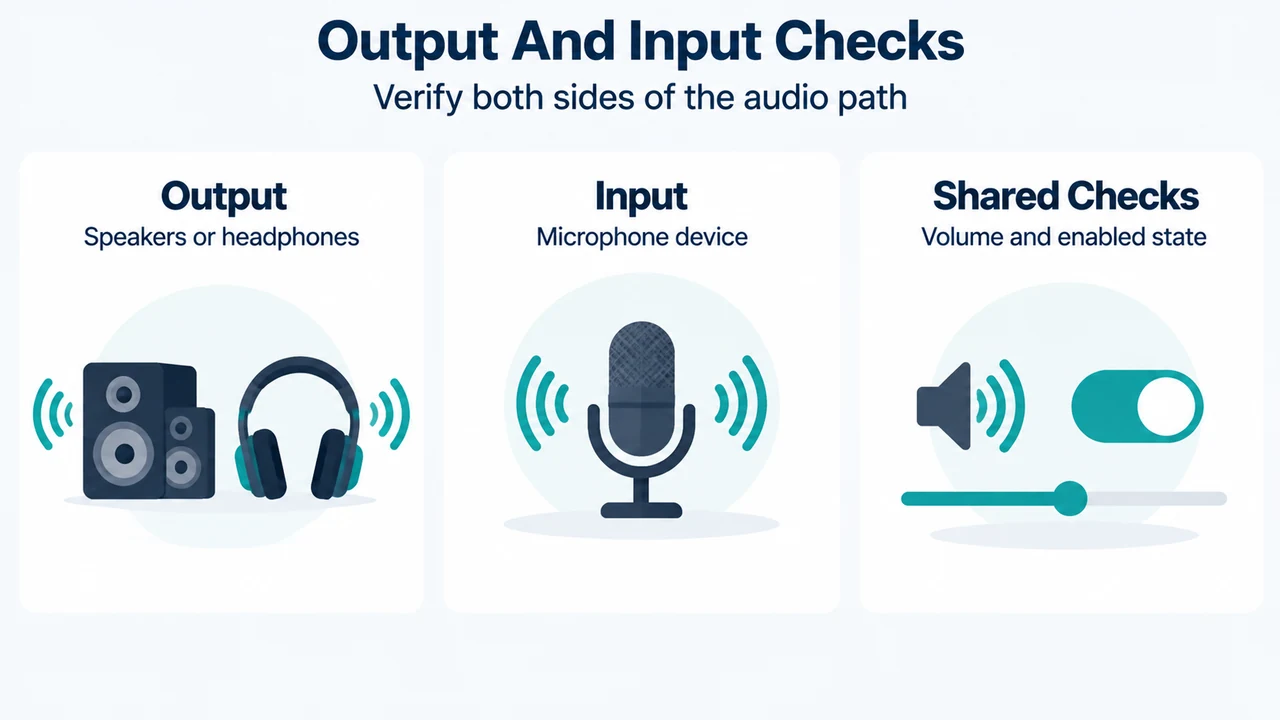
- Output And Input Checks: Output — Speakers or headphones; Input — Microphone device; Shared Checks — Volume and enabled state