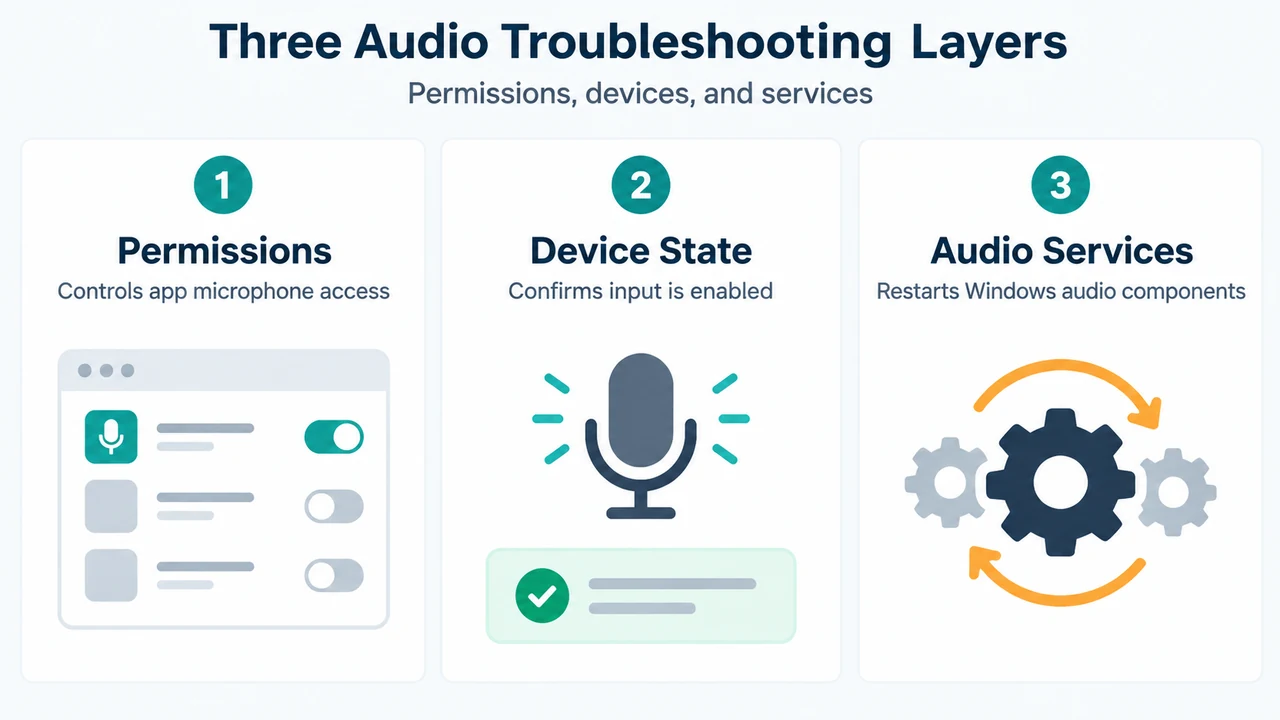
If your microphone works in Windows or another app but Microsoft Teams cannot use it, check the Windows 11 microphone permissions first, then confirm the selected input device in the Teams desktop app. Also check mute controls and reconnect the microphone before using Teams’ test call.
This guide applies to Microsoft Teams desktop on Windows 11. The supplied Microsoft documentation also describes other platforms, but those steps are outside this article’s scope.
1. Check Windows 11 microphone permissions
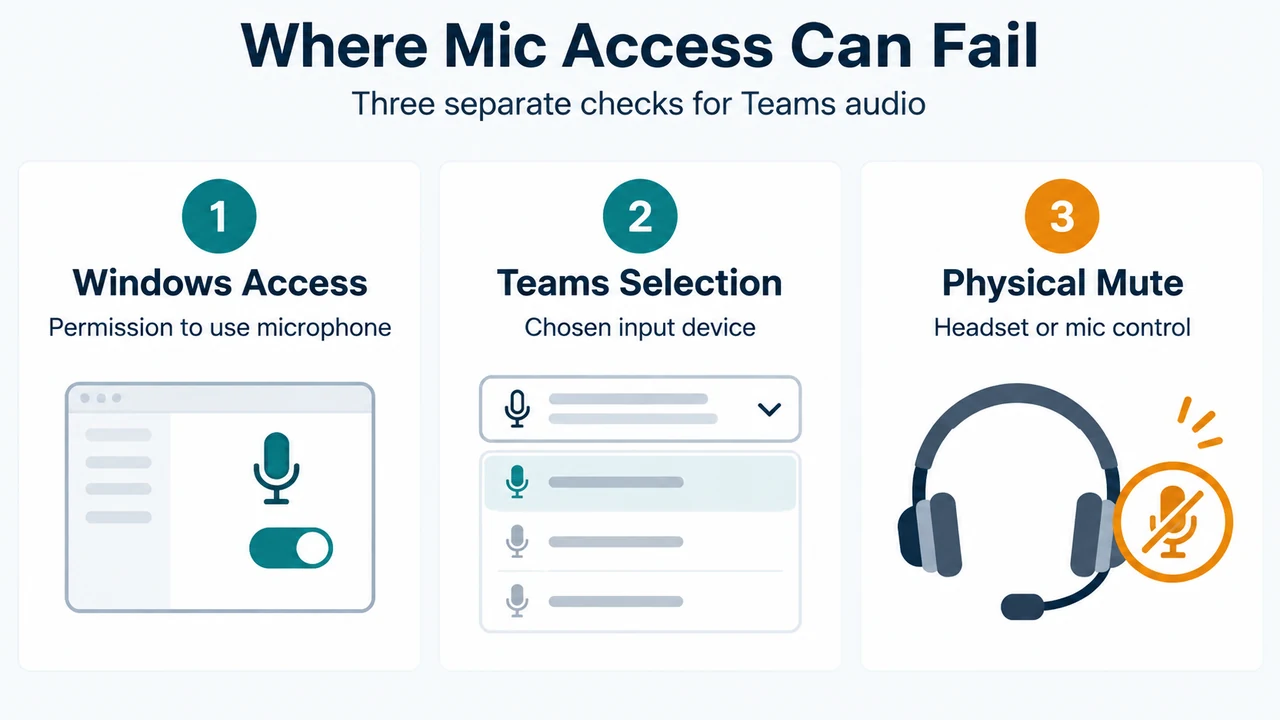
Open Start > Settings > Privacy & security > Microphone. Microsoft says to turn on Microphone access, Let apps access your microphone, and Let desktop apps access your microphone. The Teams support page also lists the Microsoft Teams work-or-school toggle where it is available.
If the switches were already on, Microsoft recommends turning them off and on again so the settings apply. Then close all apps and restart the device. These controls affect microphone access; they do not prove that Teams has selected the correct input device.
Windows shows a microphone icon in the taskbar notification area when an app is using the microphone. This can help you see whether microphone access is active, but the supplied documentation does not say that the icon confirms successful audio in a Teams meeting.
2. Confirm the microphone selected by Teams
In the Teams desktop app, select Settings and more > Settings > Devices. Under Audio settings, choose the intended microphone from the Microphone drop-down menu. Microsoft’s device-settings documentation says this page lets you choose the primary audio device, speaker, and microphone.
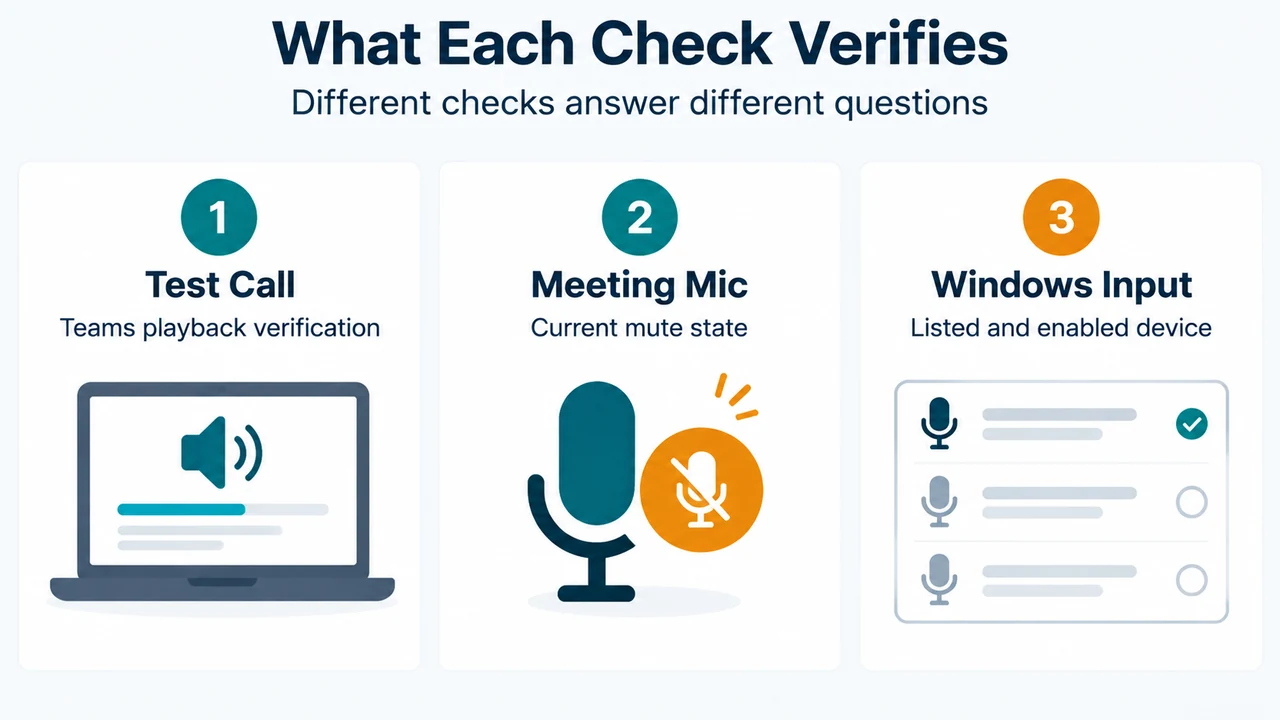
Before a meeting, Microsoft’s troubleshooting page recommends selecting Make a test call. Follow the Test Call Bot instructions and record a short message. The message plays back, followed by a summary of the test call.
The test-call feature is currently available in English only and is unavailable in Teams for the web. Microsoft says the test recording is deleted immediately after the call and is not retained or used.
3. Check mute controls
In the meeting controls, make sure Mic is unmuted. Microsoft says a microphone icon with a line through it means you are muted; select Unmute mic.
Also check the microphone’s physical mute control. A headset boom may be in its mute position, or an external microphone may have its mute button enabled.
4. Reconnect the microphone safely
During a meeting, select the arrow next to Mic, choose More audio settings, and confirm the correct microphone is selected. If the microphone is missing from the list, unplug it and plug it back in, then check the Teams microphone selection again.
For a Bluetooth microphone, Microsoft says to check that it is charged and not connected to another device before trying to reconnect it. The supplied evidence does not establish a broader fix for every Bluetooth or driver problem.
5. If Windows does not list the microphone
Open Start > Settings > System > Sound. Under Input, select the microphone in Choose a device for speaking or recording. If it is not listed, Microsoft says you can select Add device to pair it. Next to Volume, make sure the microphone is not muted.
Microsoft also documents an additional Windows sound check: open Advanced > More sound settings, select the Recording tab, right-click the microphone, and select Enable if it is disabled.
6. What this guide does not establish
These checks cover documented Teams desktop and Windows microphone permissions, Teams device selection, mute controls, reconnection, and the test call. They do not establish that every microphone, driver, meeting policy, remote-desktop configuration, or Teams account issue has the same cause. Microsoft provides separate steps for remote desktop and other platforms, but those cases are not covered here.
For Teams on the web, Microsoft says browser microphone permissions are also required, and the Teams desktop test call is unavailable there. This article does not provide browser-specific procedures.
Research method and limitations
This article was prepared from the supplied public Microsoft support excerpts retrieved on 20 September 2026, including the Teams microphone guide, Teams device-settings guide, and Windows microphone privacy guide. The Windows privacy passage was truncated, so only its visible statements were used. A supplied Google Meet page was reviewed only as competing coverage, not as technical authority for Teams. No hands-on testing, lab measurement, benchmark, or comprehensive review was performed.
Text version of the diagrams
- Where Mic Access Can Fail: Windows Access — Permission to use microphone; Teams Selection — Chosen input device; Physical Mute — Headset or mic control
- What Each Check Verifies: Test Call — Teams playback verification; Meeting Mic — Current mute state; Windows Input — Listed and enabled device