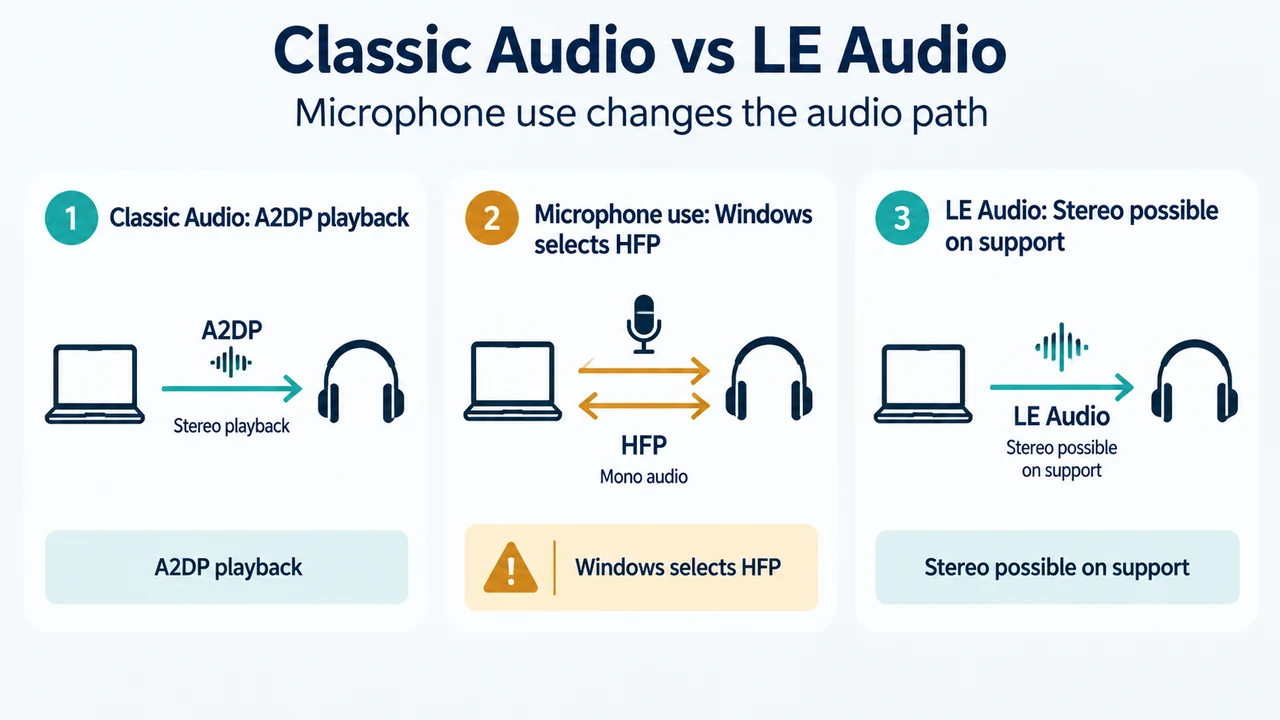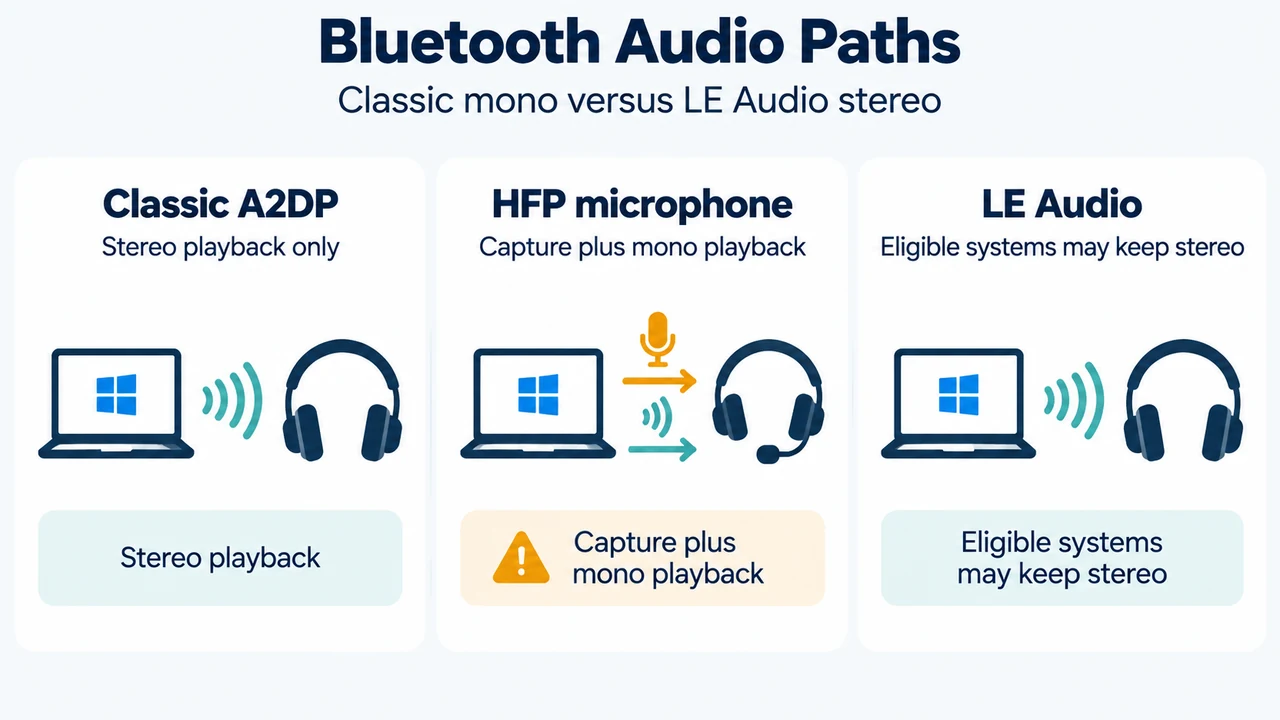
If a Bluetooth headset sounds less detailed or changes to mono when an app uses its microphone, Windows may be switching it from stereo playback to hands-free audio. Microsoft documents this behavior for Bluetooth Classic audio: A2DP provides stereo playback, while HFP provides concurrent microphone capture and mono playback.
Windows 11 can provide stereo playback while the microphone is active when the PC and Bluetooth audio device meet Microsoft’s Bluetooth LE Audio requirements. This is a compatibility condition, not a guarantee for every Bluetooth headset.
Why the sound changes when the microphone opens
Bluetooth Classic audio uses the Advanced Audio Distribution Profile (A2DP) for high-quality stereo playback. A2DP supports audio output from the PC to the device, but it does not provide microphone capture.
When an application opens the headset microphone, Windows selects the Hands-Free Profile (HFP). Microsoft describes HFP as supporting concurrent microphone capture and mono playback. In Windows 11, profile selection changes automatically with microphone use: media can move from A2DP to HFP when the microphone opens and return to A2DP after it closes.
That documented profile change explains why media audio may sound less detailed while a microphone-enabled application is active. The supplied Microsoft documentation does not establish that every headset or application behaves identically.
Check whether stereo playback while the microphone is active is supported
Microsoft’s stereo setting applies to Windows 11 version 24H2 or newer. The PC must have integrated Bluetooth LE support from the factory, the manufacturer’s required Bluetooth drivers, and a Bluetooth LE Audio headset, earbuds, speaker, or compatible assistive hearing device.
Microsoft also states that Windows 11 build 26100.4484 or newer, with updated manufacturer Bluetooth drivers, enables some eligible Windows PCs to support stereo playback while the microphone is active. The supplied evidence does not say that this build makes every PC or headset eligible.
After pairing and connecting the Bluetooth LE Audio device:
- Open Settings > System > Sound.
- Under Output, select the arrow to the right of the Bluetooth LE Audio device.
- Expand Output settings > Format.
- Look for Format when microphone is active.
If the control is present, Microsoft documents Mono (1 channel) and Stereo (2 channels). If it is absent, Microsoft says the system does not support stereo audio while the microphone is active. Check for current operating-system and driver updates or contact the PC manufacturer.
What to choose when stereo causes glitches
Microsoft says the setting defaults to stereo on systems that support it, but some Bluetooth accessories may have trouble rendering stereo while the microphone is active. Documented symptoms include lost audio and disruptive glitches.
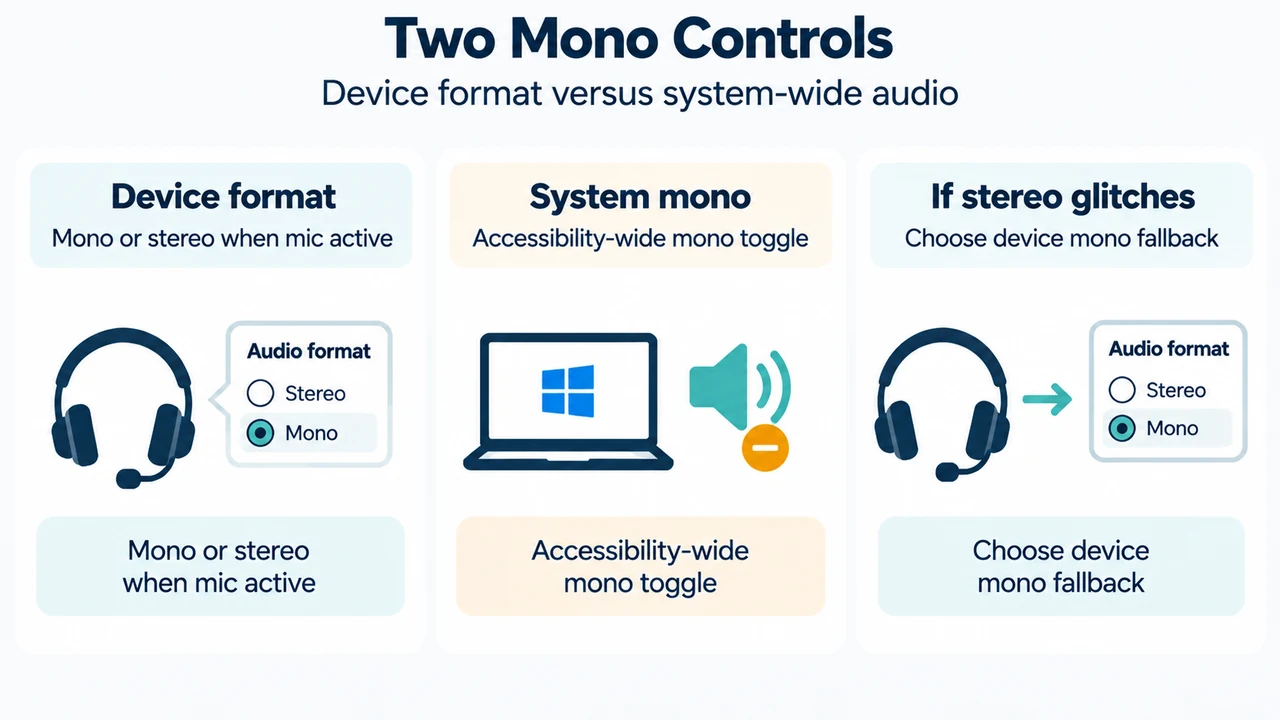
For those compatibility problems, open the connected Bluetooth LE Audio device’s output settings, expand Format, and select Mono (1 channel) under Format when microphone is active. This changes the format used while the microphone is active; it does not show that the device supports stereo in that state.
Check the system-wide mono setting
Microsoft also documents a separate system-wide mono audio toggle at Settings > Accessibility > Audio. When it is enabled, Windows displays a warning that stereo audio may not function correctly. If stereo playback is desired, Microsoft says to disable this toggle.
This setting is separate from the device’s Format when microphone is active choice. The supplied excerpts do not document additional effects on other applications, headsets, or audio formats.
Decision guide
| What you find | Supported conclusion |
|---|---|
| The microphone opens on a Bluetooth Classic headset | Windows selects HFP, which provides microphone capture and mono playback. |
| Windows 11 24H2 or newer, factory Bluetooth LE support, required manufacturer drivers, and a Bluetooth LE Audio device | Stereo playback while the microphone is active may be available. |
| The Format when microphone is active control is missing | Microsoft says the system does not support stereo audio while the microphone is active; check OS and driver updates or contact the PC manufacturer. |
| Stereo is available but audio is lost or glitches | Select Mono (1 channel), the documented compatibility fallback. |
Research method and limitations
This answer was prepared from the supplied public Microsoft source excerpts: Microsoft Support’s Windows 11 Bluetooth LE Audio quality-settings guidance and Microsoft Learn’s Bluetooth Classic audio documentation. The visible excerpts were used as provided. The material limits include the lack of competing coverage and the fact that no hands-on testing, lab measurement, benchmark, or headset testing was performed. Compatibility can vary by PC hardware, manufacturer drivers, Windows version, and Bluetooth audio device.
Sources
- Microsoft Support: Configuring Bluetooth LE Audio quality settings on Windows 11.
- Microsoft Learn: Bluetooth Classic audio.
Text version of the diagrams
- Bluetooth Audio Paths: Classic A2DP — Stereo playback only; HFP microphone — Capture plus mono playback; LE Audio — Eligible systems may keep stereo
- Two Mono Controls: Device format — Mono or stereo when mic active; System mono — Accessibility-wide mono toggle; If stereo glitches — Choose device mono fallback