Windows 11 Dev Drive is a ReFS storage volume for key developer workloads. Microsoft lists source-code repositories, project files, package caches, build output, intermediate files, working directories, and temporary folders as intended uses. It is not a general replacement for every NTFS volume.
This guide covers the visible claims in the supplied Microsoft excerpts: the Windows 11 build, memory, capacity, administrator, and storage requirements; documented ReFS and Dev Drive limitations; WSL file-placement boundaries; developer-tool guidance; and Microsoft Defender performance mode.
Check the prerequisites
| Requirement | Documented scope |
|---|---|
| Operating system | Windows 11 build 10.0.22621.2338 or later |
| Memory | 8 GB minimum; 16 GB recommended |
| Free space | At least 50 GB |
| Permissions | Local administrator permissions |
| Storage | Fixed storage; removable or hot-pluggable storage is not supported for Dev Drive designation |
An existing volume cannot be converted into a Dev Drive without reformatting. Microsoft says that reformatting destroys its contents, and preserving those contents during the process is not supported. Protect the files before making this a new-volume decision.
What fits on Dev Drive
Repositories, project files, package caches, build output, and intermediate files fit the documented developer-workload scope. Microsoft also describes working directories and temporary folders as development locations.
Microsoft specifically says that Visual Studio, MSBuild, the .NET SDK, and the Windows SDK should remain on the system drive rather than a Dev Drive. Some tools allow another installation location, but the supplied documentation says to evaluate security and scanning trade-offs before using Dev Drive for developer tools or SDKs.
WSL files and ReFS limits
Dev Drive project files can be accessed from a Linux distribution running through WSL, but the supplied Microsoft excerpt says WSL runs in a virtual hard disk and files should be stored on the Linux file system for best performance. It also says not to expect a performance improvement when accessing Dev Drive project files from WSL.
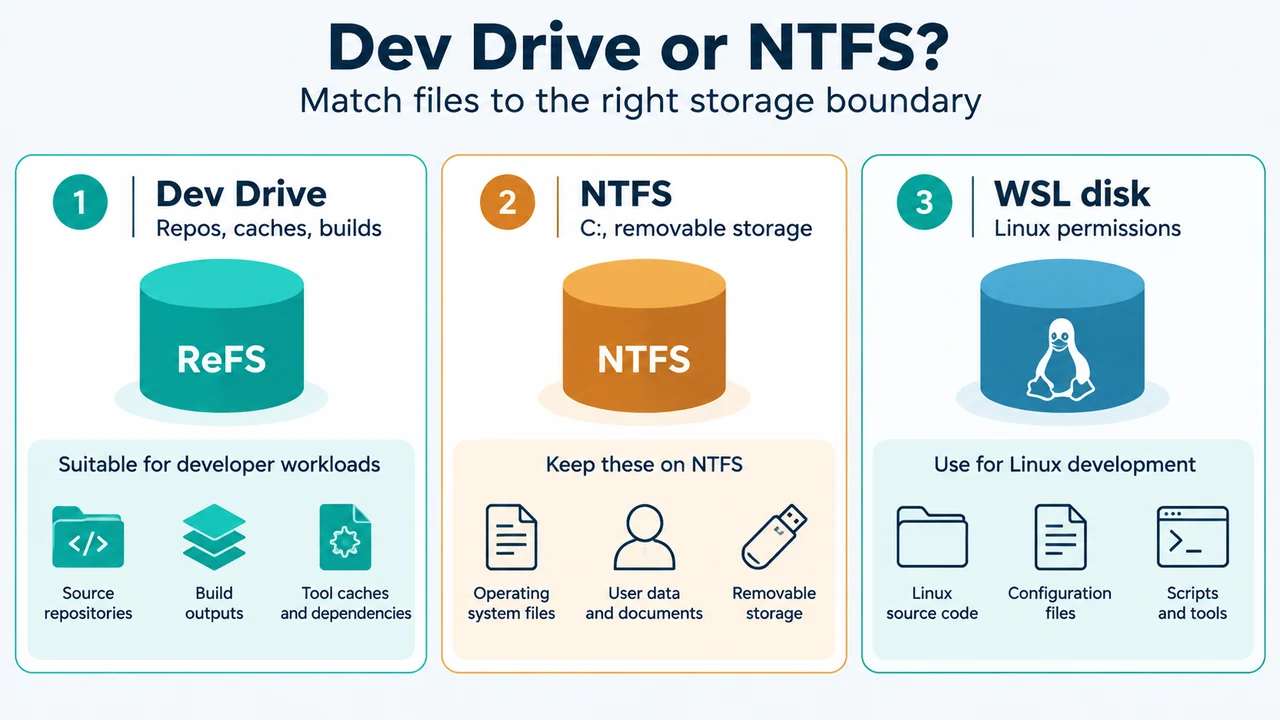
The WSL metadata mount option is not supported on ReFS. It uses extended attributes to store Linux file permissions and ownership on Windows-hosted files. If the workflow depends on preserving those permissions, Microsoft recommends an NTFS volume or the WSL virtual disk instead.
When NTFS remains the boundary
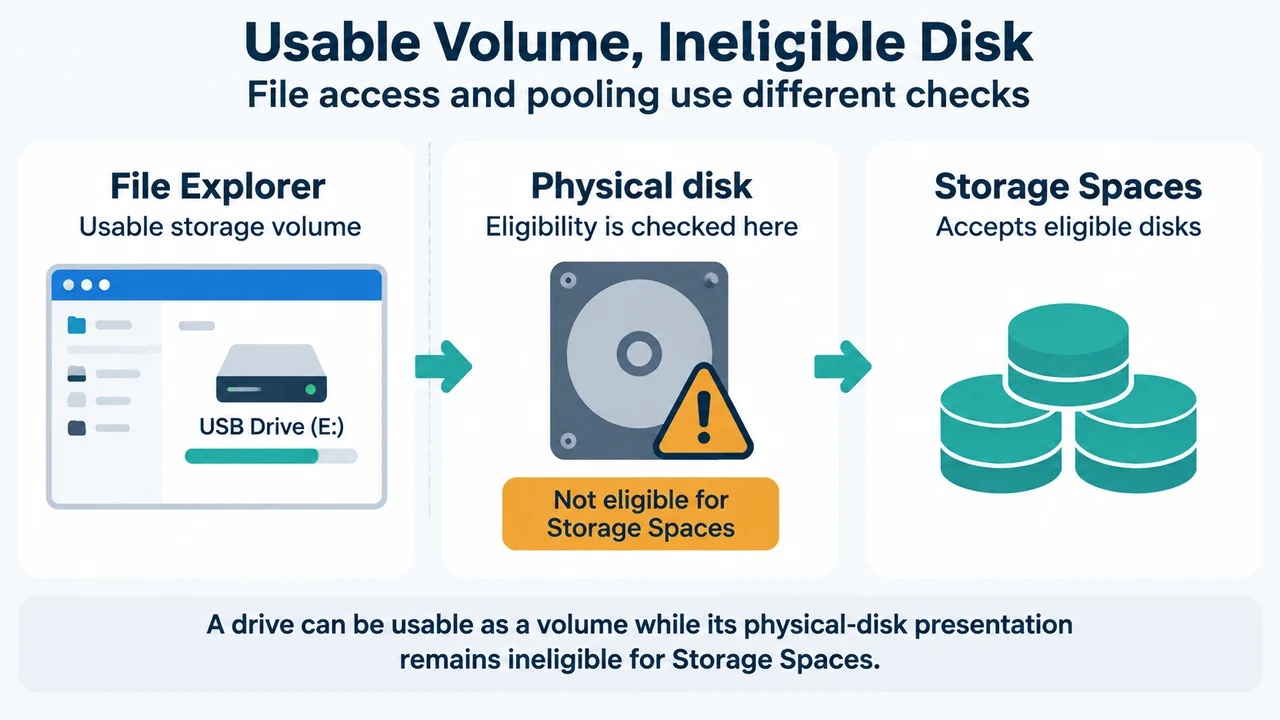
A volume on removable or hot-pluggable storage, including an external USB HDD or SSD, cannot be designated as a Dev Drive. A Dev Drive in a VHD hosted by removable or hot-pluggable storage is also unsupported. The C: drive cannot be designated as a Dev Drive.
Microsoft also says not to copy a VHD hosted on a fixed HDD or SSD to another machine and continue using it there as a Dev Drive. The designation, trust status, and filter policies are stored per machine. After moving it, the VHD must be mounted and designated again, with custom filter policies reconfigured.
Use ordinary NTFS for the C: drive, unsupported removable-storage arrangements, and WSL files that require metadata mounts. Use the WSL virtual disk instead when the files belong on the Linux file system for the documented WSL boundary.
Understand Defender performance mode
Microsoft Defender performance mode runs only on a Dev Drive. Real-time protection remains enabled on operating-system volumes and other FAT32 or NTFS volumes.
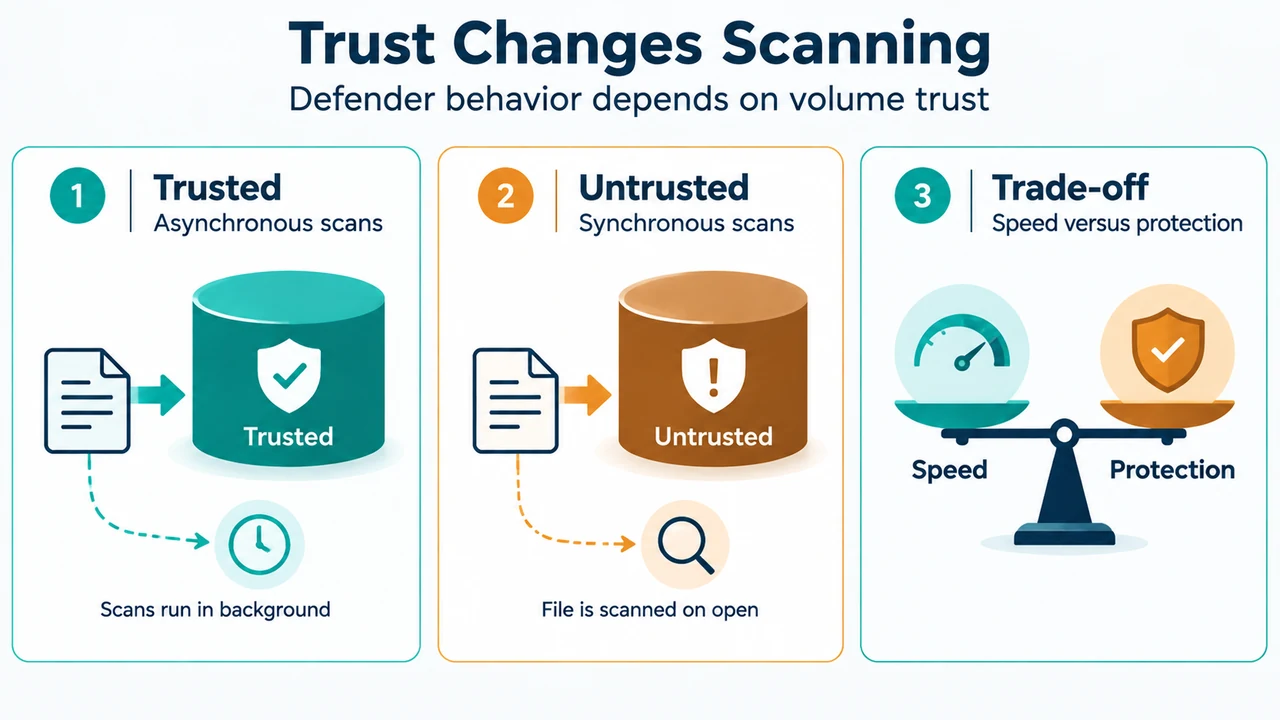
A newly created trusted Dev Drive receives asynchronous performance mode by default. A file-open operation can complete before its security scan finishes. Deferring the scan can improve file-operation performance, but it provides less protection during that interval than synchronous scanning.
An untrusted Dev Drive does not receive the same behavior. Microsoft says security runs in synchronous, real-time protection mode, and those scans can affect performance. Performance mode also requires Microsoft Defender Antivirus to be the primary antivirus solution, real-time protection to be enabled, antimalware platform version 4.18.2303.8 or later, and security intelligence version 1.385.1455.0 or later.
Performance mode does not disable Defender on the computer. Microsoft warns that turning Defender completely off can increase security risks and is controlled by the system administrator.
A supported decision boundary
Choose Dev Drive when the computer meets the documented prerequisites, the storage is fixed, and the main files are repositories, project files, package caches, working directories, temporary folders, or build-related output.
Keep Visual Studio and the documented SDK examples on the system drive. Keep WSL files requiring Linux permissions on NTFS or in the WSL virtual disk. Keep files on NTFS when the target is C:, removable or hot-pluggable storage, or a VHD that must move between machines without repeating the machine-specific Dev Drive setup.
Before relying on Defender performance mode, check the Dev Drive trust state and the Defender prerequisites. The supplied evidence describes the scanning boundary, but does not establish a universal speed improvement for every project or tool.
Research method and limitations
This answer was prepared from the supplied public Microsoft source excerpts and the supplied competitor excerpt. The Dev Drive excerpt is truncated and reports an authorization requirement, so only its visible statements were used; the answer does not claim to summarize unseen text. The Defender excerpt was supplied as complete. The competitor excerpt was used only for coverage comparison, not as technical authority. No hands-on testing, benchmarks, ownership, or comprehensive compatibility review was performed.
Text version of the diagrams
- Dev Drive or NTFS?: Dev Drive — Repos, caches, builds; NTFS — C:, removable storage; WSL disk — Linux permissions
- Trust Changes Scanning: Trusted — Asynchronous scans; Untrusted — Synchronous scans; Trade-off — Speed versus protection