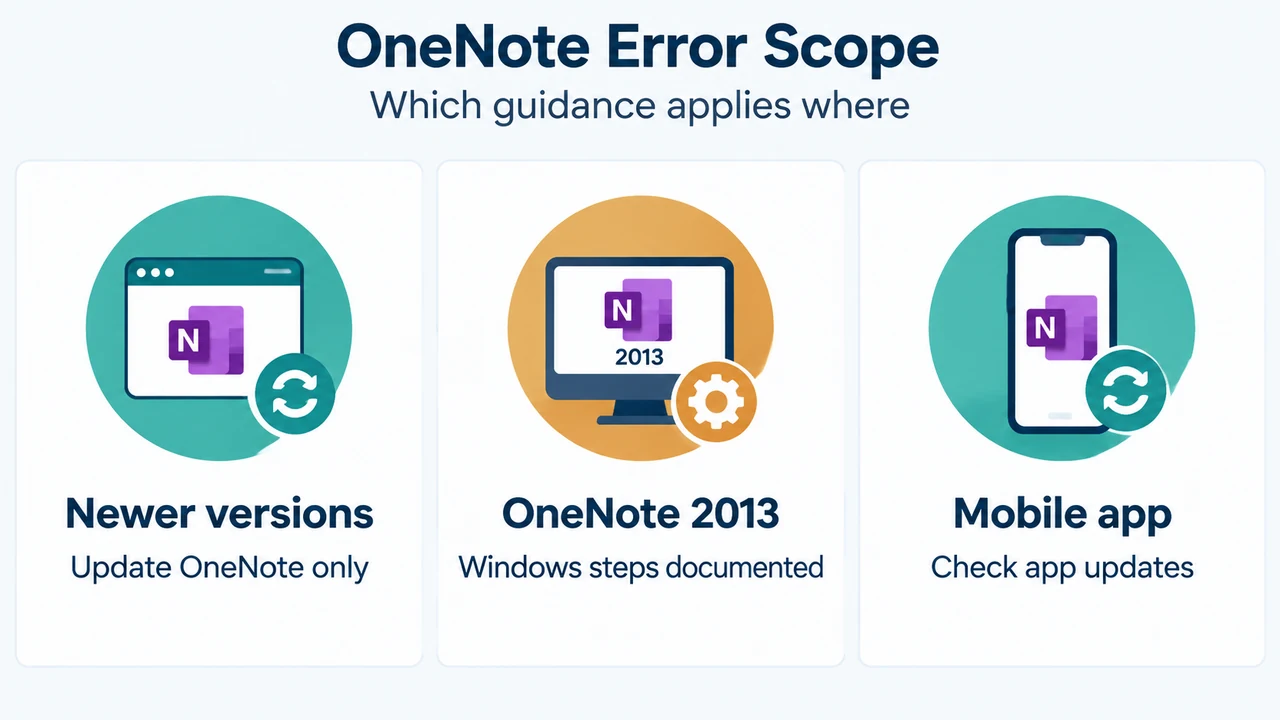
Error 0xE40105F9 means OneNote cannot sync one or more notebooks because it is an older version that the server no longer supports. Microsoft lists the error for OneNote for Microsoft 365, OneNote 2021, and OneNote 2016. It provides a detailed Windows procedure for the OneNote 2013 desktop version.
What the error means
Microsoft says to download the latest OneNote updates and try syncing again. The supplied guidance does not establish that every OneNote version uses the same update screen or exact update process.
OneNote 2013 on Windows
1. Exit OneNote 2013
Close OneNote 2013.
2. Install available Microsoft Office updates
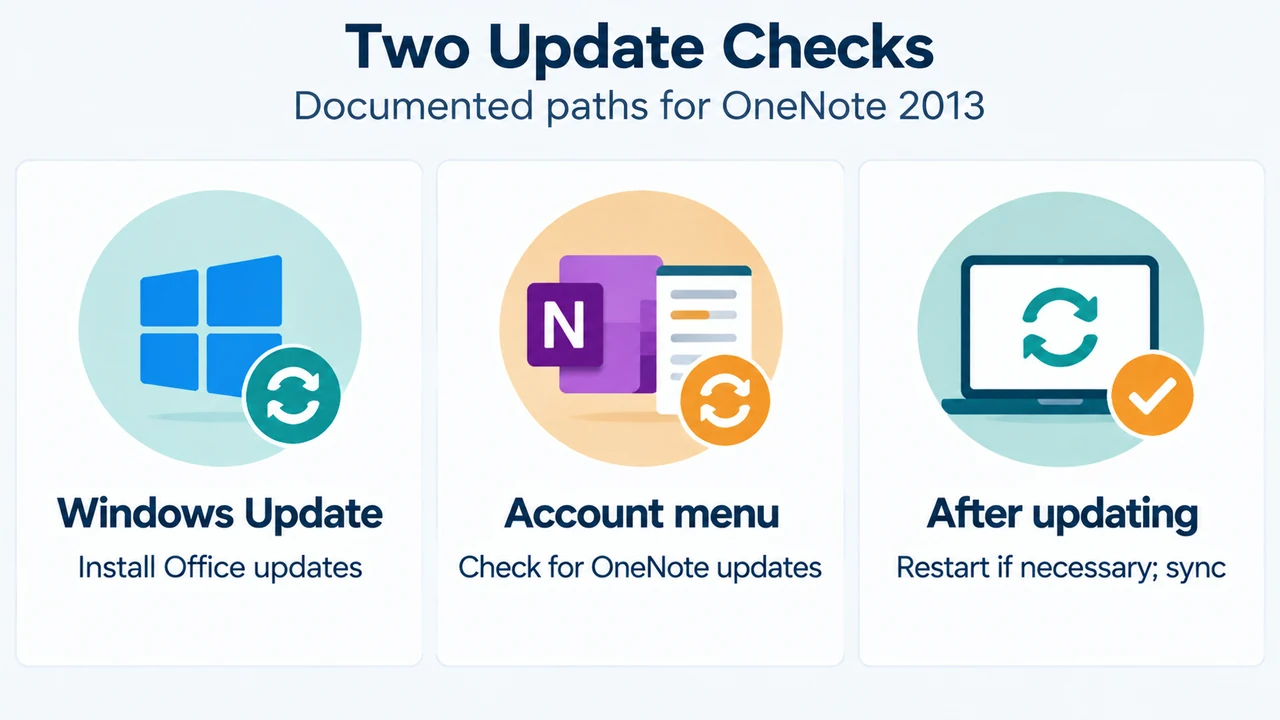
Open Control Panel > System & Security > Windows Update. Select Check for Updates, then install all available updates listed under Microsoft Office.
3. Restart if necessary
Restart the computer if necessary after the updates have been applied.
4. Start OneNote and sync manually
Open OneNote 2013 and press Shift+F9 to sync the notebooks manually.
If Windows Update does not include Office updates
Microsoft documents an alternative check inside OneNote 2013. Start OneNote 2013, open File > Account, and select Check for Updates.
What is documented for newer OneNote versions
The Microsoft error article applies to OneNote for Microsoft 365, OneNote 2021, and OneNote 2016. For these products, the visible guidance says to download the latest OneNote updates. It does not provide a complete, version-specific click path in the supplied evidence, so the OneNote 2013 Windows Update sequence is not assigned to them.
When the error remains
If the error continues after these documented update and sync checks, Microsoft directs users to report the issue in the OneNote forums on Microsoft Answers so the cause can be investigated.
Research method and limitations
This answer was prepared from the supplied public Microsoft support excerpts retrieved on September 20, 2026. The primary error article supports the error meaning, affected OneNote versions, OneNote 2013 update workflow, conditional restart, manual sync shortcut, alternative update check, and Microsoft Answers escalation. A second Microsoft sync page was supplied as a truncated excerpt, so only its visible statements were considered. No competing coverage was available for review. This answer does not establish procedures for every OneNote version or configuration and is not based on hands-on testing.
Text version of the diagrams
- OneNote Error Scope: Newer versions — Update OneNote only; OneNote 2013 — Windows steps documented; Mobile app — Check app updates
- Two Update Checks: Windows Update — Install Office updates; Account menu — Check for OneNote updates; After updating — Restart if necessary; sync