If the Wi‑Fi control or adapter is missing after a Windows 11 PC wakes from sleep, begin by recording the baseline state. The supplied Microsoft guidance includes missing Wi‑Fi controls or adapters and problems that start after sleep or resume.
Record the state before changing it
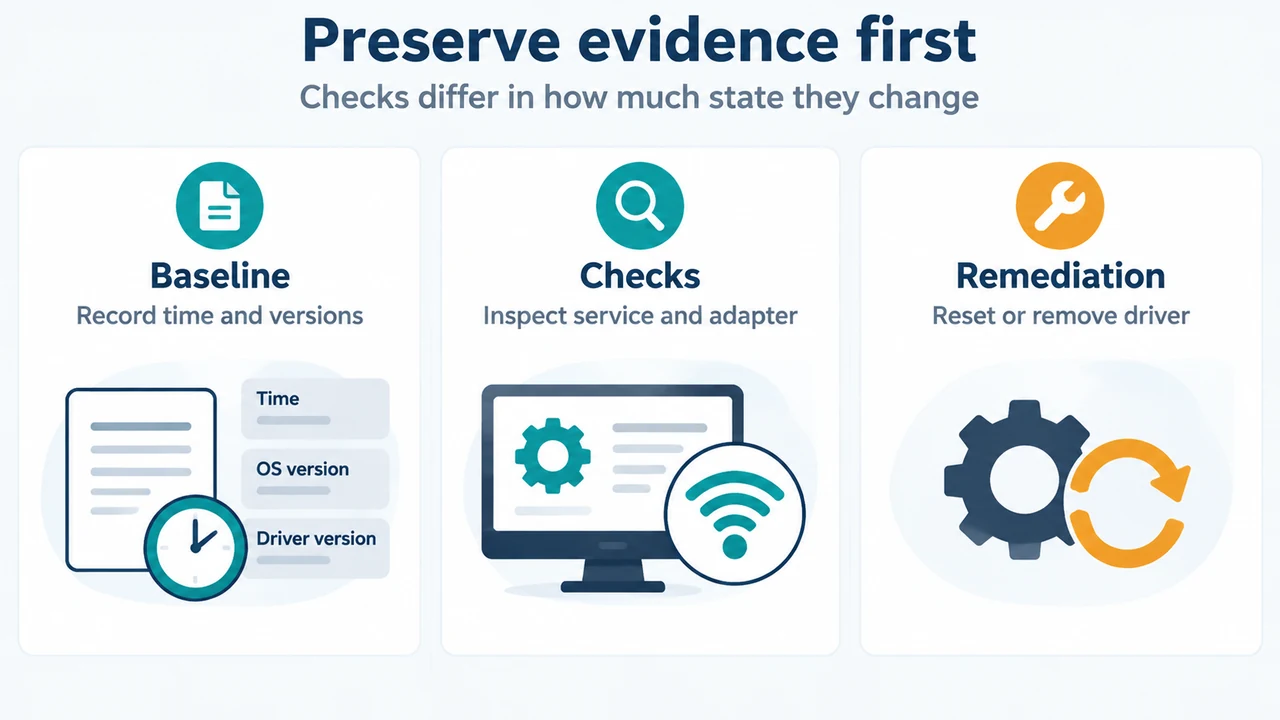
Before resetting the network stack, deleting wireless profiles, removing an adapter or driver, or restarting the device, record the reproduction time and current state. The supplied Microsoft technical excerpt says these actions can remove evidence or temporarily change behavior.
Record the exact sleep or resume time, recent Windows updates, and recent driver, firmware, or BIOS changes. Also record the adapter model, driver version, and driver date. From an elevated Command Prompt, run:
netsh wlan show drivers
netsh wlan show interfaces
netsh wlan show networks mode=bssid
netsh wlan show profiles
netsh wlan show wlanreport
The supplied technical excerpt says that mode=bssid adds BSSID, signal strength, channel, and radio type for visible networks. It also says that wlanreport creates an HTML report covering recent wireless sessions, disconnect reasons, adapter information, and related events. Wireless reports and traces can contain device, adapter, and network identifiers, so handle them according to your privacy requirements.
Check which part disappeared
1. Check the physical and adapter state
Confirm that any physical Wi‑Fi switch is on. In Device Manager, expand Network adapters. If the wireless adapter is listed but disabled, select Enable device. If no adapter is detected or enabled, the supplied Microsoft Support excerpt says to check the wireless network report for a problem number and compare the adapter’s Driver Version and Driver Date with versions listed by the device manufacturer.
This separates a physical switch or disabled adapter check from a later connection check. It does not establish why the adapter disappeared after resume.
2. Check WLAN AutoConfig
The supplied Microsoft technical excerpt identifies WLAN AutoConfig, or WlanSvc, as the service that scans for wireless networks and manages wireless profiles and connectivity. It states that when the service is stopped, the Wi‑Fi control is hidden and netsh wlan commands report that the service is not running.
For the documented basic check, press Win + R, enter services.msc, and press Enter. Find WLAN AutoConfig, record its state, right-click it, and select Restart. This is a service check and restart; it does not prove that the service caused the resume symptom.
3. Check power management and recent changes
The supplied Microsoft Support excerpt documents this adapter power-management check: in Device Manager, open the adapter’s properties, select the Power Management tab, and clear Allow the computer to turn off this device to save power. It separately lists Wireless Adapter Settings in advanced power settings for connection drops. These are documented checks, not proof that power management caused this failure.
Compare the current driver and firmware versions with versions recommended by the device or adapter manufacturer. The supplied technical excerpt says to determine whether the behavior reproduces before making further changes, and to record update history, driver version and date, firmware or BIOS version, and the power-state transition.
Use Network reset only after recording the evidence
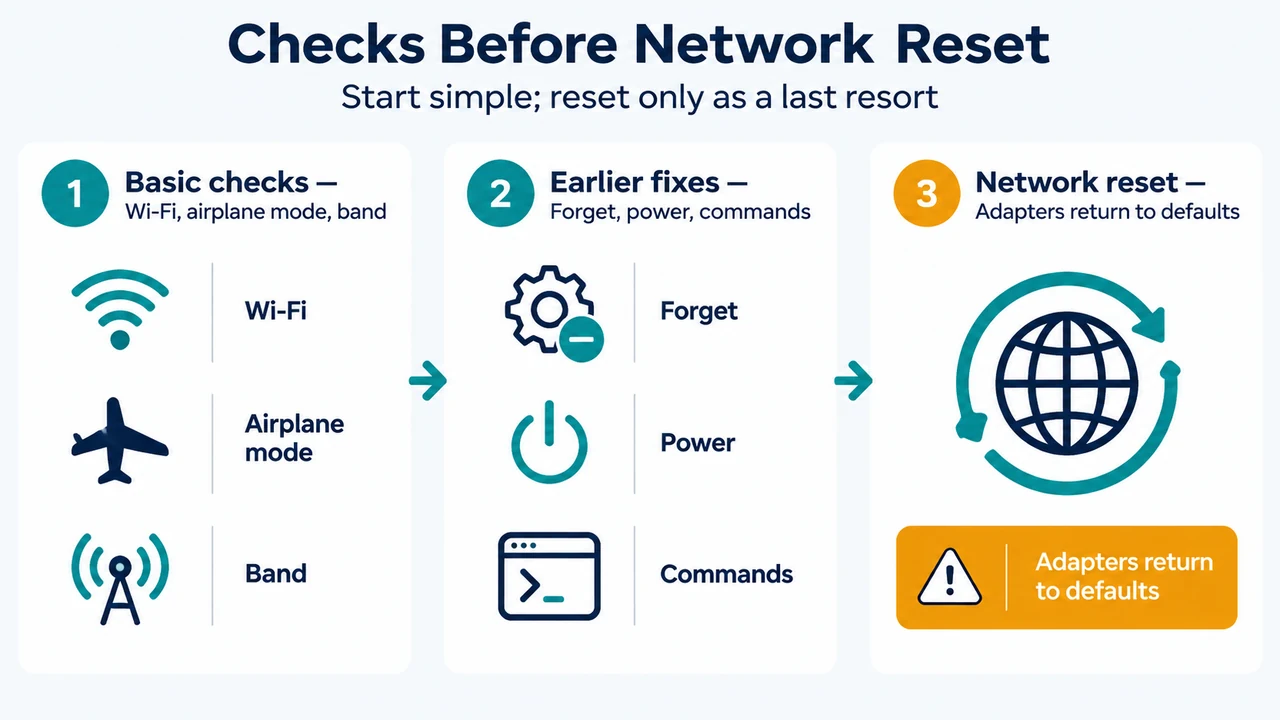
The supplied Microsoft Support excerpt says Network reset should be the last step. On Windows 11, use Settings > Network & internet > Advanced network settings > Network reset. It says Network reset removes installed network adapters and their settings, then reinstalls the adapters and returns their settings to defaults after restart.
If considering driver removal instead, the same excerpt says to have a driver available as a backup before uninstalling the network adapter driver and restarting.
What these checks establish
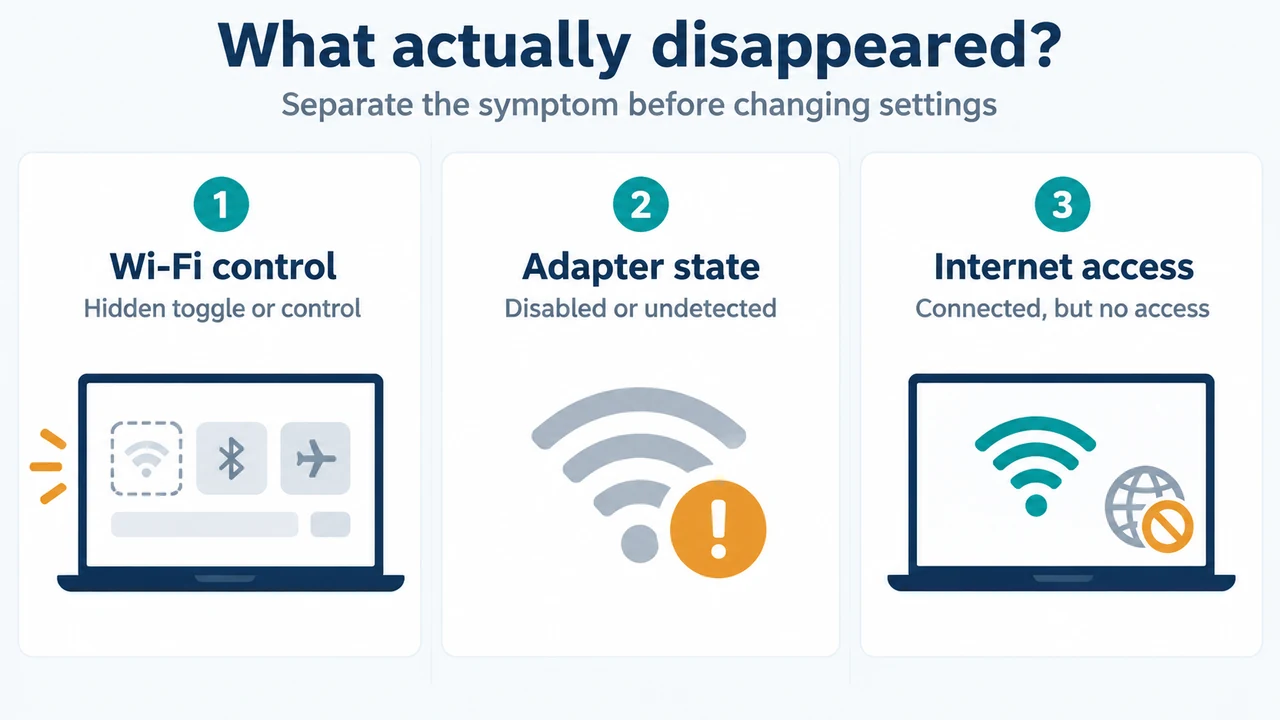
A missing Wi‑Fi control can occur with a stopped WLAN AutoConfig service. A disabled or undetected adapter directs attention to device state and driver status. A symptom that begins after sleep or resume makes the recorded power-state transition and recent driver, firmware, or BIOS changes relevant. The supplied excerpts do not establish one universal cause for every Windows PC.
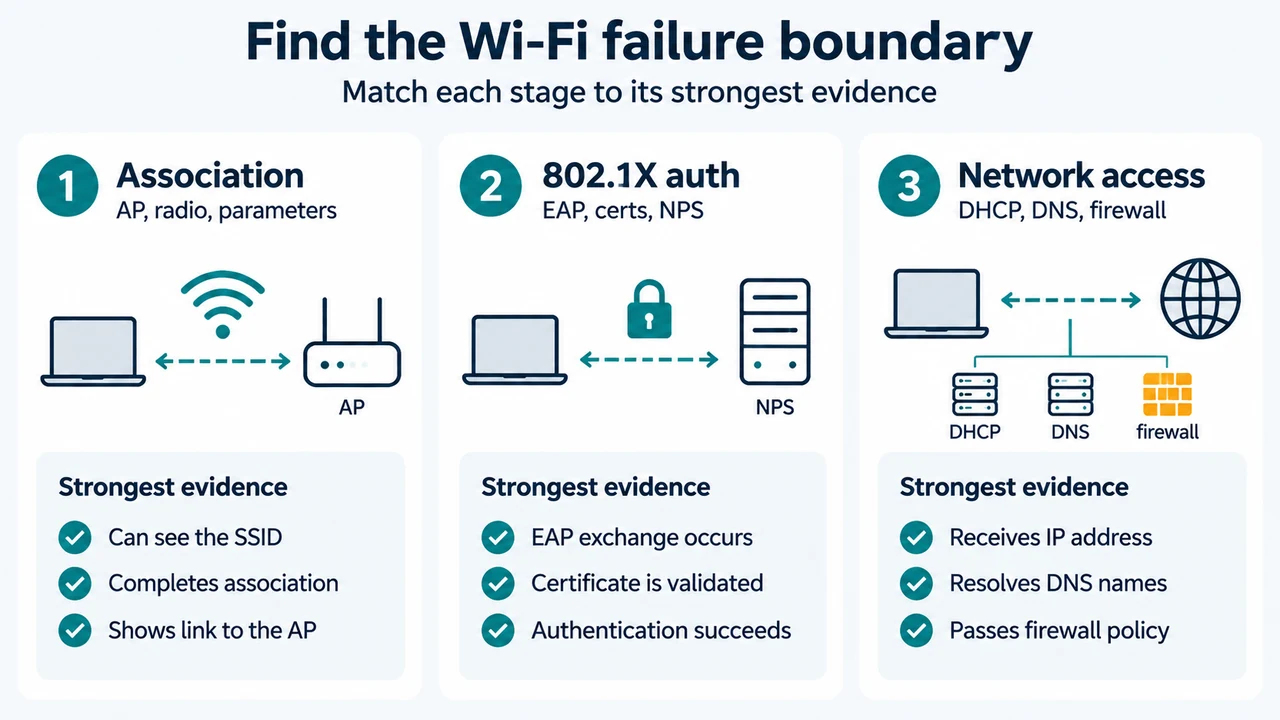
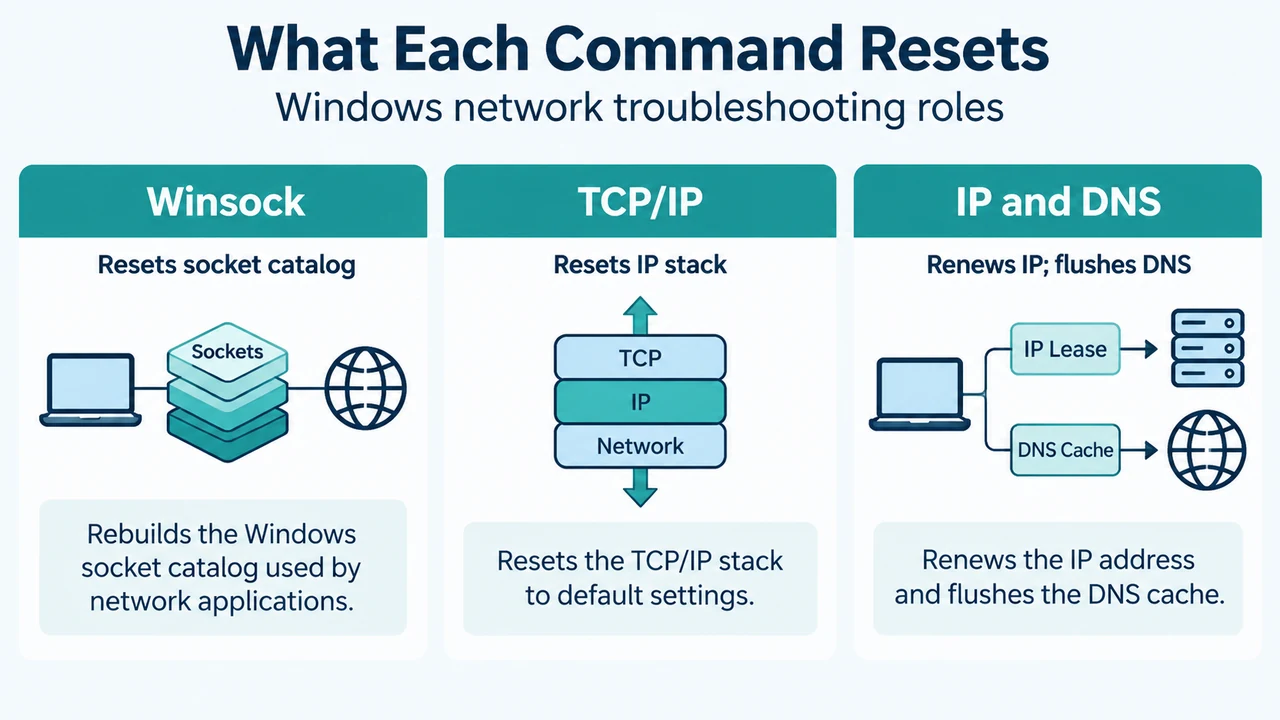
If Wi‑Fi is visible and associated but internet access fails, that is a different stage. The supplied technical excerpt separates association from later TCP/IP, DHCP, DNS, proxy, or firewall troubleshooting. This answer is limited to a missing Wi‑Fi control or adapter after sleep or resume.
Research method and limitations
This answer was prepared from the supplied public Microsoft source excerpts retrieved on September 19, 2026. The excerpts are truncated, so this answer relies only on the visible passages and does not treat unseen text as support. No competing coverage was available in the supplied material, so no comparison or omission claim is made. This is not a hands-on test, benchmark, or comprehensive review. Driver behavior can vary by device, adapter, firmware, BIOS, and Windows build.
Text version of the diagrams
- What actually disappeared?: Wi-Fi control — Hidden toggle or control; Adapter state — Disabled or undetected; Internet access — Connected, but no access
- Preserve evidence first: Baseline — Record time and versions; Checks — Inspect service and adapter; Remediation — Reset or remove driver