In Windows Insider Preview (Dev Channel build 22545 or higher), Windows 11 introduced a graphics setting called Optimizations for windowed games. This feature improves latency and unlocks features such as Auto HDR and Variable Refresh Rate (VRR) for DirectX 10 (DX10) and DirectX 11 (DX11) titles running in windowed or borderless windowed modes. This guide explains how to enable the setting, how to opt out for specific games, and how to address screen tearing using documented settings.
Scope and Requirements
According to Microsoft’s DirectX Developer Blog announcement, this setting has specific availability and environment requirements:
- Operating System: Windows Insider Program Dev Channel build 22545 or above.
- Supported APIs: Applies to DX10 and DX11 games. DX12 games already use the modern presentation mode and do not require this feature.
- Display Modes: Games must run in Windowed or Borderless Windowed mode. Fullscreen games already have a similar optimization.
- Feature Hardware Requirements: Auto HDR requires an HDR-capable display. VRR benefits require a VRR-supported monitor.
How the Feature Works
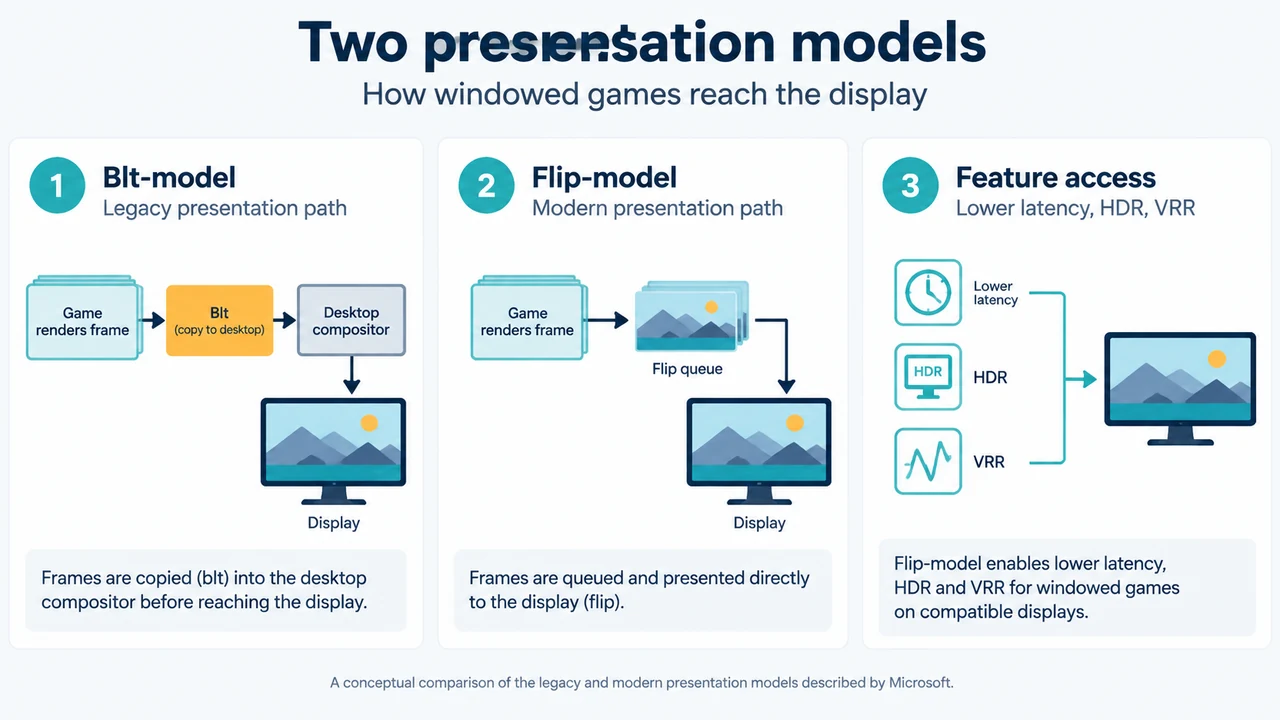
Presentation is the method used to get rendered frames to your display. This optimization works by upgrading compatible windowed and borderless windowed games from the legacy blt-model presentation to the modern flip-model presentation.
Flip-model generally results in lower latency by getting rendered frames to the screen faster. Upgrading presentation to flip-model also enables titles to use Auto HDR and Variable Refresh Rate (VRR).
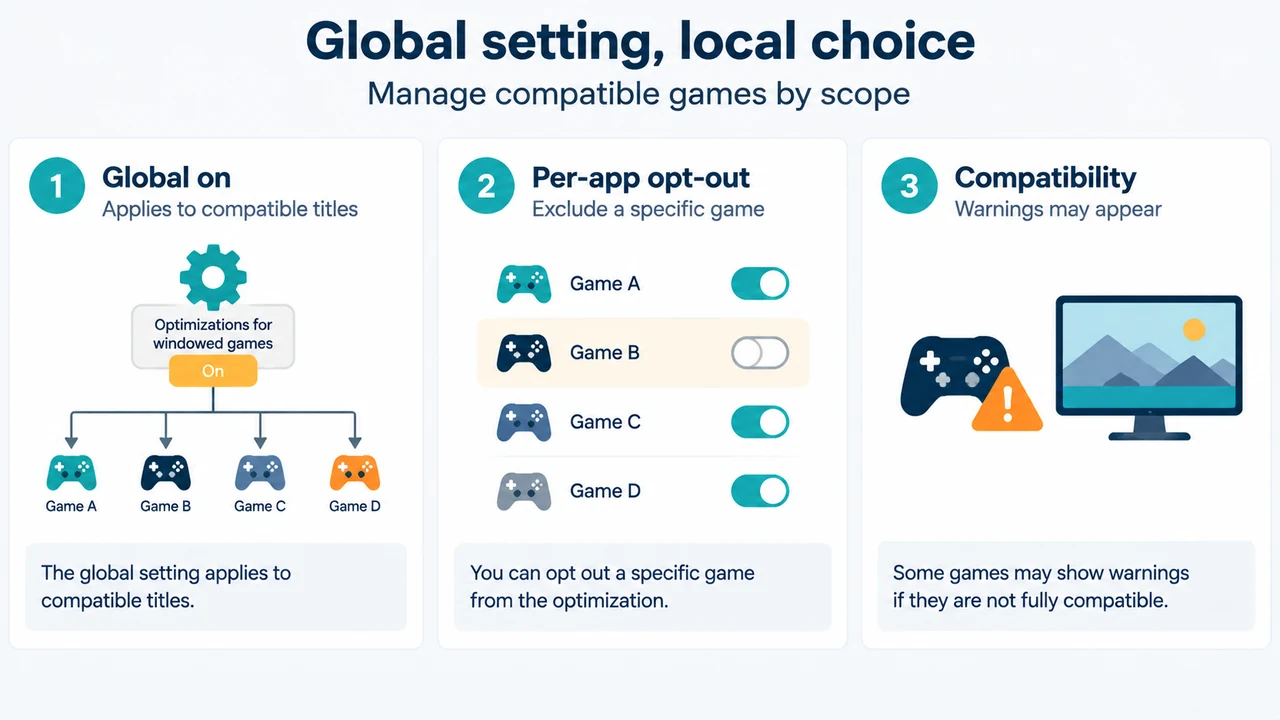
How to Enable Optimizations for Windowed Games Globally
To enable the feature across compatible titles:
- Open Windows Settings.
- Navigate to System > Display > Graphics.
- Select Default graphics settings.
- Scroll down to Optimizations for windowed games and switch the toggle to On.
- Restart your game.
How to Opt Out on a Per-App Basis
If you prefer not to use this setting or other features on a specific application:
- Open Windows Settings and navigate to System > Display > Graphics.
- Select your application and click Options.
- Check the box for Don’t use Optimizations for windowed games.
- Optional: Check the box for Don’t use Auto HDR, or select a GPU preference if your device has more than one GPU.
- Click Save.
- Restart your game.
Addressing Screen Tearing and Compatibility Warnings
Because flip-model reduces latency, a game configured without vertical synchronization (v-sync) may have a new frame ready before the previous frame is displayed. At high frame rates, this can lead to visible screen tearing. Microsoft documents the following ways to address tearing:
- Match Monitor Refresh Rate: Configure your in-game frame rate to match your monitor’s display refresh rate.
- Turn On In-Game V-Sync: Enable v-sync in your game’s settings menu.
- Use a VRR Monitor: A VRR monitor takes advantage of the lower latency, though tearing can still occur if frame rates exceed the monitor’s refresh rate.
- Opt Out: If other solutions do not suit your gaming experience, disable the feature for that specific game using the per-app opt-out steps above.
Incompatible Applications and Warnings
Some applications may have the opt-out box checked by default because they are not compatible with the setting. If you uncheck the option on an unsupported title, Windows may show a warning message indicating that the app may crash or experience interaction issues.
Reporting Feedback
To report performance issues or bugs to Microsoft:
- Open the Windows Feedback Hub.
- Select Category: Gaming and Xbox and Subcategory: Game Performance.
- Include the phrase Optimizations for windowed games in the title or description.
Research Methods and Limitations
This article was prepared solely from the supplied public documentation excerpt published on the Microsoft DirectX Developer Blog by Program Manager Hannah Fisher. It reflects the feature’s status as introduced for the Windows Insider Program (Dev Channel, build 22545 or above) and covers only DX10 and DX11 titles running in windowed or borderless windowed modes. No external benchmarks, hardware testing, or competing publications were available or evaluated.
Text version of the diagrams
- Two presentation models: Blt-model — Legacy presentation path; Flip-model — Modern presentation path; Feature access — Lower latency, HDR, VRR
- Global setting, local choice: Global on — Applies to compatible titles; Per-app opt-out — Exclude a specific game; Compatibility — Warnings may appear