In Windows 10 and Windows 11, the Device security page in the Windows Security app provides details about hardware-based and operating system protection features. Under the Hardware security capability section, Windows reports whether your system meets the baseline requirements for standard hardware security.
Standard Hardware Security Requirements
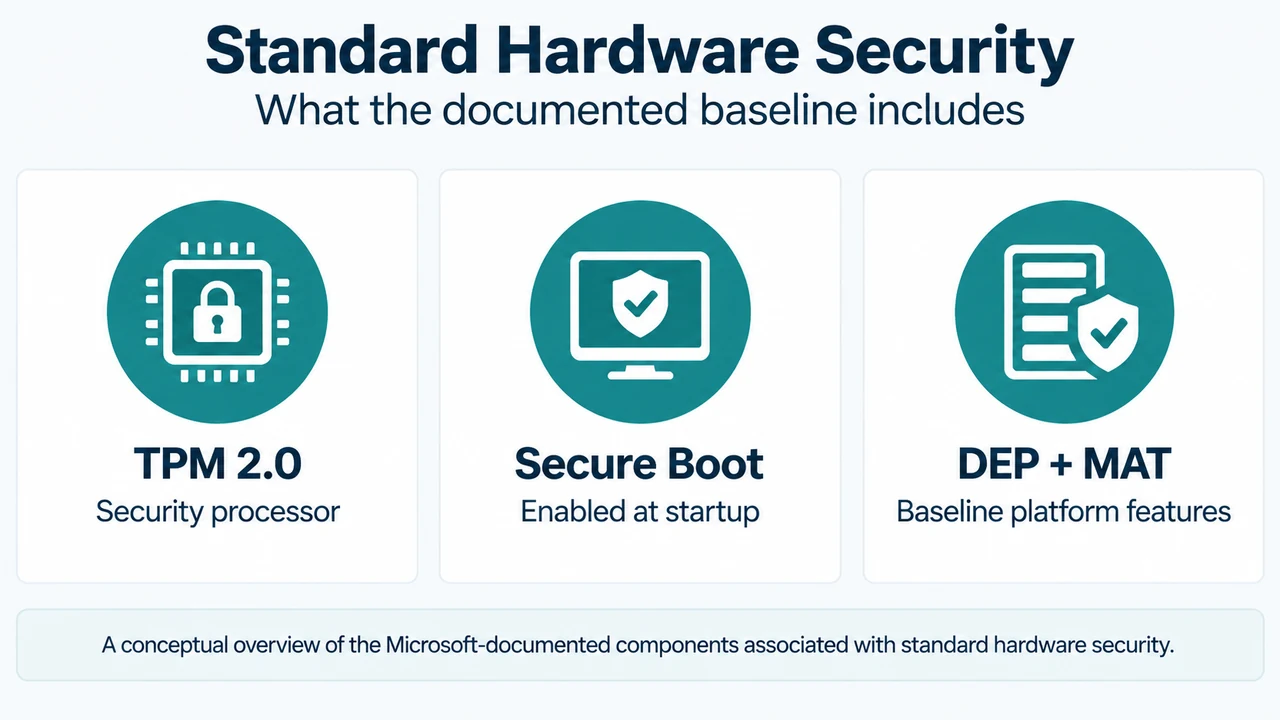
According to Microsoft’s documentation, a status indicating that your device meets the requirements for standard hardware security means that your device supports memory integrity and core isolation, and also has:
- TPM 2.0: Also referred to as your security processor.
- Secure boot: Enabled in firmware.
- DEP: Data Execution Prevention listed as a baseline hardware requirement.
- UEFI MAT: Memory Attributes Table listed as a baseline hardware requirement.
The excerpt states that standard hardware security requires these features, but does not provide technical definitions for DEP or UEFI MAT, nor does it document the exact fallback message text or every condition triggering alternate status strings.
Core Isolation and Memory Integrity
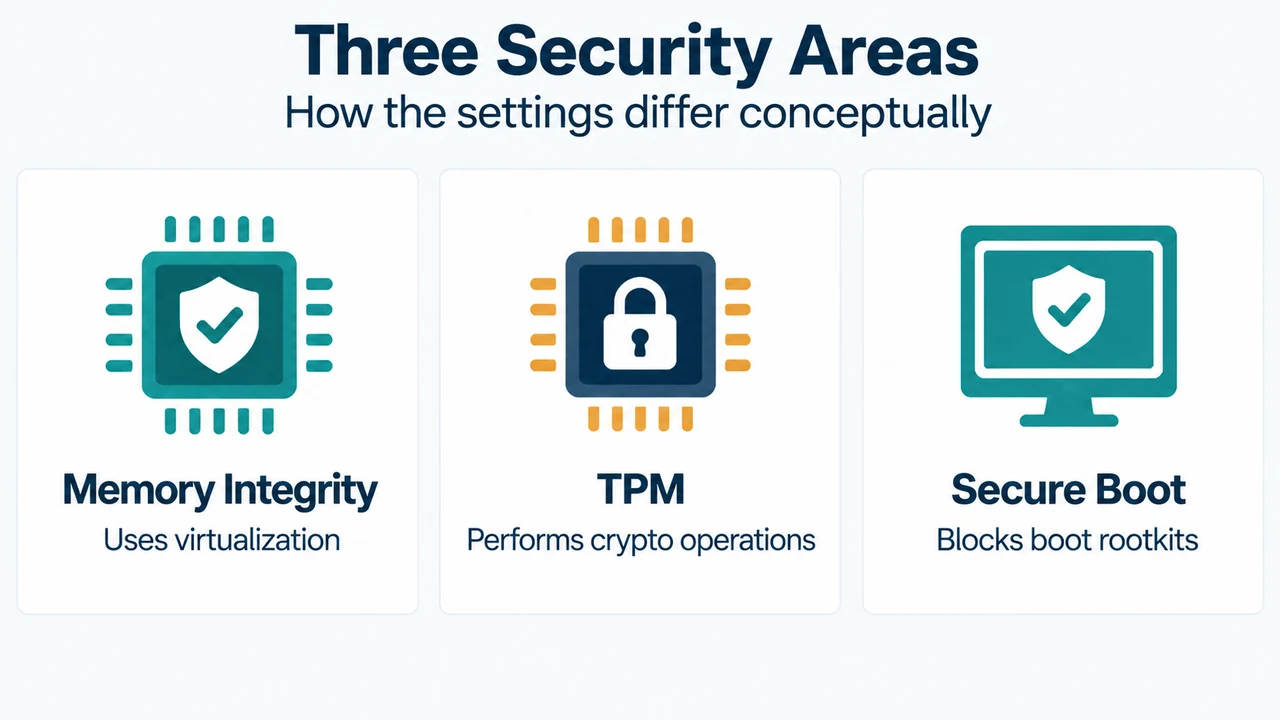
Memory integrity (Hypervisor-protected Code Integrity, or HVCI) helps prevent malicious programs from using low-level drivers to hijack the PC. It operates by creating an isolated environment using hardware virtualization.
To check or manage memory integrity:
- Open the Windows Security app on your PC.
- Select Device security > Core isolation details (or use the Core isolation shortcut).
- Locate the Memory integrity toggle button to turn it On or Off.
Firmware Requirement: To use memory integrity, you must have hardware virtualization enabled in your system’s UEFI or BIOS.
Security Processor (TPM) Details and Troubleshooting
The Security processor settings under Device security display details about the Trusted Platform Module (TPM), which performs cryptographic operations. If no security processor entry appears, your device might lack the TPM hardware or have it disabled in UEFI.
To view status and error details:
- In the Windows Security app, select Device security > Security processor details.
- If the security processor is not working properly, select Security processor troubleshooting.
The troubleshooting page provides specific error messages and documented actions:
- TPM is disabled and requires attention: The TPM is probably turned off in the system BIOS or UEFI. Refer to your device manufacturer’s support documentation or contact technical support for instructions to turn it on.
- A firmware update is needed for your security processor (TPM): The motherboard does not appear to support TPM currently, but a firmware update might resolve this. Check with your device manufacturer for availability and installation steps. Firmware updates are usually free.
- Your TPM isn’t compatible with your firmware and may not be working properly: Check with your device manufacturer to see if a firmware update is available.
- TPM storage is not available. Please clear your TPM: Select the Clear TPM button on the troubleshooting page to reset the security processor to default settings. Caution: Make sure to back up your data before clearing the TPM.
- Device health attestation isn’t available. Please clear your TPM: Use the Clear TPM button, ensuring data is backed up first.
- TPM measured boot log is missing or There is a problem with your TPM: Try restarting your device. If problems persist after addressing an error message, contact the device manufacturer for assistance.
Secure Boot Settings
Secure Boot prevents rootkits—malware that starts before the operating system with the same permissions—from loading when your device starts. Microsoft notes that you might have to disable Secure Boot to run some graphics cards, hardware, or operating systems such as Linux or earlier versions of Windows, but standard hardware security lists Secure Boot enabled as a requirement.
Research Method and Limitations
This technical summary was prepared exclusively from supplied public Microsoft documentation excerpts concerning Device security in the Windows Security app for Windows 10 and Windows 11. No competing coverage or external search results were available. Technical specifications for DEP and UEFI MAT, exact triggers for unlisted fallback messages, and specific third-party motherboard BIOS menus are absent from the provided source excerpts and are not detailed here.
Text version of the diagrams
- Standard Hardware Security: TPM 2.0 — Security processor; Secure Boot — Enabled at startup; DEP + MAT — Baseline platform features
- Three Security Areas: Memory Integrity — Uses virtualization; TPM — Performs crypto operations; Secure Boot — Blocks boot rootkits