Troubleshooting Connection and Loading Errors in Google Chrome
When Google Chrome encounters an issue establishing or maintaining a connection with a website or online service, it displays loading or connection error messages such as “Aw, Snap!”. According to official Google documentation, these issues stem from device settings, device software, local network faults, browser configurations, or remote website problems.
Step 1: Check the Address and Local Network
Before modifying browser configurations, verify basic connectivity:
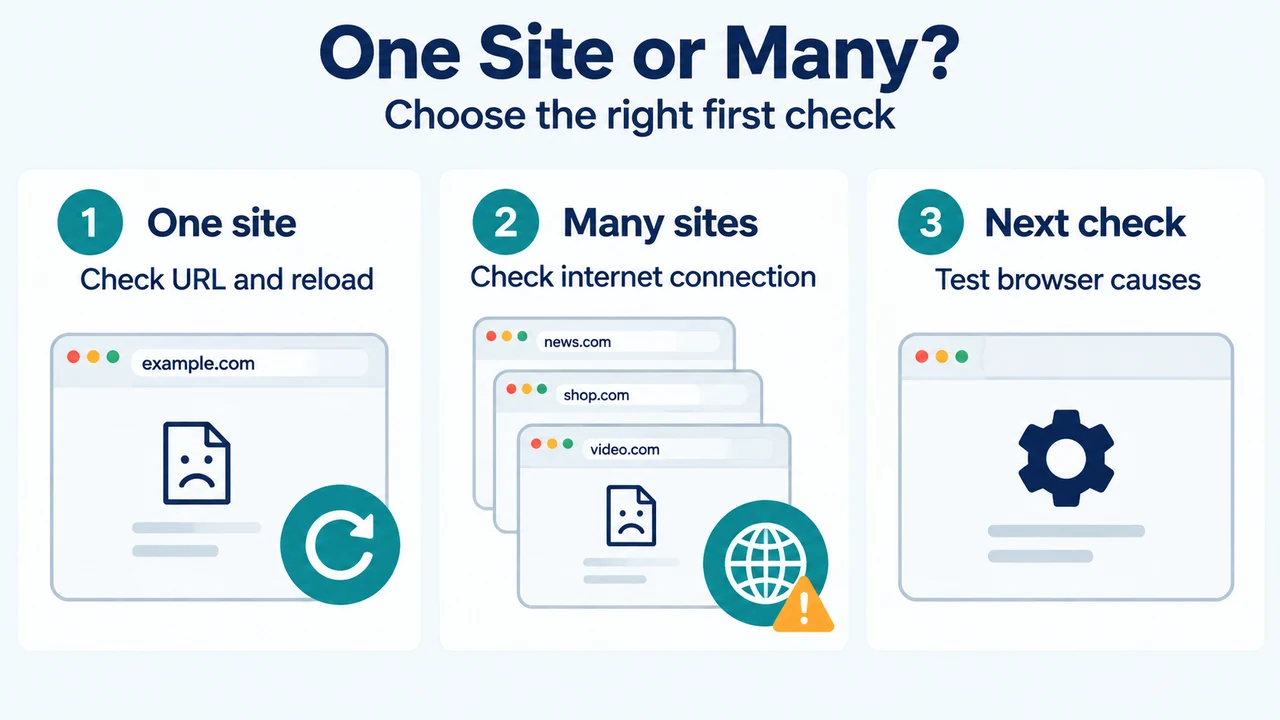
- Check the website URL: Verify that the address contains no mistakes, then select Reload this page at the top left of the Chrome window.
- Test scope across sites: Check whether the loading failure affects one site or multiple websites. If multiple destinations fail, check your internet connection.
- Verify internet connection: Confirm that your device is connected to the internet through Wi-Fi or ethernet. If necessary, reboot your modem and router or contact your internet service provider.
- Complete public network sign-in: When connecting to a public Wi-Fi network (such as in a cafe), look for Chrome’s prompt to sign in to the network’s portal page.
Step 2: Update and Restart Chrome
Ensure you are running the latest version of Chrome. If Chrome is already up to date, restart the browser manually:
- Windows: Select Close at the top right of the window, or select More > Exit, then reopen Chrome from your Start menu or desktop shortcut.
- macOS: In the menu bar, select Chrome > Quit Google Chrome, then reopen Chrome from the Applications folder or the dock.
- Chromebook: Select Close at the top right of the window, then reopen Chrome from the Launcher or dock.
Step 3: Test in Incognito Mode, Disable Extensions, and Clear Data
Local browser profile elements or conflicting add-ons can disrupt normal page loading:
- Test in Incognito mode: Open the target website in an Incognito window. If the connection or loading issue is fixed in Incognito mode, exit Incognito mode and proceed to disable extensions or delete browsing data.
- Disable extensions: Disable all extensions. If this resolves the issue, re-enable extensions one at a time to identify which extension causes the problem.
- Delete browsing data: Remove browsing data such as history, cookies, and cache. You can access this setting by typing
Delete browsing datainto the Chrome address bar and selecting the corresponding action chip.
Step 4: Check Device Software and Resources
System-level configurations and resource limitations can also block or degrade connections:
- Check firewall or antivirus software: Make sure firewall or antivirus software is not blocking your connection. On Windows, review Firewall and Network Protection in the Windows Security App; on macOS, review system firewall settings.
- Run Chrome Safety Check: To protect against malware and other risks, run a Safety Check within Chrome settings.
- Free up device memory: Insufficient available memory can reduce performance and lead to page crashes and loading errors. Free memory by closing unused tabs and turning off or stopping unwanted tasks.
- Reset or reinstall Chrome: If issues persist, you can reset Chrome settings to default, or uninstall and reinstall Chrome.
Research Method and Scope Limitations
This troubleshooting guide was compiled strictly from visible, public evidence excerpts, primarily official documentation from Google Chrome Help regarding connection and loading errors. Detailed certificate validation mechanisms, system clock skew adjustments, and Developer Tools Security panel diagnostics were excluded from authoritative instructions because they were not corroborated in the visible primary excerpt and appeared only in truncated secondary material. This guide covers supported desktop Google Chrome installations and does not reflect laboratory testing or unverified third-party workarounds.
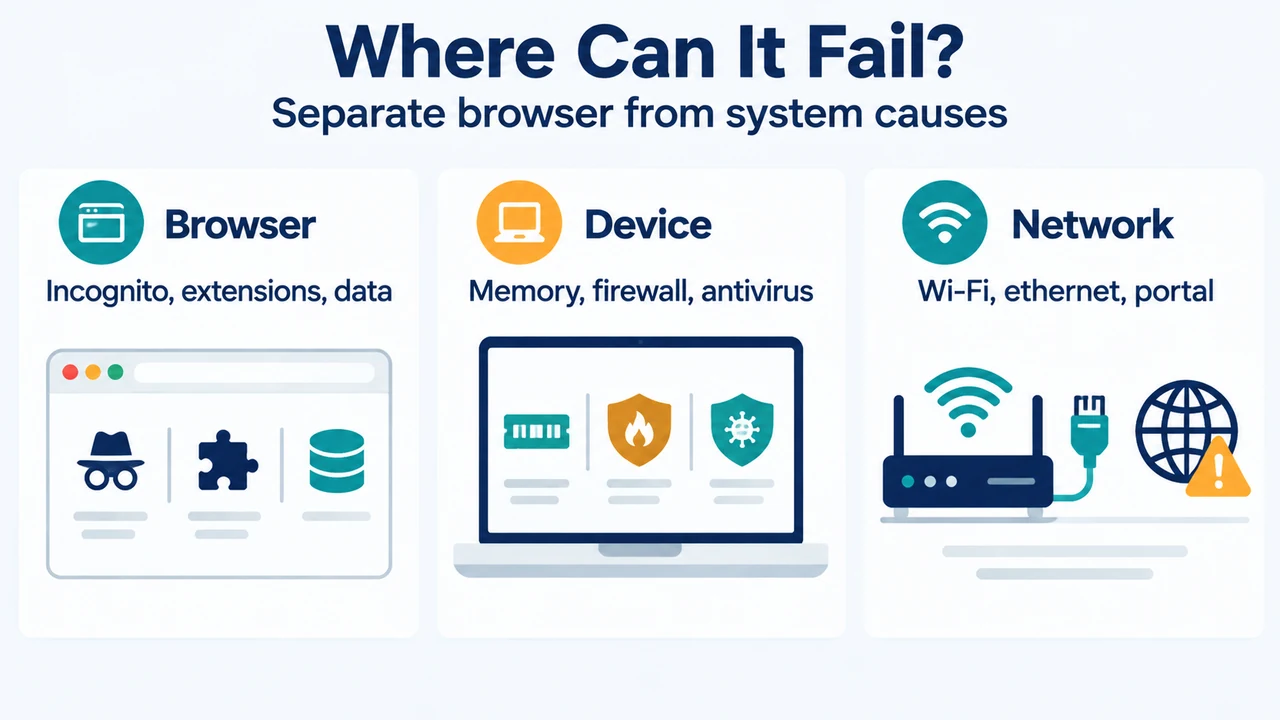
Text version of the diagrams
- One Site or Many?: One site — Check URL and reload; Many sites — Check internet connection; Next check — Test browser causes
- Where Can It Fail?: Browser — Incognito, extensions, data; Device — Memory, firewall, antivirus; Network — Wi-Fi, ethernet, portal