When Google Chrome bookmarks appear to be missing on a desktop computer, the cause is often a hidden bookmarks bar, an alternate navigation view, or a signed-out Google Account rather than manual deletion. In desktop Chrome, bookmarks can be accessed directly from the interface or synced through a Google Account. You can locate existing bookmarks through interface toggles, address bar search, bookmark management panels, and account sync settings.
Checking Bookmarks Bar Visibility and Alternate Views
If the bookmarks bar is not visible beneath the address bar, it may simply be toggled off. In Google Chrome for desktop, you can show or hide the bookmarks bar:
- At the top right, select More (the three vertical dots).
- Select Bookmarks and lists.
- Select Show bookmarks bar.
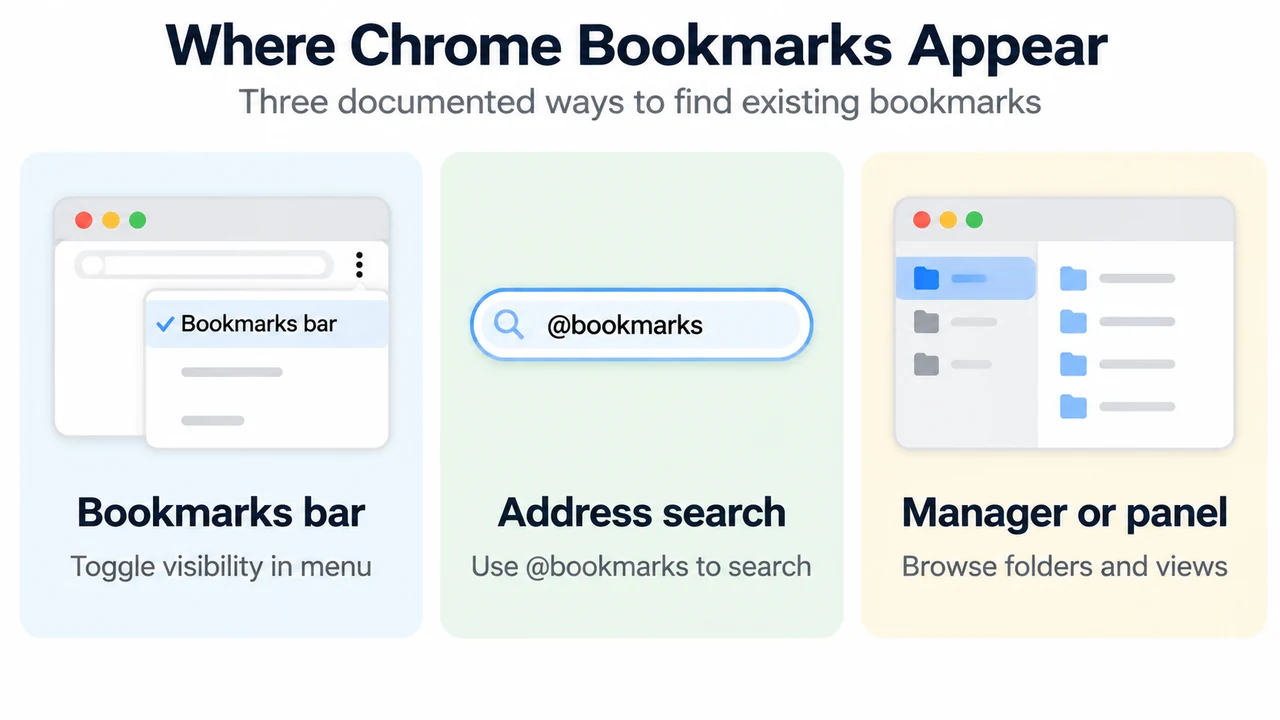
If the bookmarks bar is visible but a specific bookmark is not on the bar, or if the bar remains turned off, Chrome provides three integrated ways to find your bookmarks:
- From the address bar: Open Chrome, enter
@bookmarksin the address bar, and press Tab or Space (or select Search bookmarks in the suggestions). Type keywords for the bookmark you want, then select the bookmark from the list. - From the menu: At the top right, select More > Bookmarks and lists > Bookmark Manager, then select your bookmark.
- In the navigation panel: At the top right, select More > Bookmarks and lists > Show all bookmarks. In the Side panel, select your bookmark. You can also switch bookmarks from visual to compact view by selecting Visual view.
Account Sign-In, Sign-Out, and Device Storage Behavior
Chrome bookmarks behave according to whether you are signed in to a Google Account on the computer:
- Signed in with a Google Account: When you sign in to Chrome and save new info such as a bookmark, Chrome saves it in your Google Account. You can access that information across all devices where you sign in with the same account. Google Accounts support saving up to 100,000 bookmarks.
- Signing out: When you sign out of Chrome, your synced account info is kept safe in your Google Account and removed from the device.
- Saving local info created while signed out: When you are signed out of Chrome, new bookmarks and other info are saved only on your device, not in your Google Account. To access that locally saved info on all your devices, sign in to Chrome on your computer, select Profile > Save x items in Account at the top right, choose what info to save, and select Save in account.
- Multiple profiles: If you share a computer or want to keep personal and work data separate, you can create separate profiles in Chrome.
Sync Verification and Optional Passphrase Rules
To check what data Chrome saves to your Google Account:
- On your computer, open Chrome.
- At the top right, select More > Settings > You and Google.
- Select your account name.
- Choose what info to save in your Google Account.
If you use an optional custom passphrase to encrypt your Chrome cloud data, keep in mind:
- You must enter the passphrase on any new device and on devices where you are already signed in.
- If you encounter trouble syncing with your passphrase, update Google Chrome to the latest version.
- If you change or reset your passphrase in your account dashboard, the data encrypted by the passphrase is deleted from Google servers, you are signed out from all connected devices, and passwords and other info are deleted from your Google Account and device.
Documented Deletion Limits
If a bookmark or bookmark folder was deleted via the Bookmark Manager (More > Delete) or the Side panel (More > Delete), Google Help documentation explicitly notes: “After you delete a bookmark, you can’t get it back.”
Research Method and Limitations
This article was prepared directly from the supplied public Google Chrome Help documentation retrieved on 2026-09-17, covering bookmark management and cross-device account sync. Material limitations include the absence of competing external coverage for comparative analysis and reliance solely on the visible excerpts. Unsupported filesystem mechanisms and unverified deletion recovery methods were excluded.
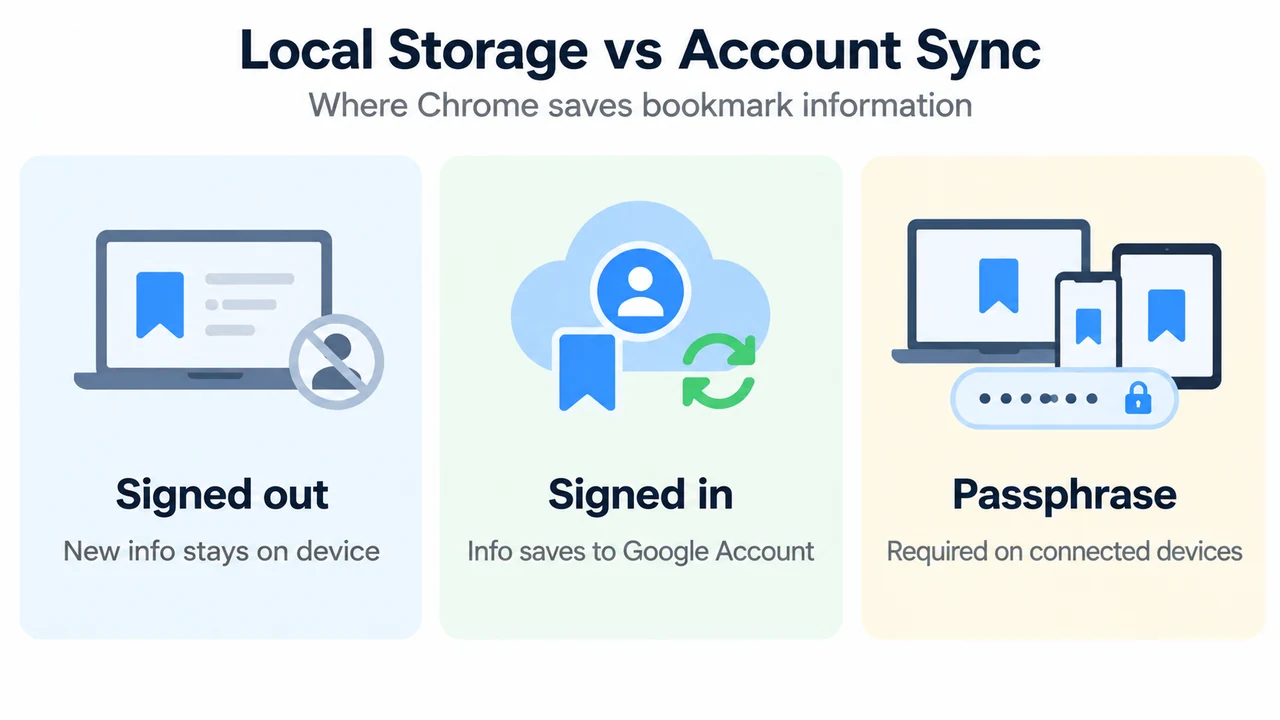
Text version of the diagrams
- Where Chrome Bookmarks Appear: Bookmarks bar — Toggle visibility in menu; Address search — Use @bookmarks to search; Manager or panel — Browse folders and views
- Local Storage vs Account Sync: Signed out — New info stays on device; Signed in — Info saves to Google Account; Passphrase — Required on connected devices