If your Windows 11 device experiences connection issues after upgrading or cannot access shared network folders, Windows provides a recovery option called Network Reset. According to Microsoft Support’s connectivity guide, using network reset removes any network adapters you have installed and their settings. After your PC restarts, Windows reinstalls the network adapters and sets their settings back to default values.
Because Network Reset removes installed adapters and restores default network configurations, Microsoft advises using it as a last step if earlier troubleshooting steps do not restore your connection.
When to Use Network Reset in Windows 11
Microsoft documentation specifies that using network reset should be the last troubleshooting step to try. Specifically, Microsoft notes that it can help solve:
- Connection problems that you might experience after upgrading from Windows 10 to Windows 11.
- Situations where your PC can connect to the Internet but cannot connect to shared network drives.
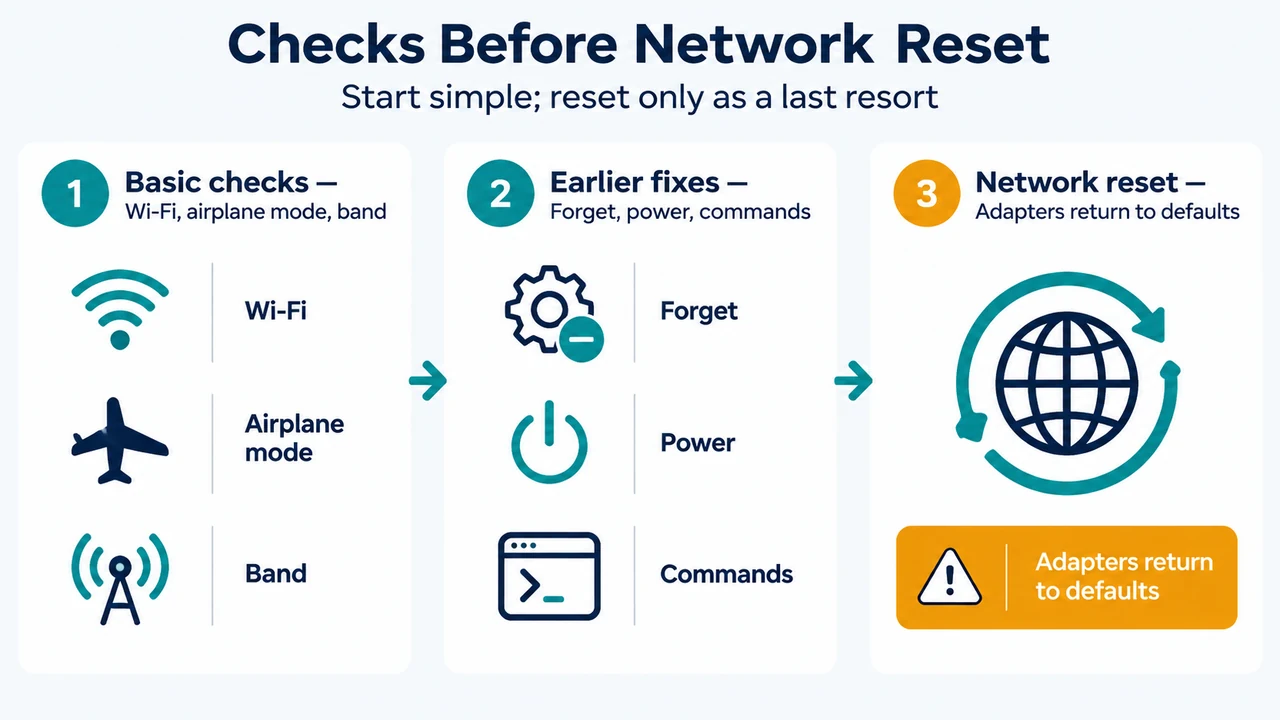
Before using network reset, verify these basic settings documented by Microsoft:
- Wi-Fi status: Select the Network, Sound, or Battery icons on the taskbar and make sure Wi-Fi is turned on. Also ensure the physical Wi-Fi switch on your laptop or tablet is turned on.
- Airplane mode: Go to
Settings > Network & internet > Airplane modeand make sure it is turned off. - Band frequency: Check your router documentation to identify which frequency band it broadcasts. For example, your adapter might only support the 2.4 GHz band while your network uses 5 GHz.
Preliminary Fixes to Try First
Microsoft documents several earlier steps to attempt before resetting your network adapters:
1. Forget and Reconnect to Your Wi-Fi Network
- Open
Settings > Network & internet > Wi-Fi. - Select Manage known networks.
- Select your Wi-Fi network and choose Forget.
- Reconnect by selecting the network from the available list and entering your password.
2. Disable Power Saving on the Wi-Fi Adapter
- Open Device Manager and expand Network adapters.
- Right-click your Wi-Fi adapter and select Properties.
- Open the Power Management tab.
- Clear the checkbox for Allow the computer to turn off this device to save power.
3. Run Network Commands
Open Command Prompt as administrator and run the following commands in the listed order:
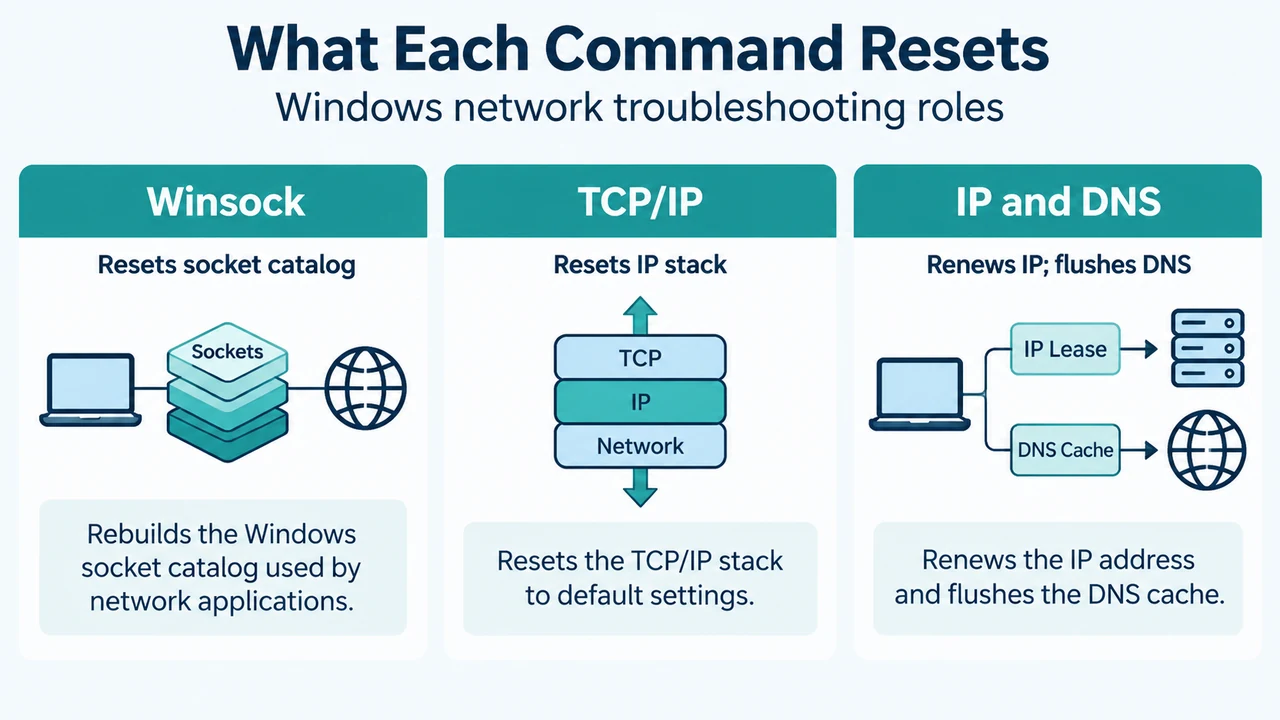
netsh winsock resetnetsh int ip resetipconfig /releaseipconfig /renewipconfig /flushdns
How to Reset Network Settings in Windows 11
If the earlier steps do not resolve your connection problem, proceed with Network Reset.
Step-by-Step Reset Procedure
- Select the Start button, then enter settings.
- Select Settings > Network & internet.
- On Windows 11, select Advanced network settings > Network reset. (On Windows 10, the path is
Status > Network reset.) - On the Network reset screen, select Reset now.
- Select Yes to confirm.
- Wait for your PC to restart and check if that resolves the problem.
Post-Reset Effects and Documented Considerations
According to Microsoft documentation, running Network Reset produces the following effects:
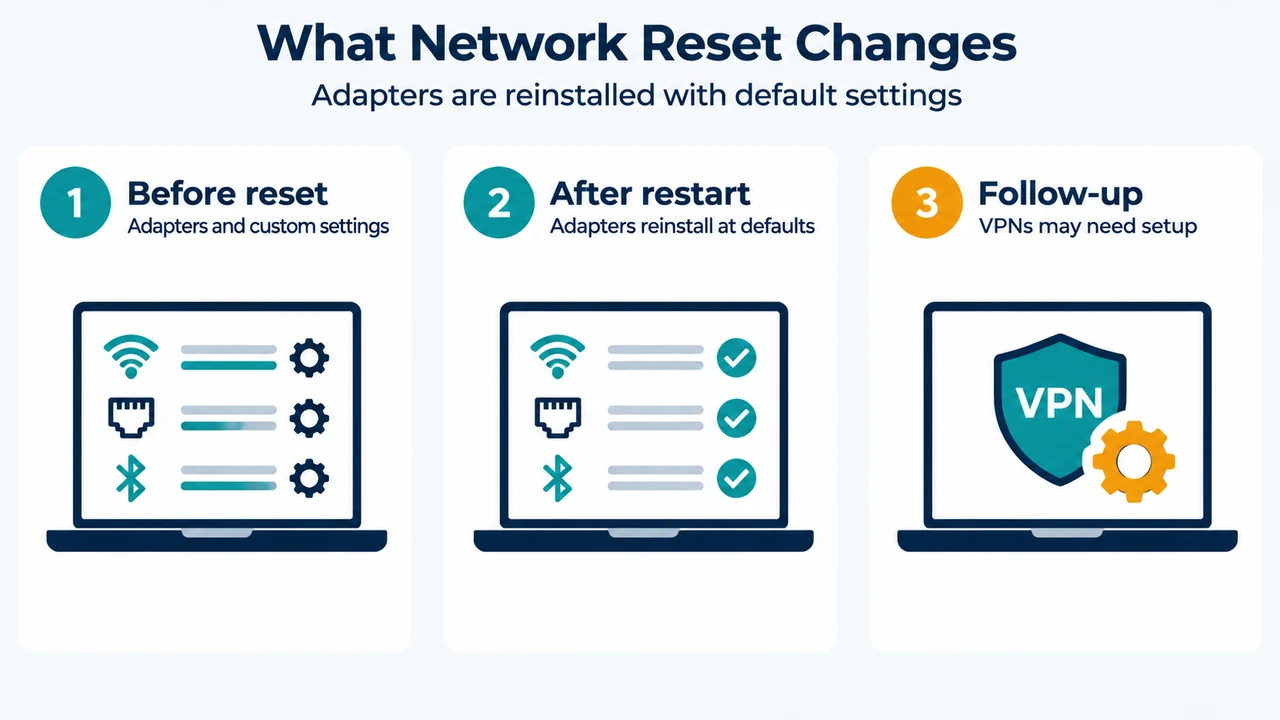
- Windows removes installed network adapters and their settings, restarts the PC, and reinstalls the adapters with default settings.
- You might need to reinstall and configure other networking software you were using, such as VPN client software or virtual switches from Hyper-V (or other network virtualization software).
- Network reset might set each of your known network connections to a public network profile.
Text version of the diagrams
- Checks Before Network Reset: Basic checks — Wi-Fi, airplane mode, band; Earlier fixes — Forget, power, commands; Network reset — Adapters return to defaults
- What Network Reset Changes: Before reset — Adapters and custom settings; After restart — Adapters reinstall at defaults; Follow-up — VPNs may need setup
Research Method and Limitations
This troubleshooting article was compiled strictly from visible excerpts of Microsoft Support’s public documentation on fixing Wi-Fi connection issues in Windows. Material limitations include truncated source text passages and the absence of accessible competing coverage for comparison. No independent physical testing, lab experiments, or unverified manual procedures were performed.