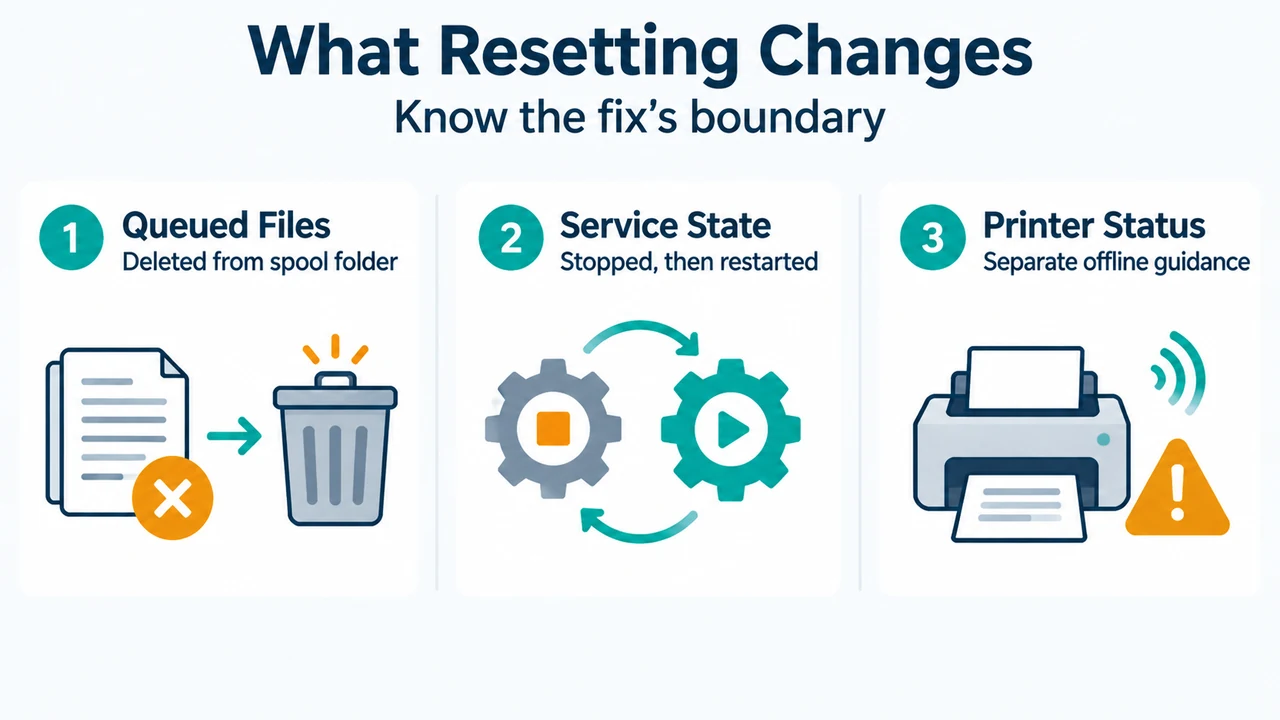
When a printer encounters connection or printing problems in Windows 11 or Windows 10, Microsoft provides structured troubleshooting steps to diagnose connectivity, run automated checks, and clear and reset the print spooler. Resetting the spooler involves stopping the Print Spooler service, deleting files in the spool folder, and restarting the service.
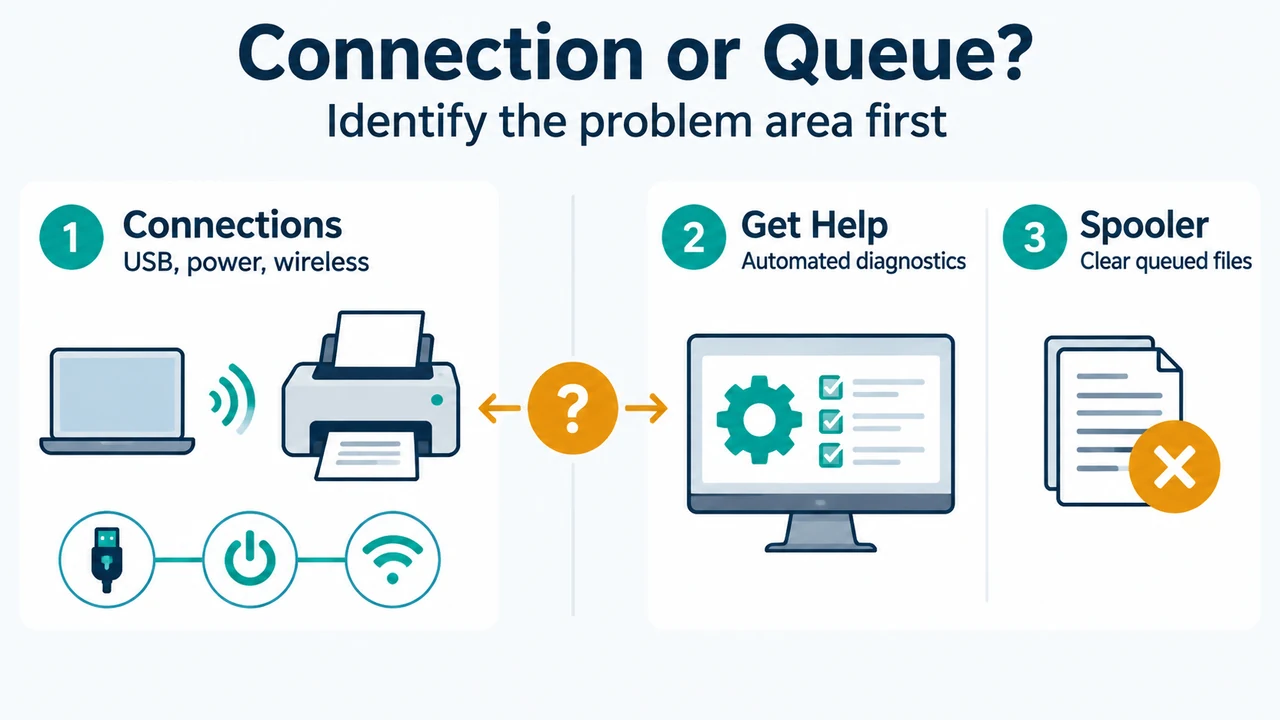
Step 1: Restart the Printer and Check Connections
Power cycling the printer and inspecting physical or wireless links can resolve common connectivity issues:
- Unplug and restart: Turn off your printer and unplug it, wait 30 seconds, plug the printer back in, and turn it back on.
- Check wired connections: For wired printers, ensure the printer’s USB cable is properly connected from the printer to your PC.
- Check wireless connection: For wireless printers, verify that the printer’s wireless option is turned on and available. Many printers have a button displaying a blue wireless icon when wireless connectivity is available. Check the printer’s manual or manufacturer website for specific instructions, or run the printer’s wireless connectivity test.
Step 2: Run the Automated Troubleshooter in Get Help
For Windows 11 and Windows 10 devices, Microsoft recommends starting with the automated troubleshooter:
- Open the Get Help application.
- Run the automated printer troubleshooter to automatically run diagnostics and attempt to fix most printer problems. (If using an older version of Windows or a mobile device, skip this step).
Step 3: Clear and Reset the Print Spooler
The print spooler is a file that manages the printing process. If previous troubleshooting steps do not resolve the issue, clear spooler files and restart the spooler service using the exact sequence below:
- In the search box on the taskbar, type
services, and select Services in the list of results. - Select the Standards tab, and double-click Print Spooler in the list of services.
- Select Stop, and then select OK.
- In the search box on the taskbar, enter
%WINDIR%\system32\spool\printers, and select%WINDIR%\system32\spool\PRINTERSin the list of results. - Delete all files in the folder.
- In the search box on the taskbar, search for
services, and select Services in the list of results. - Select the Standards tab, and double-click Print Spooler in the list of services.
- Select Start, select Automatic in the Startup Type box, and then select OK.
Step 4: Driver Verification and Device Status Scope
If printing issues persist after resetting the spooler:
- Most printers require the latest driver to work well. Check the manufacturer’s website for troubleshooting information or driver updates.
- Confirm printer operation by printing a test page.
- If the printer displays an “offline” status, Microsoft refers users to separate guidance titled “Troubleshooting offline printer problems.” This article does not cover standalone offline status repair steps or complete manual printer reinstallation workflows.
Research Methodology and Limitations
This article was prepared directly from visible excerpts of Microsoft Support documentation titled “Fix printer connection and printing problems in Windows.” It does not draw upon unverified manufacturer procedures or external third-party software. Material limitations include truncated excerpts in the supplied primary evidence, which omit full standalone articles for offline printer errors, manual printer reinstallation procedures, and driver installation details, as well as an absence of accessible competing coverage for comparison.
Text version of the diagrams
- Connection or Queue?: Connections — USB, power, wireless; Get Help — Automated diagnostics; Spooler — Clear queued files
- What Resetting Changes: Queued Files — Deleted from spool folder; Service State — Stopped, then restarted; Printer Status — Separate offline guidance