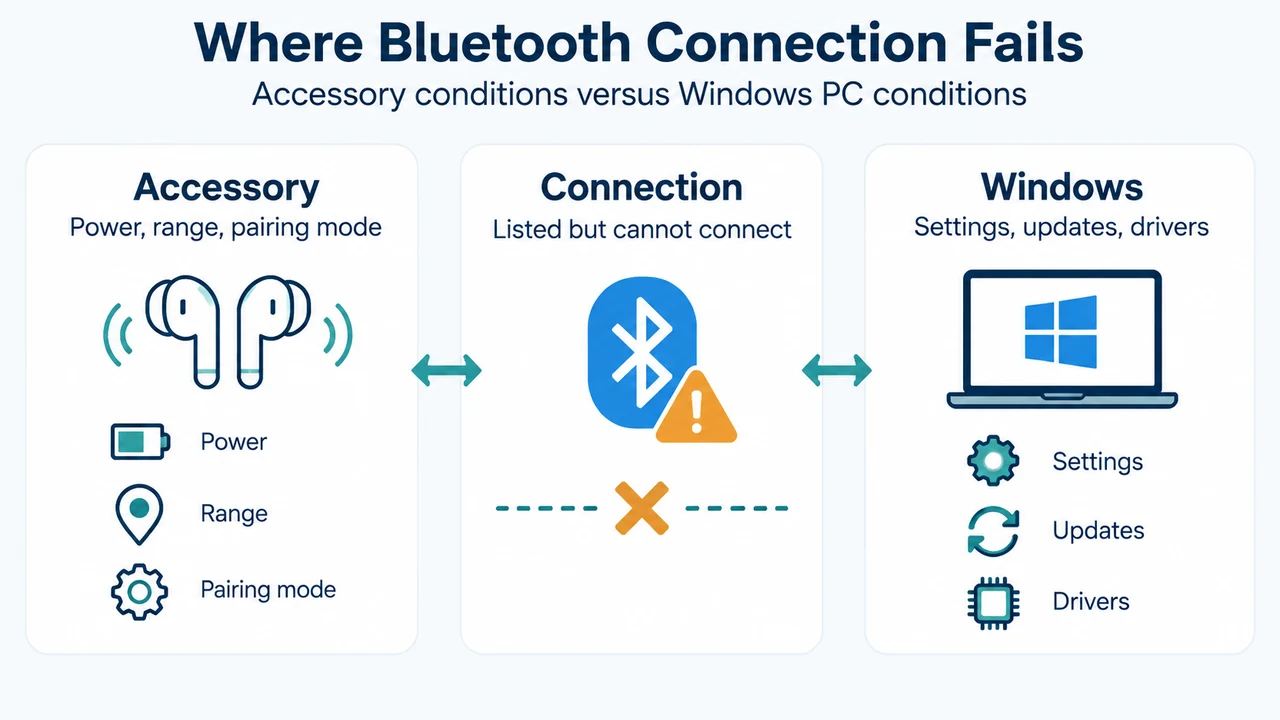
When a Bluetooth peripheral is listed in Windows 11 but will not connect, Windows may be experiencing a configuration, driver, or device-level issue that prevents successful communication. According to official Microsoft support guidance, this problem commonly occurs when Bluetooth is turned on but the peripheral is not in pairing mode, is out of range, has a low battery, or is affected by driver, service, or update-related problems.
Preliminary Checks: Power, Range, and Interference
Before adjusting system settings or drivers, check the peripheral hardware and environment:
- Battery Level: Verify that the device is turned on, fully charged, or equipped with fresh batteries. Some Bluetooth devices do not enter pairing mode or maintain a connection when the battery is low. For rechargeable headphones or speakers, Microsoft recommends leaving the device connected to power during pairing.
- Power Cycle the Device: Turn the Bluetooth accessory off, wait a few seconds, and turn it back on.
- Range and Signal Interference: Ensure the device is in pairing mode and within range of your PC. Move it closer to ensure a stable signal. If the device is unresponsive or sluggish, verify that it is not too close to another USB device plugged into a USB 3.0 port, as unshielded USB devices can interfere with Bluetooth connections.
- Airplane Mode: Select the Network, Sound, or Battery icons on the right side of the taskbar, and verify that the Airplane mode quick setting is turned off.
Step 1: Turn Bluetooth Off and On
Cycling the Bluetooth toggle helps resolve temporary radio or service issues:
- Select Start > Settings > Bluetooth & devices.
- Turn Bluetooth off and wait 10 seconds.
- Turn Bluetooth on again and attempt to connect or pair your device.
Step 2: Remove and Re-Add the Bluetooth Device
If the peripheral appears in the Bluetooth list but will not connect, removing and re-adding it establishes a fresh connection:
- Select Start > Settings > Bluetooth & devices (or navigate to Settings > Bluetooth & devices > Devices).
- Locate the device, select More options (…), and choose Remove device > Yes.
- Make sure the device is in pairing mode and within range of your PC.
- Select Add device, choose Bluetooth, and select your device from the list when it appears.
Step 3: Run the Automated Bluetooth Troubleshooter
Windows includes automated troubleshooting tools to diagnose and attempt to fix Bluetooth problems:
- Open the Get Help app and run the automated Bluetooth troubleshooter to automatically run diagnostics.
- Alternatively, select Start > Settings > System > Troubleshoot > Other troubleshooters, select Run next to Bluetooth, and follow the on-screen instructions.
Step 4: Check for Windows Updates
Operating system updates help ensure system components and drivers are current:
- Select Start > Settings > Windows Update.
- Select Check for updates.
- Allow Windows to download and install any available updates.
- Select Start > Power > Restart to complete pending updates and resolve temporary system issues.
Step 5: Install the Latest Driver from Your PC Manufacturer
An outdated or incompatible driver is one of the most common causes of Bluetooth connection problems. To manually install the driver:
- Go to your PC manufacturer’s official website and download the latest Bluetooth driver.
- If you downloaded an executable (
.exe) file, double-click the file to run it and install the drivers. - If you downloaded individual files containing at least one
.inffile and one.sysfile:- Select Search on the taskbar, type device manager, and select Device Manager from the results.
- Expand Bluetooth and select your Bluetooth adapter name (or check under Other devices if not listed under Bluetooth).
- Press and hold (or right-click) the adapter, and select Update driver > Browse my computer for drivers.
- Select Browse, navigate to the folder containing the downloaded driver files, and select OK.
- Select Next, follow the wizard prompts to install the driver, and select Close.
- Select Start > Power > Restart if prompted to restart, and check whether that resolves the connection issue.
Adapter Uninstallation Condition
If you encounter a scenario where you do not see the Bluetooth icon, but Bluetooth does appear in Device Manager, Microsoft documents an uninstallation procedure to trigger an automatic reinstall:
- Type device manager in the taskbar search box and open Device Manager.
- Expand Bluetooth, press and hold (or right-click) the adapter name (which may include the word “radio”), and select Uninstall device > Uninstall.
- Select Start > Power > Shut down.
- Turn the PC back on. Windows will attempt to reinstall the driver automatically. If it does not, open Device Manager and select Action > Scan for hardware changes.
Device Discovery Settings Note
If your Bluetooth device is not displayed in the list of available devices when attempting to pair, adjust the discovery scope:
- Select Start > Settings > Bluetooth & devices > Devices.
- Under Device settings > Bluetooth devices discovery, change the dropdown from Default (which displays common Bluetooth devices) to Advanced (which displays all types of Bluetooth devices).
Research Method and Limitations
This troubleshooting guide was prepared directly from the supplied public Microsoft Support documentation excerpts for Windows 11: Troubleshoot Bluetooth not connecting in Windows and Fix Bluetooth problems in Windows. Material limits include truncated source passages within the reference text, lack of accessible competing third-party coverage, and the absence of lab benchmarks or non-documented registry procedures. Technical steps are limited strictly to documented Windows 11 settings, Device Manager workflows, and manufacturer driver installations.
Text version of the diagrams
- Where Bluetooth Connection Fails: Accessory — Power, range, pairing mode; Windows — Settings, updates, drivers; Connection — Listed but cannot connect
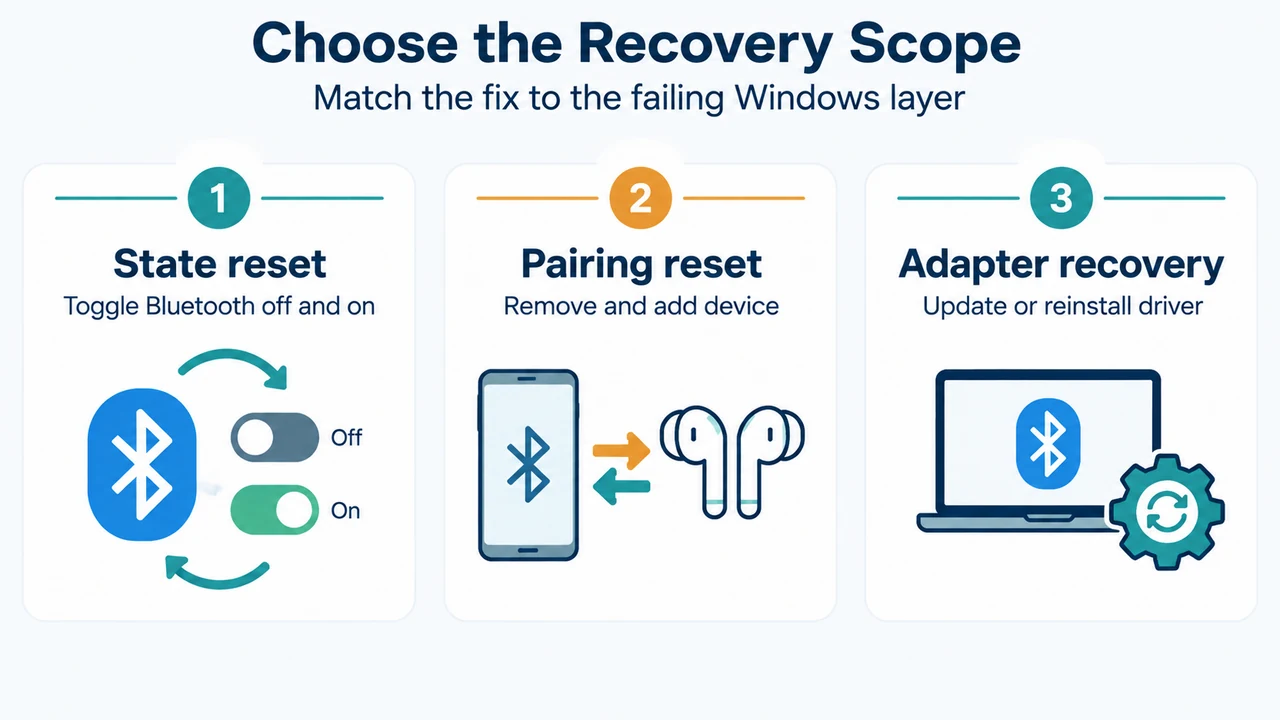
- Choose the Recovery Scope: State reset — Toggle Bluetooth off and on; Pairing reset — Remove and add device; Adapter recovery — Update or reinstall driver