Windows Update error 0x80070422 occurs when the Windows Update service is disabled or stopped, preventing Windows from downloading and installing operating system updates. Microsoft identifies this cause in its official troubleshooting documentation for update errors.
Enabling the Windows Update Service
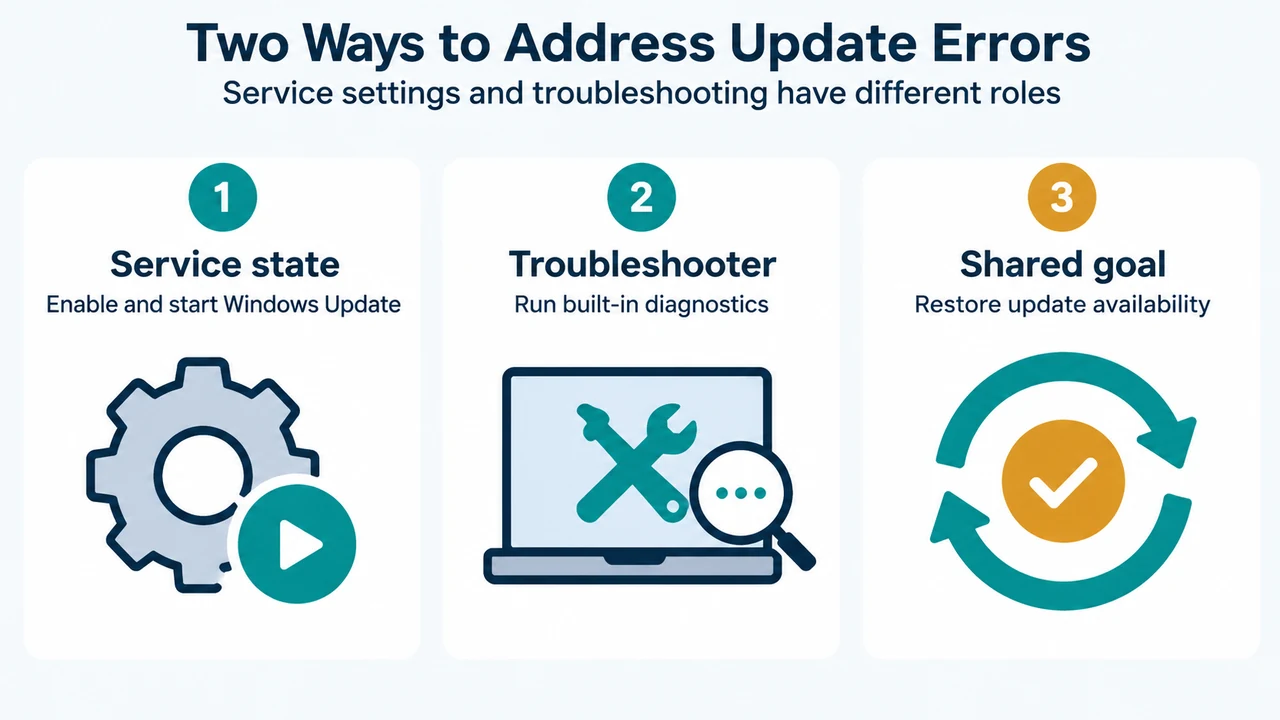
To address error 0x80070422, ensure that the Windows Update service is enabled and running using the Services console:
- Press Win + R to open the Run dialog box.
- Type
services.mscand press Enter. - Locate the Windows Update service in the list, right-click it, and select Properties.
- In the Startup type drop-down menu, select Automatic.
- If the service is stopped, click Start to start the service.
- Click Apply and then click OK.
Running the Windows Update Troubleshooter
If you need to diagnose update components, you can also run the built-in troubleshooter:
- Select Start > Settings > System.
- Select Troubleshoot, then select Other troubleshooters.
- Locate Windows Update and select Run.
- Follow the on-screen instructions to complete the process.
Restarting and Checking for Updates
After updating your service settings, restart your computer and search for updates:
- Save your work, select Start > Power, and choose either Update and restart or Restart.
- Open Settings and navigate to Windows Update (or Update & Security > Windows Update).
- Select Check for updates, then download and install any new updates that appear.
Research Method and Limitations
This troubleshooting guide was compiled directly from public source excerpts published by Microsoft on “Troubleshoot problems updating Windows.” The source excerpts were partially truncated and provided coverage limited to specific error codes and built-in troubleshooting utilities. No competing coverage was reviewed. The steps cover only documented configuration in services.msc, the system troubleshooter, and Windows Update settings.
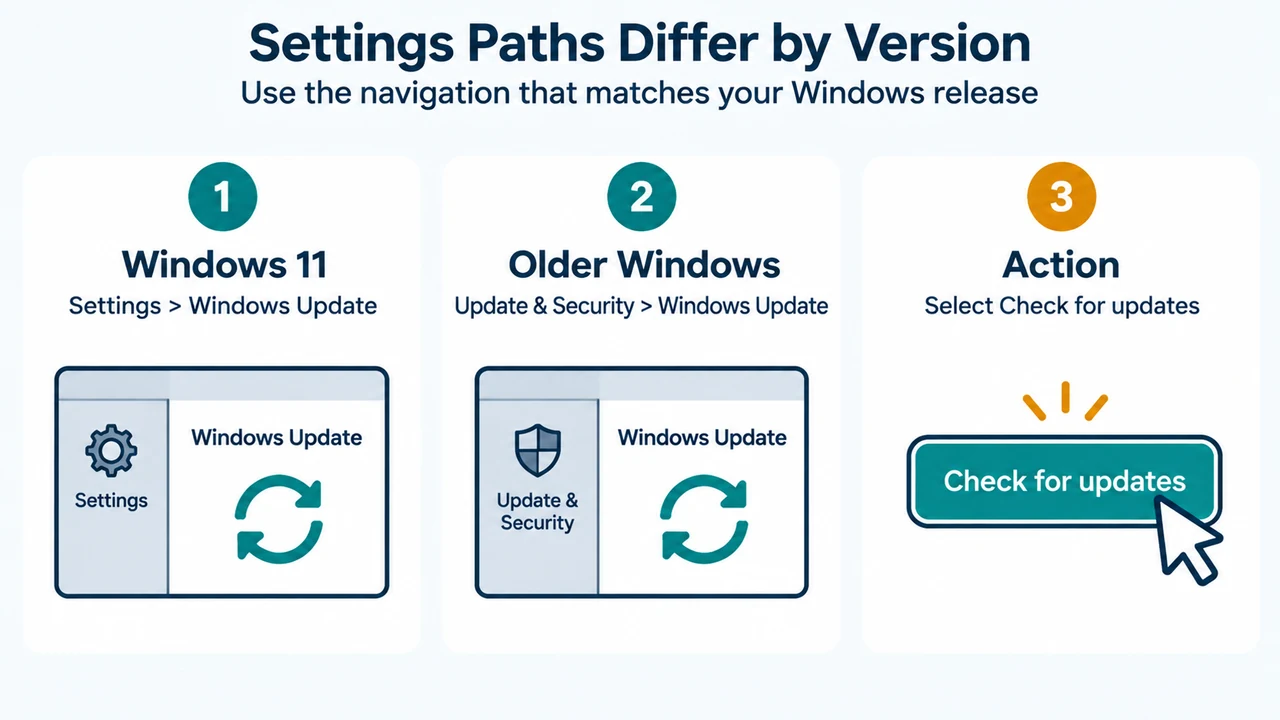
Text version of the diagrams
- Two Ways to Address Update Errors: Service state — Enable and start Windows Update; Troubleshooter — Run built-in diagnostics; Shared goal — Restore update availability
- Settings Paths Differ by Version: Windows 11 — Settings > Windows Update; Older Windows — Update & Security > Windows Update; Action — Select Check for updates