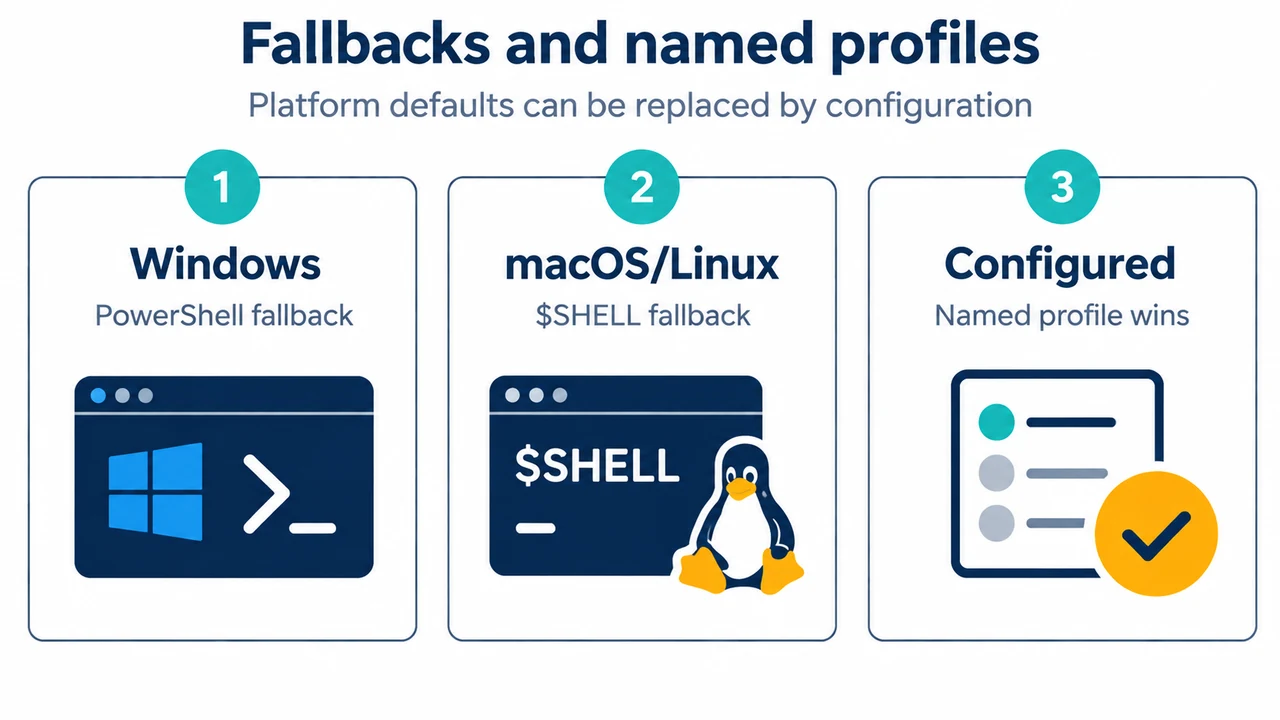
When opening an integrated terminal in Visual Studio Code, you might expect Git Bash, zsh, or Command Prompt, only to find PowerShell or bash launching instead. VS Code pulls its default terminal shell from operating system defaults—$SHELL on Linux and macOS, and PowerShell on Windows—unless configured otherwise through terminal profile settings or automated tasks.
Why VS Code Launches an Unexpected Terminal Shell
VS Code uses platform-specific terminal profiles to determine which shell executable to start. Several documented mechanisms determine which shell launches:
- Operating system defaults: By default, the integrated terminal shell is pulled from your system defaults: PowerShell on Windows and
$SHELLon Linux and macOS. - Configured default profile: If a default profile is defined manually via
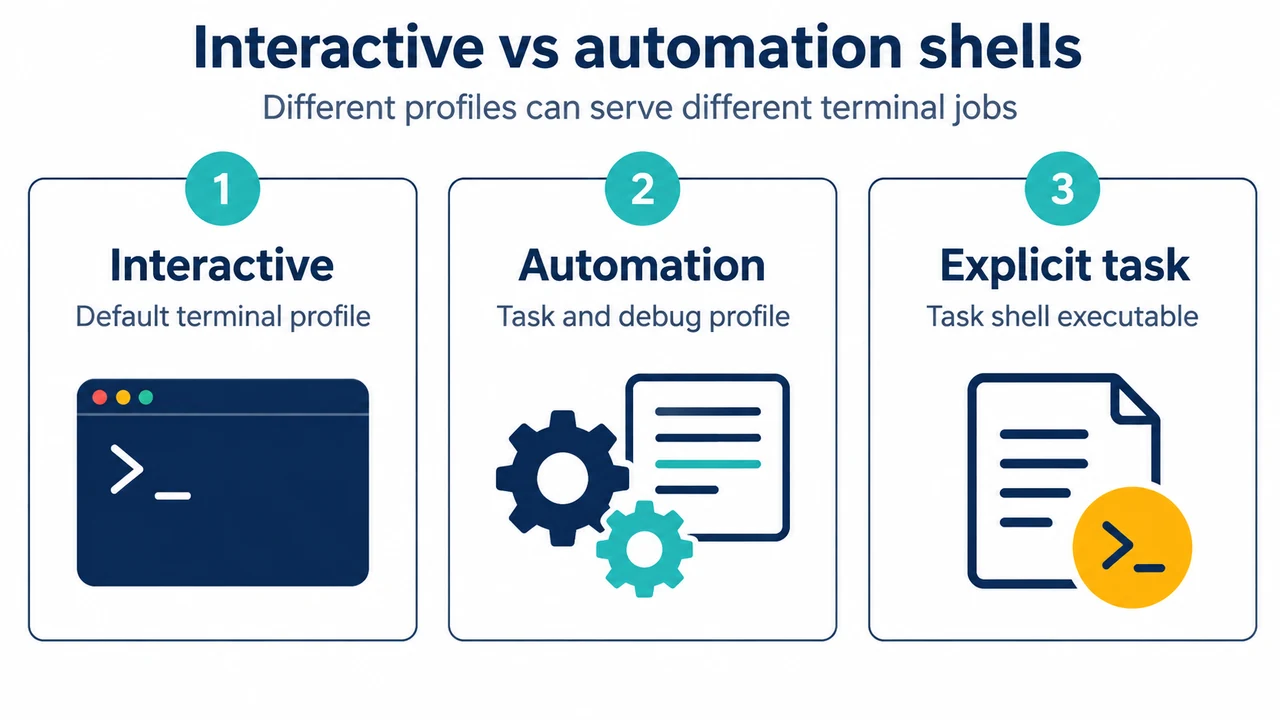
terminal.integrated.defaultProfile.*or chosen via the terminal UI, VS Code uses that profile instead of the system fallback. - Task automation profiles: By default, task and debug features use the default profile. However, if
terminal.integrated.automationProfile.*is configured, VS Code uses that specific profile for tasks and debugging instead of your interactive default profile. Furthermore, individual tasks in.vscode/tasks.jsoncan define an explicit shell executable underoptions.shell.executable. - Unsafe profile detection: Certain shells located in paths that could be written to by another user (such as default installations of Cmder, Cygwin, or MSYS2 on Windows) are detected as unsafe profiles. VS Code will not expose them as proper profiles until they are explicitly configured via the Terminal: Select Default Profile command.
- Restricted Mode: Opening an integrated terminal is blocked when a workspace is in Restricted Mode to prevent shells from automatically executing code based on workspace contents.
How to Select the Default Profile via the Command Palette
You can choose your default terminal shell using built-in UI commands:
- Open the Command Palette by pressing
Ctrl+Shift+P(Windows/Linux) orCmd+Shift+P(macOS). - Run the Terminal: Select Default Profile command. This can also be accessed from the terminal dropdown menu next to the
+button in the terminal panel tabs. - Select your preferred shell from the detected profiles (such as Command Prompt, PowerShell, Git Bash, or zsh).
- To create a new profile based on an existing shell, activate the configure button on the right side of the shell item in the list. This adds a new profile entry to your settings.
- Open a new terminal tab with
Ctrl+Shift+`(Windows/Linux) orCtrl+Shift+`(macOS) to verify that your selected shell launches.
Configuring Terminal Profiles in settings.json
Terminal profiles and the default profile can be configured directly in settings.json. Default profiles are specified using the platform-specific keys terminal.integrated.defaultProfile.windows, terminal.integrated.defaultProfile.osx, and terminal.integrated.defaultProfile.linux, set to the name of an existing profile.
Windows Configuration Example
On Windows, profiles can specify an executable path or a source property that allows VS Code to automatically detect installations of PowerShell or Git Bash:
{
  "terminal.integrated.profiles.windows": {
    "my-pwsh": {
      "source": "PowerShell",
      "args": ["-NoProfile"]
    },
    "custom-cmd": {
      "path": "cmd.exe",
      "args": []
    }
  },
  "terminal.integrated.defaultProfile.windows": "my-pwsh"
}
Linux and macOS Configuration Example
On Linux and macOS, profiles specify an executable path and optional arguments:
{
  "terminal.integrated.profiles.linux": {
    "zsh (login)": {
      "path": "zsh",
      "args": ["-l"]
    }
  },
  "terminal.integrated.defaultProfile.linux": "zsh (login)"
}
Configuring Automation Profiles for Tasks
To avoid running complex shell startup scripts or non-POSIX shells during task execution or debugging, configure a dedicated automation profile with terminal.integrated.automationProfile.<platform>:
{
  "terminal.integrated.defaultProfile.osx": "fish",
  "terminal.integrated.automationProfile.osx": {
    "path": "/bin/sh"
  }
}
Removing Built-In Profiles
To remove a built-in profile and prevent it from appearing in the new terminal dropdown, set the profile entry to null:
{
  "terminal.integrated.profiles.windows": {
    "Git Bash": null
  }
}
Automated Task Terminals in tasks.json
If an unexpected shell opens automatically when launching tasks or opening a project, inspect .vscode/tasks.json or user tasks. Tasks can automate terminal launching and explicitly designate a shell executable:
{
  "version": "2.0.0",
  "tasks": [
    {
      "label": "Custom Shell Task",
      "type": "shell",
      "command": "",
      "options": {
        "shell": {
          "executable": "cmd.exe",
          "args": []
        }
      }
    }
  ]
}
Platform-Specific Environment Considerations
Windows Subsystem for Linux (WSL)
WSL distributions are detected automatically on Windows. If automatic detection produces unwanted profiles, disable it with "terminal.integrated.useWslProfiles": false, then manually define a profile pointing to wsl.exe with the -d argument.
macOS Login Shells and $PATH Handling
On macOS, VS Code launches your configured shell as a login shell on startup to source your development environment, running ~/.profile, ~/.bash_profile, or ~/.zprofile. When a new integrated terminal tab opens, it also launches as a login shell, which can reorder $PATH. Documented mitigations include setting "terminal.integrated.inheritEnv": false (stripping most environment variables except essentials like HOME and SHELL) or setting the terminal profile’s "args": [] to prevent launching a second login shell.
Research Method and Limitations
This troubleshooting guide was compiled directly from the supplied primary Visual Studio Code documentation excerpts covering terminal basics and terminal profiles. Material limitations: competing coverage was unavailable for comparison, and the first primary excerpt contained truncated passages. The visible evidence documents profile selection, default profile settings, automation profiles, task shell options, unsafe profile detection, and platform defaults; it does not document or establish settings precedence hierarchy between user and workspace settings files.
Text version of the diagrams
- Interactive vs automation shells: Interactive — Default terminal profile; Automation — Task and debug profile; Explicit task — Task shell executable
- Fallbacks and named profiles: Windows — PowerShell fallback; macOS/Linux — $SHELL fallback; Configured — Named profile wins