Audio playback issues and crackling in Windows can often be addressed using documented troubleshooting checks from Microsoft Support. Because the source documentation is selective and truncated, these steps do not represent an exhaustive repair sequence, but rather a curated set of verified configuration checks: checking physical connections and output routing, disabling audio enhancements, running the built-in troubleshooter, checking volume and device settings, testing alternative default audio formats, restarting core audio services, and switching to a generic driver if an IDT High Definition Audio CODEC is present.
Selected Documented Troubleshooting Steps
1. Check Audio Hardware, Connections, and Output Routing
Microsoft documents the following initial checks for cables, power, and active output selection:
- Check speaker and headphone connections for loose cords or cables, and make sure all cords and cables are securely plugged in.
- If you have multiple jacks (such as on surround sound systems), ensure cords are plugged into the correct jacks. Some systems use a green jack for output and pink for microphone input, while others are labeled “headphone” or “microphone.” If unclear, consult your hardware manufacturer or test outputs one at a time.
- Ensure power is turned on.
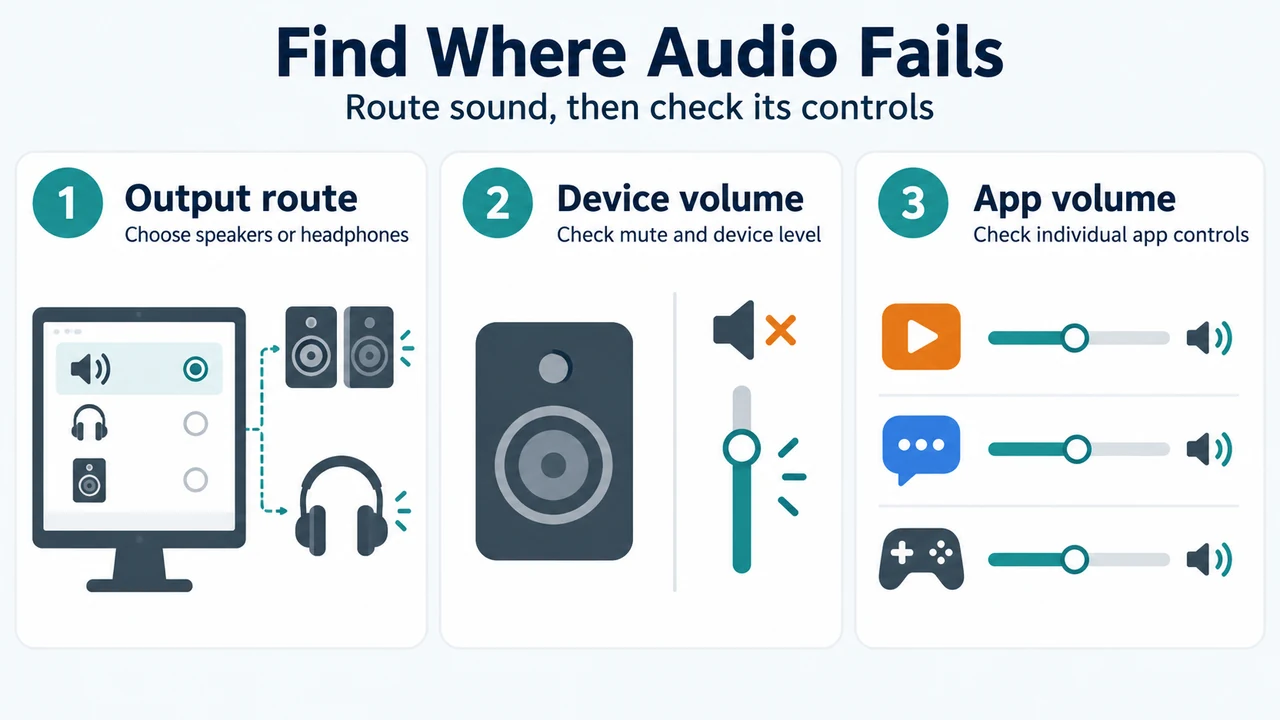
- Ensure mute is not enabled and turn up all volume controls, including independent controls on speakers or individual apps.
- Try connecting USB speakers or headphones to a different USB port.
- If speakers do not work when headphones are connected, unplug the headphones to test the speakers separately.
- Select the Speakers icon on the taskbar (or select Show hidden icons in the overflow area), select the arrow to view connected devices, and confirm audio is routed to your preferred playback device.
2. Turn Off Audio Enhancements
Microsoft notes that having audio enhancements enabled can sometimes result in audio issues, and disabling them may resolve playback faults.
Windows 11 Settings:
- Select Start > Settings > Sound.
- In the Output section, select your audio device.
- Under Advanced settings, set Audio enhancements to Off from the dropdown menu.
Control Panel:
- Type
control panelin the taskbar search box and open it. - Select Hardware and Sound, then select Sound.
- On the Playback tab, right-click (or select and hold) Default Device and select Properties.
- On the Enhancements tab, select either Disable all enhancements or Disable all sound effects (depending on which option appears).
- Select OK and test playback. Repeat for any other default devices listed.
3. Run the Audio Troubleshooter
Windows provides an automated troubleshooter to scan for audio problems:
- Windows 11: Select Start > Settings > System, select Troubleshoot > Other troubleshooters, and run the troubleshooter next to Audio.
- Windows 10: Select Start > Settings > Update & security > Troubleshoot. Under Find and fix problems, select Playing audio, then select Run the troubleshooter.
4. Check Sound and Volume Settings
Verify that your audio devices are active and not muted:
- Right-click (or select and hold) the Speakers icon on the taskbar (or in Show hidden icons) and select Open Volume mixer.
- Confirm that volume controls are not muted (a red circle with a line through it indicates a muted control). Select the volume control to unmute if needed.
- To confirm devices are not disabled, go to Start > Settings > System > Sound, select your audio device, and inspect Device properties for both output and input devices.
5. Test Different Audio Formats
When default audio settings cause playback issues, testing available audio formats in Sound properties provides an empirical trial-and-error path:
- Type
control panelin the taskbar search box and open it. - Select Hardware and Sound > Sound.
- On the Playback tab, right-click (or select and hold) Default Device and select Properties.
- On the Advanced tab, under Default Format, change the setting, select OK, and test your device.
- If the issue continues, try changing the setting again among the available options.
6. Restart Windows Audio Services
If audio problems persist, Microsoft recommends restarting the following background services:
- Type
servicesin the taskbar search box and open it. - Locate each of these services:
- Windows Audio
- Windows Audio Endpoint Builder
- Remote Procedure Call (RPC)
- Right-click (or select and hold) each service, select Restart, and select Yes if prompted to restart dependent services.
7. Switch to Generic Driver for IDT High Definition Audio CODEC (If Present)
Microsoft specifically notes that not all systems have an IDT High Definition Audio CODEC. If this device is present, you can manually select a pre-installed generic driver:
- Type
device managerin the taskbar search box and open it. - Select the arrow next to Sound, video and game controllers to expand it.
- Look for IDT High Definition Audio CODEC. If it is not listed, this step does not apply.
- If listed, right-click (or select and hold) it and select Update driver.
- Select Browse my computer for drivers > Let me pick from a list of available drivers on my computer (or device drivers on my computer).
- Select High Definition Audio Device from the list of pre-installed drivers and select Next.
Research Method and Limitations
This article was prepared directly from supplied public source excerpts from Microsoft Support and competitor coverage from Help Desk Geek. Material limitations include reliance on truncated source excerpts, which omit intervening Microsoft troubleshooting sections and full competitor context; consequently, these steps represent selected documented checks rather than a comprehensive end-to-end diagnostic workflow. In particular, testing audio formats is an empirical trial-and-error procedure without a single guaranteed default value in the primary documentation, the generic driver replacement applies exclusively to systems equipped with the IDT High Definition Audio CODEC, and menu structures may vary between Windows versions and hardware configurations.
Text version of the diagrams
- Find Where Audio Fails: Output route — Choose speakers or headphones; Device volume — Check mute and device level; App volume — Check individual app controls
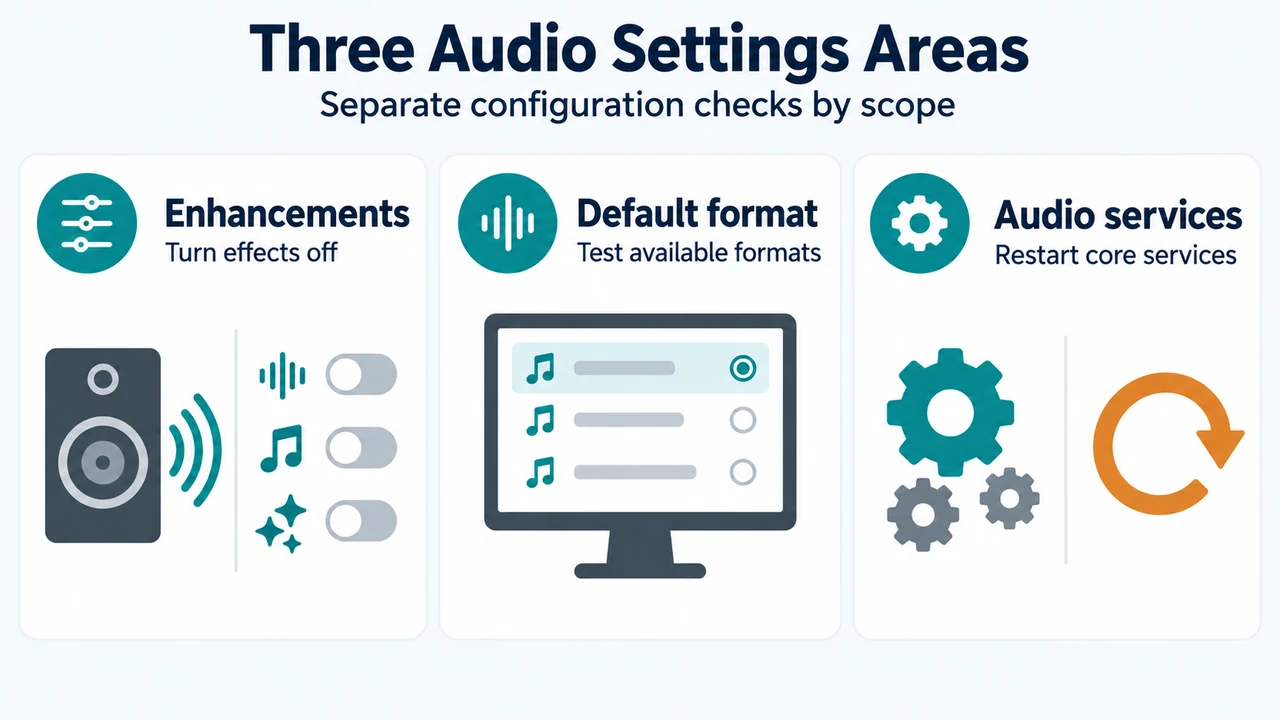
- Three Audio Settings Areas: Enhancements — Turn effects off; Default format — Test available formats; Audio services — Restart core services