When connecting to a network-attached storage (NAS) appliance or third-party file server from Windows 11 version 24H2, file share connections can fail with error 0xc000a000, integer code -1073700864, or the status string STATUS_INVALID_SIGNATURE (“The cryptographic signature is invalid”). In Windows 11 24H2 Enterprise, Pro, and Education editions, SMB signing is required by default for both outbound client traffic and inbound server traffic. When a remote storage device does not allow or support SMB signing, Windows rejects the connection to prevent relay and spoofing attacks. This guide explains how to identify your client signing state, understand why the failure occurs, enable signing on the remote file server, or safely adjust client-side settings if server changes cannot be made immediately.
What Causes Error 0xc000a000 on Windows 11 24H2?
Server Message Block (SMB) signing is a protocol-level security feature. It uses the session key and cipher suite to place a cryptographic hash across the SMB header for every message across the network connection. This hash confirms the identities of the original sender and intended recipient while ensuring the transmission has not been altered in transit by an adversary-in-the-middle.
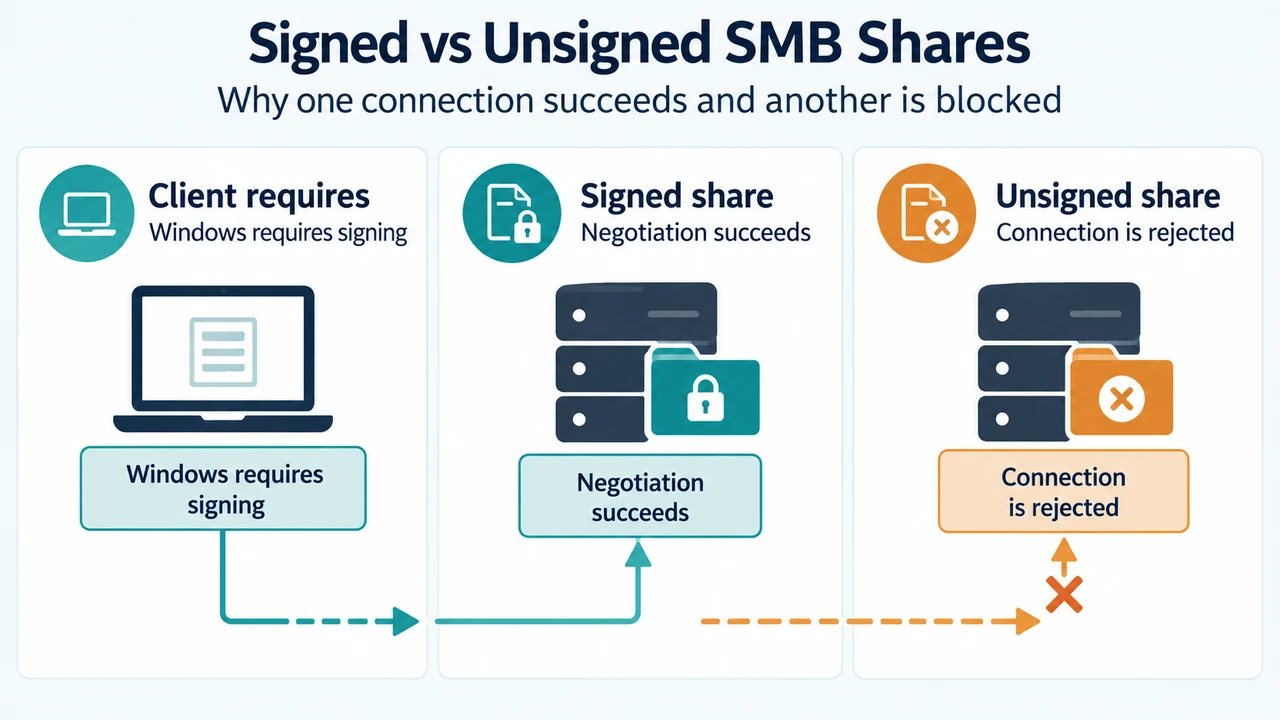
In Windows 11 version 24H2 (specifically Pro, Enterprise, and Education editions), Windows enforces both outbound and inbound SMB signing requirements. However, Windows 11 version 24H2 Home edition does not require outbound or inbound SMB signing by default. When an edition requiring outbound signing attempts to establish an SMB session with a third-party server or NAS appliance that does not support or disables SMB signing, the client halts the connection and returns 0xc000a000 (STATUS_INVALID_SIGNATURE).
Additionally, requiring SMB signing automatically blocks unauthenticated guest access. If a remote share relies on guest logons and cannot negotiate a signed session, connection attempts may yield related policy blocks such as 0x80070035 (“The network path was not found”) or system error 3227320323.
Checking SMB Client Signing Status
Before adjusting any system settings, verify whether your Windows client currently enforces outbound security signatures. You can check the current operational state using an elevated PowerShell console.
- Right-click the Start menu and select Terminal (Admin) or PowerShell (Admin).
- Run the following command:
Get-SmbClientConfiguration | FL RequireSecuritySignatureIf the returned output displays RequireSecuritySignature : True, your client requires outbound SMB signing. If it displays False, mandatory outbound signing is disabled.
You can also check the local server-side signing setting on your Windows machine with:
Get-SmbServerConfiguration | FL RequireSecuritySignaturePrimary Fix: Enable SMB Signing on the Third-Party Server or NAS
According to Microsoft’s official SMB signing documentation, Microsoft does not recommend disabling SMB signing on Windows clients. Disabling client signing removes protection against relay and tampering attacks.
The recommended solution is to adjust the configuration on your third-party SMB server, router storage service, or NAS management portal to allow and enable SMB signing:
- Log into your NAS management interface (such as Synology DSM, QNAP QTS, TrueNAS, or your Linux Samba server configuration).
- Navigate to the advanced SMB or file sharing service settings.
- Set the SMB signing option (server signing) to “Enabled”, “Required”, or “Auto/Negotiate” rather than “Disabled”.
- Save the changes and restart the SMB service on the server if prompted.
Once the third-party file server allows SMB signing, Windows 11 24H2 can successfully negotiate a signed session without altering local security policies.
Workaround: Adjusting Client SMB Signing on Windows 11
If you cannot immediately update the NAS or server configuration—for instance, if you are working with an unconfigurable legacy device or a share requiring unauthenticated guest access—you can manually disable mandatory client signing on Windows 11. Microsoft cautions that disabling SMB signing lowers your network security posture and exposes file traffic to potential adversary-in-the-middle manipulation.
Method 1: Using PowerShell (Fastest)
To disable the mandatory outbound signing check on the Windows SMB client:
- Open PowerShell as an Administrator.
- Execute the following command:
Set-SmbClientConfiguration -RequireSecuritySignature $falseTo verify the change took effect, re-run:
Get-SmbClientConfiguration | FL RequireSecuritySignatureThe output should now read False. Try accessing the remote network share again.
Method 2: Using the Local Group Policy Editor
On Windows 11 Pro, Enterprise, and Education editions, you can manage this setting via the Local Group Policy Editor:
- Press Win + R, type
gpedit.msc, and press Enter. (Note: In Active Directory environments, domain administrators should use Group Policy Management,gpmc.msc). - In the left pane, navigate to:
Computer Configuration > Windows Settings > Security Settings > Local Policies > Security Options. - In the right pane, locate and double-click the policy named Microsoft network client: Digitally sign communications (always).
- Select Disabled, then click OK.
Rollback: Re-enabling SMB Signing on Windows 11
Once your network storage firmware is updated or replaced with a device supporting SMB signing, restore the default security posture immediately.
Rollback via PowerShell
Run the following command in an elevated PowerShell window:
Set-SmbClientConfiguration -RequireSecuritySignature $trueRollback via Group Policy
- Open
gpedit.mscand return toComputer Configuration > Windows Settings > Security Settings > Local Policies > Security Options. - Open Microsoft network client: Digitally sign communications (always).
- Set the value back to Enabled, then select OK.
Prerequisites and Secure Connection Recommendations
To maximize the security capabilities of SMB signing in modern Windows environments, Microsoft notes specific system prerequisites and architecture practices:
- Supported Operating Systems: Controlling these SMB signing features applies to Windows 11 version 24H2 or later and Windows Server 2025 or later.
- Authentication Protocol: Use Kerberos authentication instead of NTLMv2 across your network where possible.
- Direct Hostnames: Do not connect to file shares using raw IP addresses. Connect via verified DNS computer names.
- Avoid DNS CNAME Records: Avoid using CNAME Domain Name System records for file servers. Instead, assign alternate computer names using
netdom.exe. - Guest Accounts: Avoid signing attempts or operational shares using unauthenticated guest access, as guest accounts prevent mutual client-server trust verification.
Text version of the diagrams
- Signed vs Unsigned SMB Shares: Client requires — Windows requires signing; Signed share — Negotiation succeeds; Unsigned share — Connection is rejected
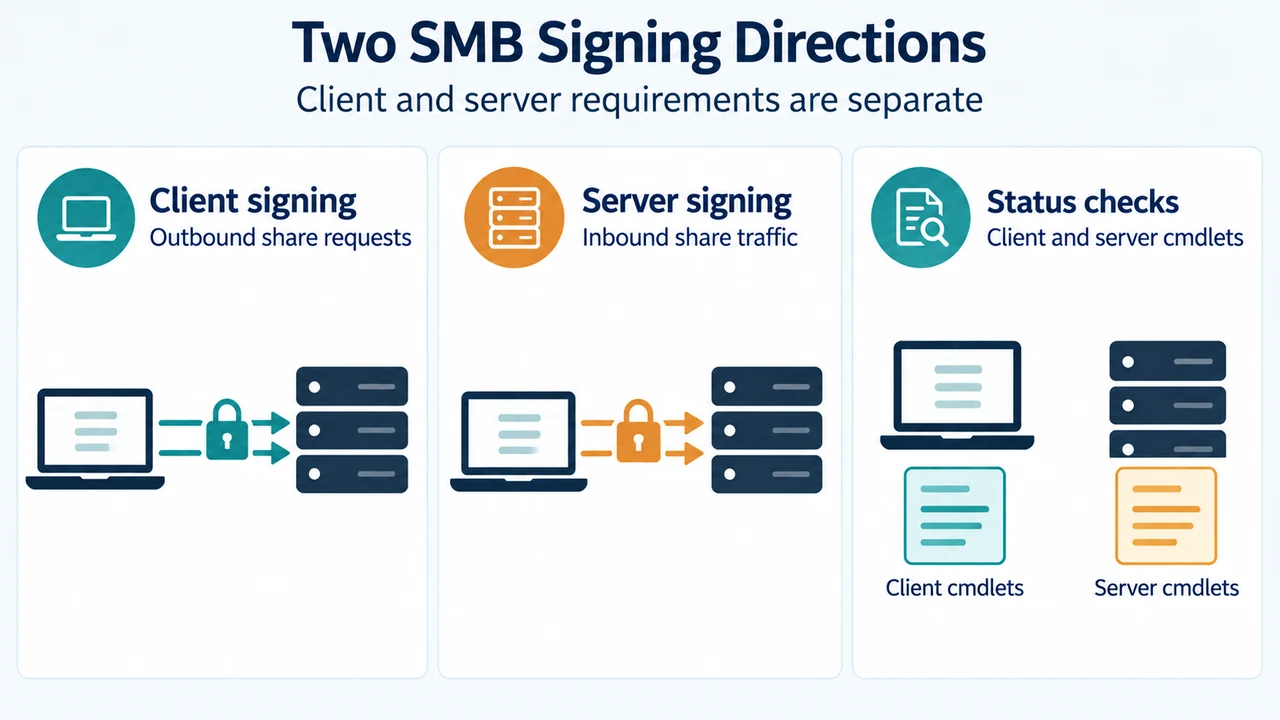
- Two SMB Signing Directions: Client signing — Outbound share requests; Server signing — Inbound share traffic; Status checks — Client and server cmdlets
Research Scope and Limitations
This troubleshooting guide was compiled directly from official Microsoft technical documentation on controlling SMB signing behavior updated in August 2025. It reflects the baseline configuration requirements for Windows 11 version 24H2 (Pro, Enterprise, and Education) and Windows Server 2025. This article does not report hands-on laboratory benchmarks or proprietary third-party NAS firmware performance figures, and no third-party competitor pages were available for review during publication. Readers should consult their specific NAS manufacturer documentation for exact steps to toggle SMB signing on remote hardware.