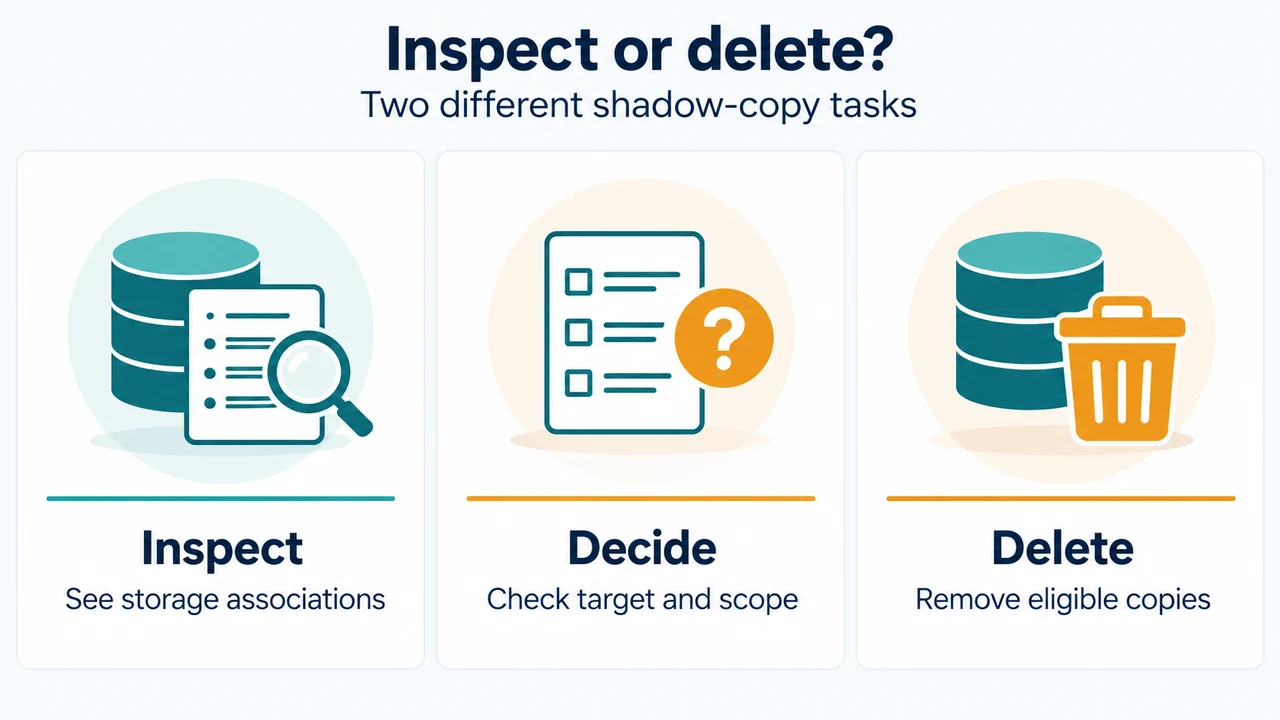
The vssadmin command-line tool allows users to inspect existing shadow copies on a volume and delete those that have the client-accessible type. Deleting a shadow copy is permanent, and removing a shadow copy deletes any previous versions or restore points that depend on it.
Supported Operating Systems and Scope
According to Microsoft documentation, vssadmin list shadows and vssadmin delete shadows apply to:
- Windows 11 and Windows 10
- Windows Server 2025, Windows Server 2022, Windows Server 2019, and Windows Server 2016
- Azure Local version 2311.2 and later
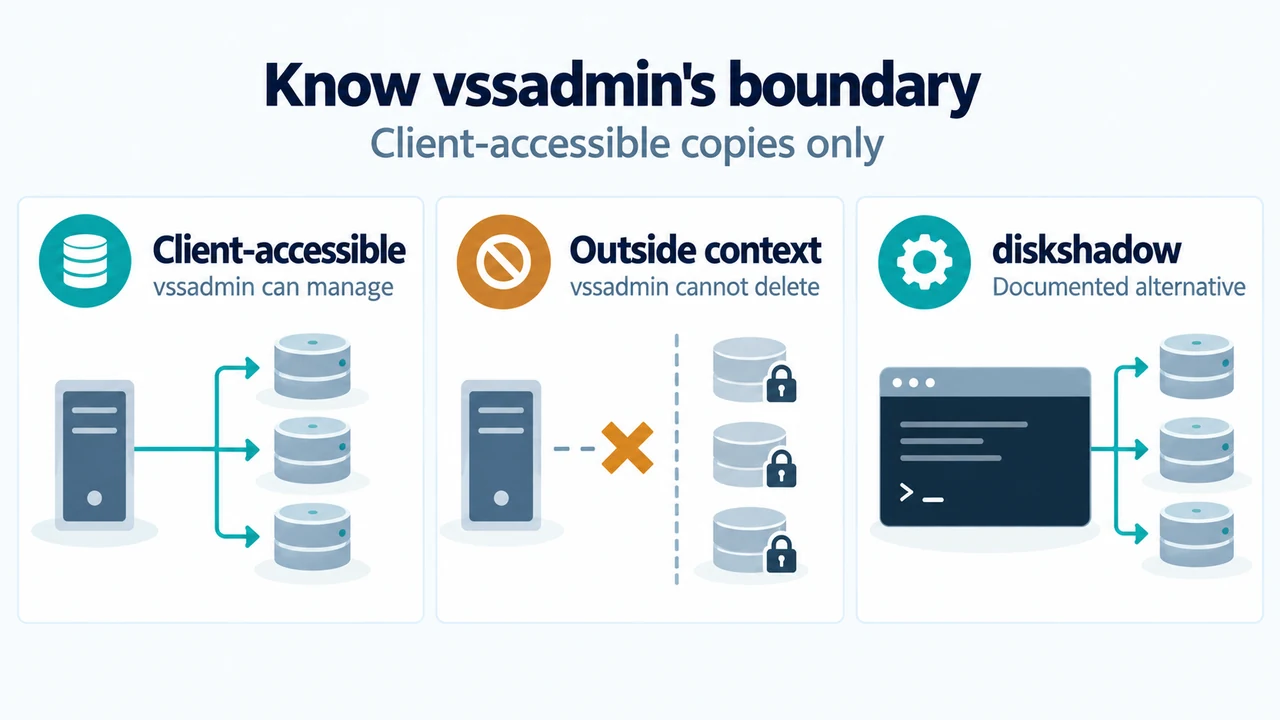
The vssadmin delete shadows command deletes only shadow copies that possess the client-accessible type. If you encounter the error message Error: Snapshots were found, but they were outside of your allowed context, the shadow copies are not client-accessible and cannot be deleted with vssadmin. In that situation, the documentation directs you to use the diskshadow command instead to manage and delete those shadow copies.
Step 1: List Existing Shadow Copies
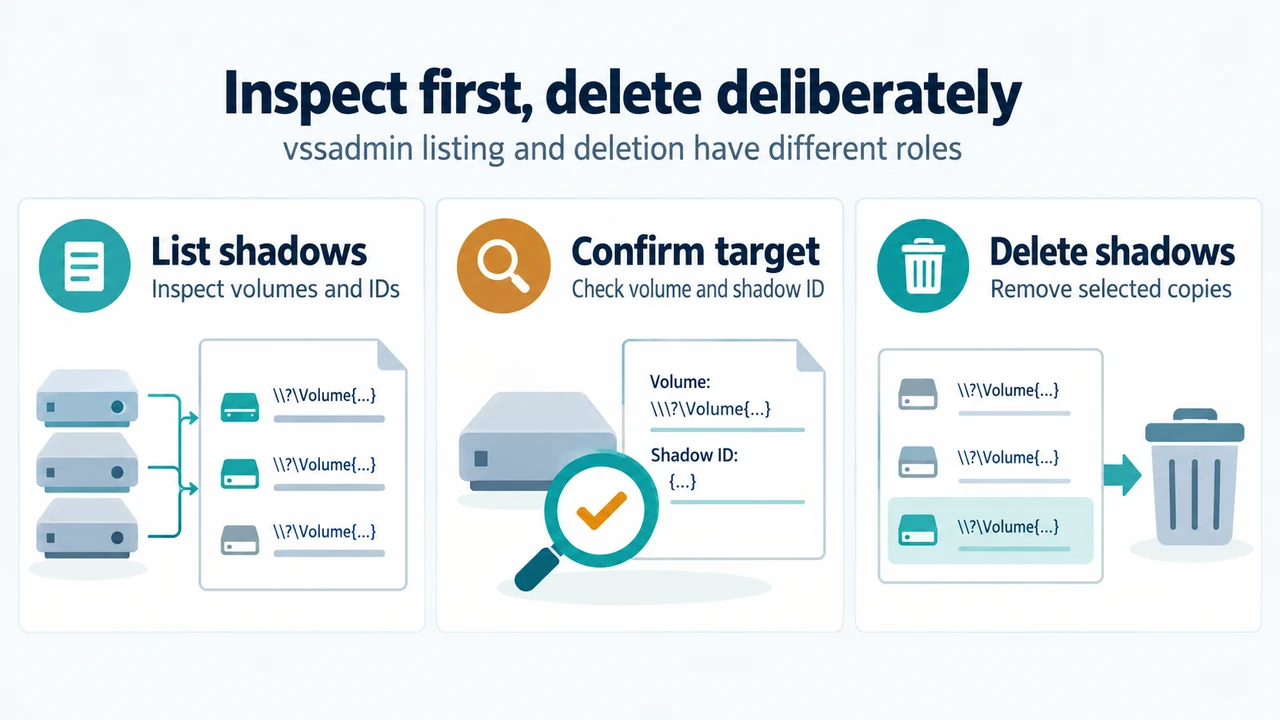
Before deleting snapshots, use vssadmin list shadows to confirm target volumes and view shadow copy IDs.
To display all volume shadow copies on the computer in the order dictated by Shadow Copy Set, run:
vssadmin list shadowsTo list shadow copies for a specific volume (such as C:), add the /for parameter:
vssadmin list shadows /for=c:To list a single shadow copy by its identifier, provide the ID in braces where each X represents a hexadecimal character:
vssadmin list shadows /shadow={XXXXXXXX-XXXX-XXXX-XXXX-XXXXXXXXXXXX}Step 2: Delete Client-Accessible Shadow Copies
Deleting a shadow copy is permanent and cannot be recovered. Confirm the volume and shadow copy IDs with vssadmin list shadows before removing anything.
Delete the Oldest Shadow Copy on a Volume
To delete only the oldest shadow copy on volume C:, run:
vssadmin delete shadows /for=c: /oldestDelete a Specific Shadow Copy by ID
To delete a single client-accessible shadow copy, first run vssadmin list shadows to obtain its ID. Then run the deletion command specifying the hosting volume and the shadow copy ID in hexadecimal format without braces:
vssadmin delete shadows /for=c: /shadow=XXXXXXXX-XXXX-XXXX-XXXX-XXXXXXXXXXXXDelete All Client-Accessible Shadow Copies on a Volume
To delete all client-accessible shadow copies on volume D:, run:
vssadmin delete shadows /for=d: /allTo delete all client-accessible shadow copies on volume D: without displaying messages while running, append the /quiet parameter:
vssadmin delete shadows /for=d: /all /quietParameter Reference
| Parameter | Supported Command | Description |
|---|---|---|
/for=<ForVolumeSpec> |
list shadows, delete shadows |
Specifies the volume whose shadow copies will be listed or deleted. |
/shadow=<ShadowID> |
list shadows, delete shadows |
Specifies the shadow copy ID. Used with braces {...} in list shadows, and without braces in delete shadows. |
/oldest |
delete shadows |
Deletes only the oldest shadow copy on the volume. |
/all |
delete shadows |
Deletes all of the specified volume’s shadow copies. |
/quiet |
delete shadows |
Specifies that the command will not display messages while running. |
Research Method and Limitations
This article was prepared solely from the supplied public Microsoft Learn documentation excerpts for vssadmin delete shadows and vssadmin list shadows. No competing coverage or external sources were consulted. The supplied excerpts do not document command-prompt elevation or user privilege requirements, nor do they detail the behavior of the diskshadow tool beyond its reference as an alternative when snapshots are outside the allowed context.
Text version of the diagrams
- Inspect first, delete deliberately: List shadows — Inspect volumes and IDs; Confirm target — Check volume and shadow ID; Delete shadows — Remove selected copies
- Know vssadmin’s boundary: Client-accessible — vssadmin can manage; Outside context — vssadmin cannot delete; diskshadow — Documented alternative